What if a visitor could get to the right product in your store with a handful of clicks instead of a search box?
The Heyflow integration adds guided click-through flows to your store — a short series of questions that walks a visitor from landing on your site to buying a product, with no code to write. Connecting Heyflow to your Salla store takes three stages, and this guide covers all of them. In this guide, you'll learn how to create a Heyflow account, copy your Heyflow key, install and activate the app, and build your first question flow.
Connecting Heyflow takes three stages: create a Heyflow account, build an embed and copy the Heyflow key, then install the Heyflow app from the Salla App Store, click (Activate app), paste the key into the field provided, and click (Save). Your flow then appears in your store.
📌 Article overview
- What Heyflow is
- How to connect Heyflow to your store
- Frequently asked questions
🎯 What Heyflow is
Heyflow helps you bring more visitors to your store and turn those visits into a sequence of small decisions — a handful of clicks that ends with a purchase. The setup is simple and needs no programming.
🚀 How to connect Heyflow to your store
The connection runs in three stages:
- Create a Heyflow account.
- Copy the Heyflow key.
- Install the Heyflow app and connect it to your Heyflow account.
Stage 1: create a Heyflow account
1. On the Heyflow sign-up page, enter the details it asks for — store name, email address, and password — then click (Create account).
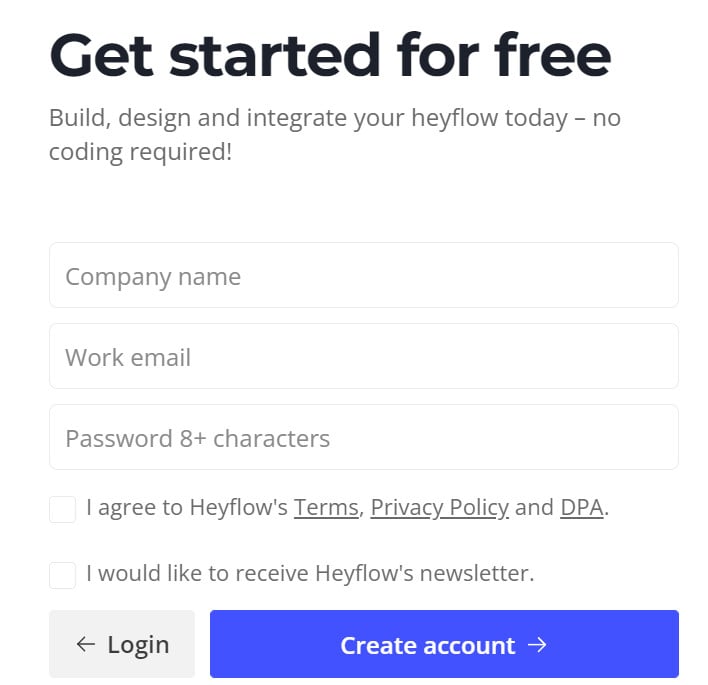
A few short steps and your Heyflow account is ready.

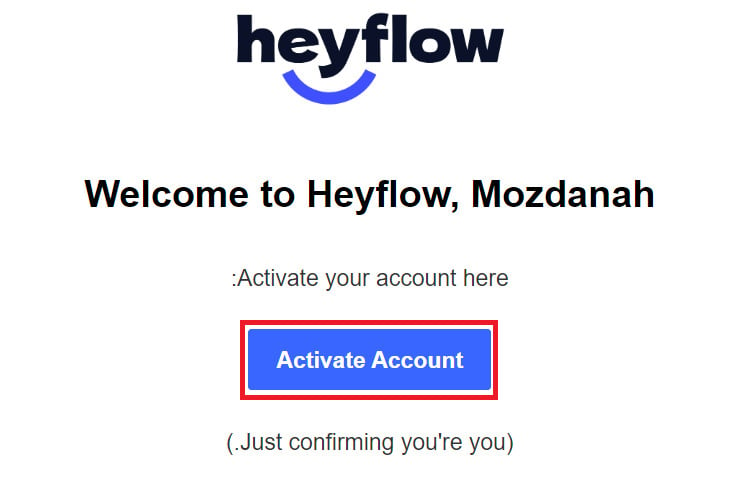
2. Check the inbox of the email address you registered with Heyflow to activate and confirm the account.
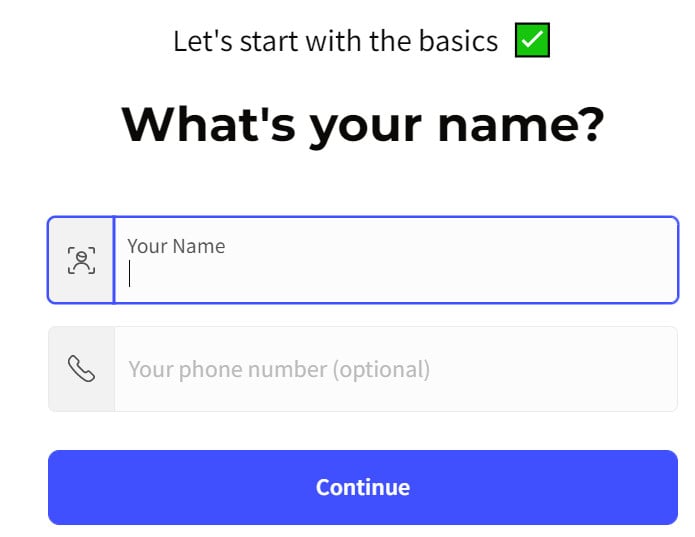
3. Enter your name and your phone number (optional), then click (Continue).
4. Say how much experience you have with no-code tools, then click (Continue).
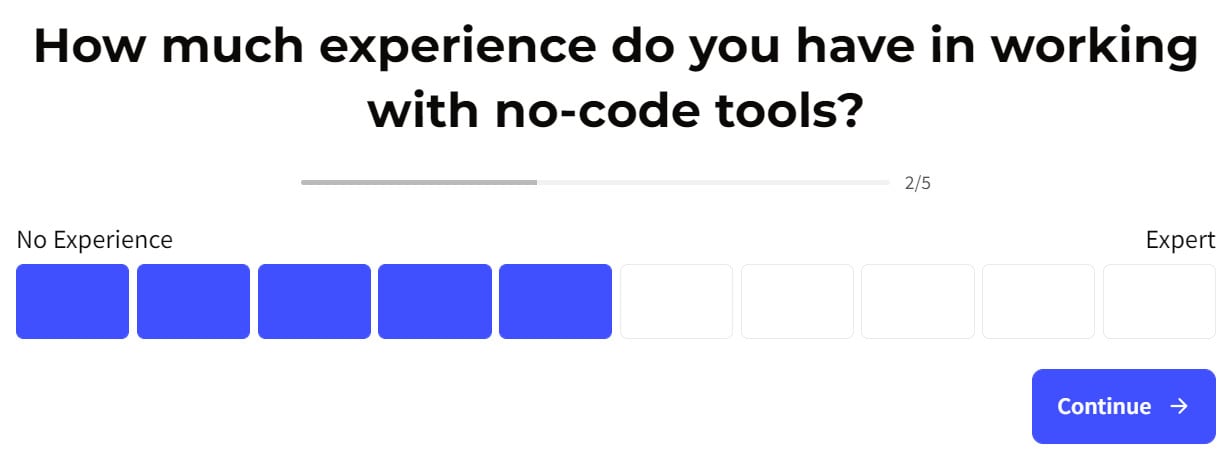
5. Choose what you want to learn, so Heyflow can send you the right guidance and best practices, then click (Next).

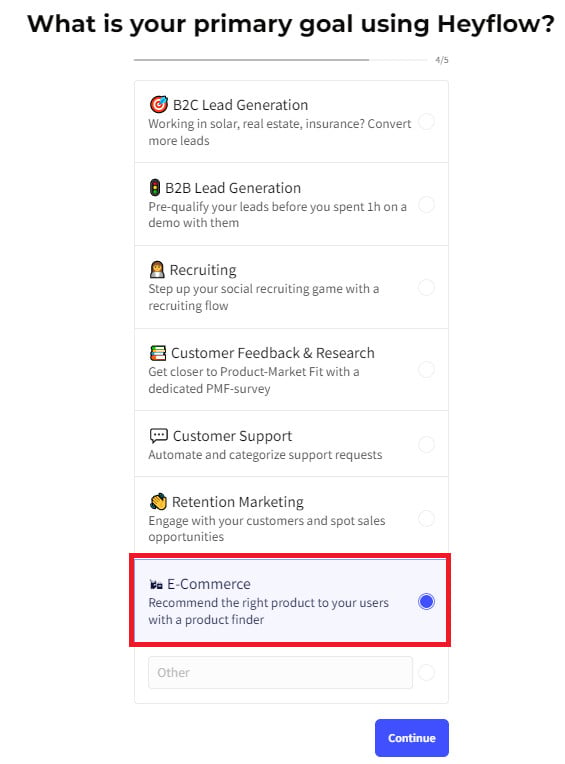
6. When Heyflow asks about your main goal, select (E-Commerce), then click (Continue).
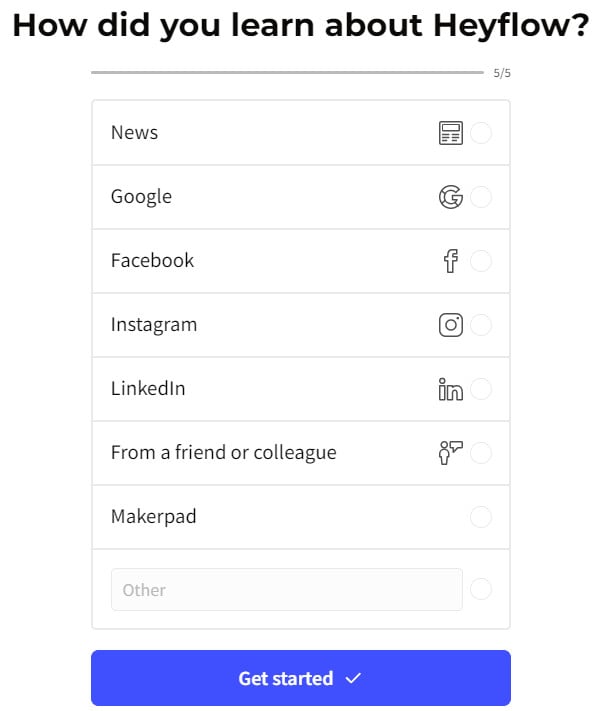
7. Say how you heard about Heyflow, then click (Get started).
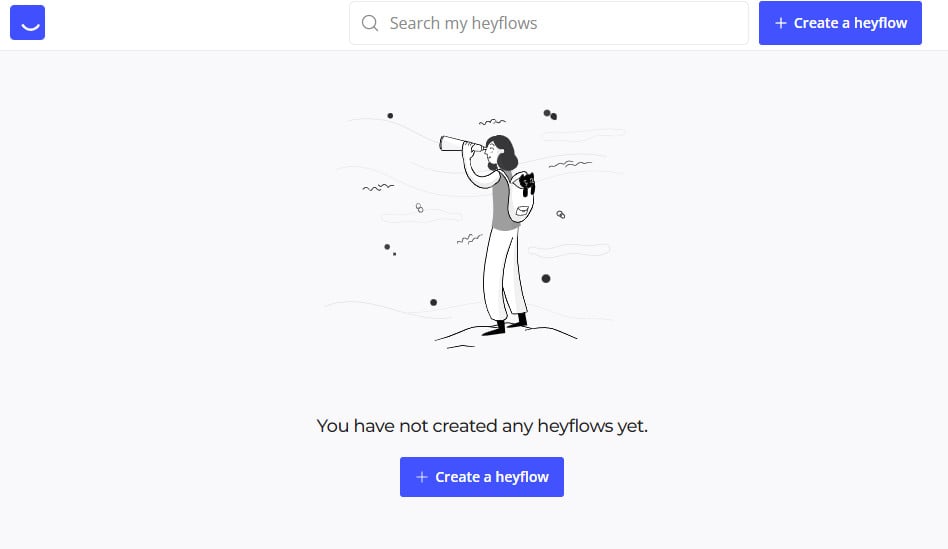
Your Heyflow account is ready, and the home page looks like this:
Stage 2: copy the Heyflow key
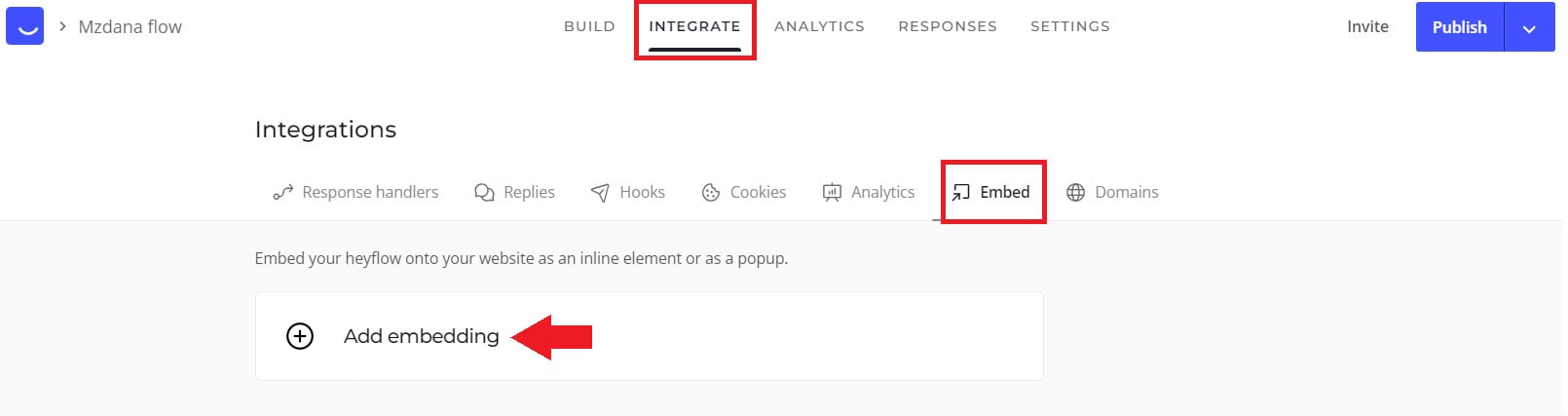
1. From the Heyflow home page, open the (INTEGRATE) tab, click (Embed), then click (Add embedding).
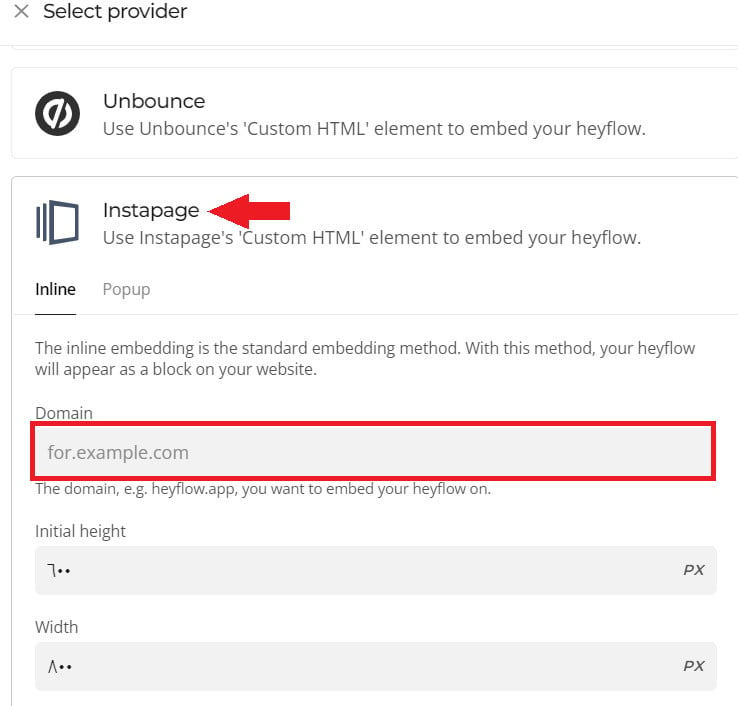
2. Pick (Instapage) from the list and add your store domain [Verify: the Arabic instructs merchants to pick the Instapage option for a Salla store — confirm this is the right embed type].
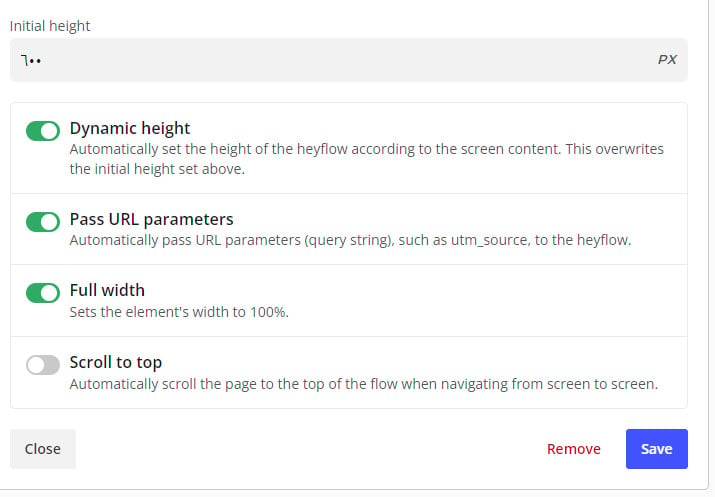
Set the form properties as well, then click (Add inline).
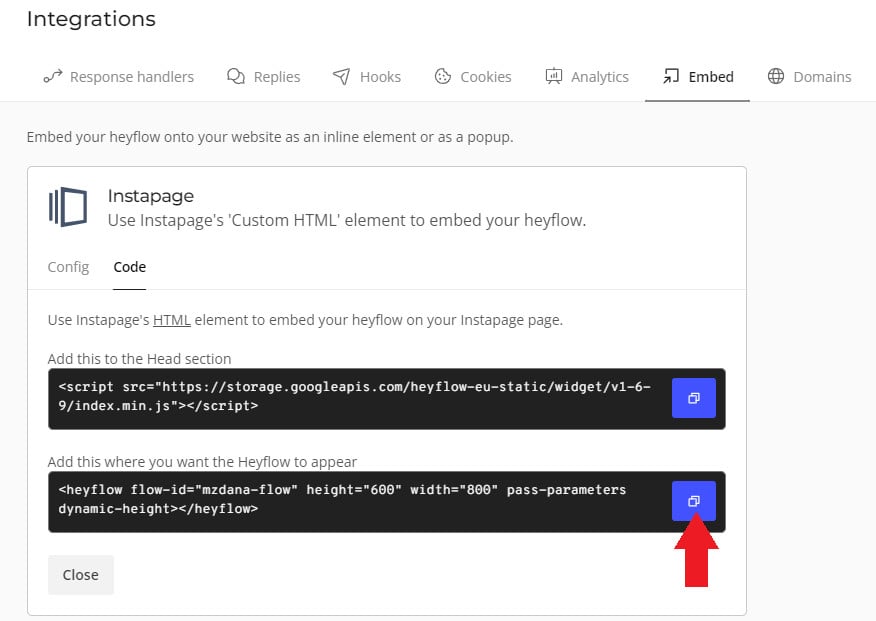
3. Copy the second code — the one that carries the question settings.
Stage 3: install and activate the Heyflow app
1. From the side menu of your dashboard, click (My installed apps).

2. From the Salla App Store banner, click (Browse Salla App Store).

3. On the Heyflow app, click (Install).
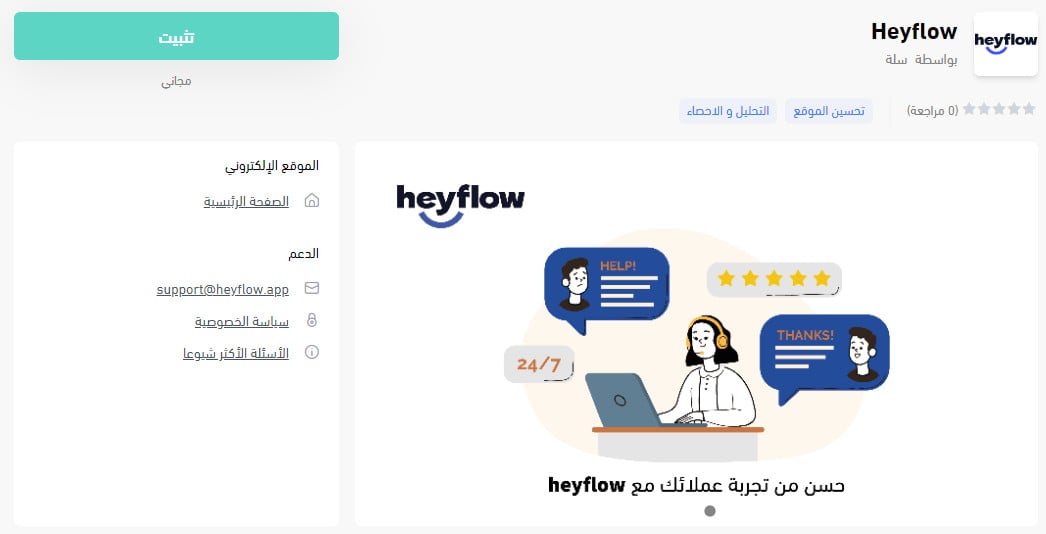
The app is installed — all that's left is to activate it.

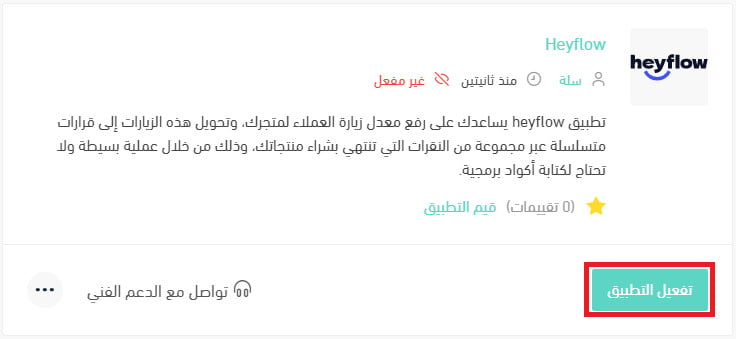
4. From the installed apps page, click (Activate app).
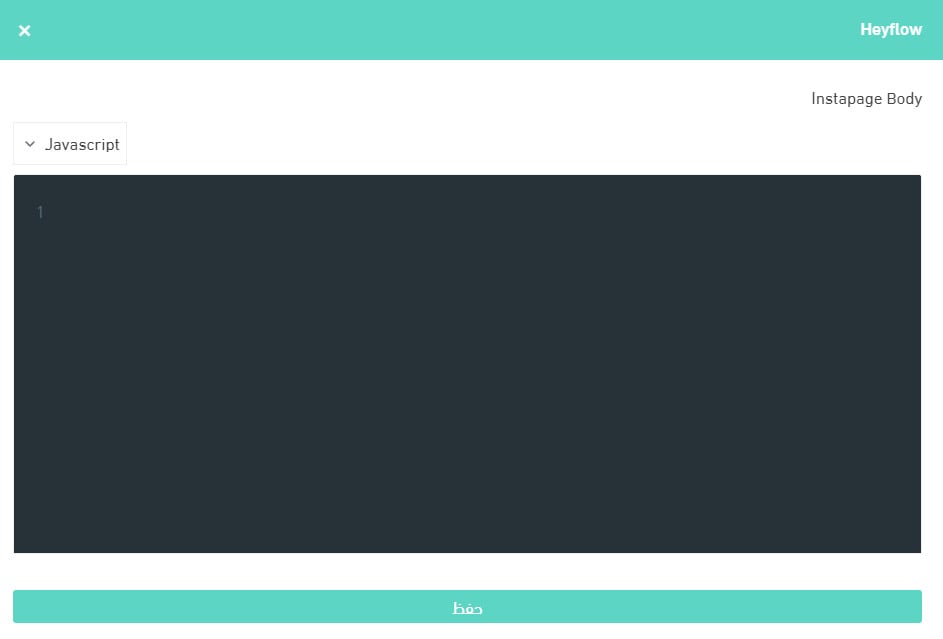
5. Paste the code you copied in the previous stage into the field provided, then click (Save).
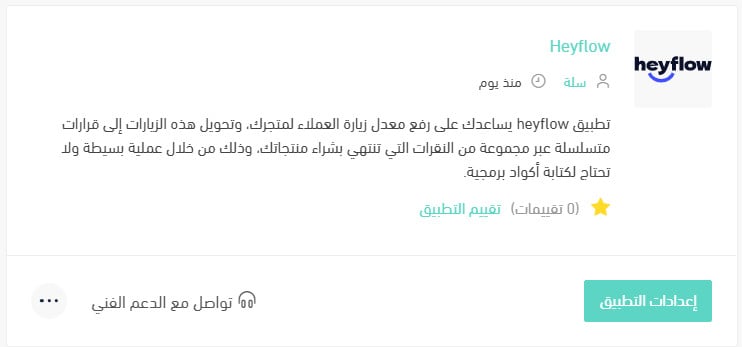
The app is now active, and it looks like this:
For more details, see managing my store's apps.
❓ Frequently asked questions
Here are the answers to the questions merchants ask most:
- How do I build a question flow in Heyflow?
- How do I remove the Heyflow app from my store?
How do I build a question flow in Heyflow?
1. From the Heyflow home page, click (Create a Heyflow).
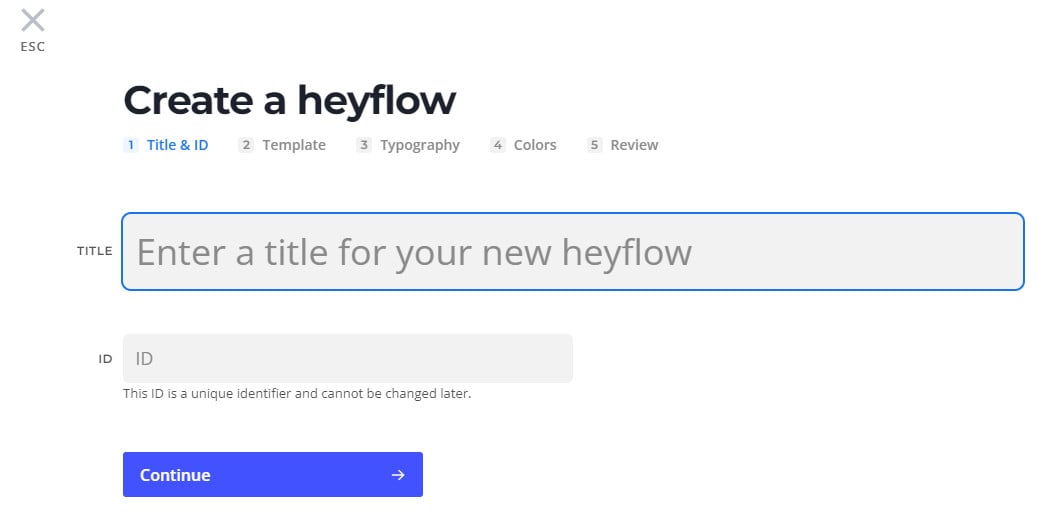
2. Give the flow a descriptive name — a unique ID is generated for it automatically — then click (Continue).
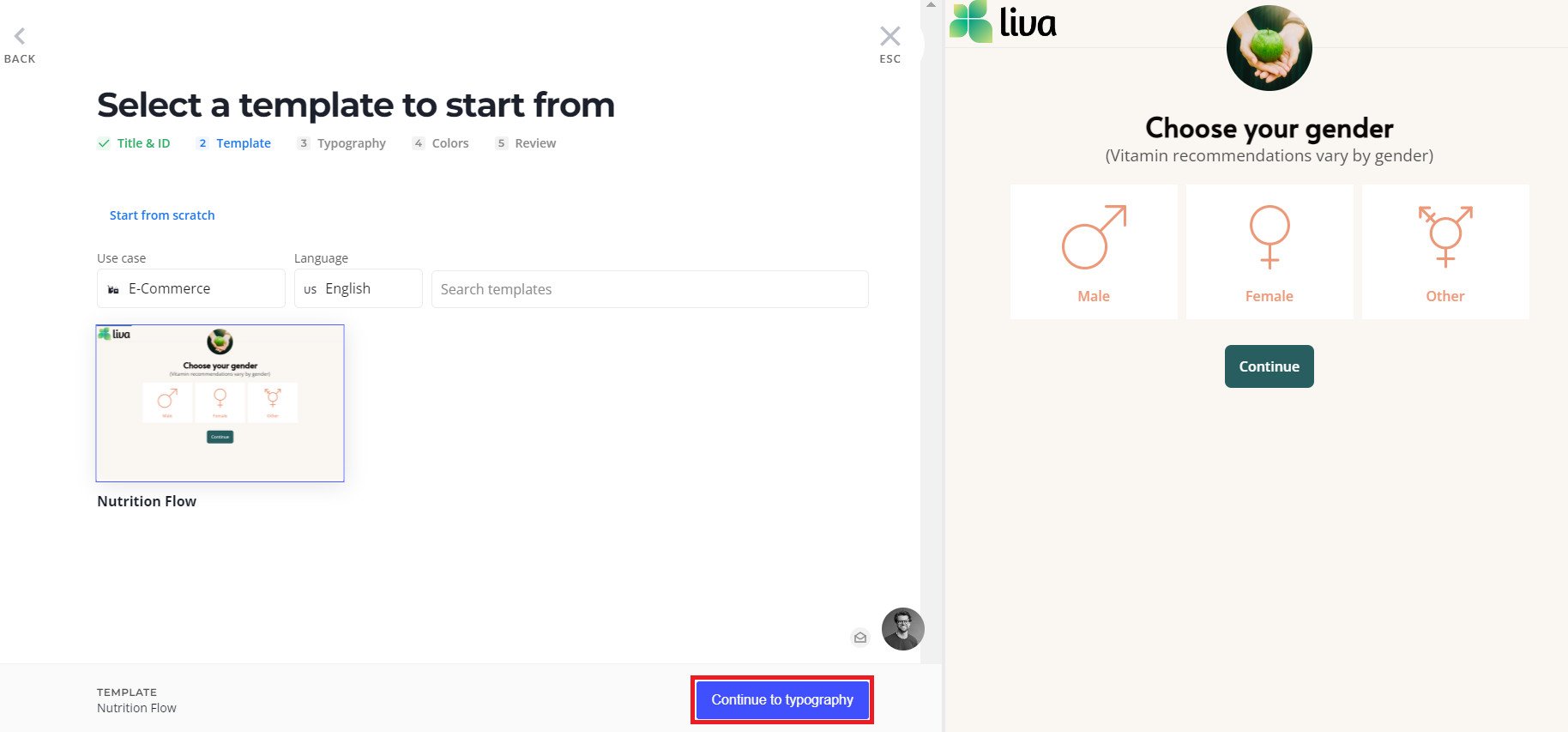
3. Pick the template that suits the new flow, then click (Continue to typography).
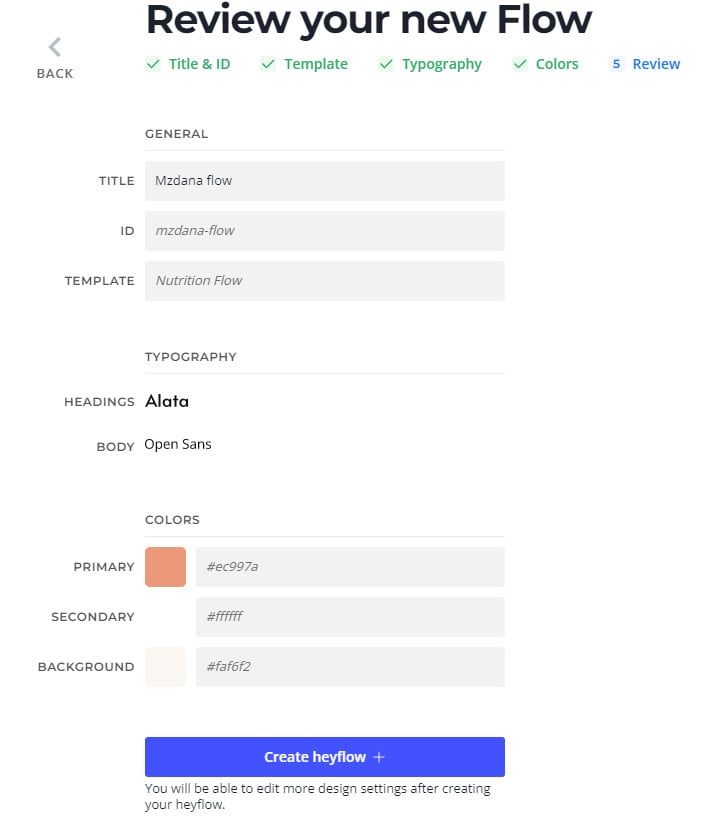
4. Customize the font and its color, then click (Create heyflow).
5. Shape the question flow around what your business needs, then click (Publish).
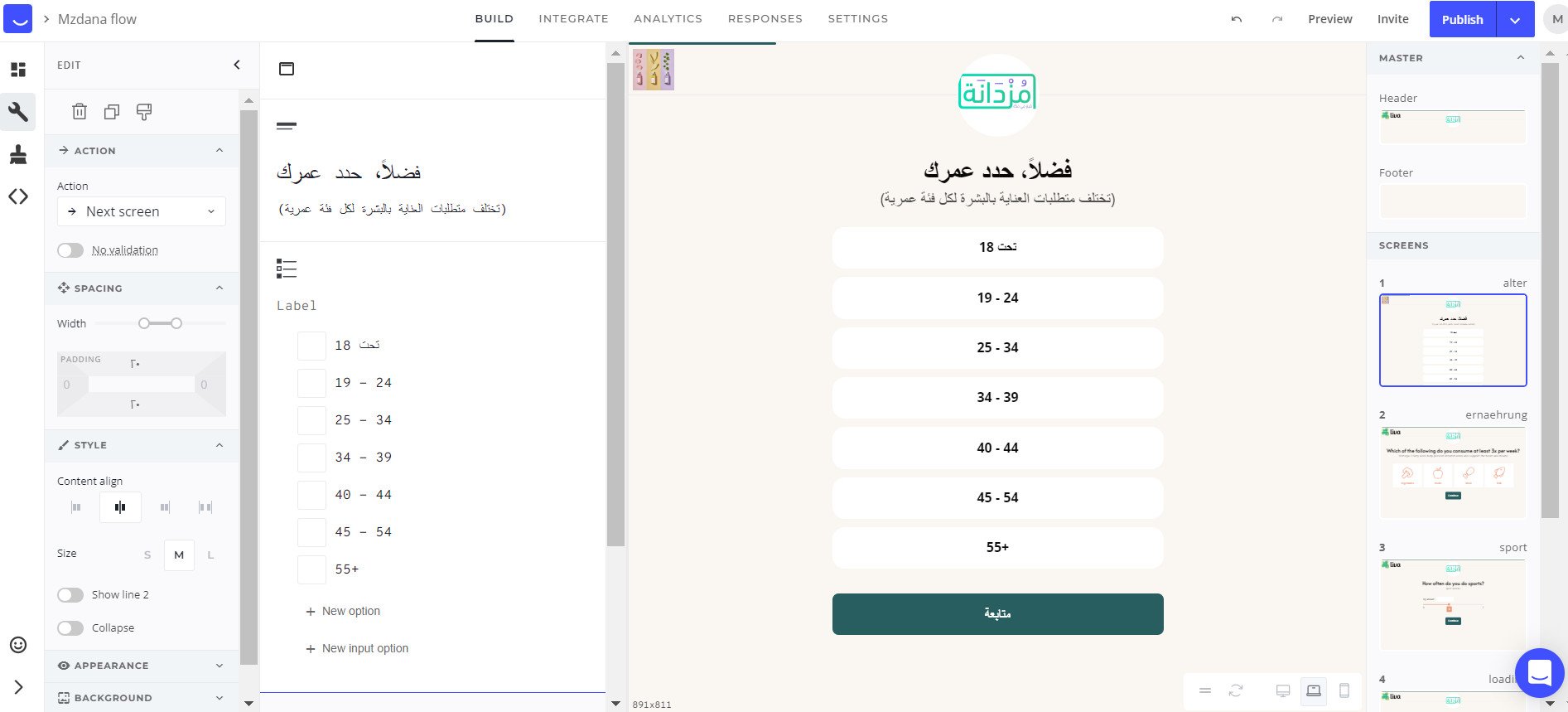
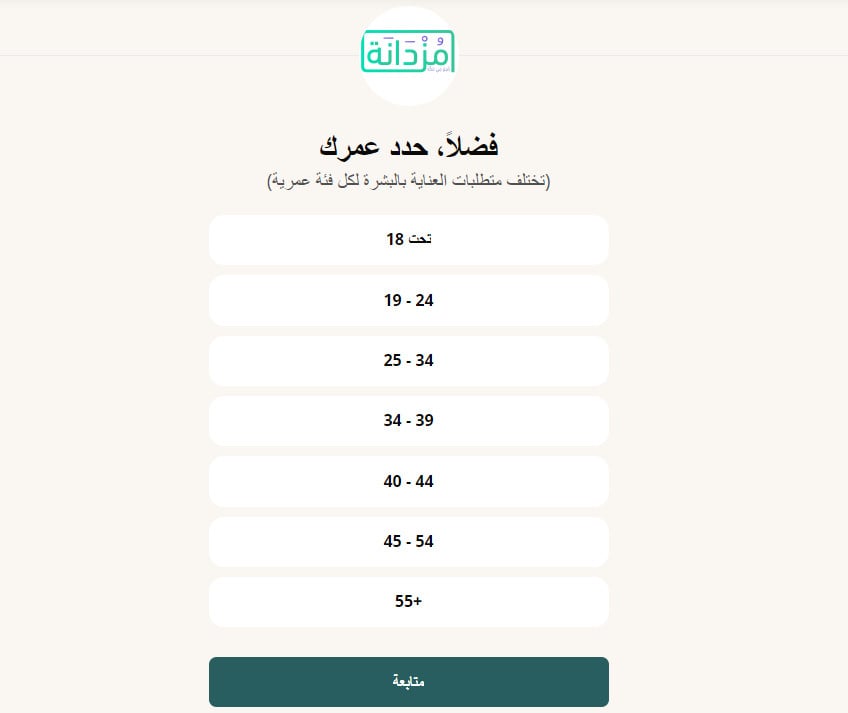
Depending on your settings, the questions appear in the middle of the screen, like this:
Do I need to write code to use Heyflow?
No. Building the flow and connecting it to your store is done through the interface — the only technical step is pasting the key you copied from Heyflow into the app settings.
Where does the flow appear in my store?
In the middle of the screen, and its exact placement depends on the settings you choose when you build the flow.
How do I remove the Heyflow app from my store?
1. From the side menu of your dashboard, click (My installed apps).

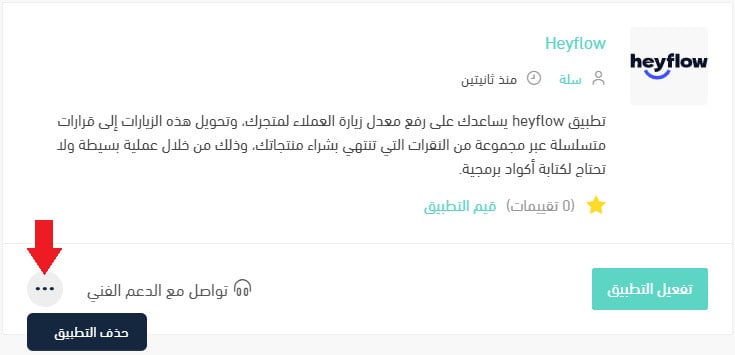
2. From the all apps page, on the Heyflow app, click the (...) icon and then click (Delete app), as shown in the image.