Which parts of your store page actually catch a visitor's eye, and which ones do they scroll straight past?
You can redesign a page on instinct, or you can look at what visitors really do on it. The Heatmap integration counts how visitors move around your store and turns that into a heat map, so you can see which elements pull attention and which ones get ignored. From there the fix is obvious: swap an image, or move an important product into the spot people look at first. In this guide, you'll learn how to create a Heatmap account and install the app on your Salla store.
Connecting Heatmap takes two stages. Create a Heatmap account on heatmap.com using your store domain, then install the Heatmap app from the Salla App Store and grant it permission. Your store links to the Heatmap service automatically after installation, so there is no key to copy or paste.
📌 Article overview
- What is Heatmap?
- How to connect Heatmap to your Salla store
- Frequently asked questions
🎯 What is Heatmap?
Heatmap is an automatic analytics tool that counts the movements of your store's visitors so you can see which elements attract the most interest. That tells you what to act on — changing a particular image, for example, or placing your important products where the most visitors look — which improves the customer experience and lifts your sales.
🚀 How to connect Heatmap to your Salla store
The Heatmap integration is done in two stages:
- Create a Heatmap account.
- Install the Heatmap app.
📝 Important notes
Your store and the Heatmap service are linked automatically once the app installation stage is done.
Stage one: create a Heatmap account
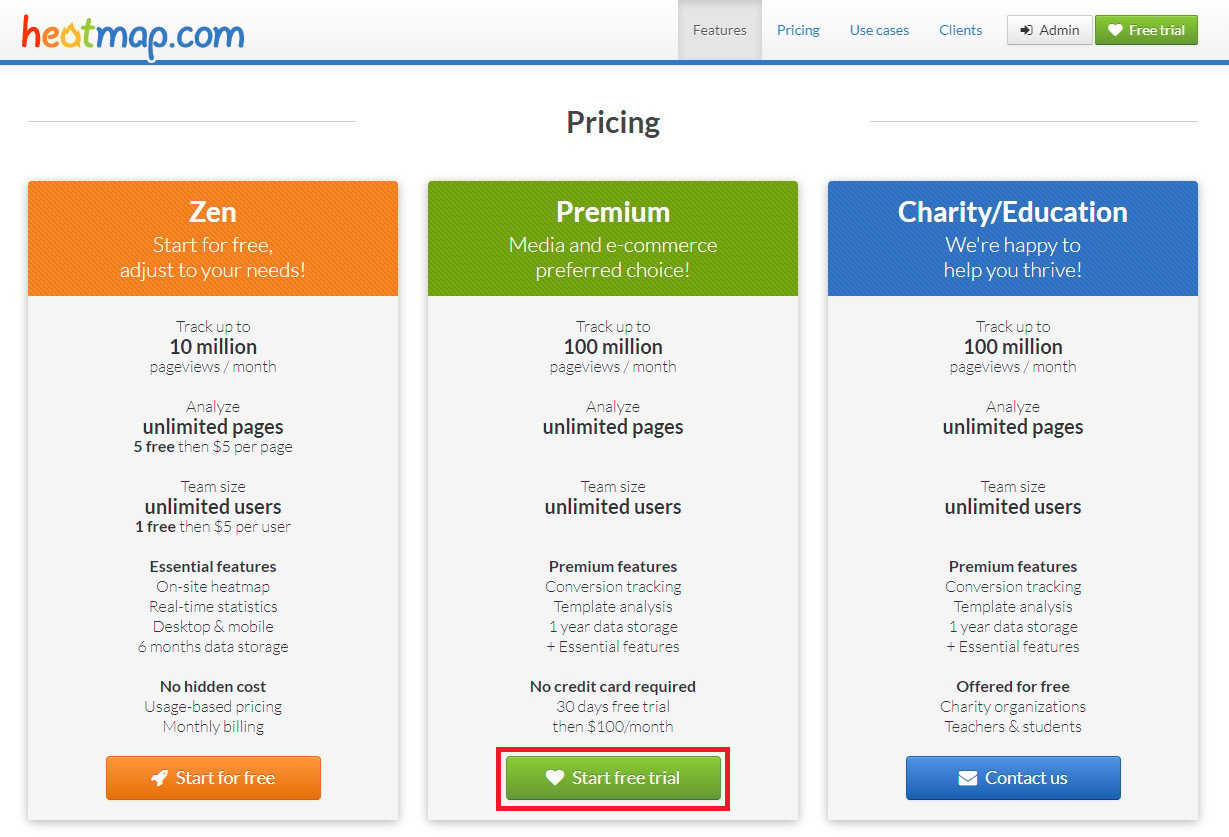
1. From the Heatmap home page, choose the plan that suits your store, then click (Signup for free).
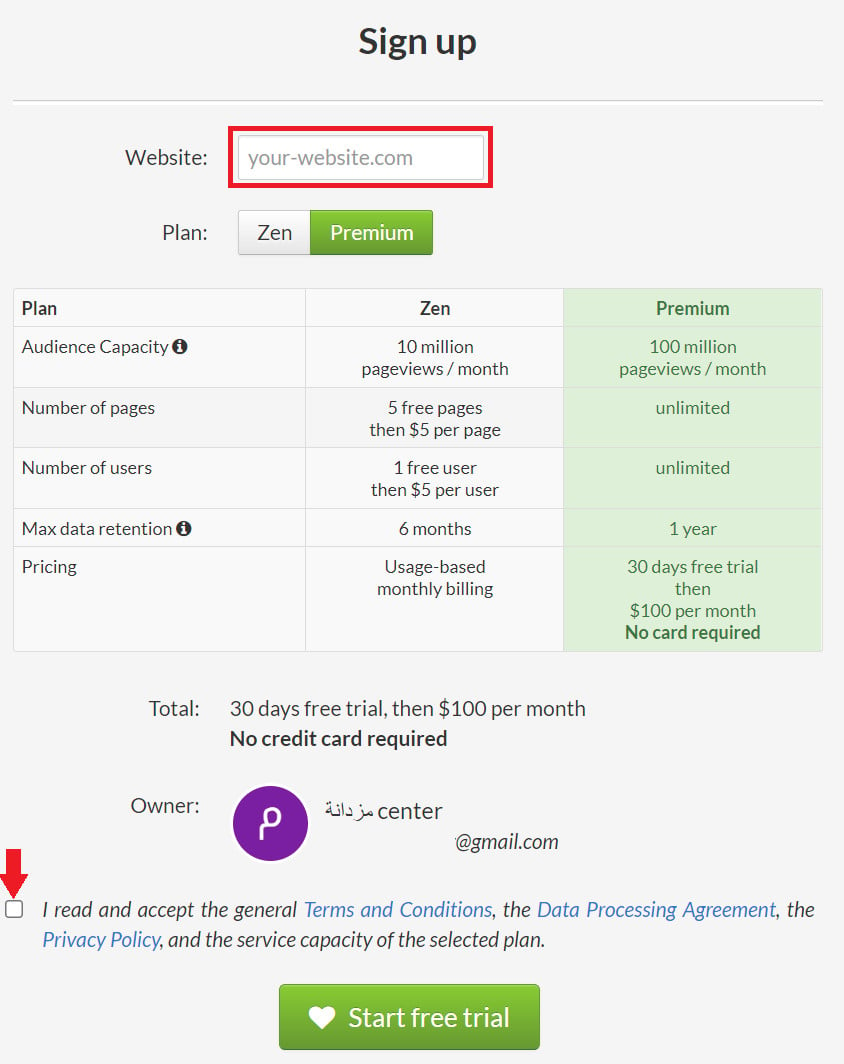
2. Enter the details it asks for (your store domain and your chosen plan), then click (Start for free trial).
📝 Important notes
Your store must have its own domain. For more details, read managing your store domain on Salla.
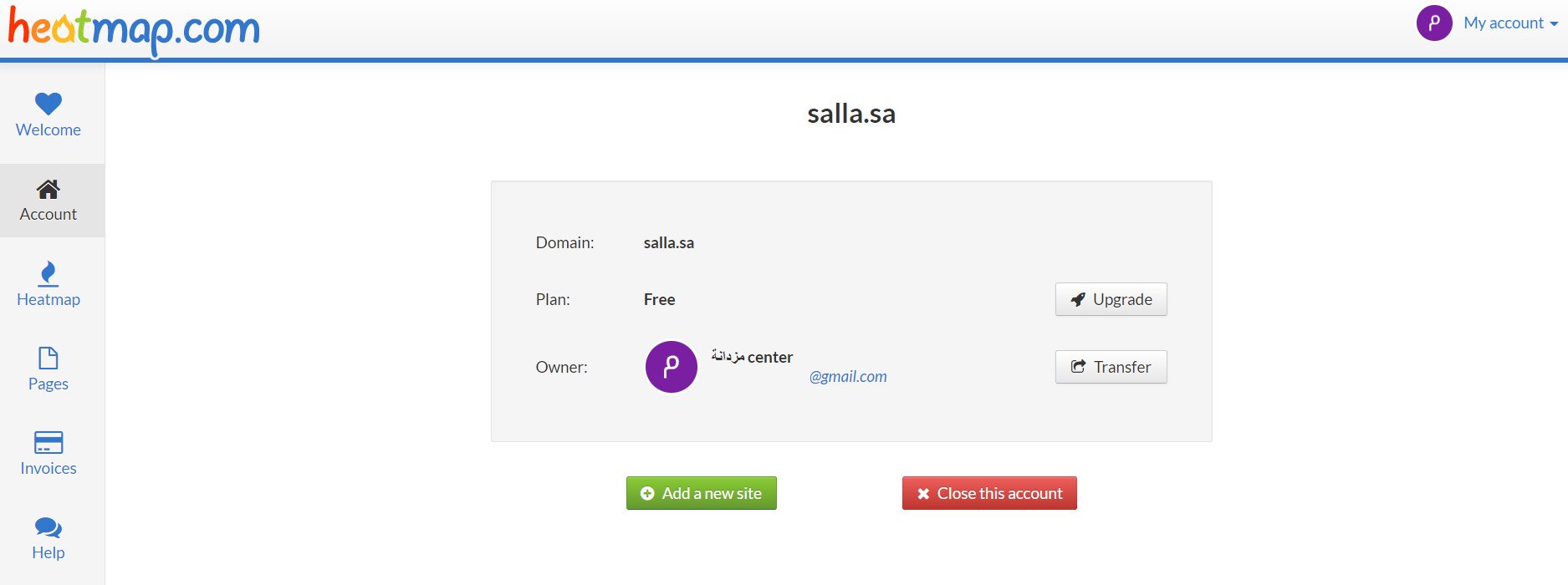
Your Heatmap account is now ready.
Stage two: install the Heatmap app
1. From the side menu of your dashboard, click (My installed apps).

2. From the Salla App Store banner, click (Browse Salla App Store).

3. From the Heatmap app page, click (Install).
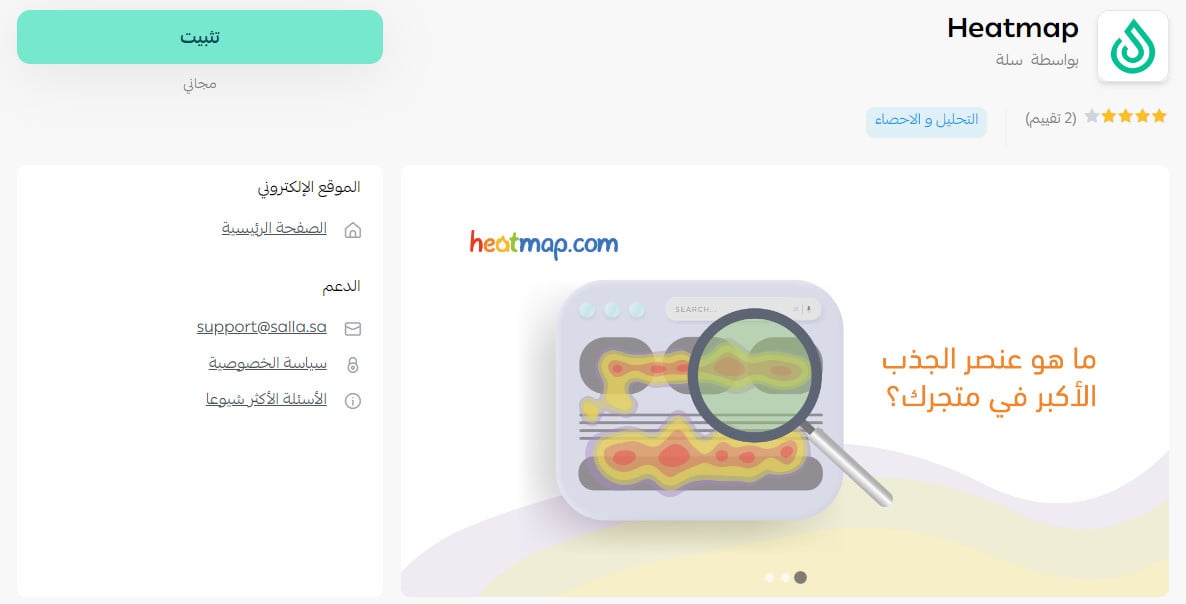
4. Review the permissions the app asks for, then click (Grant permission).
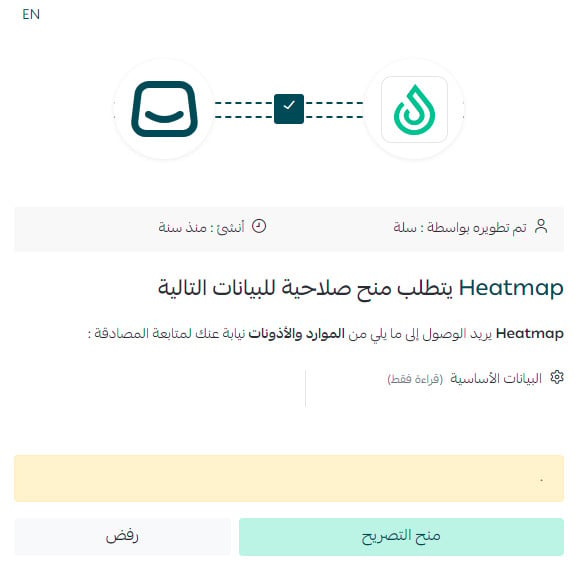
The app is now installed on your store.
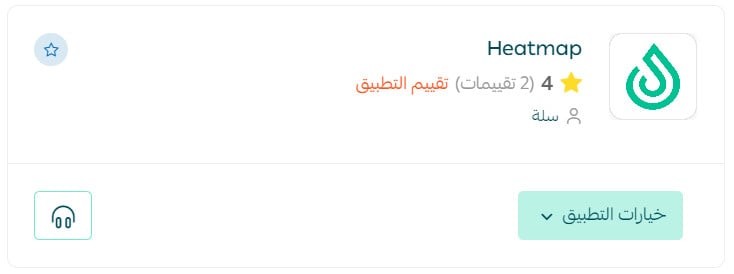
For more details, read managing my store's apps.
❓ Frequently asked questions
What can I do with the Heatmap app?
- See exactly how your store's visitors move and where their interest sits, in real time.
- Collect the data as a heat map that is easy to read.
- Protect customer privacy, since only movements are shown and no personal data is used.
- Analyze every dynamic element on your store page, whether it is a menu, an image, a video, an icon, or anything else.
- Review the analysis results easily, at any time.
- Find where your store needs work by seeing the areas that attract the least visitor attention.
- Use a free trial with no time limit.
Do I need my own domain to use Heatmap?
Yes. Your store must have its own domain before you can create the Heatmap account, because you enter that domain during signup.
Do I have to link my Heatmap account to my store manually?
No. Your store and the Heatmap service are connected automatically once you finish installing the app.
How do I delete the Heatmap app from my store?
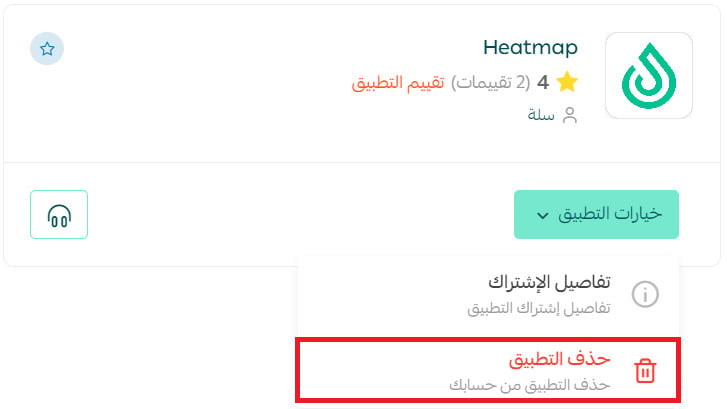
1. From the side menu of your dashboard, click (My installed apps).

2. On the all apps page, find the Heatmap app, click (App options), then click (Delete app).
A heat map turns guesswork about your store layout into something you can look at, and small placement changes are usually the cheapest way to lift a page's performance.