Do you know what your visitors actually do between landing on your store and leaving it?
The Heap app connects your Salla store to a digital analytics platform that tracks visitor behavior automatically — where shoppers move inside your store, what pulls their attention, how long they spend reading text or looking at products, and more. Heap analyzes all of it and presents it in a clear, readable form, with no developer or data analyst needed. In this guide, you'll learn how to connect Heap to your store.
Connecting Heap takes two stages. First, create a Heap account and copy your tracking code from the web installation screen. Then install the Heap app from the Salla App Store, activate it from the (App options) menu, paste the tracking code into the extraction field, and save. Tracking starts from there.
📌 Article overview
- What Heap is
- Stage 1: create a Heap account
- Stage 2: install and activate the Heap app
- Frequently asked questions
🎯 What Heap is
Heap is a digital platform that tracks the behavior of your store's visitors: how they move around the store, what attracts them most, the time they spend reading text or viewing products, and other data. It then analyzes that data and presents it to you in a clear, easy-to-understand form, without needing a developer or a data specialist.
🚀 Steps to connect Heap
The integration runs through two stages:
1. Create an account on Heap.
2. Install the Heap app and activate it.
Stage 1: create an account on Heap
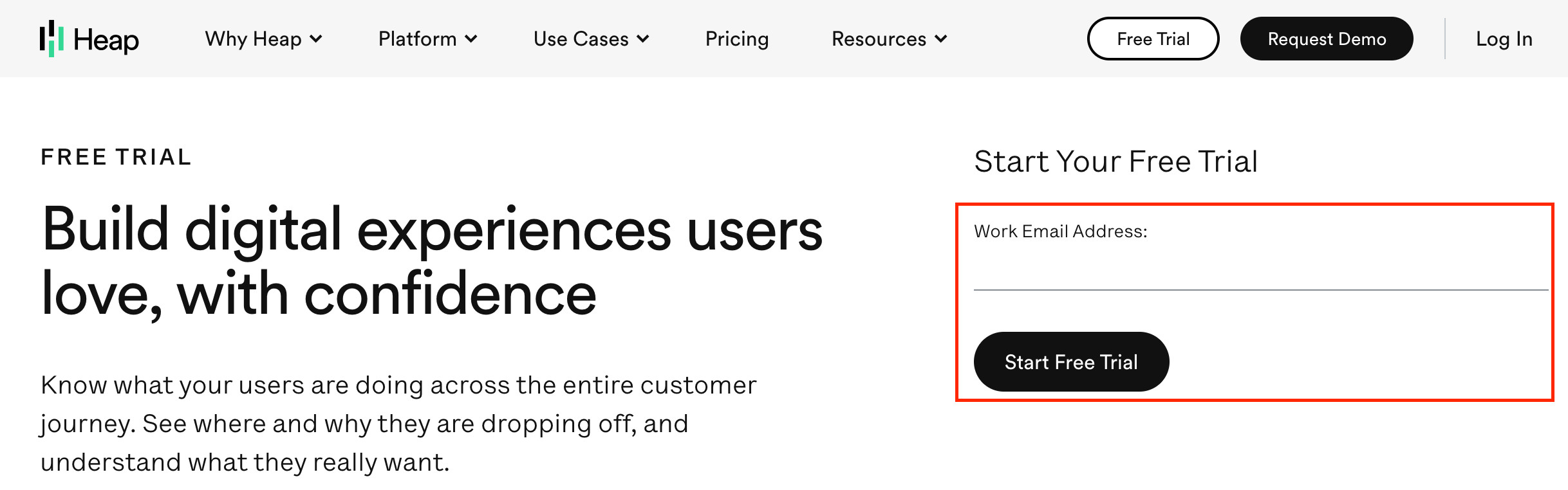
1. On the Heap sign-up page, enter your email address and click (Start free trial).
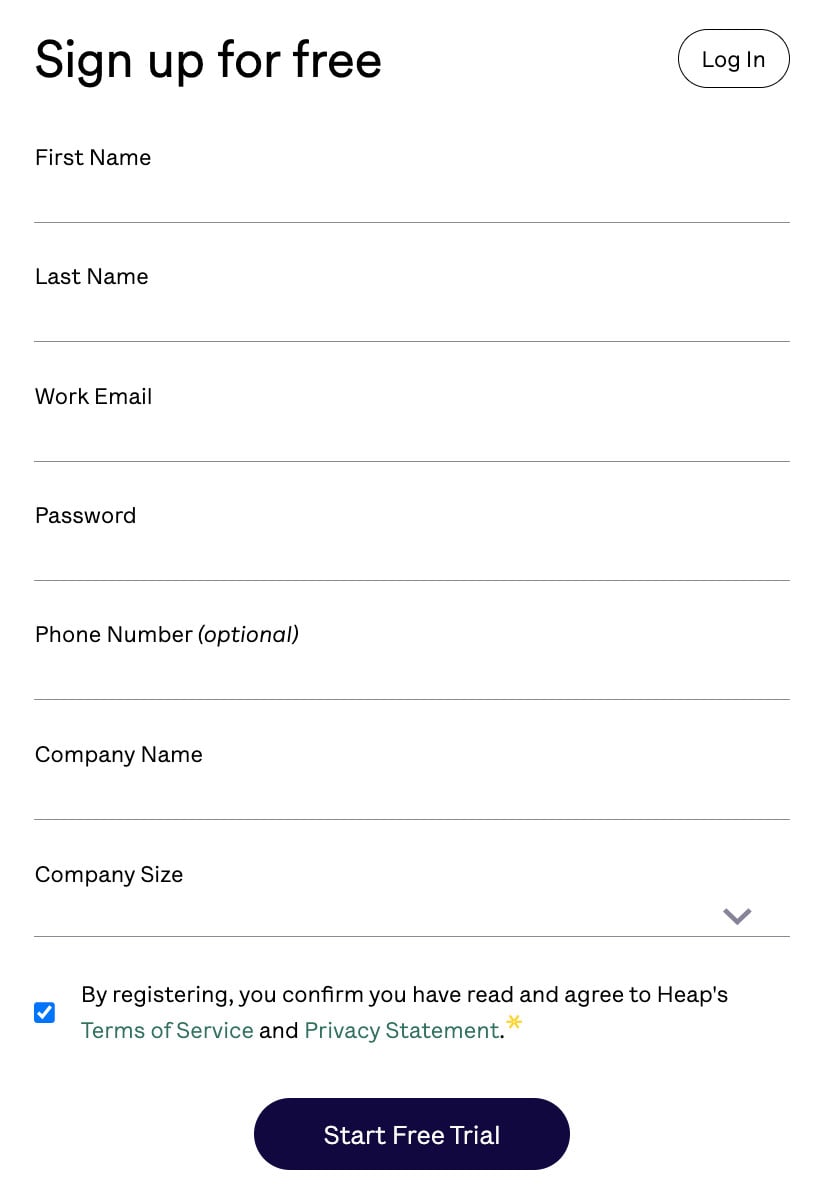
2. Fill in the account details Heap asks for — first name, last name, work email, password, phone number (optional), company name, company size, and number of employees — agree to the terms of use and privacy policy, then click (Start free trial).
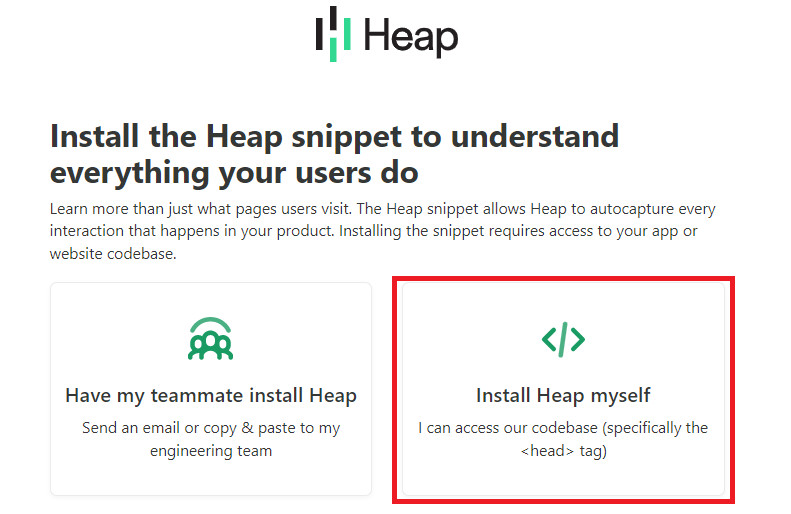
3. To get your tracking code, click (Install Heap myself).
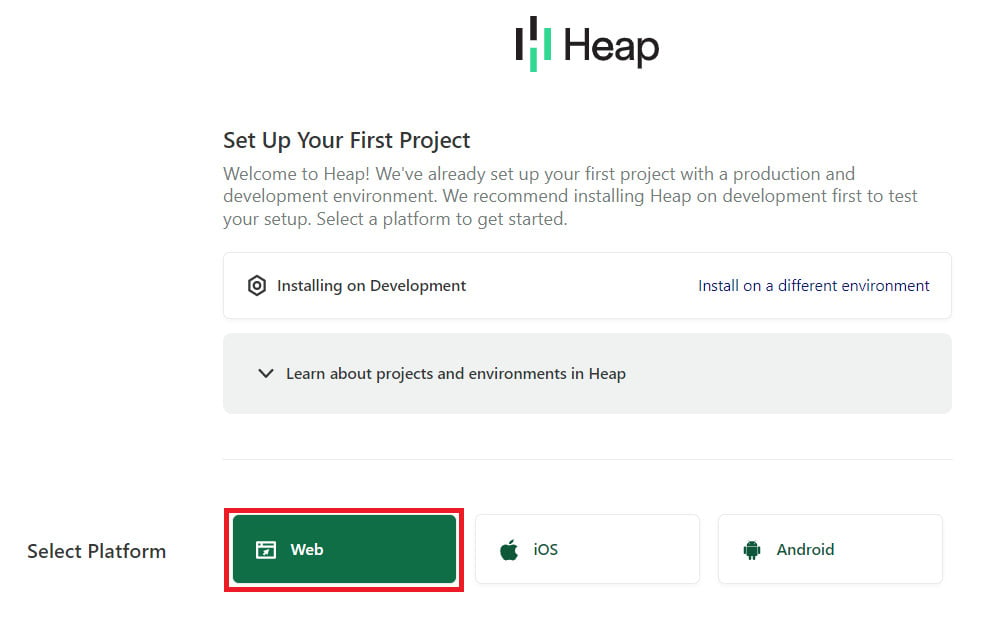
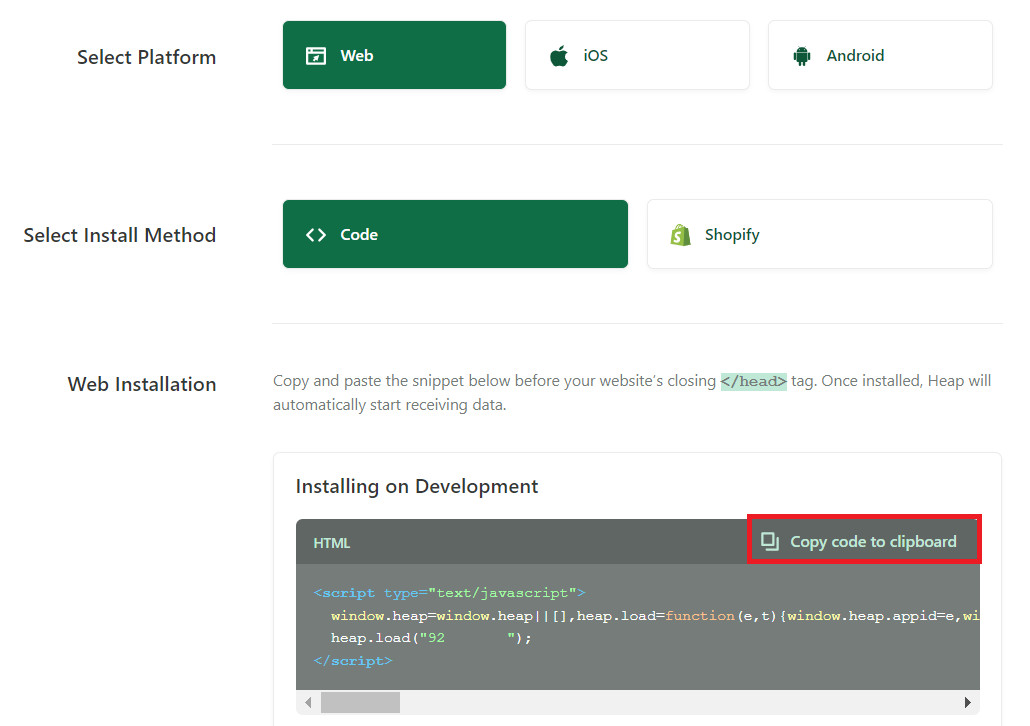
4. Choose the platform you're connecting to by clicking (Web).
5. Click (Copy code to clipboard) to copy the tracking code.
Stage 2: install the Heap app and activate it
1. From the side menu of your dashboard, click (Installed apps).

2. On the Salla App Store banner, click (Browse the Salla App Store).

3. Open the Heap app and click (Install).
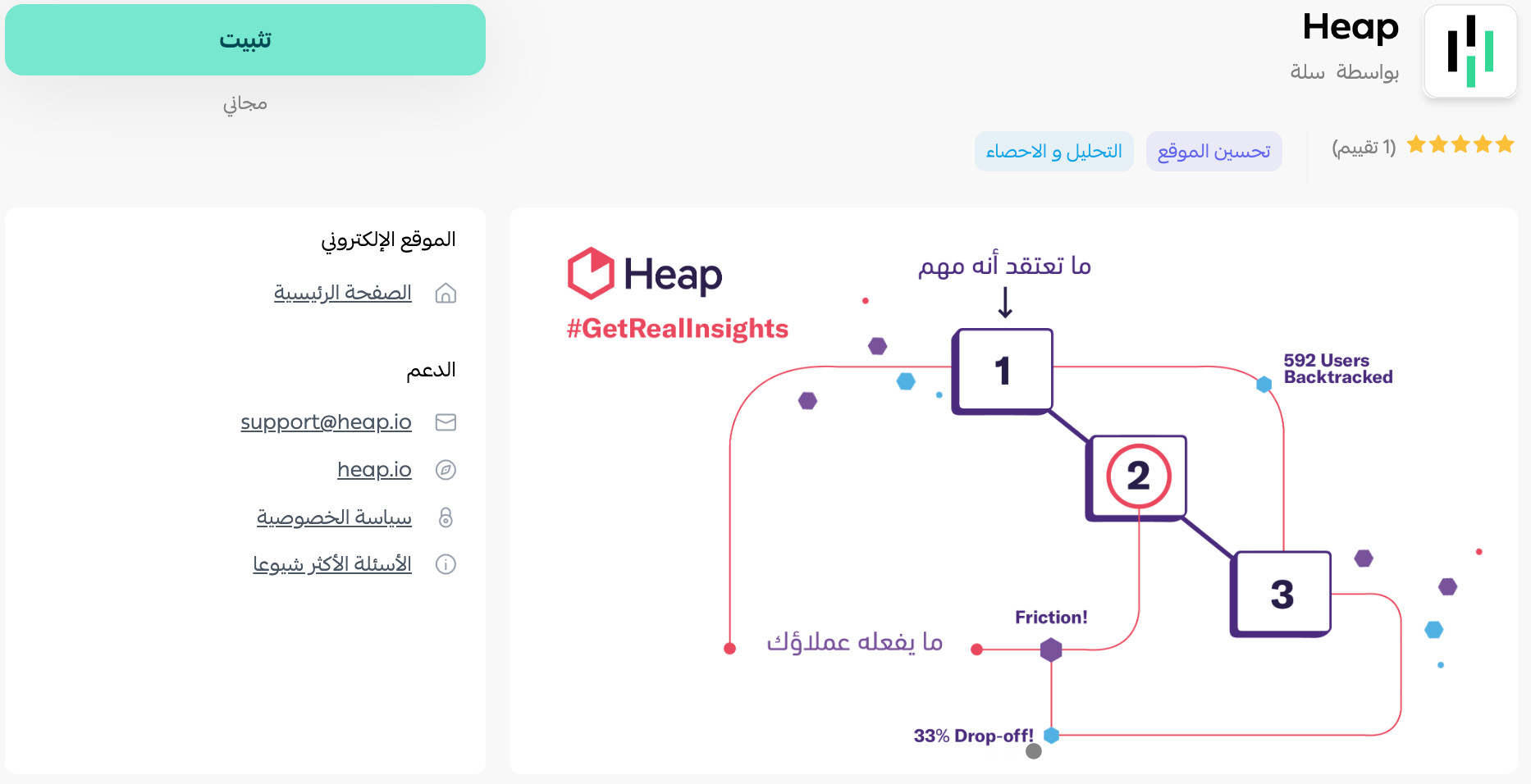
The app is now installed on your store.
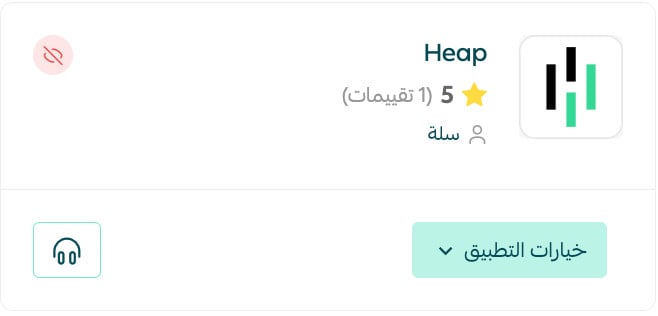
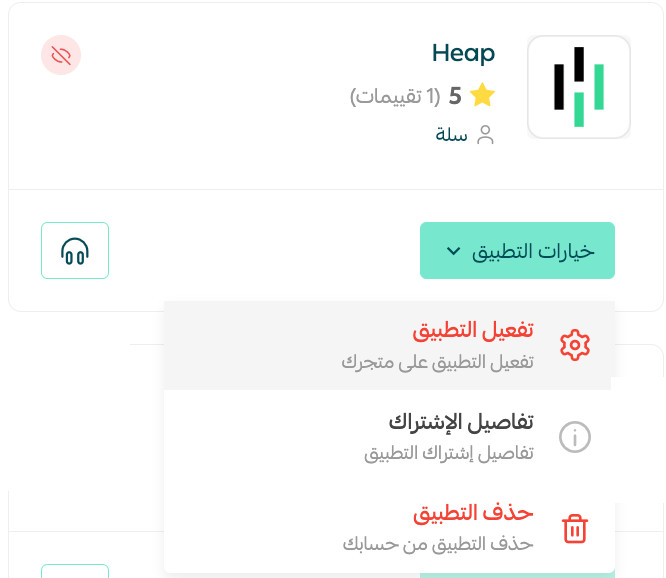
4. To activate the app, click (App options), then (Activate app).
5. Paste the code you copied in the last step of stage 1 into the code extraction field, click (Extract), then click (Save).

That's it — the Heap app is now active on your store.
For more details, see managing your store's apps.
❓ Frequently asked questions
What do I get out of connecting Heap?
Heap collects all the data about your customers automatically. It shows you what they click, where they go, and what they do, without needing a specialist. Specifically, it lets you:
- Surface the most consistent patterns your visitors repeat, so you can improve their digital experience.
- Work with visual, easy-to-use tools that help you shape where your business goes next.
- See at a glance which areas of your store deserve attention.
- Own all your data with no manual effort, with immediate pointers to what needs fixing or developing.
- Use more than 100 complementary tools that work together to get the right information to the right customers at the right moment in their journey through your store, accurately and automatically.
How do I view my results in Heap?
There are many views available. As one example, from the Heap home page click (See events happening right now).
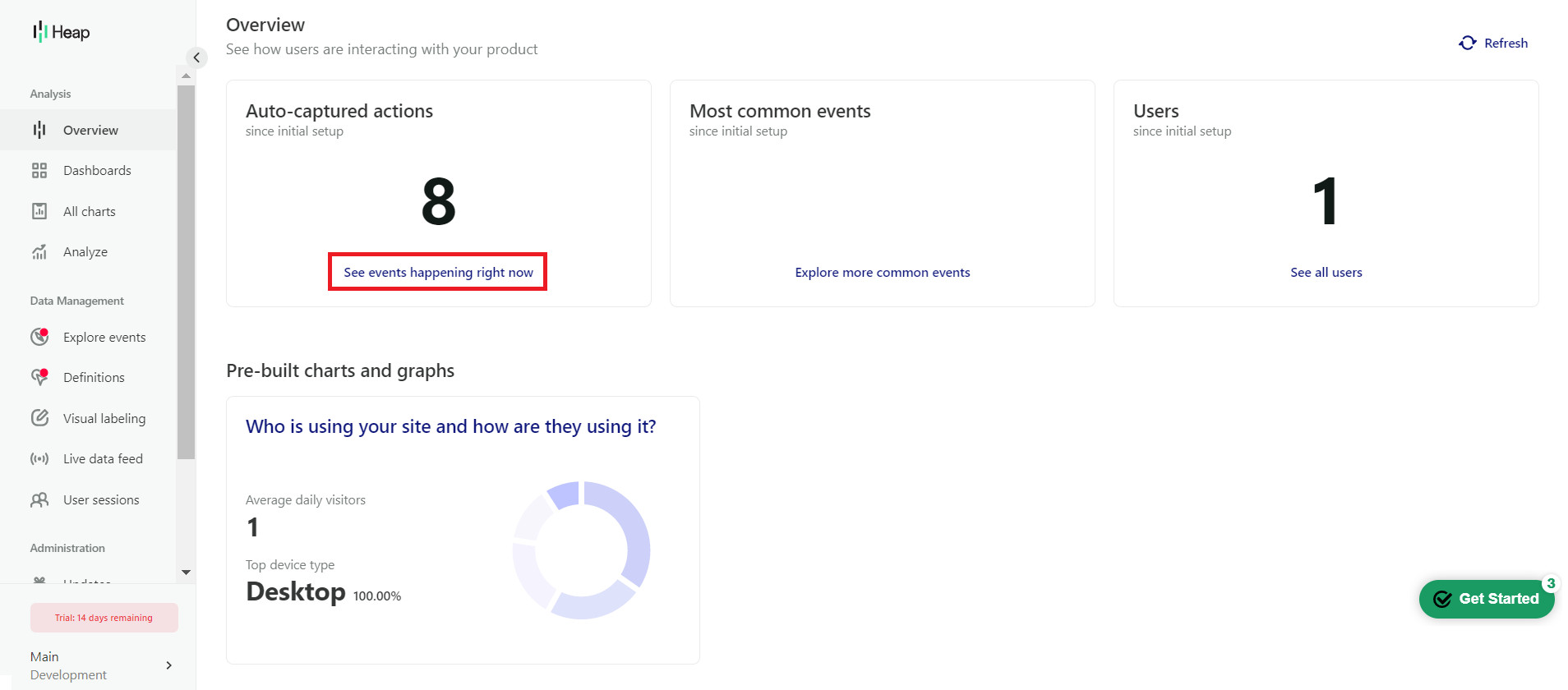
Heap then shows you every event you've chosen to track.

How do I remove the Heap app from my store?
1. From the side menu of your dashboard, click (Installed apps).

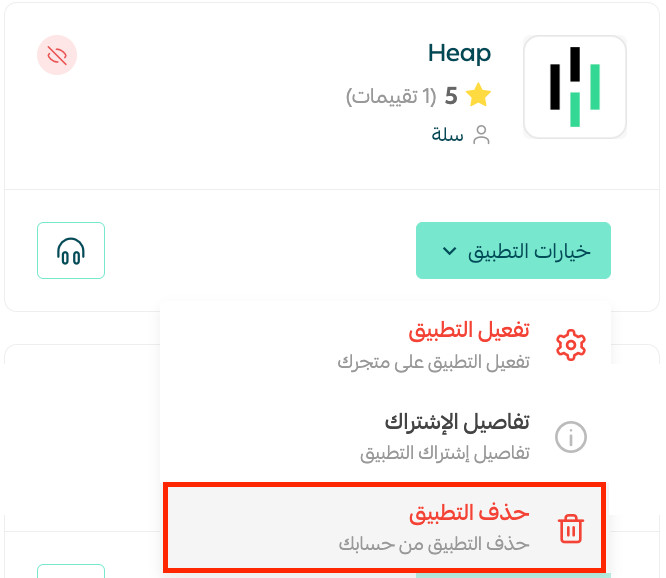
2. On the all apps page, find the Heap app, click (App options), then (Delete app), as shown in the image.
Do I need a developer to set Heap up?
No. Creating the account, copying the tracking code, and pasting it into the app settings are all you need, and Heap analyzes and presents the data without a developer or data analyst.