How many of the messages your support team answers every day are the same three questions?
The FAQ app puts your most common questions and answers on every page of your store, so shoppers find what they need without contacting you first. It runs on Smartarget, so you connect a Smartarget account to your Salla store and manage the question list from there. In this guide, you'll learn how to install and connect the FAQ app, how to create the Smartarget account it needs, and how to remove the app later.
To connect the FAQ app, open (My installed apps) from your dashboard's side menu, browse the Salla App Store, and install the FAQ app. Grant the permissions it asks for, click (Activate app), then paste your Smartarget User ID into the field provided and click (Save).
📌 Article overview
- What the FAQ app does
- How to connect the FAQ app to your store
- Frequently asked questions
🎯 What the FAQ app does
The FAQ app answers the questions shoppers ask most, in the clearest possible way, by displaying them on every page of your store [Verify: the Arabic says the questions are "about Smartarget" — this reads as vendor boilerplate; the questions should be about the merchant's own store].
🚀 How to connect the FAQ app to your store
1. From the side menu of your dashboard, click (My installed apps).

2. From the Salla App Store banner, click (Browse Salla App Store).

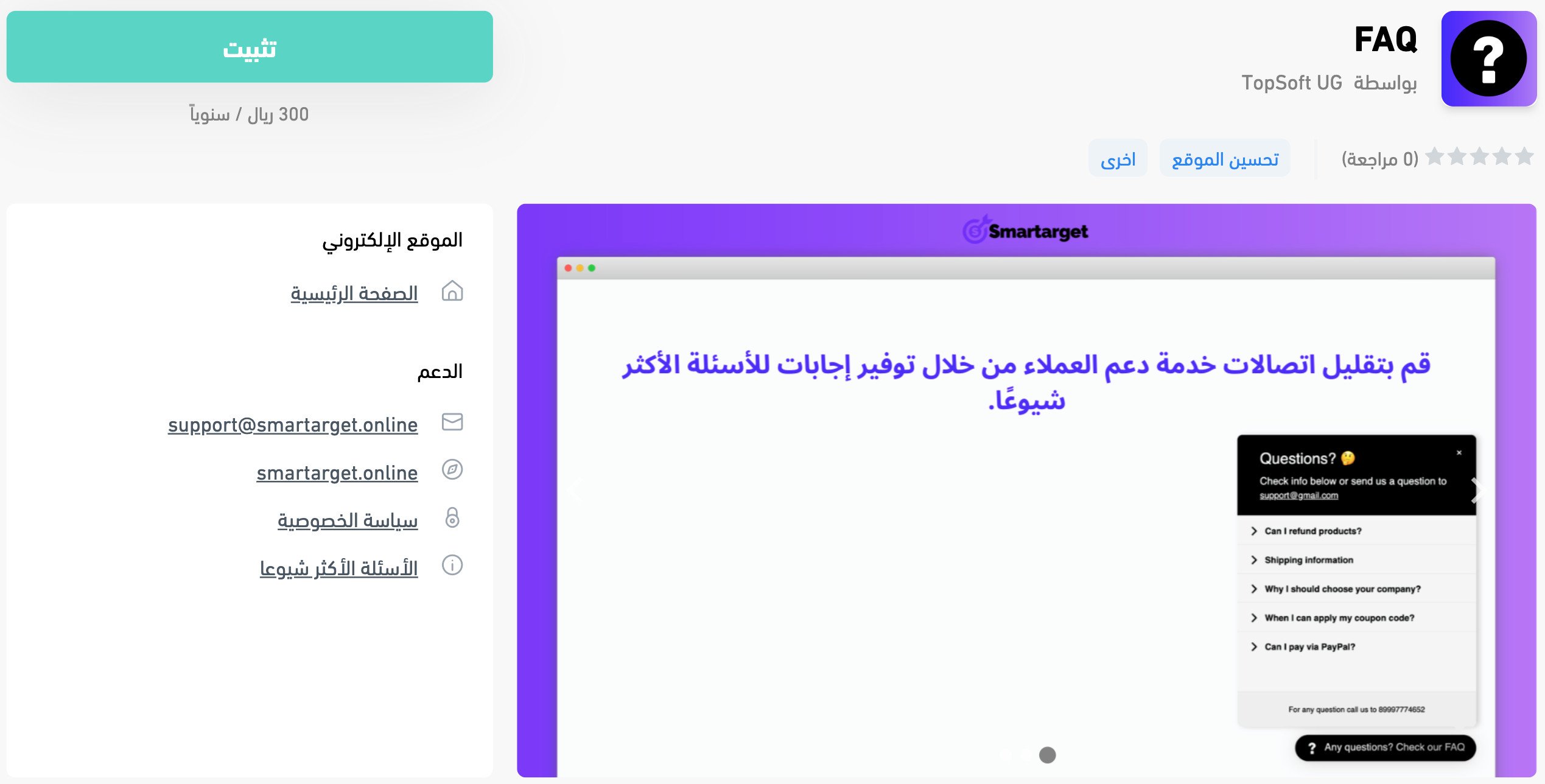
3. On the FAQ app page, click (Install).
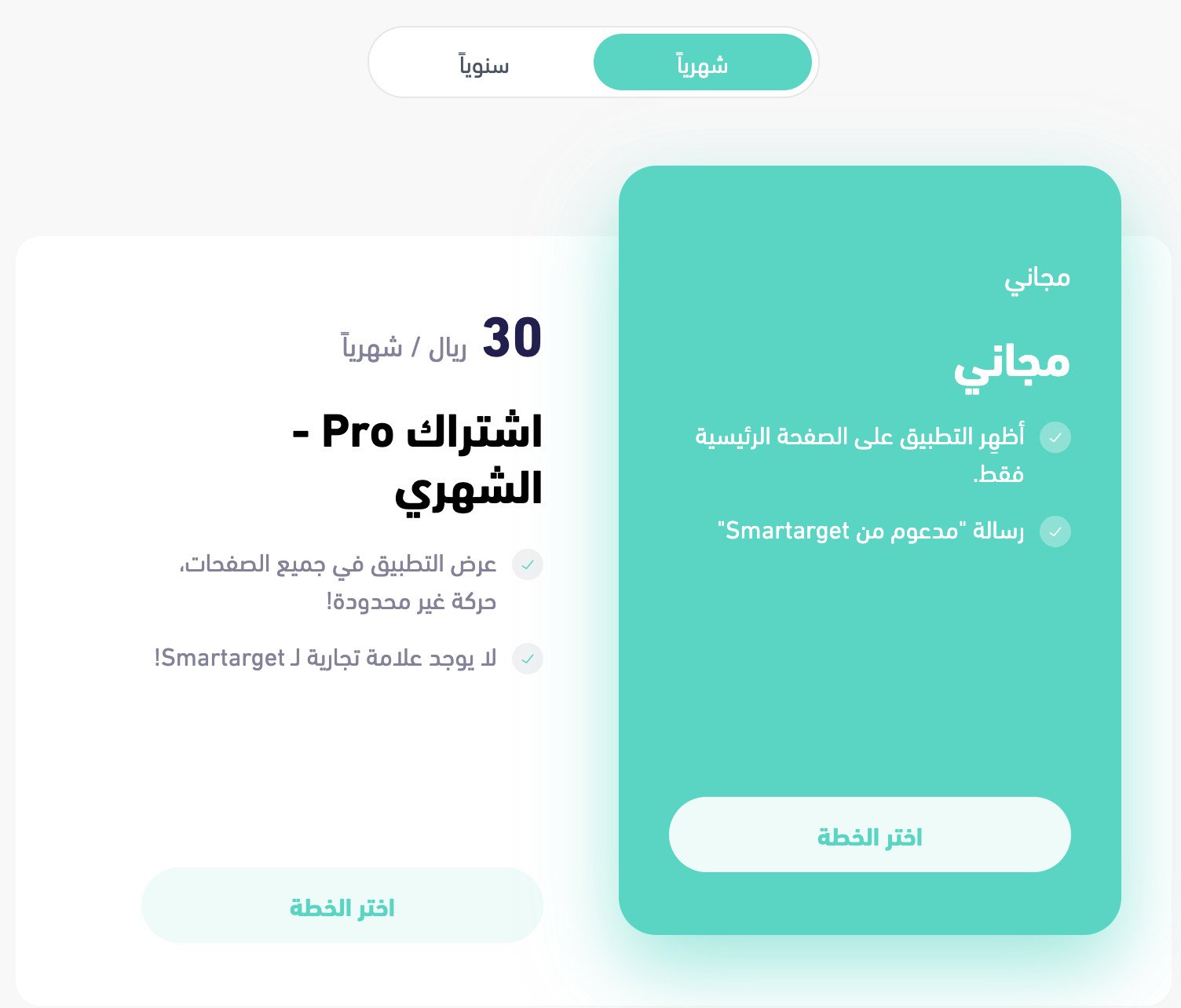
Choose the plan that fits your business.
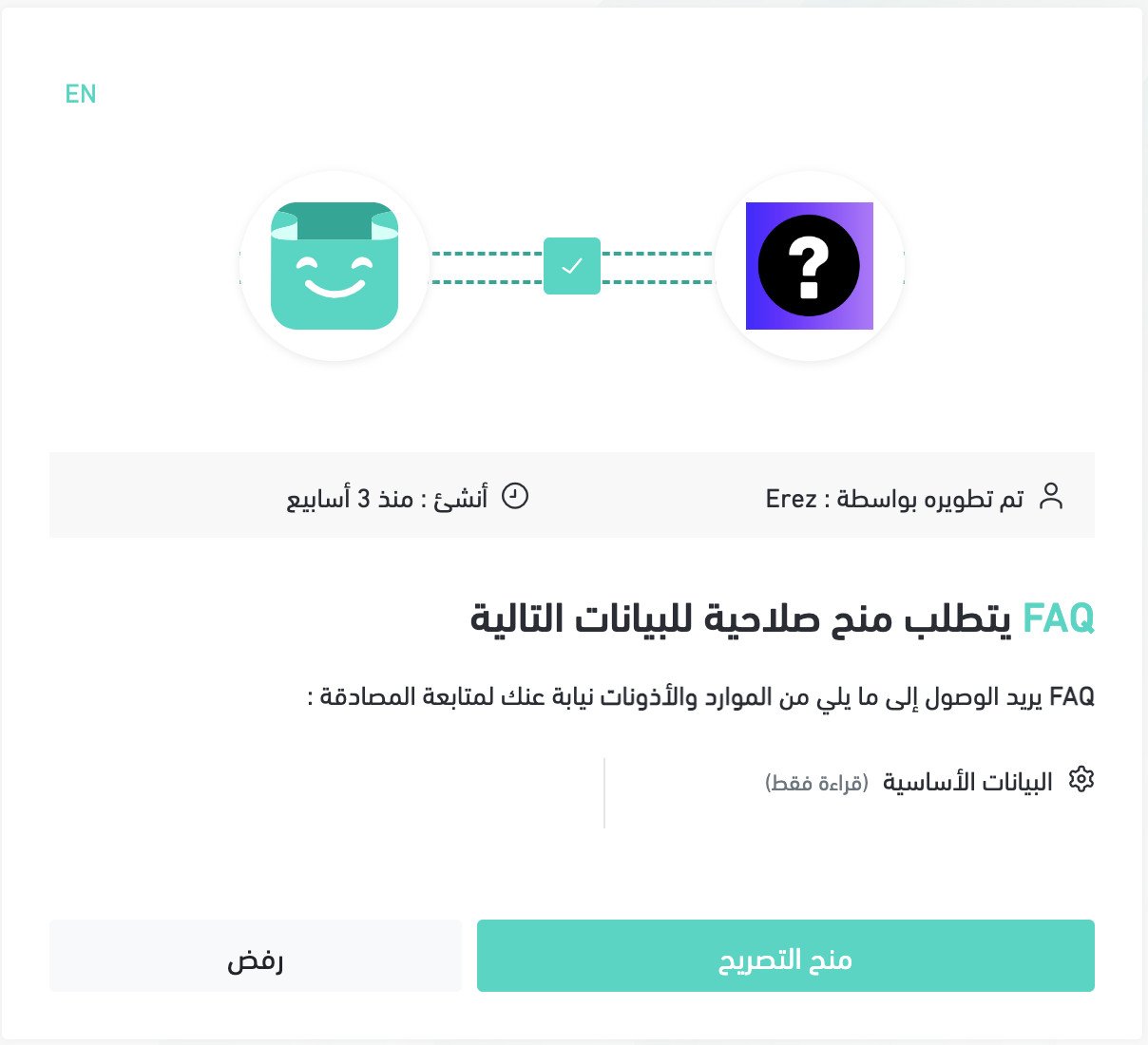
4. Review the permissions the app requests, then click (Grant permission).
The FAQ app is now installed in your store.
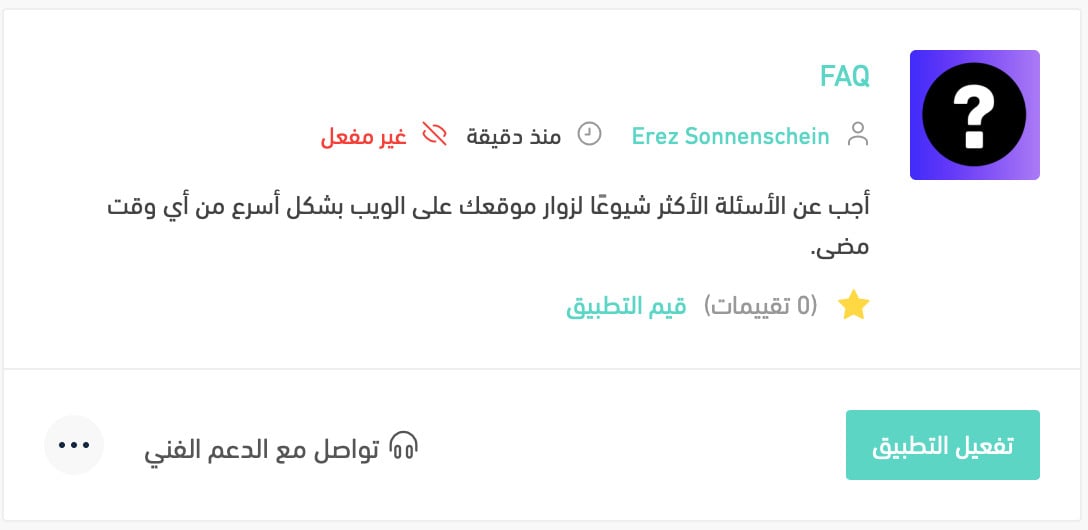
5. From the installed apps page, click (Activate app) on FAQ.
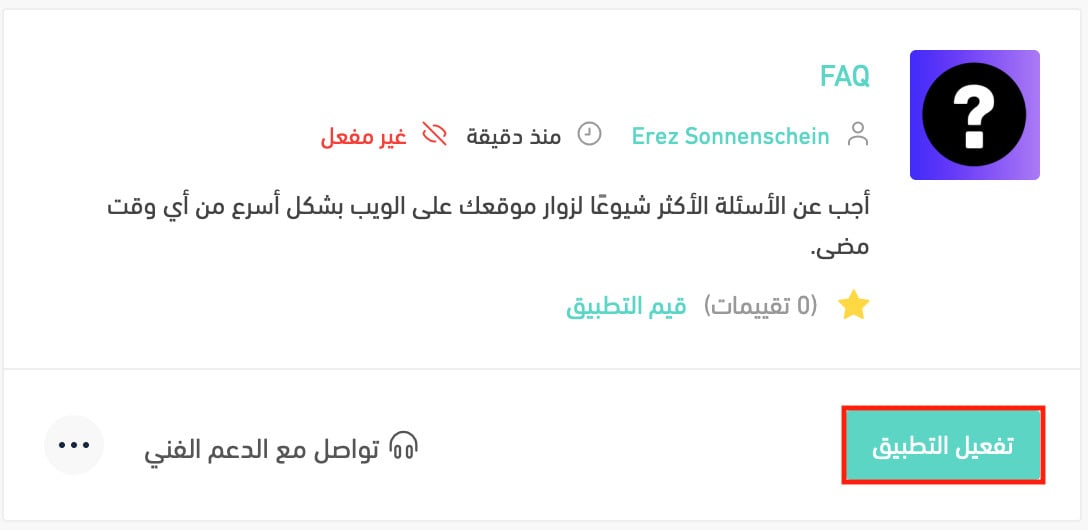
6. Paste your Smartarget User ID into the field provided, then click (Save).
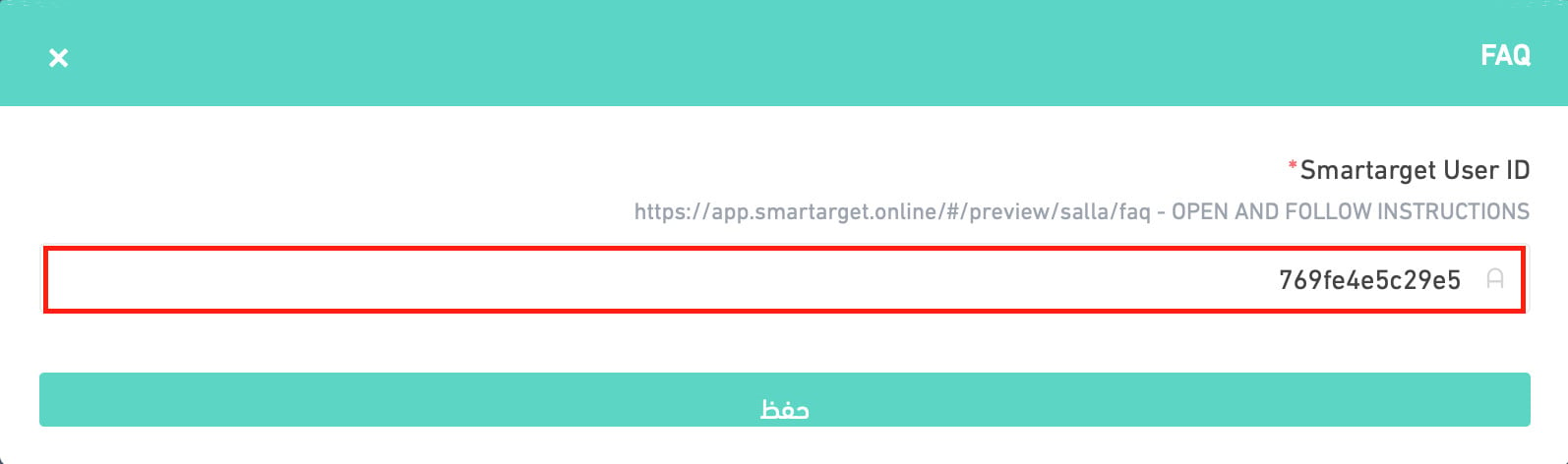
The FAQ app is now live in your store. Adjust its settings to match what your business needs.
For more details, see managing my store's apps.
❓ Frequently asked questions
Here are the answers to the questions merchants ask most:
- How do I create a new Smartarget account?
- Where do I copy my Smartarget User ID from?
- How do I remove the FAQ app from my store?
How do I create a new Smartarget account?
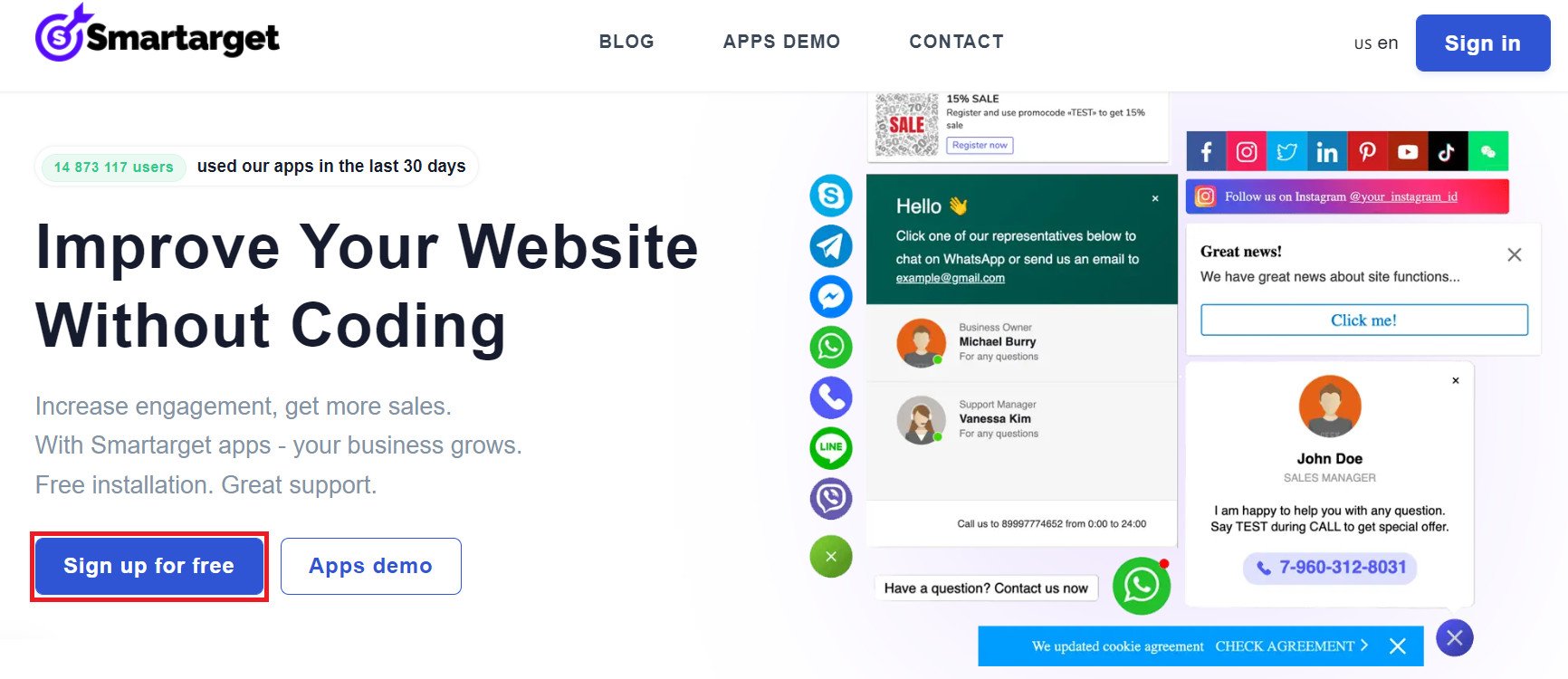
1. From the Smartarget home page, click (Sign up free).
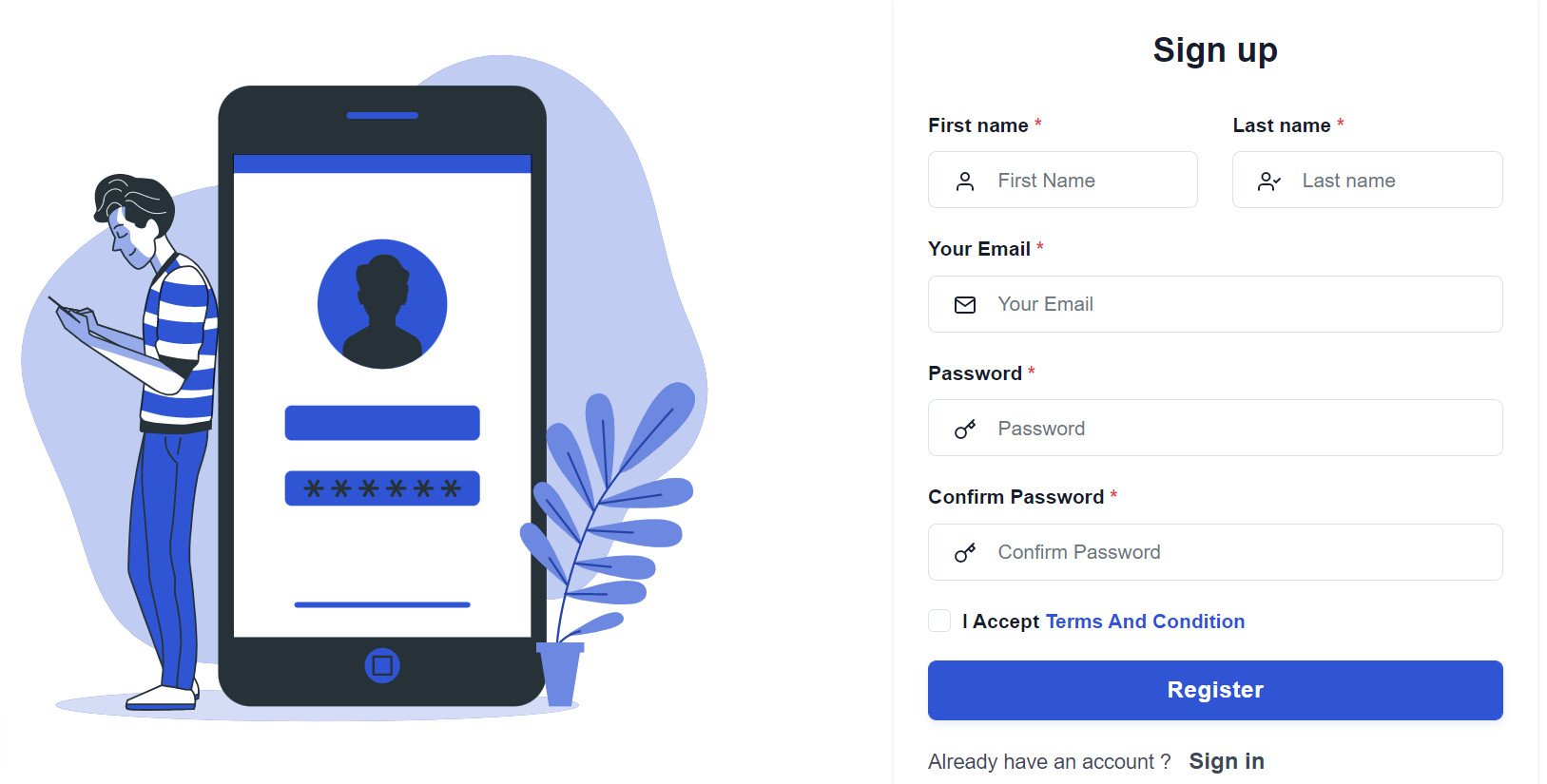
2. Enter the details it asks for, then click (Register).
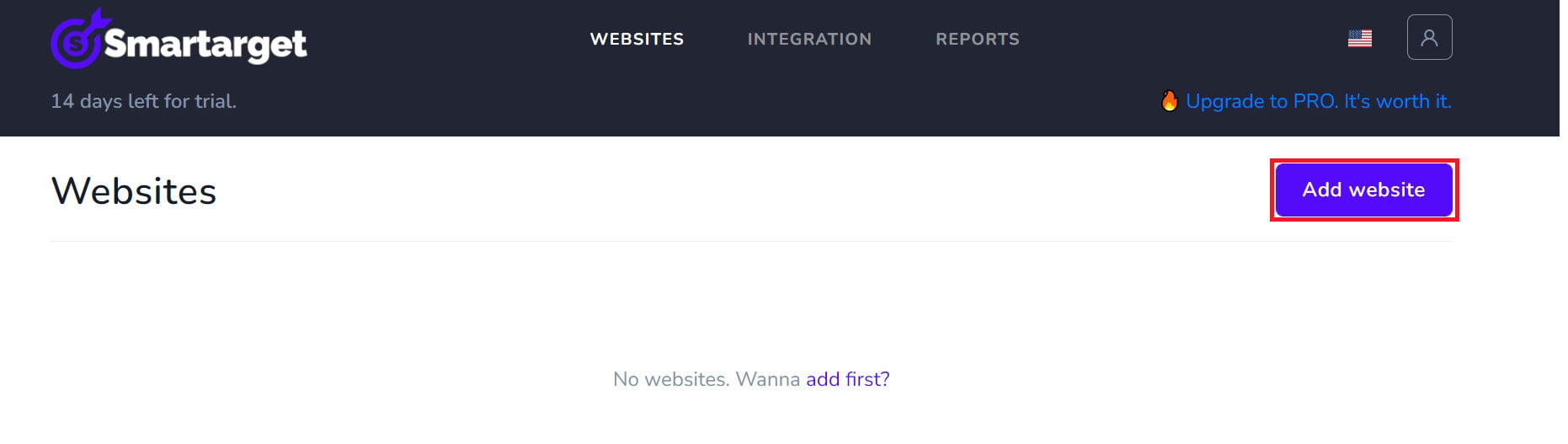
3. Confirm your account from the email you receive, sign in, then click (Add website).
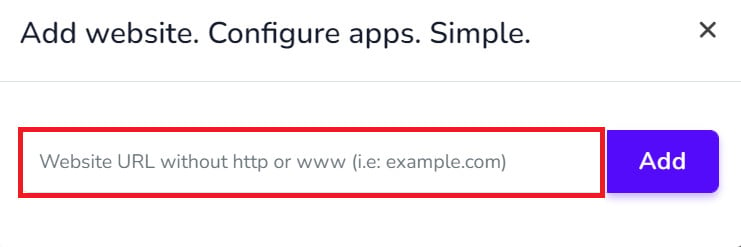
Then add your Salla store domain.
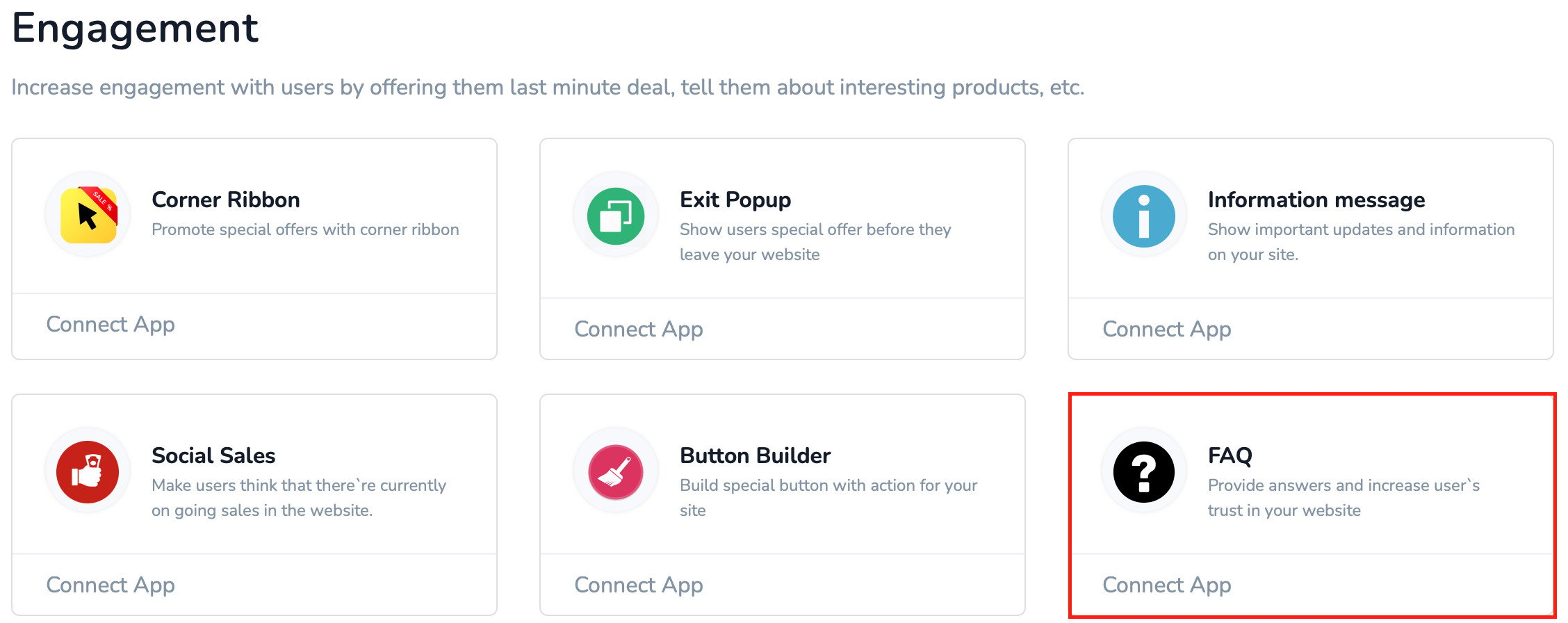
4. To set the FAQ app up for your store, click (Contact App).
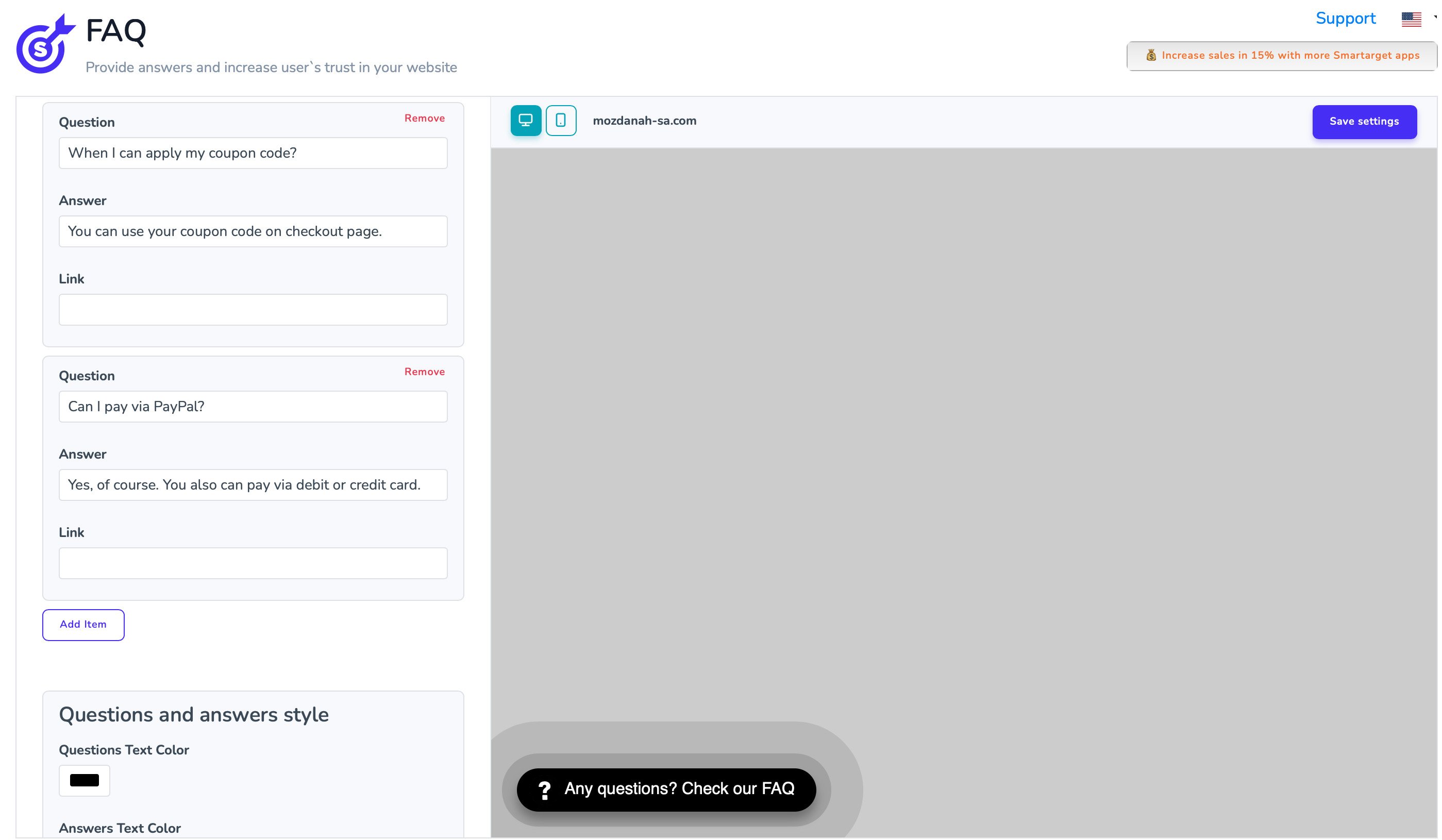
Configure the FAQ settings for your store, then click (Save setting).
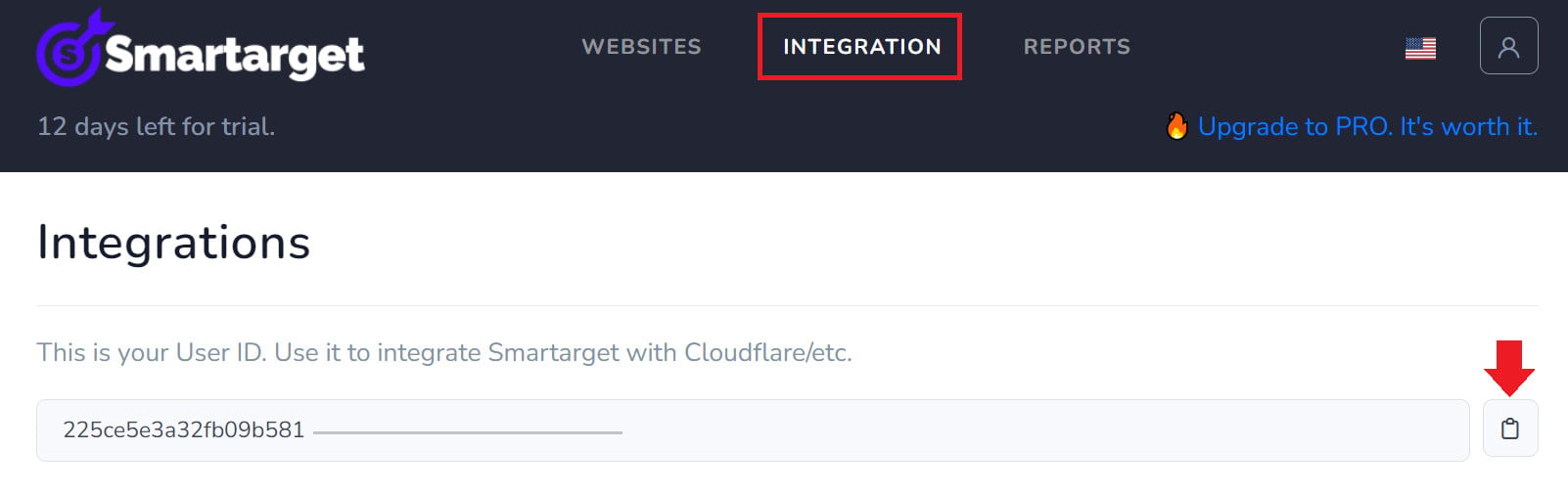
Where do I copy my Smartarget User ID from?
In your Smartarget account, go to the (INTEGRATION) page and click the copy button next to the User ID.
Where do the questions appear in my store?
On every page of your store, so a shopper can find an answer wherever they happen to be browsing.
How do I remove the FAQ app from my store?
1. From the side menu of your dashboard, click (My installed apps).

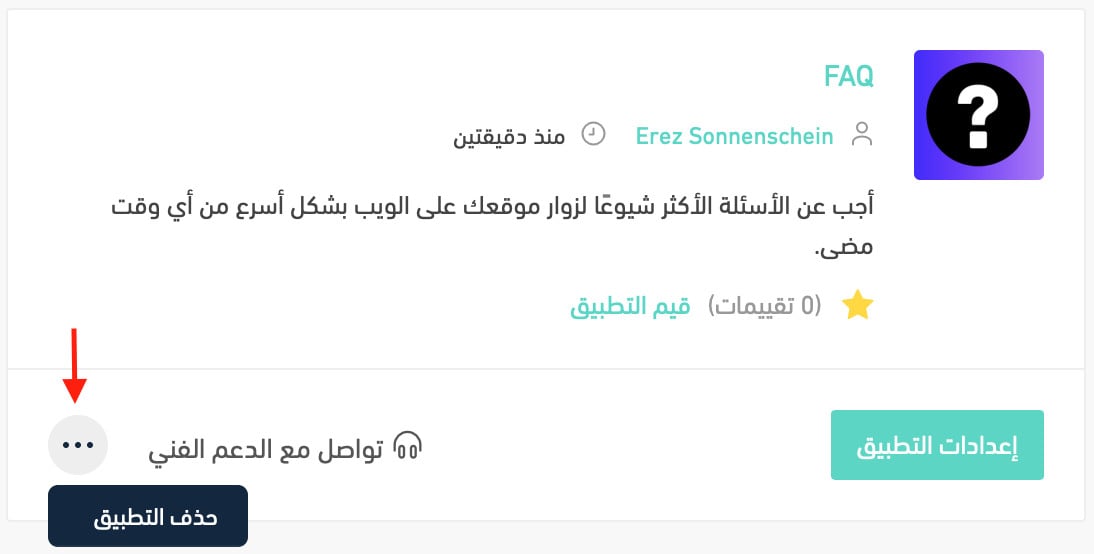
2. From the all apps page, on the FAQ app, click the (...) icon and then click (Delete app), as shown in the image.