Would your customers rather read an order update on WhatsApp than dig through their inbox?
Most shoppers check WhatsApp within minutes and email far less often, so order updates land better there. Faal WhatsApp is a platform that helps you build communication and marketing with your customers over WhatsApp: connect it to your Salla store and it automatically sends notification messages about the purchase and the order status to the buyer's WhatsApp number. In this guide, you'll learn how to set up the Faal WhatsApp integration, personalize the messages your customers receive, and remove the app if you stop using it.
To connect Faal WhatsApp, open (My installed apps) in your Salla dashboard, browse the Salla App Store, and install the Faal WhatsApp app either as a trial or on a paid plan. Grant the permissions it asks for, activate the app, then paste your webhook link, write your message text, and save.
📌 Article overview
- What is Faal WhatsApp?
- How to set up the Faal WhatsApp integration
- Frequently asked questions
🎯 What is Faal WhatsApp?
Faal WhatsApp is a platform for reaching and marketing to your customers over WhatsApp. Once it is connected to your Salla store, it automatically sends notification messages about the purchase and the product's order status to the buyer's WhatsApp number.
🚀 How to set up the Faal WhatsApp integration
1. From the side menu of your dashboard, click (My installed apps).

2. From the Salla App Store banner, click (Browse Salla App Store).

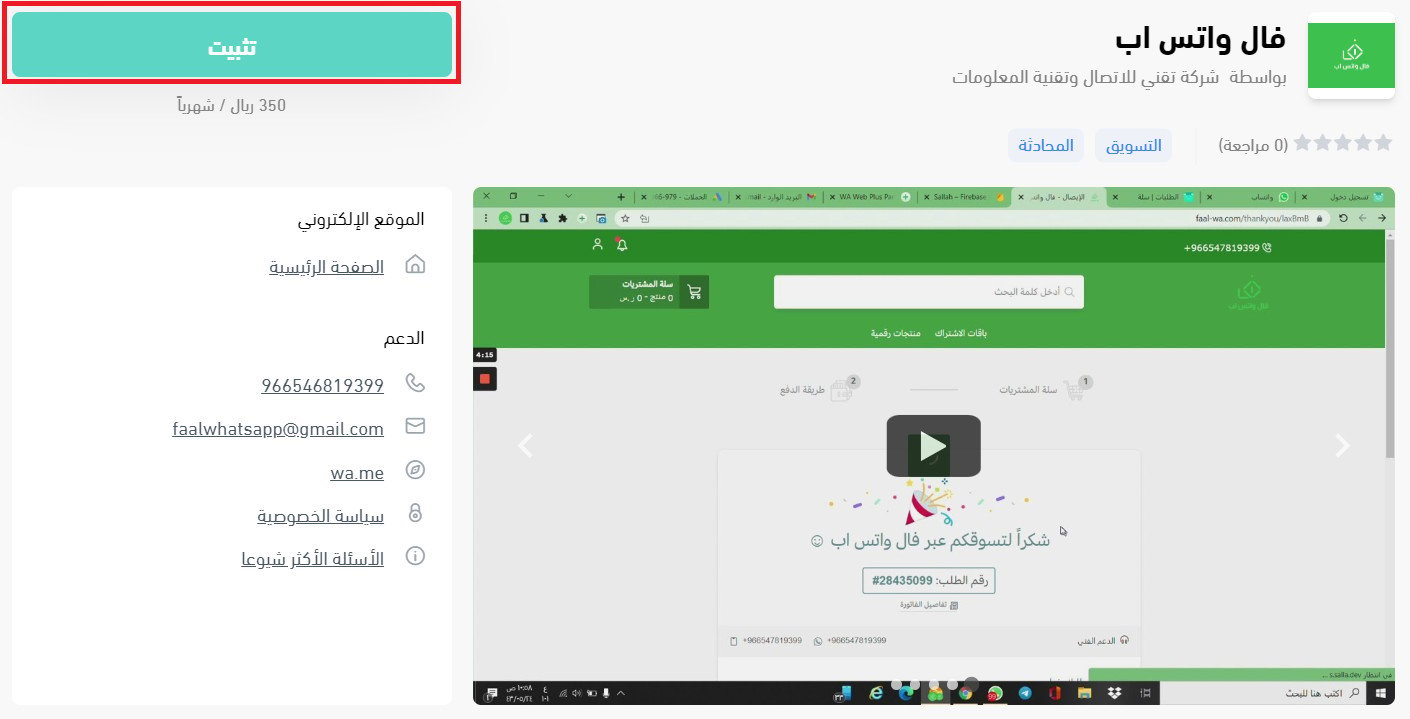
3. From the Faal WhatsApp app page, click (Install) to install a trial version.
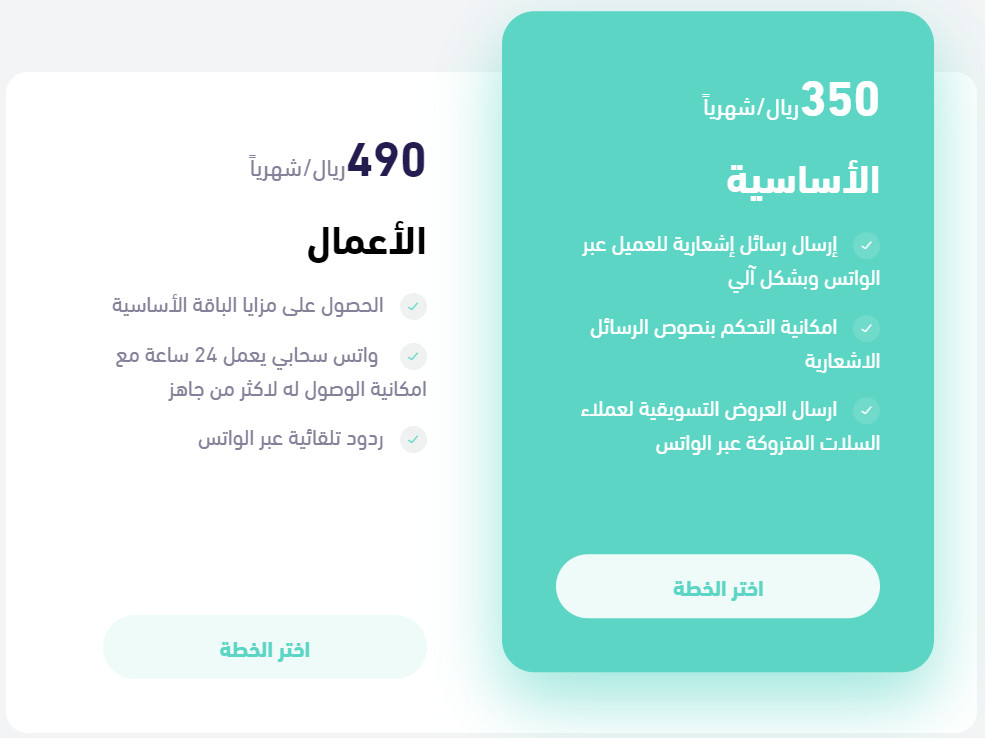
Or scroll to the bottom of the app page, click (Choose plan) on the plan that fits your needs, and complete the payment.
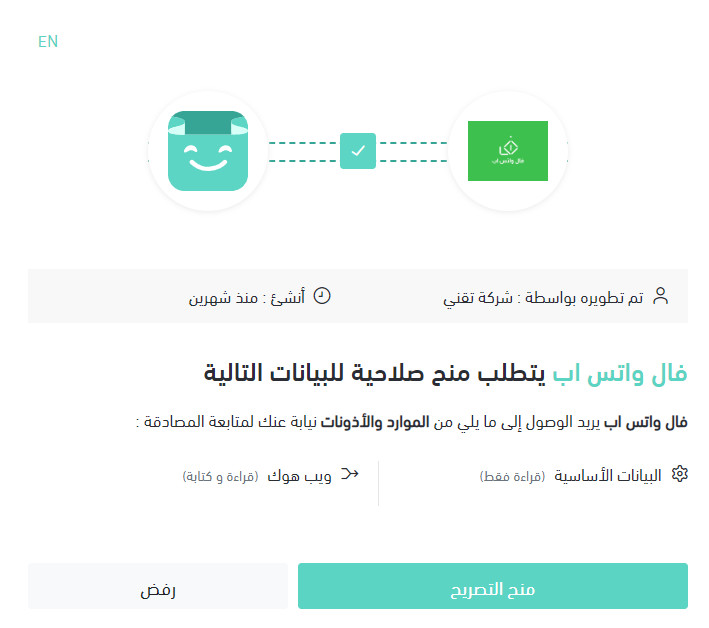
4. Review the permissions the app asks for, then click (Grant permission).
Faal WhatsApp is now installed on your store.
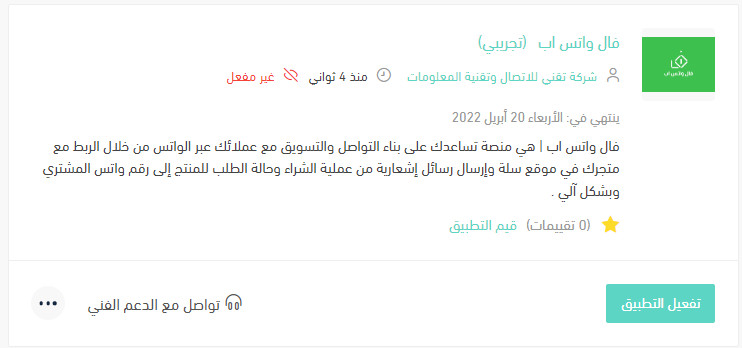
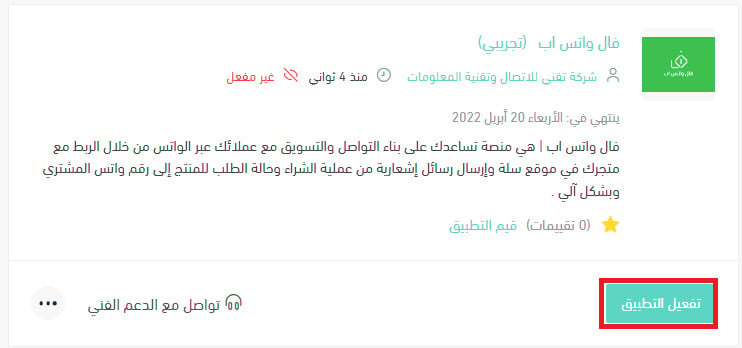
5. Click (Activate app).
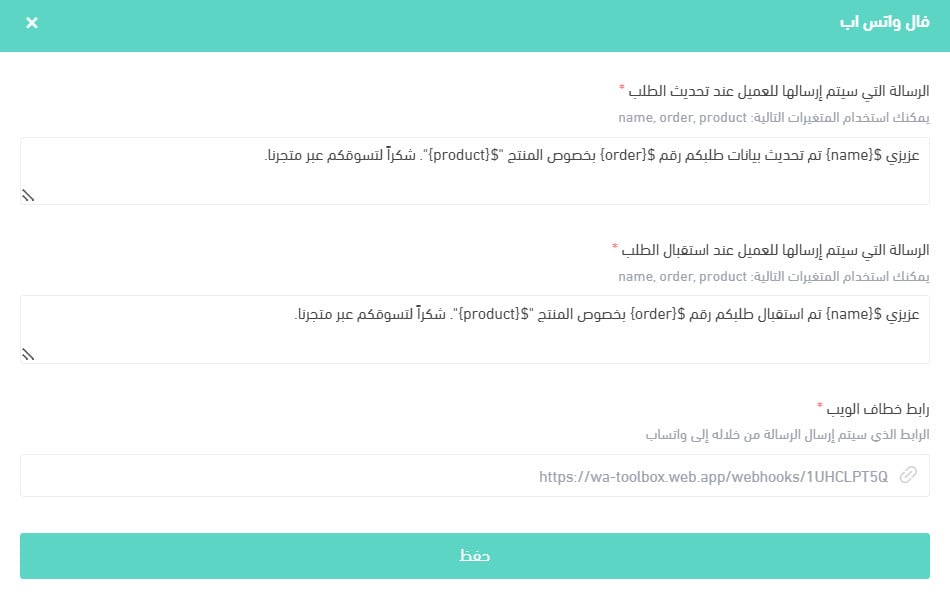
6. Paste the webhook link from your Faal WhatsApp account into the field provided, then write the text of the messages your customers will receive. You can personalize that text with these fields:
- ${name} inserts the customer's name into the message.
- ${order} inserts the order number into the message.
- ${product} inserts the product name into the message.
Then click (Save).
📝 Important notes
The webhook link comes from your own Faal WhatsApp account, so create that account before you reach this step.
For more details, see managing my store apps.
❓ Frequently asked questions
What does Faal WhatsApp send to my customers?
Notification messages about the purchase and the order status of the product, sent automatically to the buyer's WhatsApp number.
Can I try the app before I pay for it?
Yes. Click (Install) on the app page to install a trial version, or choose a paid plan at the bottom of the page when you are ready.
How do I add the customer's name or order number to a message?
Use the personalization fields in your message text: ${name} for the customer's name, ${order} for the order number, and ${product} for the product name.
How do I remove the Faal WhatsApp app from my store?
1. From the side menu of your dashboard, click (My installed apps).

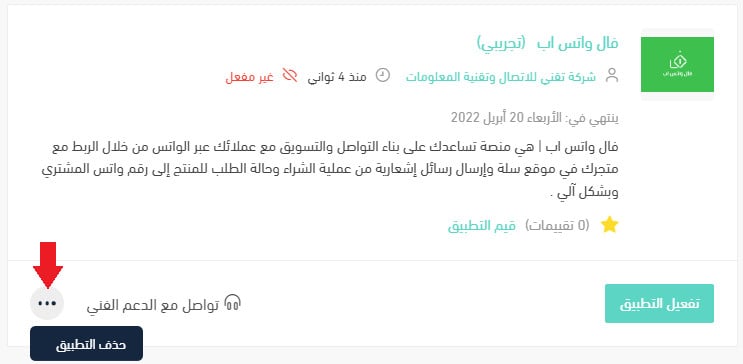
2. On the all apps page, find Faal WhatsApp, click the (...) icon, then click (Delete app), as shown below.
An order update that arrives where your customer is already looking saves them a support message — and saves you answering it.