Are your branch sales and your online orders still living in two systems that never agree?
Eyeen business management is a combined point-of-sale and accounting system that handles VAT, sales, warehouses, customers and e-invoicing from a single screen. Connecting Eyeen to your Salla store puts your branch activity and your online orders under one roof, so stock, invoices and tax reports come from one source instead of being reconciled by hand at the end of every month. In this guide, you'll learn how to install the app, link it to your Eyeen account with a link key, and remove it if you stop using it.
To connect Eyeen to your Salla store, open (My installed apps), browse the Salla App Store, and install the Eyeen business management app. Grant the permissions it requests, sign in to Eyeen, copy the link key from your branch settings, then paste it into the app's settings in Salla and save.
📌 Article overview
- What Eyeen business management does
- What you get from connecting Eyeen
- How to install and connect the Eyeen app
- Frequently asked questions
🎯 What Eyeen business management does
Eyeen is an integrated point-of-sale and accounting system. It covers VAT, sales, warehouse and customer management, and issues electronic invoices, all from one screen.
✅ What you get from connecting Eyeen
- Link your online store to Eyeen and follow orders from your branches and your online store on a single platform.
- Push new products from your online store into your Eyeen account.
- Run your points of sale through apps that let a cashier check customers out quickly.
- Issue electronic invoices, handle VAT, and pull the tax reports that go with them.
🚀 How to install and connect the Eyeen app
1. From the side menu of your dashboard, click (My installed apps).

2. From the Salla App Store banner, click (Browse Salla App Store).

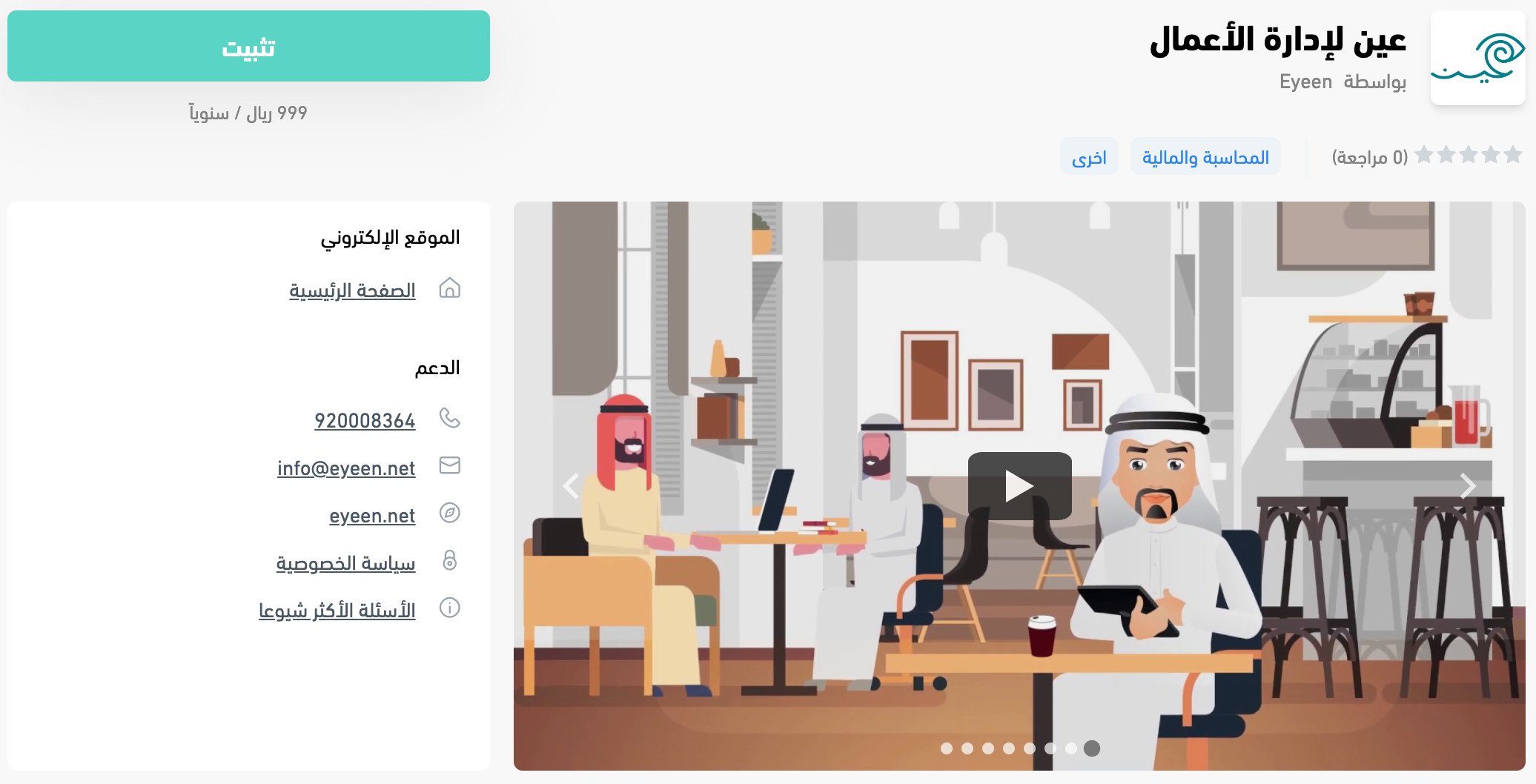
3. On the Eyeen business management app page, click (Install).
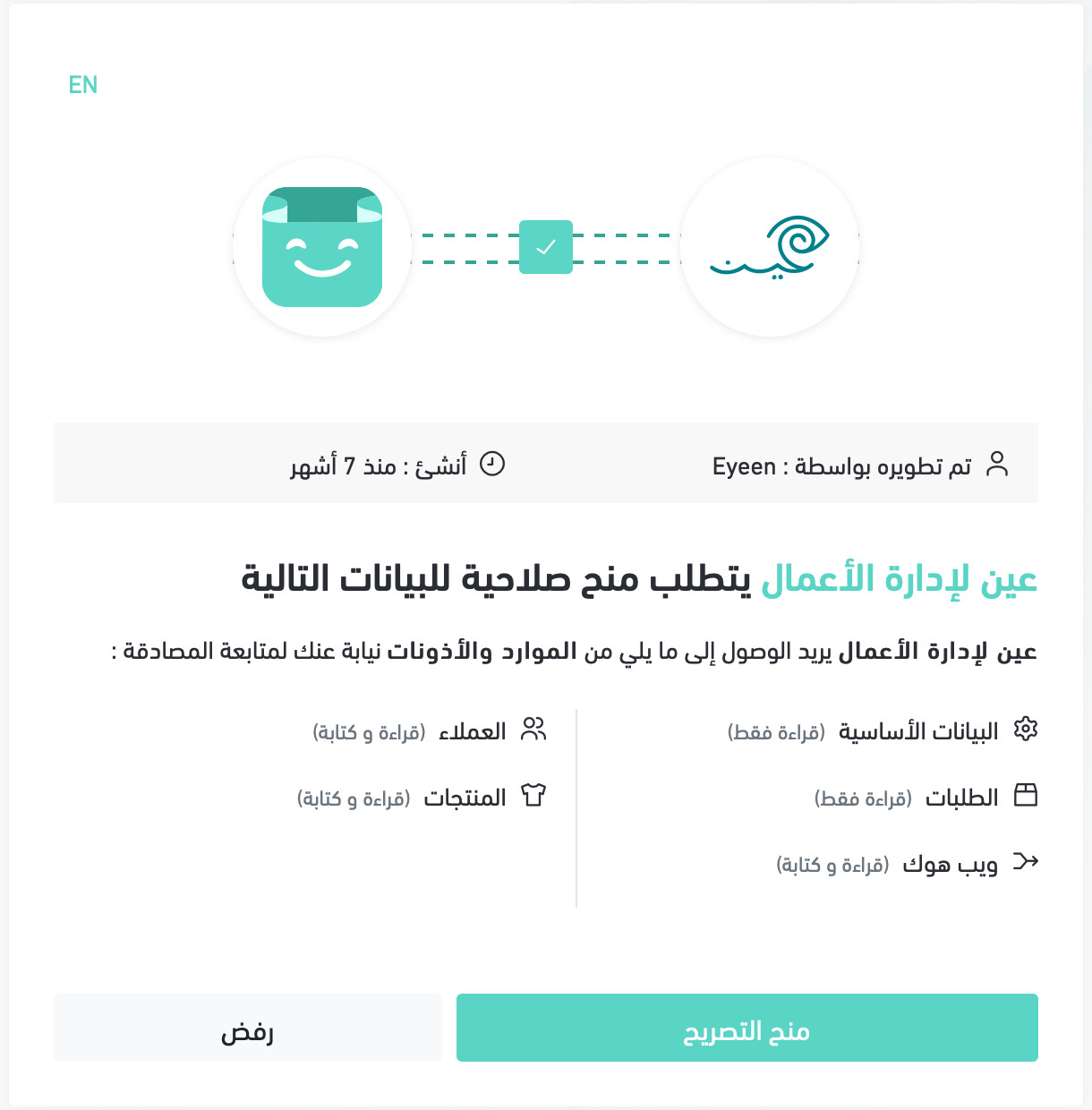
4. Read the permissions the app needs to reach your store's resources, then click (Grant permission).
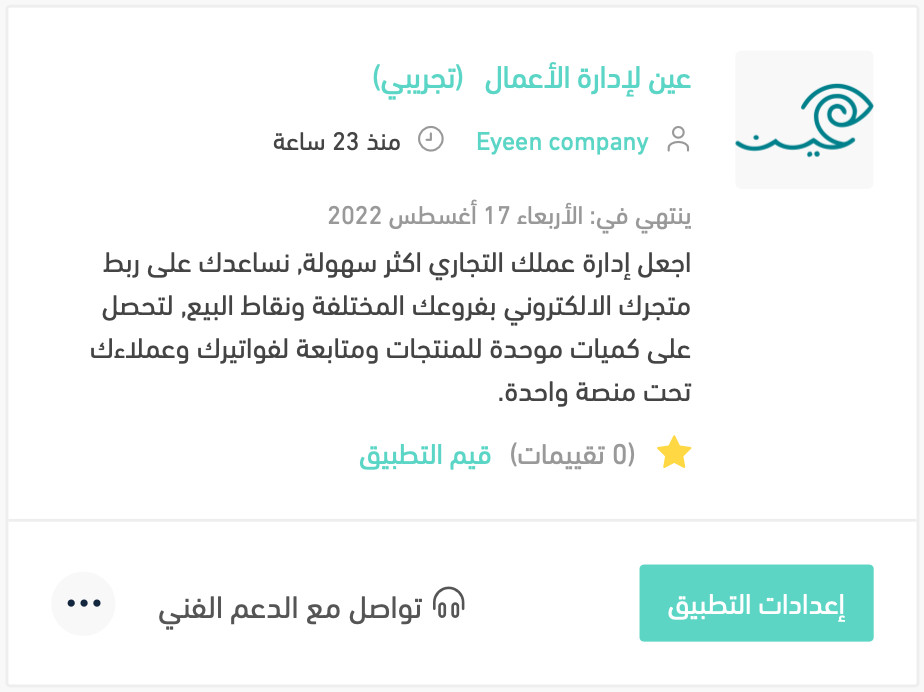
The app is now installed.
5. To activate the app, sign in to the Eyeen system.
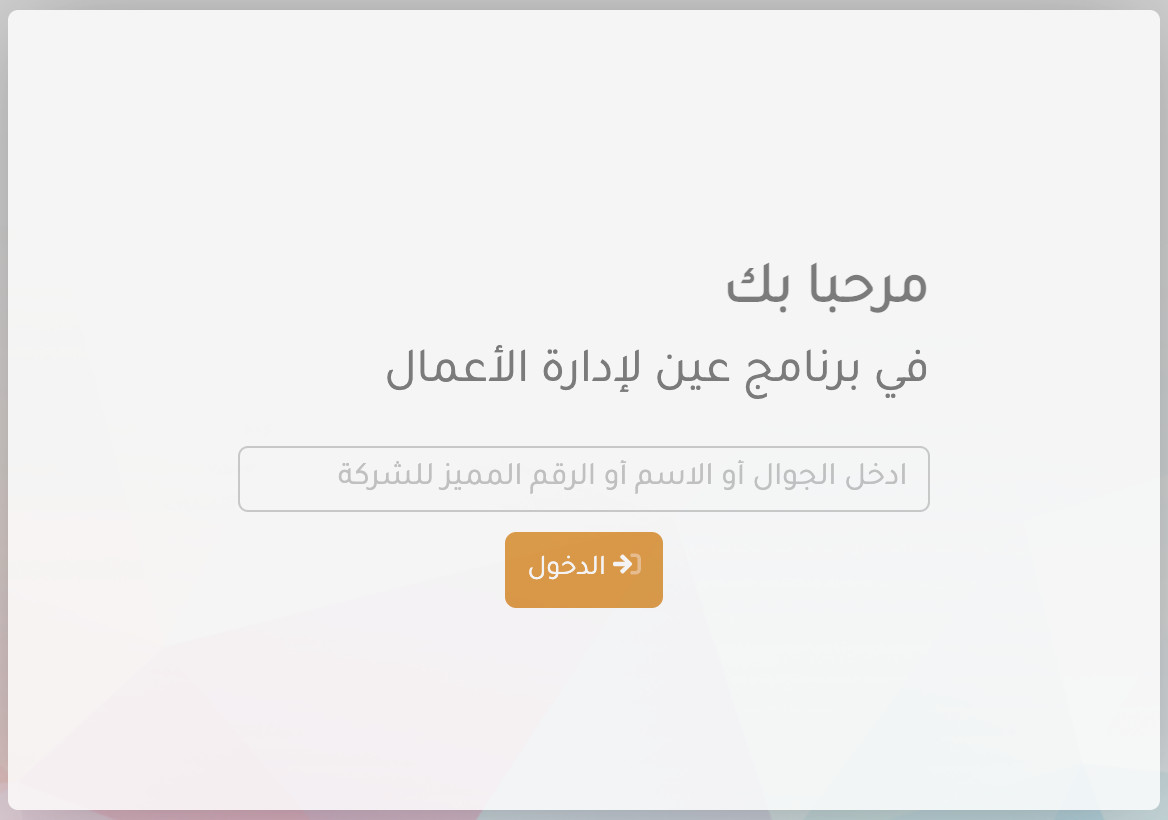
Enter your access code, then click (Sign in).
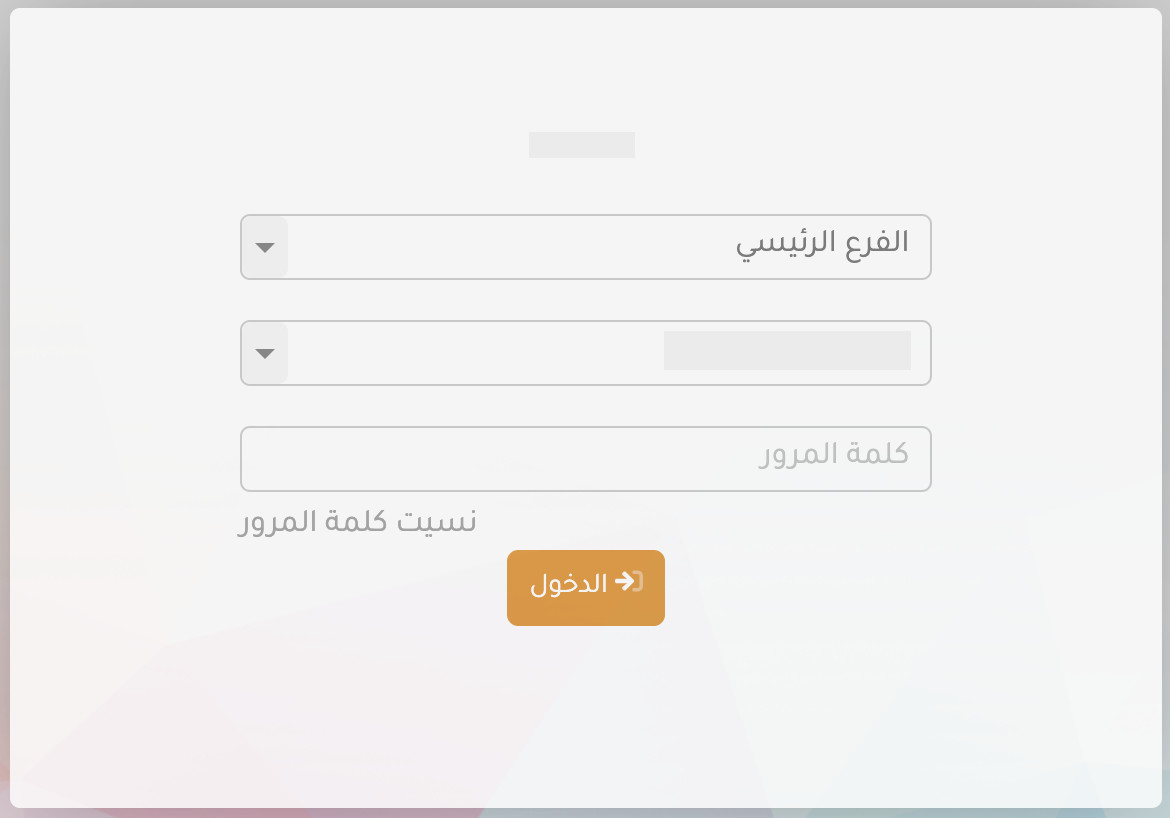
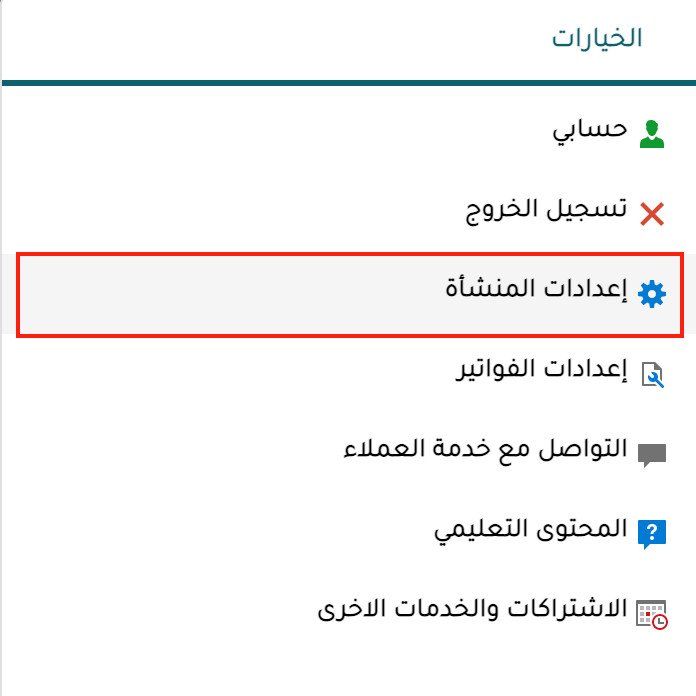
The Eyeen dashboard opens. Go to the side menu.

6. Under the account options, click (Organization settings).
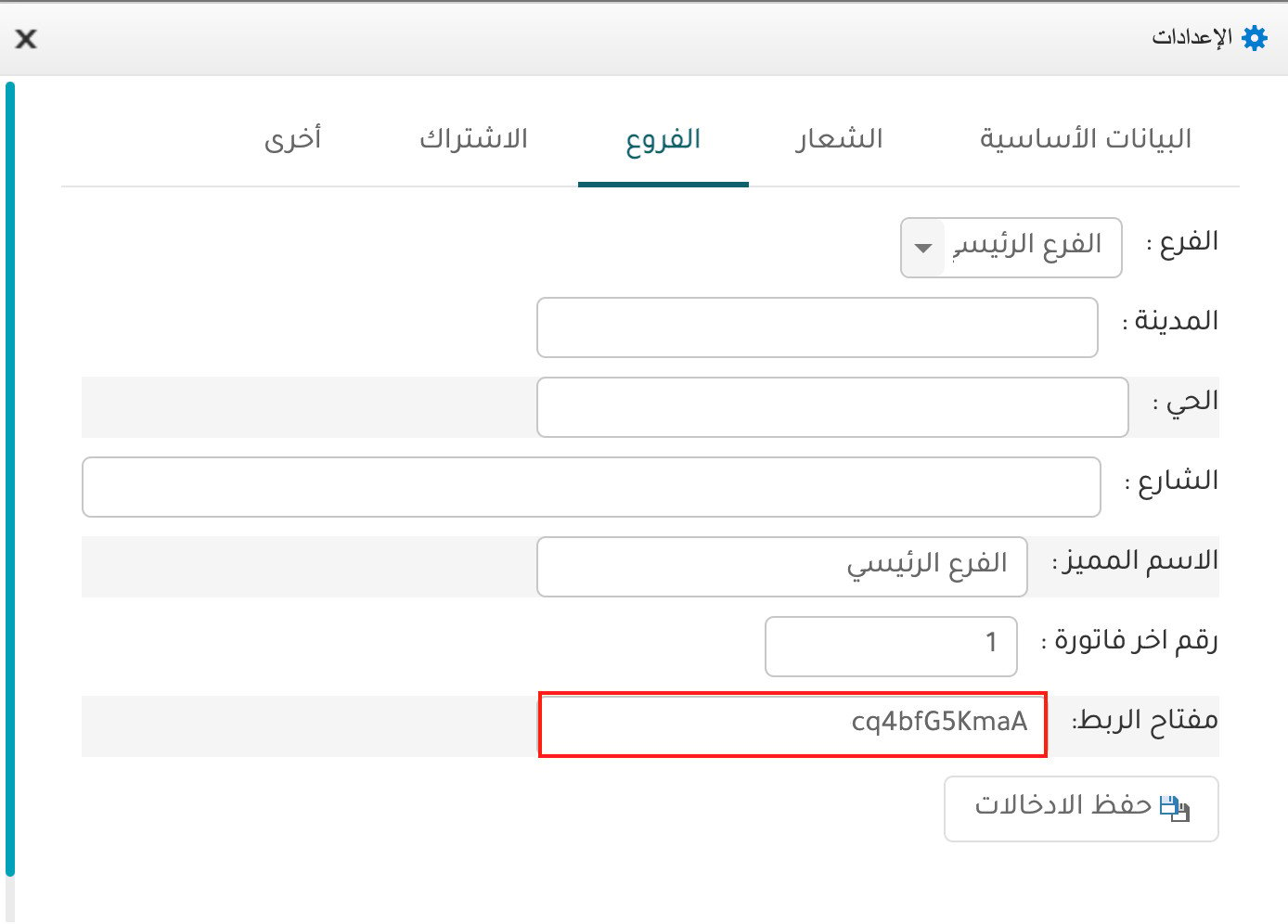
7. Open the (Branches) tab and copy the link key.
8. Back in Salla, go to the settings of the Eyeen business management app.
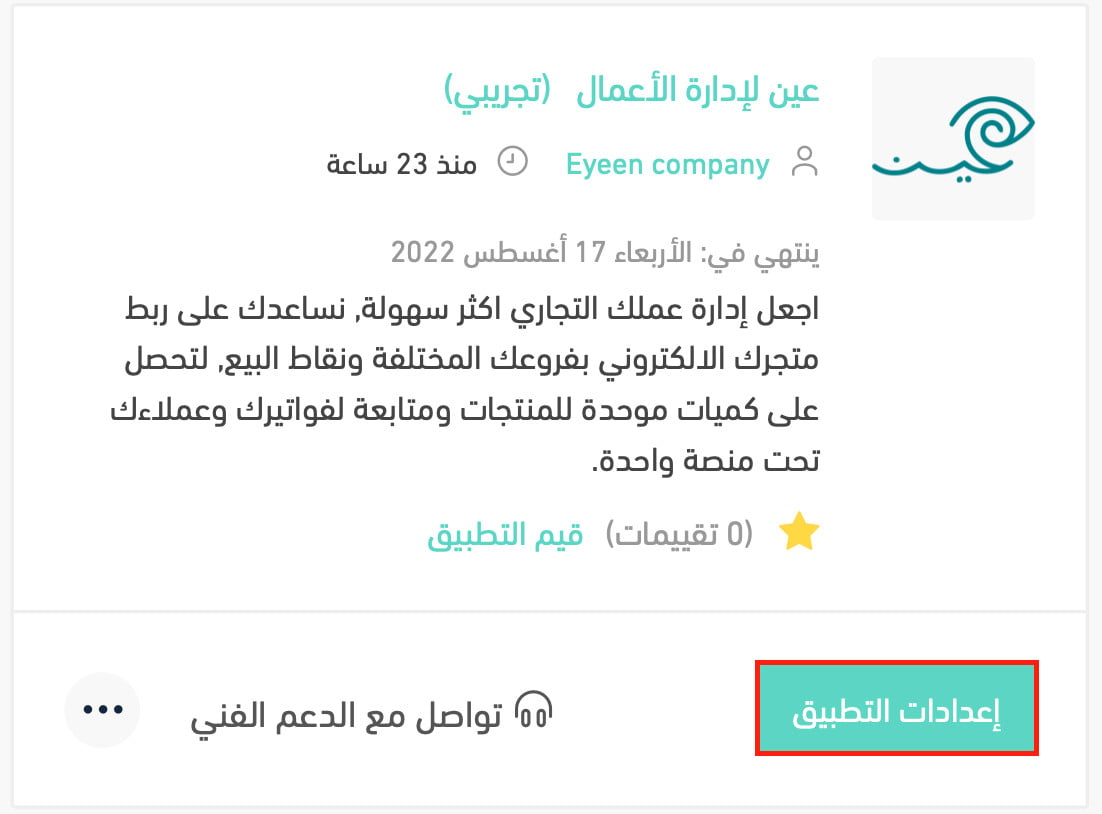
9. Paste the link key from your Eyeen account, then click (Save).
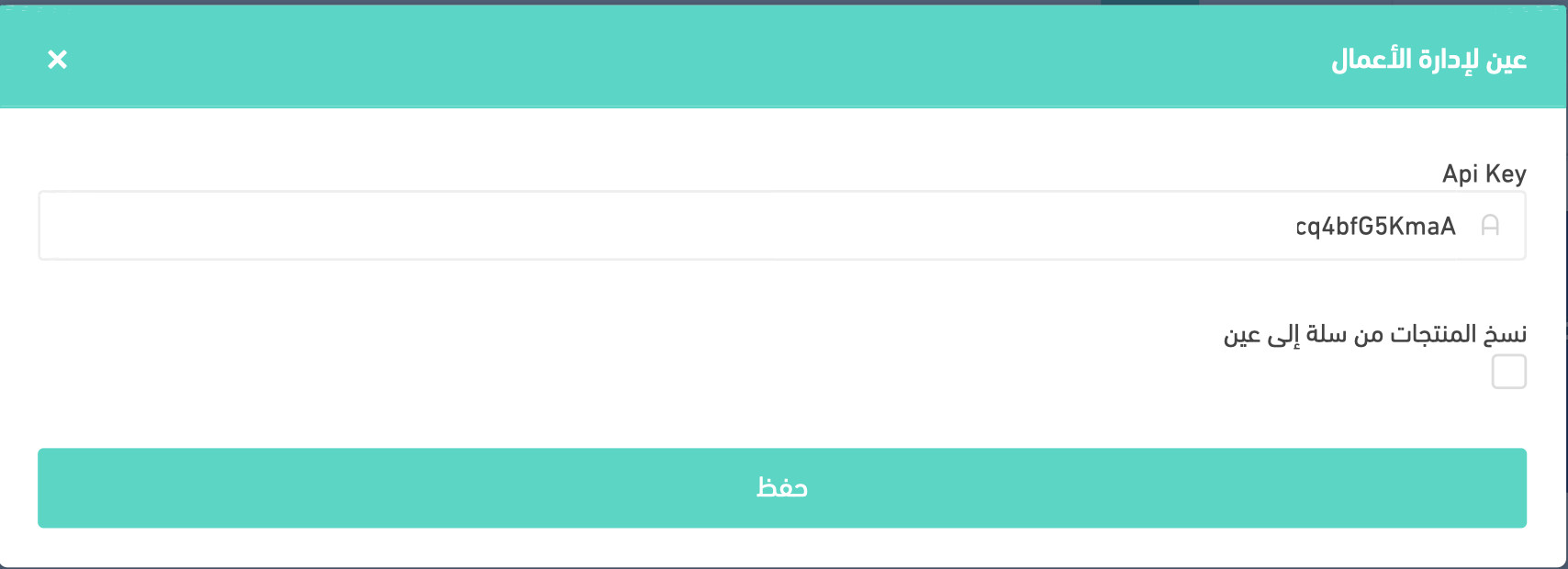
Your Salla account is now connected to Eyeen.
📝 Important notes
- The link key lives in your Eyeen account, so you need an Eyeen account before step 5. Registering is covered in the FAQ below.
- For more details, see managing your store's apps.
❓ Frequently asked questions
Do I need an Eyeen account before I install the app?
Yes. Installing the app in Salla is only half of the setup, and the second half asks for a link key that only exists inside an Eyeen account. Register first, then come back and finish the connection.
How do I register a new Eyeen account?
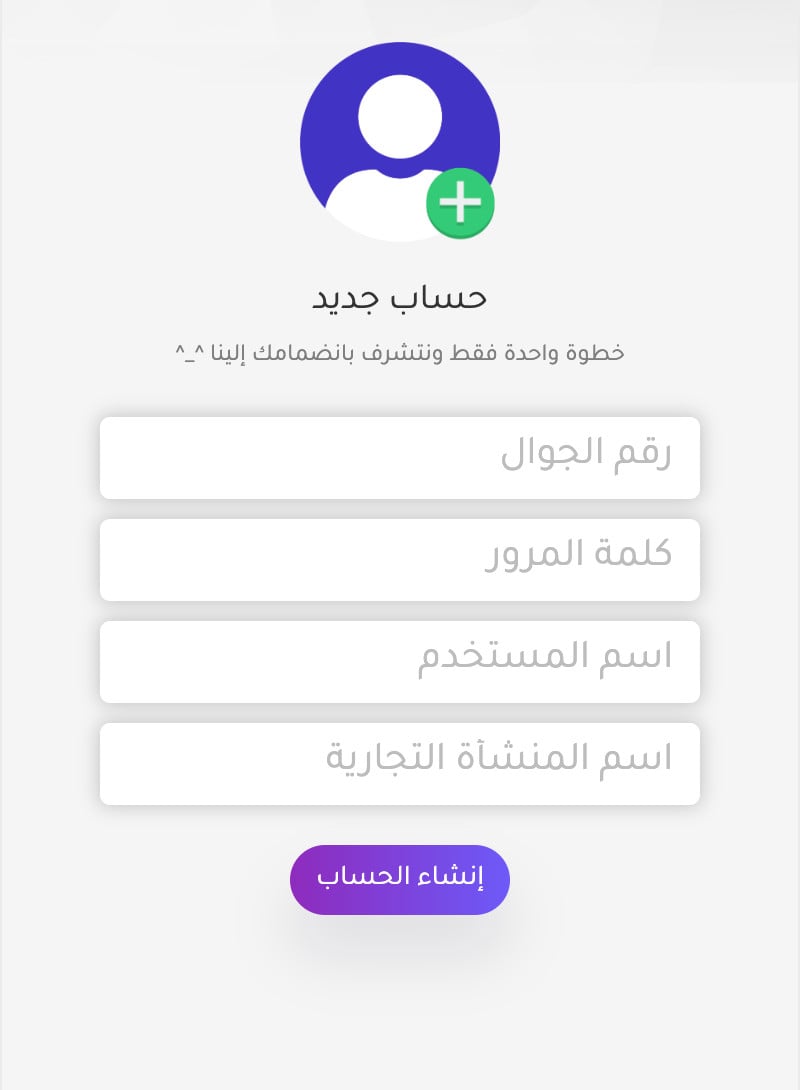
1. On the new account registration page on the Eyeen site, fill in the details it asks for, then click (Create account).
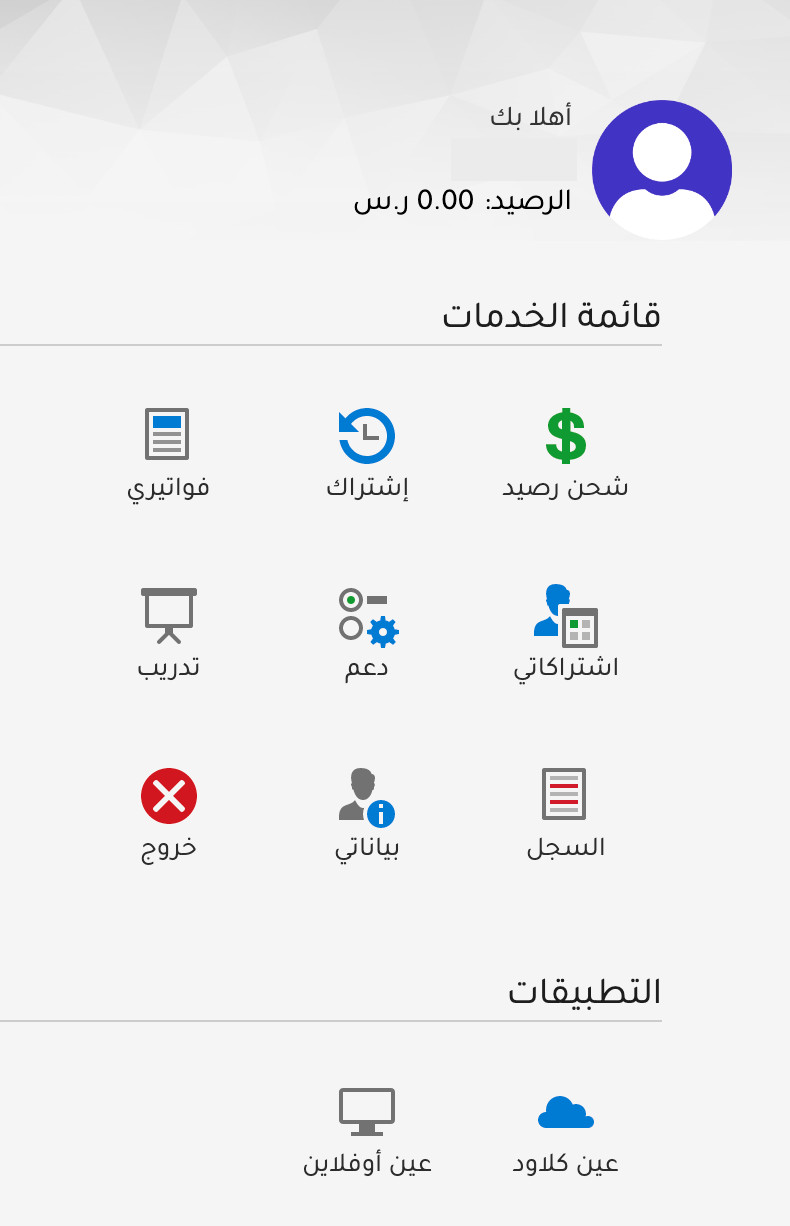
2. Your dashboard then looks like this.
How do I remove the Eyeen app from my store?
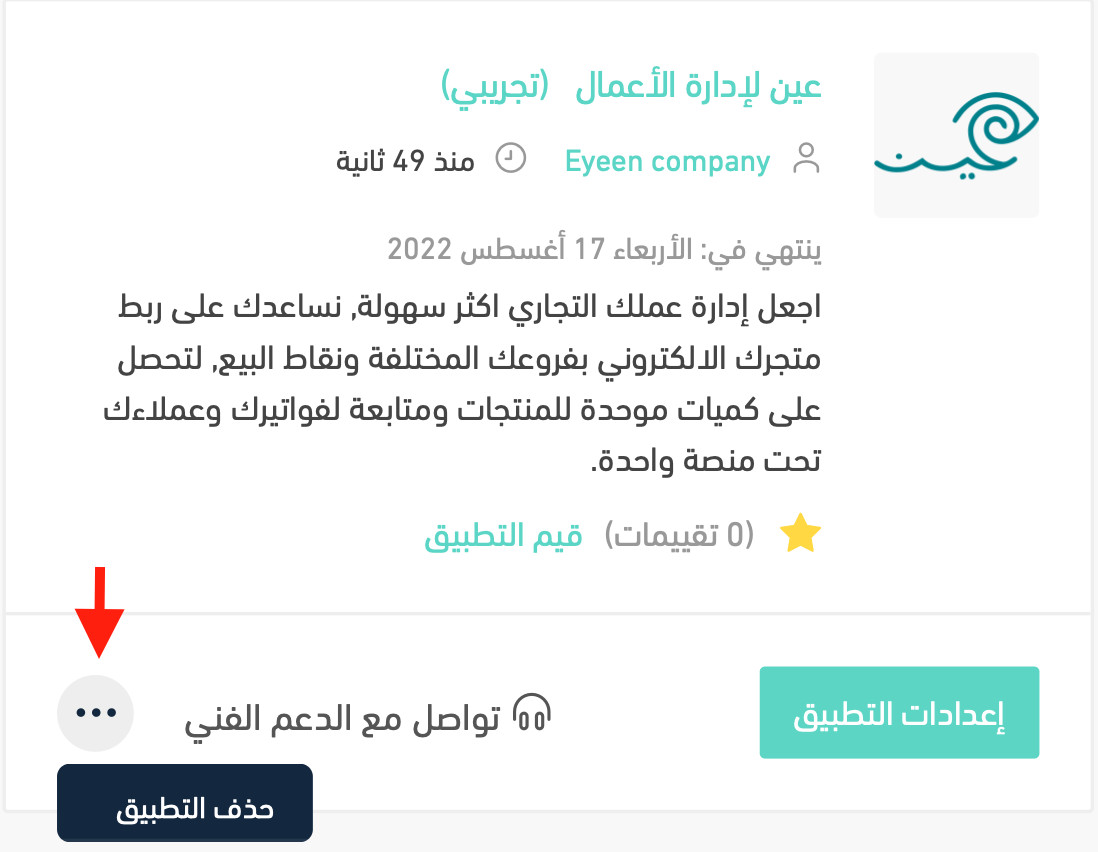
1. From the side menu of your dashboard, click (My installed apps).

2. On the all apps page, find Eyeen business management, click (...), then click (Delete app).
One link key is a small piece of setup for the payoff: branch sales, online orders and tax reporting all reading from the same numbers.