Want to keep your Salla products, customers, orders, and inventory aligned with your accounting system?
Edara accounting and inventory combines accounting, warehouses, sales, purchases, and point-of-sale management for businesses with different activities and sales channels. This guide explains how to install Edara, activate the connection, enter your account and synchronization settings, and remove the app.
To connect Edara accounting and inventory to Salla, install the app, choose a plan, complete payment, and grant the requested permissions. Activate Edara from Installed apps, enter your Edara account credentials, configure the integration and synchronization settings, then save. The two accounts can then exchange supported business data.
📌 Article overview
- What Edara manages
- How to install and activate Edara
- How Edara synchronizes with Salla
- How to remove the app
- Frequently asked questions
💡 What is Edara accounting and inventory?
Edara is an integrated system for managing accounts, warehouses, sales, purchases, and points of sale across different business activities and sales channels.
🚀 How to connect Edara accounting and inventory to Salla
1. From the dashboard side menu, click (Installed apps).

2. From the Salla App Store banner, click (Browse the Salla App Store).

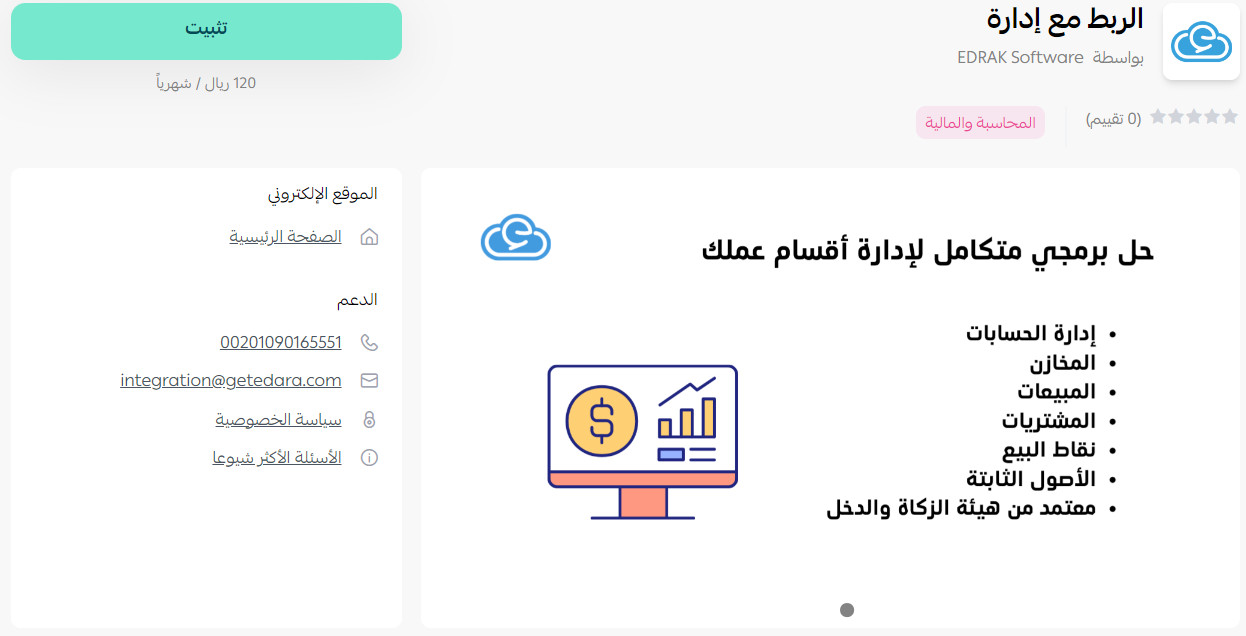
3. On the Edara accounting and inventory app page, click (Install).
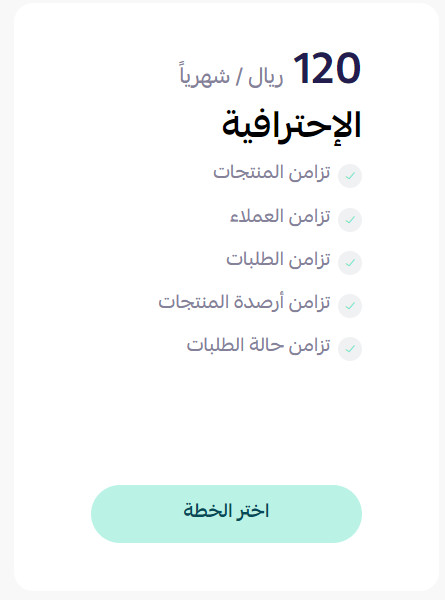
4. Choose the plan that suits the size of your business.
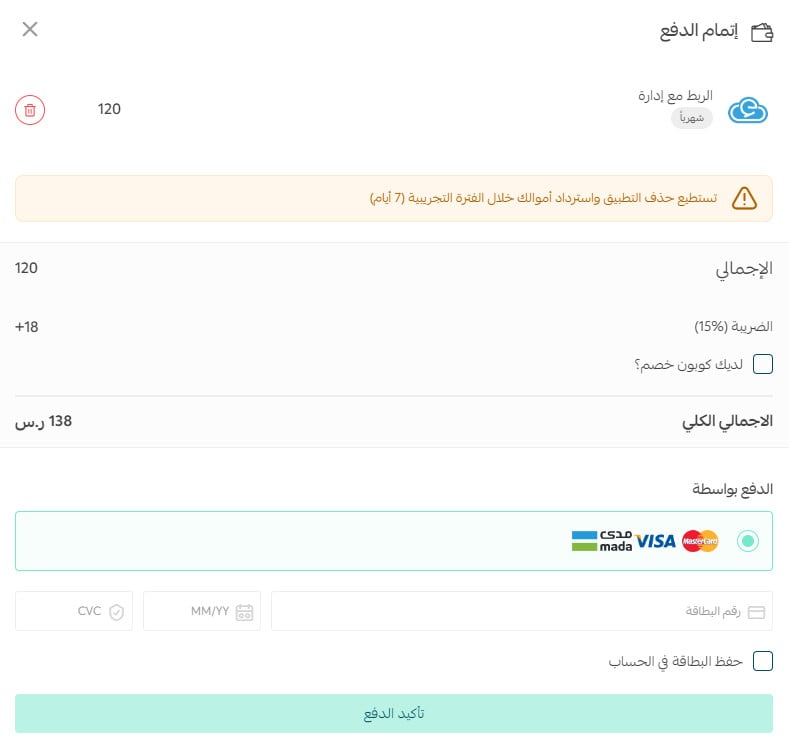
Complete the payment details, then click (Confirm payment).
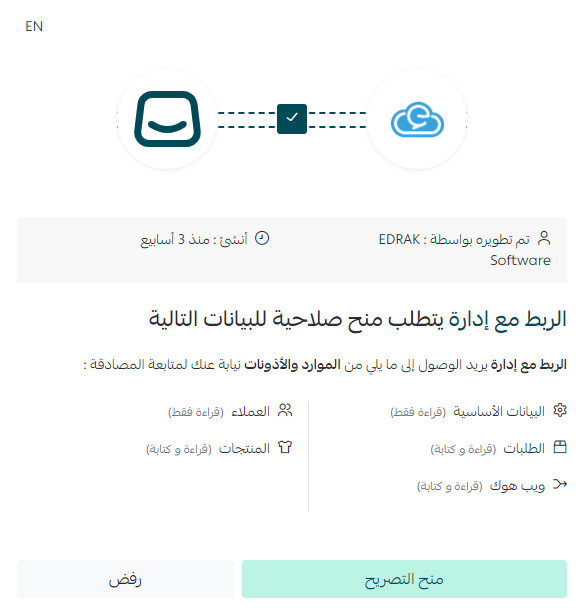
5. Review the requested permissions, then click (Grant permission).
Edara is now installed on your store and ready for activation.
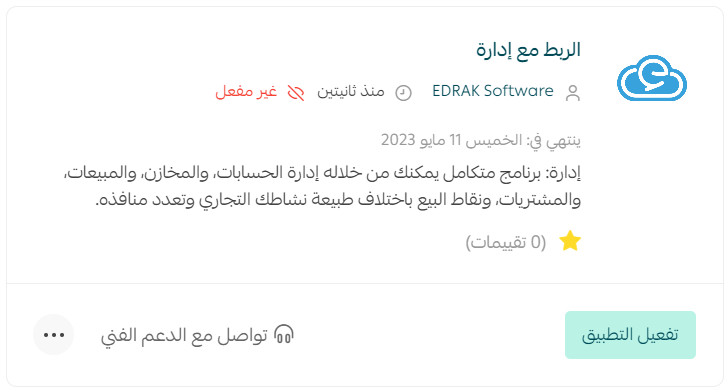
6. On the Installed apps page, find the Edara card and click (Activate app).
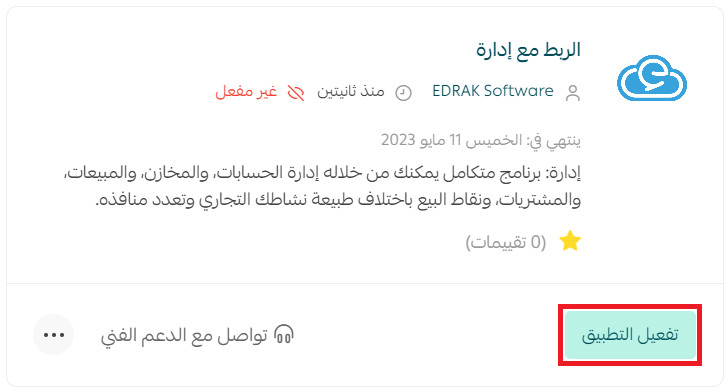
7. Enter your Edara account details.
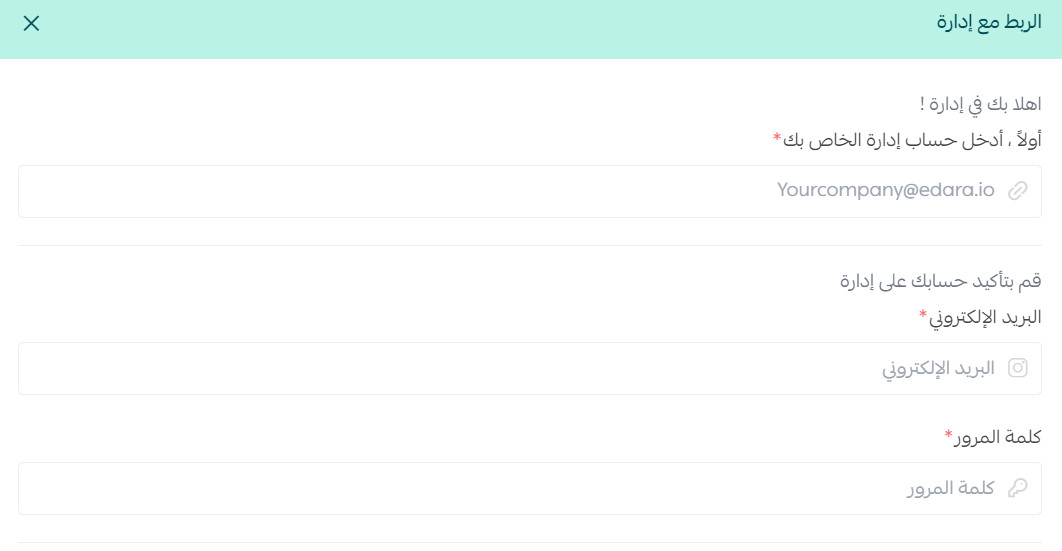
Configure the integration data and synchronization method, then click (Save).

Your Salla and Edara accounts are now connected, and you can synchronize the supported data between them.
For more details, see:
❓ Frequently asked questions about Edara accounting and inventory
Why connect Salla with Edara?
The source states that Edara is accessible from any device, can expand to meet an organization's needs, charges only for the services used, and secures user data. [Verify: confirm current pricing, scalability, access, and security terms with Edara.]
Which data can Edara synchronize with Salla?
The source says Edara can create products on Salla after they are created in Edara, synchronize Salla customers and orders, and update Salla product inventory from Edara in real time. [Verify: confirm current supported fields, direction, timing, and conflict handling.]
How can I remove Edara from my store?
1. From the dashboard side menu, click (Installed apps).

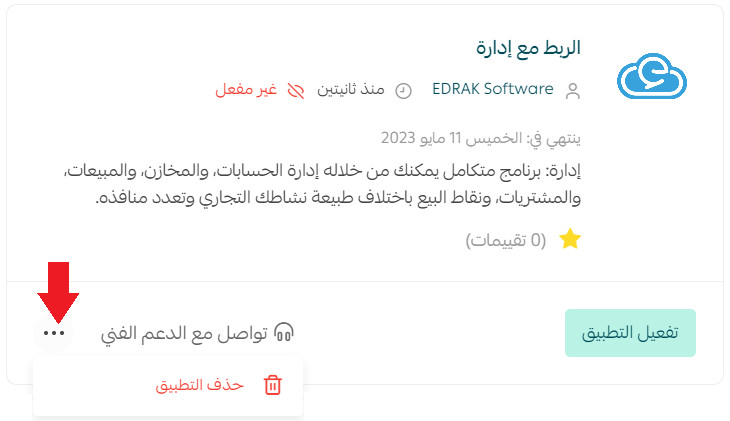
2. On the all apps page, find Edara, click the (...) icon, then click (Delete app).
📝 Important notes
Confirm the current synchronization scope, direction, frequency, conflict behavior, pricing, and security terms before publication.
Review the selected synchronization method carefully and verify product quantities, customers, and orders in both systems after the first sync.