How many different places do your customers try to reach you, and how many of those do you actually watch?
EasyConnect is a marketing and customer-communication tool that pulls all your contact channels into one place on your storefront, so a shopper can start a conversation the way they prefer instead of hunting for a link. You install it from the Salla App Store, activate it, and fill in your details. In this guide, you'll learn what EasyConnect offers, how to connect it to your store, where to create an account, and how to remove the app.
EasyConnect is a marketing and customer-contact app you add from the Salla App Store. Install it, grant the permissions it requests, then activate it from your installed apps page and fill in the required details. It adds more than ten contact channels to your storefront, from live chat to WhatsApp.
📌 Article overview
- What EasyConnect is
- How to connect EasyConnect to your Salla store
- Frequently asked questions
- How to delete the app
🎯 What is EasyConnect?
EasyConnect is an online marketing and customer-communication tool. It helps you attract more customers from social networks by giving them more than ten different ways to reach you: live chat, phone call, email, Twitter, Facebook, Instagram, WhatsApp, Telegram, TikTok, and Snapchat.
🚀 How to connect EasyConnect to your Salla store
1. From the dashboard side menu, click (Installed apps).

2. On the Salla App Store banner, click (Browse the Salla App Store).

3. On the EasyConnect app page, click (Install).
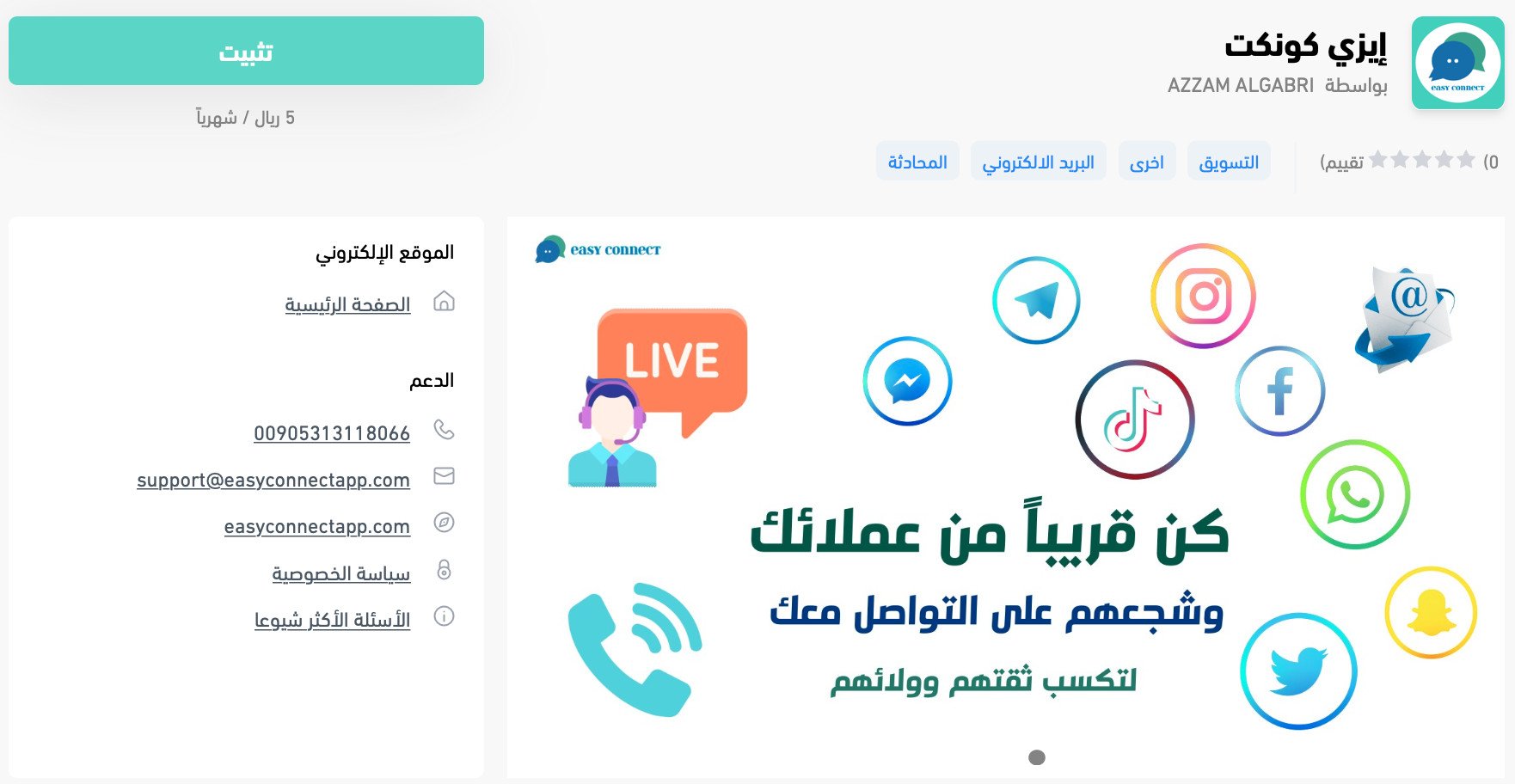
4. Review the permissions the app requests, then click (Grant permission).
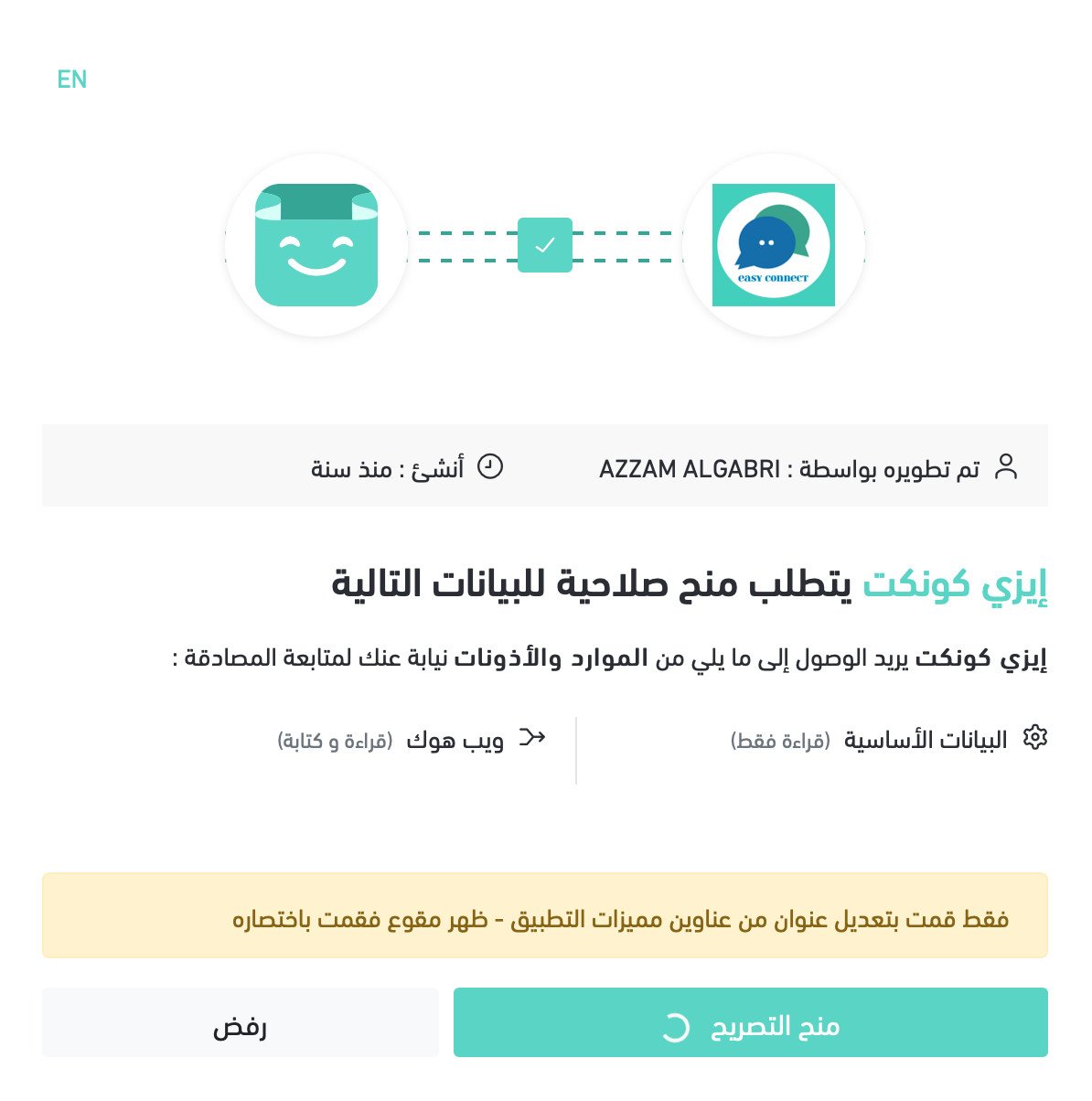
The EasyConnect app is now installed on your store.
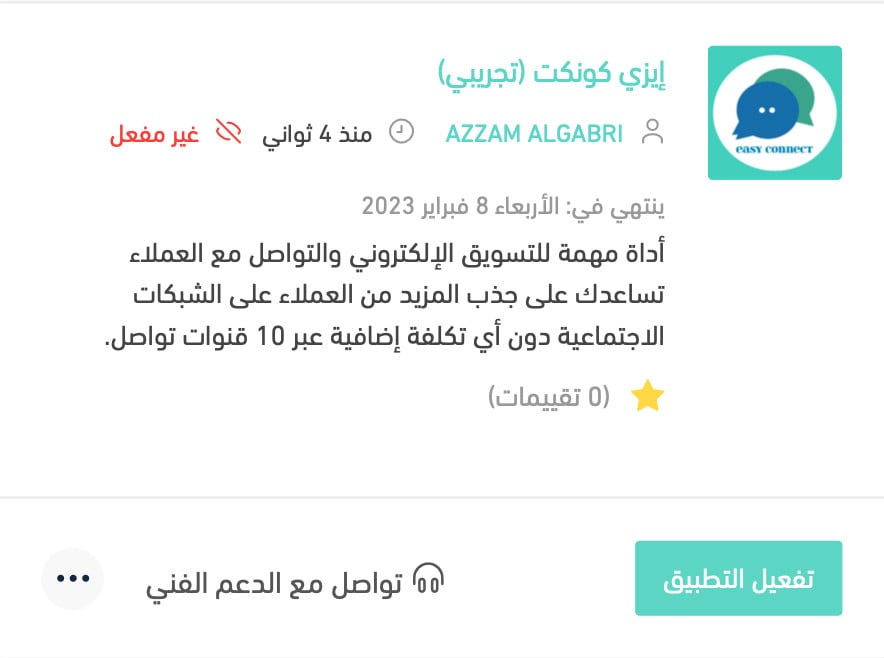
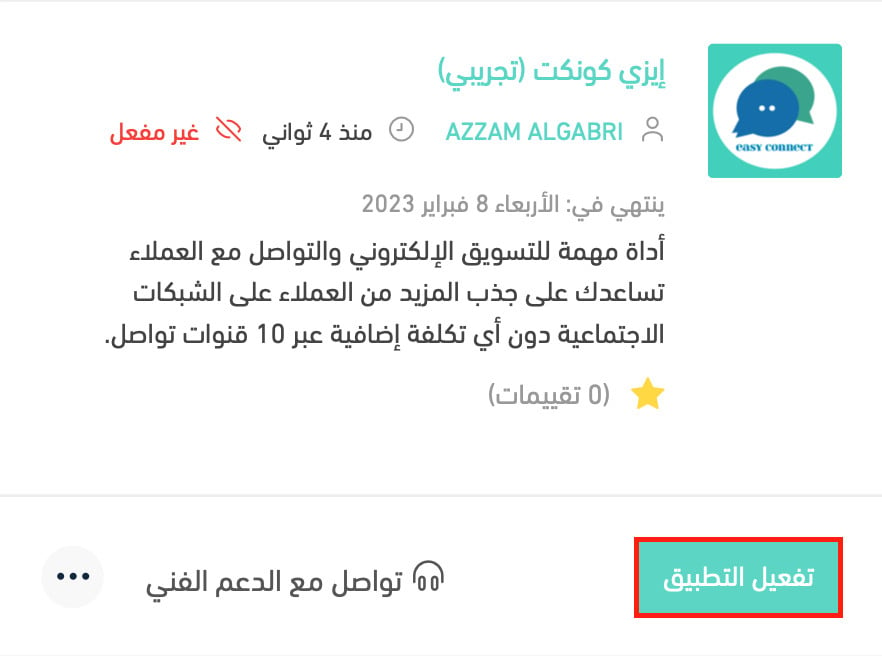
5. On the installed apps page, click (Activate app) for EasyConnect.
6. Fill in the required details, then click (Save).
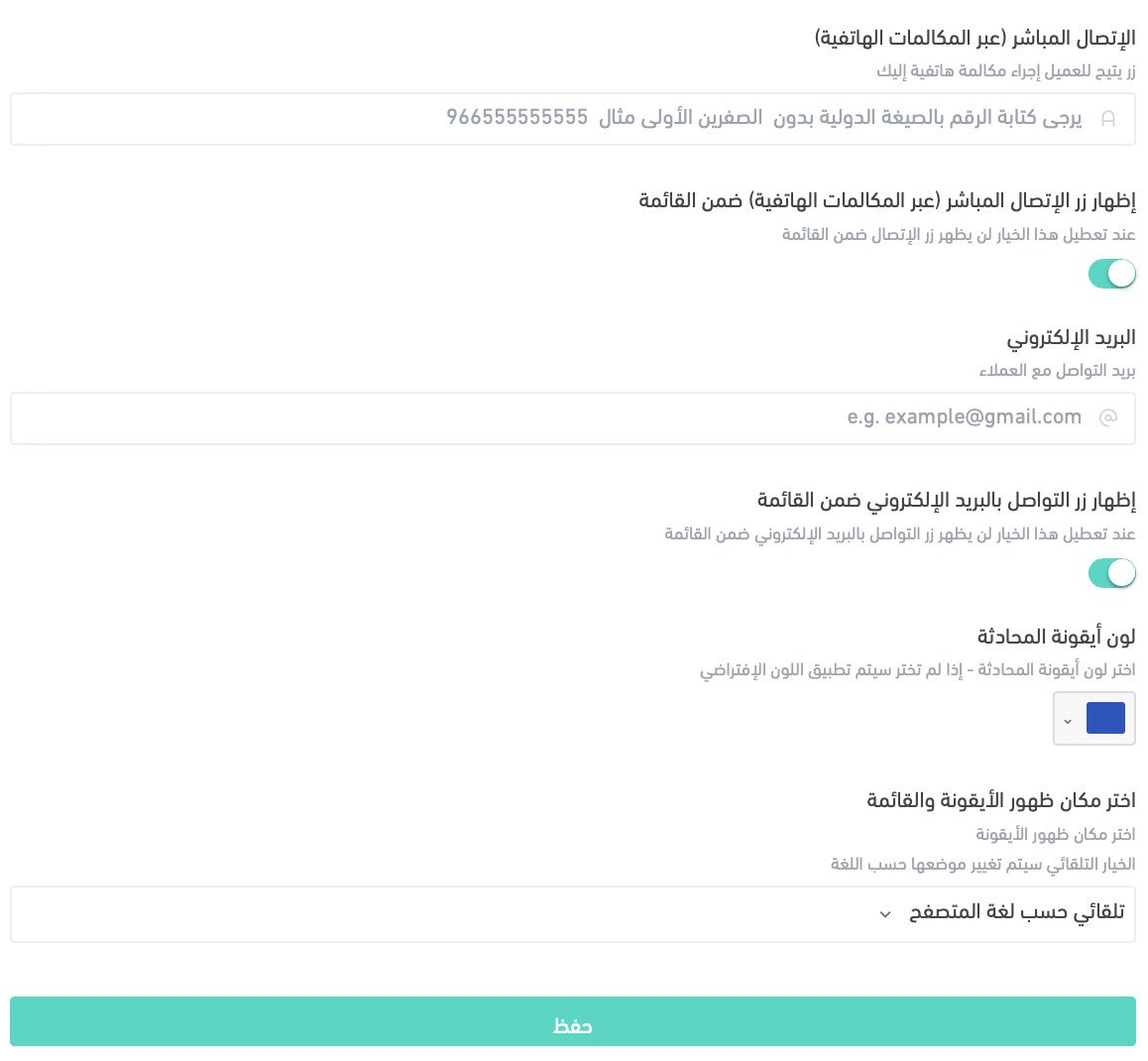
EasyConnect is now live on your store. Adjust its settings to suit how your business actually works.
For more on managing your store's apps.
❓ Frequently asked questions
How do I create a new EasyConnect account?
See the EasyConnect guide on registering a new account.
Which contact channels can I offer?
More than ten, including live chat, phone call, email, Twitter, Facebook, Instagram, WhatsApp, Telegram, TikTok, and Snapchat. You choose which ones appear on your store.
Is installing the app enough to turn it on?
No. After installing, you still need to activate EasyConnect from your installed apps page and save the details it asks for, as in steps 5 and 6.
Where do I change my channel settings later?
In the EasyConnect settings you reach from your installed apps page. Update them whenever your business adds or drops a channel.
How do I delete the EasyConnect app from my store?
1. From the dashboard side menu, click (Installed apps).

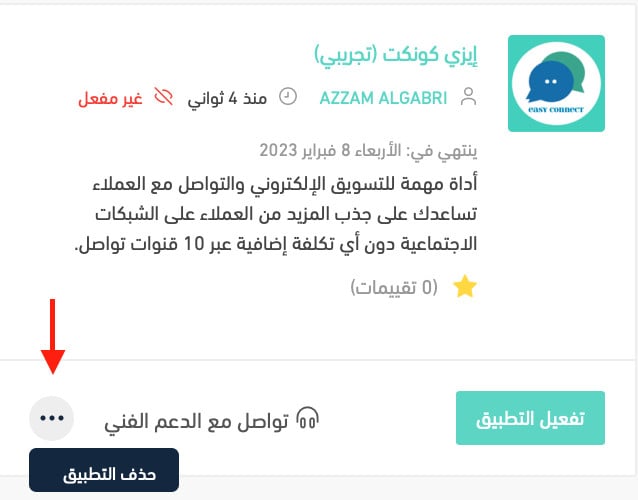
2. On the all apps page, find the EasyConnect app, click the (...) icon, then click (Delete app), as shown in the image.
📝 Important notes
You need an EasyConnect account before the details in step 6 will mean anything, so register first if you do not have one.
Deleting the app removes the contact channels from your storefront, so tell your team before you remove it.
A customer who cannot find a way to ask their question usually does not ask it. They just leave.