Wouldn't it help to answer a customer's question before they leave your store?
Connecting Crisp with Salla gives you exactly that. Crisp is a free live chat service that acts as technical support for your site or store, and it's a genuinely useful tool for tracking your customers' events, complaints, and requests without any fuss. In this guide, you'll learn how to create a Crisp account, install the app, and paste your tracking code into your Salla store.
To connect Crisp with Salla, create a free Crisp account and copy the tracking code from your Crisp dashboard. Then install the Crisp app from the Salla App Store, open (App options) and (Activate app), paste the tracking code, and click (Activate connection).
📌 Article overview
- What is Crisp?
- How to connect your Salla store with Crisp
- Frequently asked questions
🎯 What is Crisp?
Crisp is a free live chat service that works as technical support for your website or store. It's also a very useful tool for keeping track of your customers' events, complaints, and requests, simply and clearly.
🚀 How to connect your Salla store with Crisp
The connection happens in three stages:
1. Sign up for Crisp.
2. Install the Crisp app.
3. Paste the Crisp tracking code into your Salla store.
Stage one: sign up for Crisp
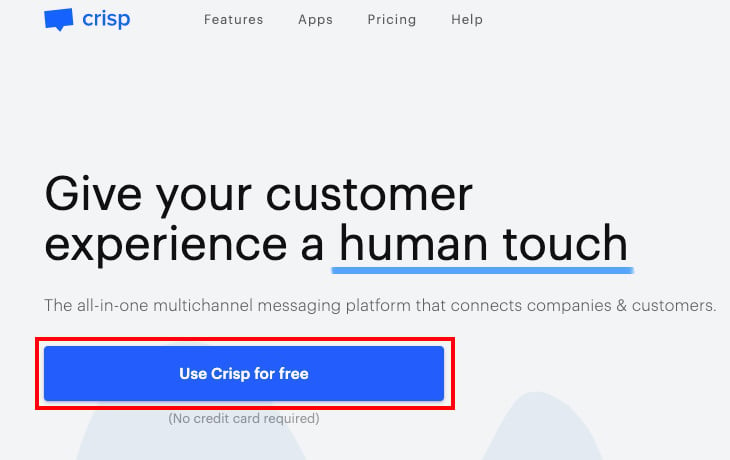
1. Go to the Crisp website and click (Use Crisp for free) to create your account.
2. Enter your basic account details to get started, then click (Continue).
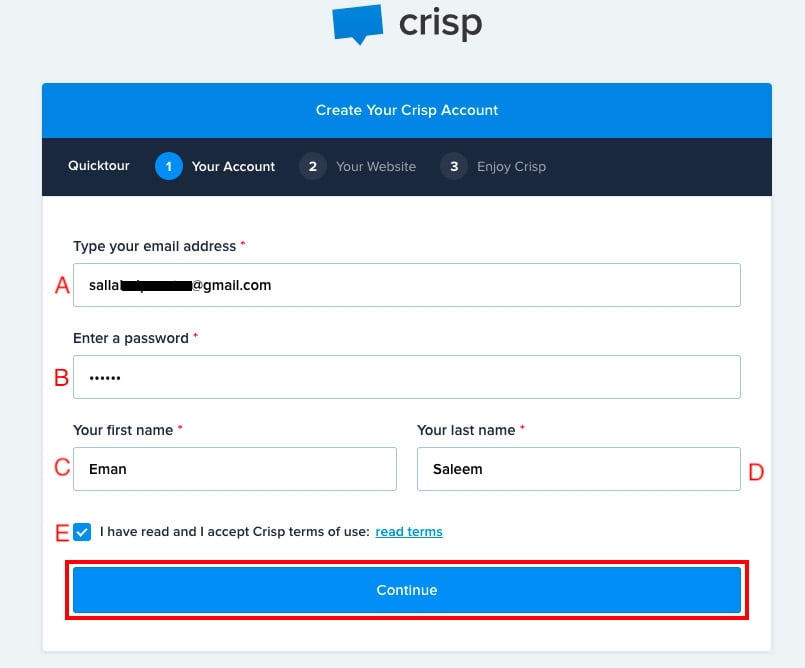
A. Your email address.
B. A new password (at least 6 characters, mixing numbers, English letters, and symbols).
C. Your first name.
D. Your last name.
E. The checkbox that accepts the terms and conditions.
3. Enter your store details, then click (Continue).
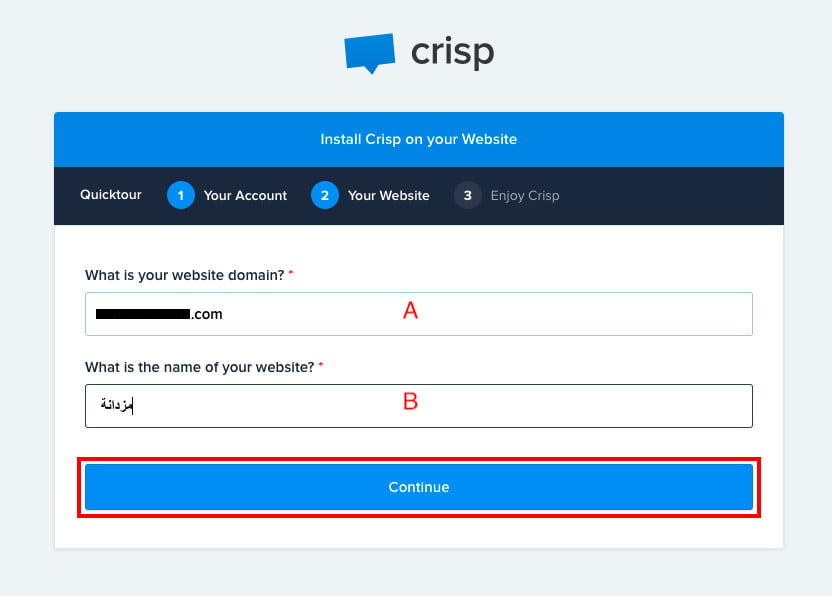
A. Your store domain.
B. Your store name.
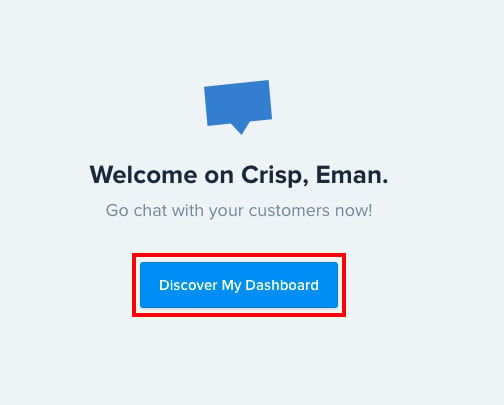
4. Click (Discover My Dashboard) to open your page in the service.
5. Click the (Setup) icon on that page to work through the steps for copying the code.

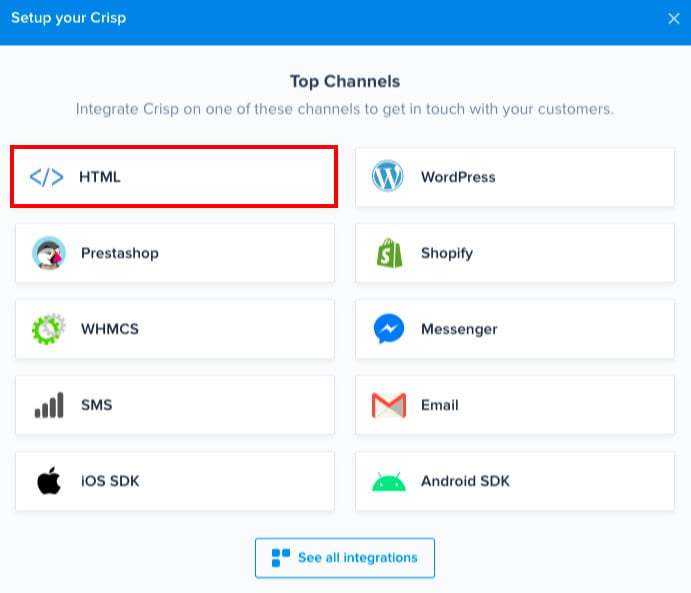
6. Choose the channel you'll use to get your tracking code.
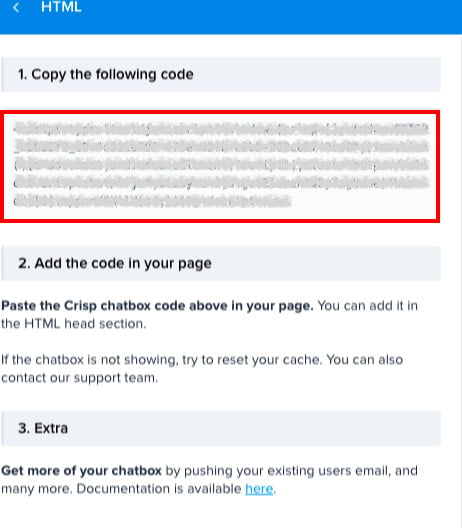
7. Copy the tracking code so you can paste it into your store.
Stage two: install the Crisp app
1. From the side menu of your dashboard, click (Installed apps).

2. On the installed apps page, click (Browse the Salla App Store).

3. Open the Crisp app and click (Install).
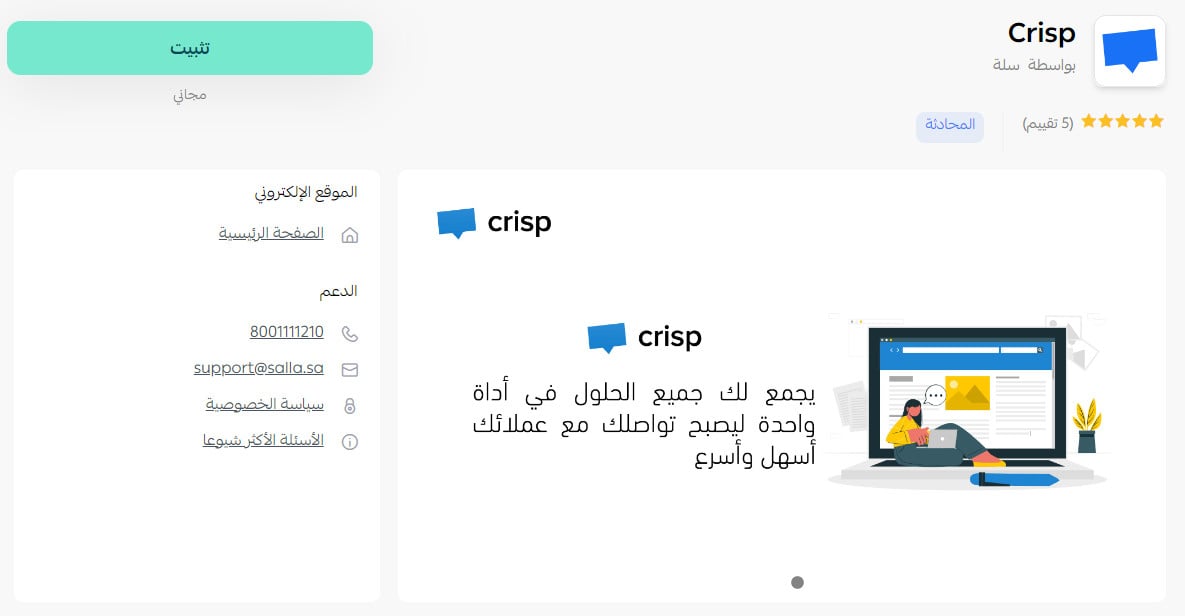
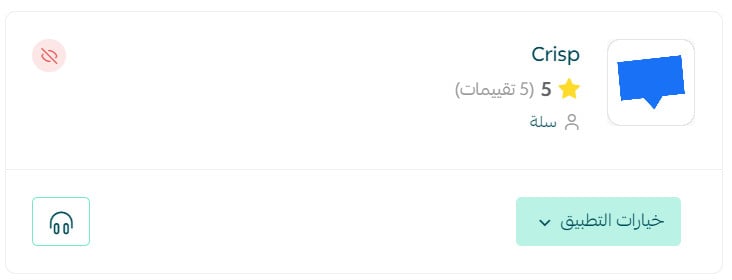
After installation, the app card looks like this:
Stage three: paste the Crisp tracking code into your Salla store
1. From the side menu of your dashboard, click (Installed apps).

2. On the Crisp app, click (App options), then (Activate app).
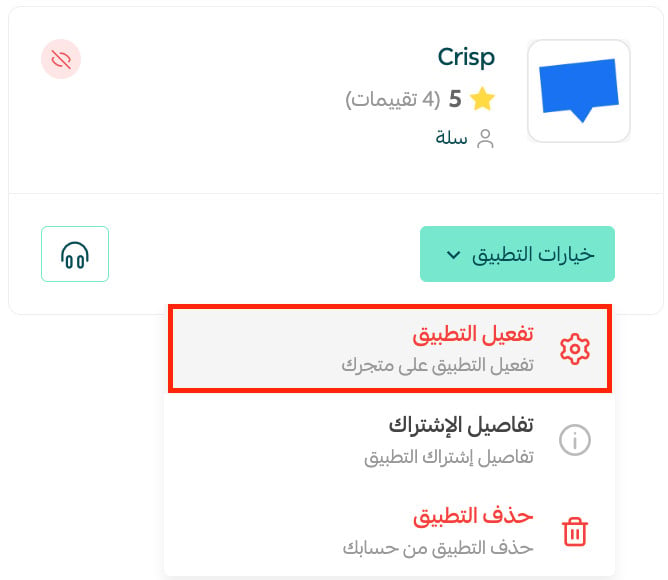
If the app isn't installed in your store yet, install it first. For more details, see installing an app from the Salla App Store.
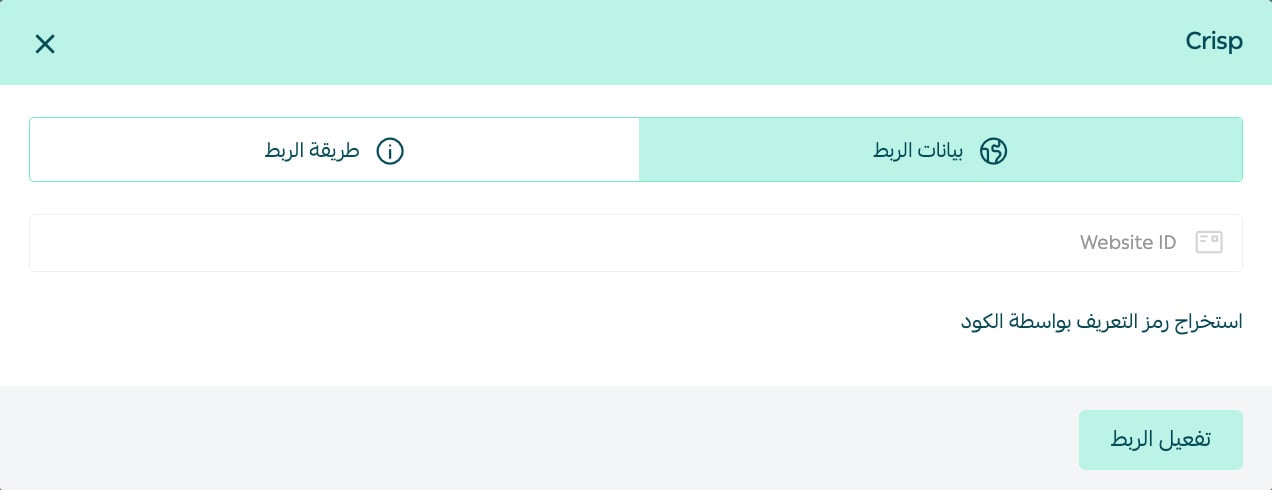
3. Paste the tracking code you copied from Crisp in stage one, then click (Activate connection).
❓ Frequently asked questions
Why should I use Crisp?
1. You can turn on every notification and still receive the message, even when you're offline.
2. You can set your support hours — the day, date, time, and number of hours.
3. You can add more than one site or store under a single email and a single dashboard.
4. You can change the name, email, and language; choosing (Auto-detect) means you receive every language.
Can I disconnect my store from my Crisp account?
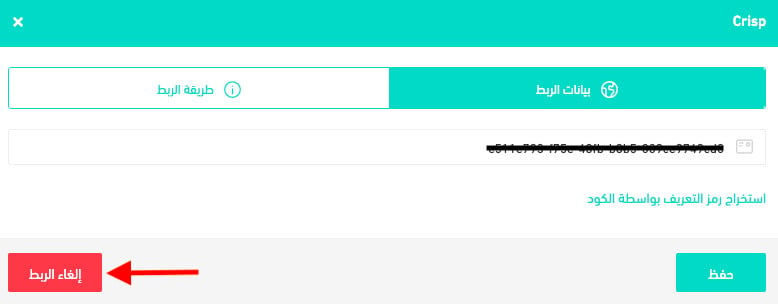
Yes. On the Crisp connection page, click (Disconnect).