How many visitors leave your store without ever hearing your offer?
The ConvertFlow app gives you everything you need to build, customize, and launch pop-ups on your Salla store, along with landing pages and an announcement bar. The tools are simple enough that you can double your visitor-to-buyer conversion rate without writing a line of code. In this guide, you'll learn how to connect ConvertFlow to your store and launch your first pop-up campaign.
Connecting ConvertFlow takes three stages: create a ConvertFlow account and pick a plan, copy your tracking key from the Settings page, then install the ConvertFlow app from the Salla App Store, activate it from the (App options) menu, paste the key, and click (Activate integration).
📌 Article overview
- What the ConvertFlow app is
- Stage 1: create a ConvertFlow account
- Stage 2: copy your ConvertFlow key
- Stage 3: install the app on Salla and connect it
- Frequently asked questions
🎯 What the ConvertFlow app is
ConvertFlow gives you everything you need to create, customize, and launch pop-ups, build landing pages, and install an announcement bar, using easy tools that help you double the rate at which visitors turn into buyers — with no programming experience needed.
🚀 Steps to connect ConvertFlow
The integration runs through three stages:
1. Create an account on ConvertFlow.
2. Copy your ConvertFlow key.
3. Install the ConvertFlow app on Salla and connect it to your ConvertFlow account.
Stage 1: create an account on ConvertFlow
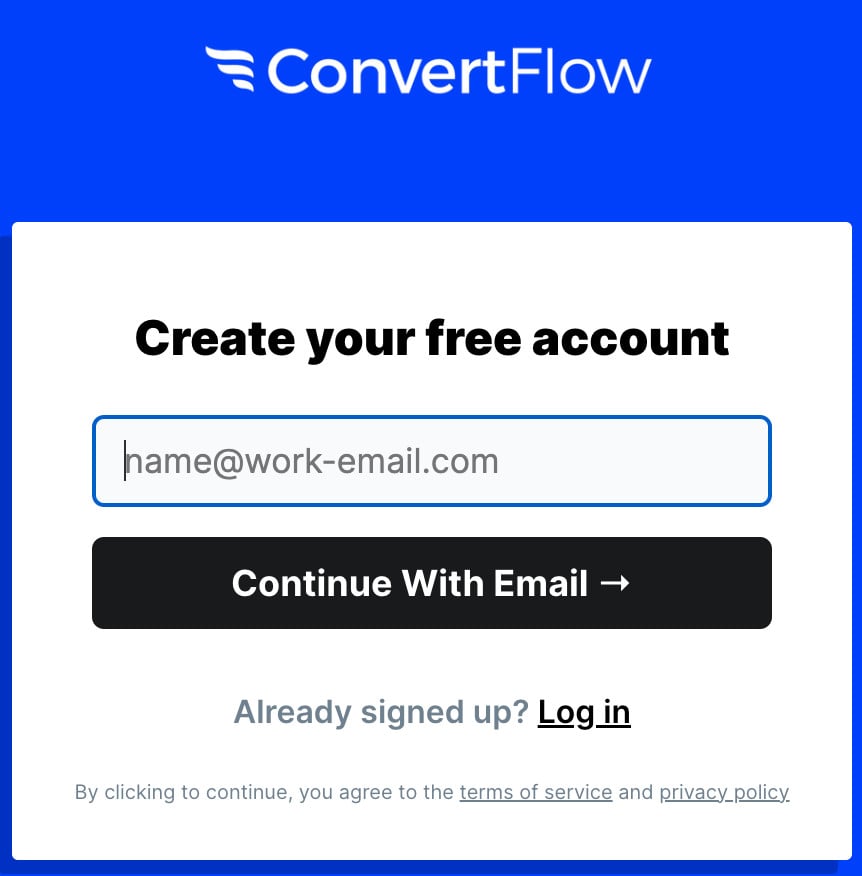
1. On the ConvertFlow sign-up page, enter your email address, then click (Continue with email).
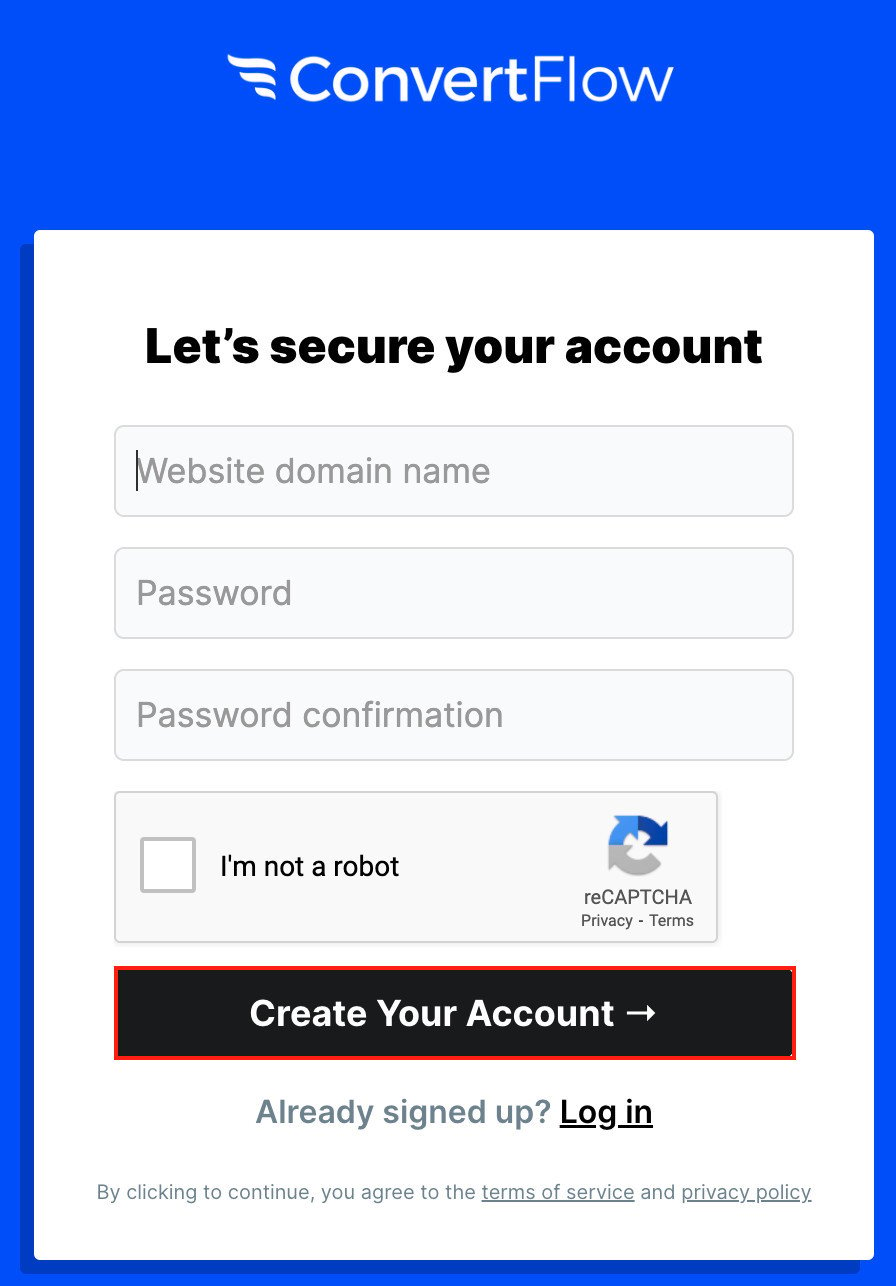
Then enter your store domain and your details.
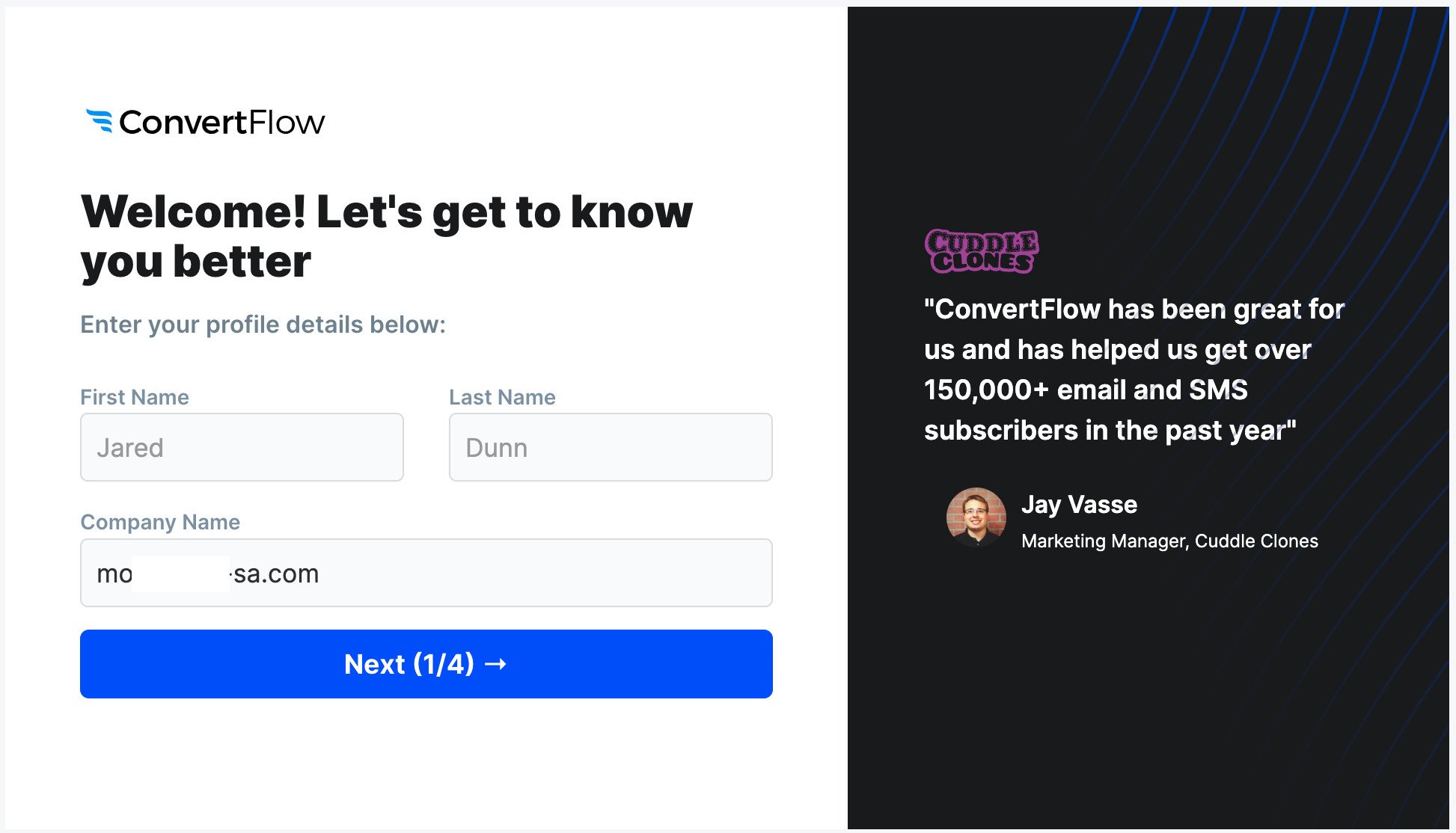
Enter your personal details and your store name, then click (Next).
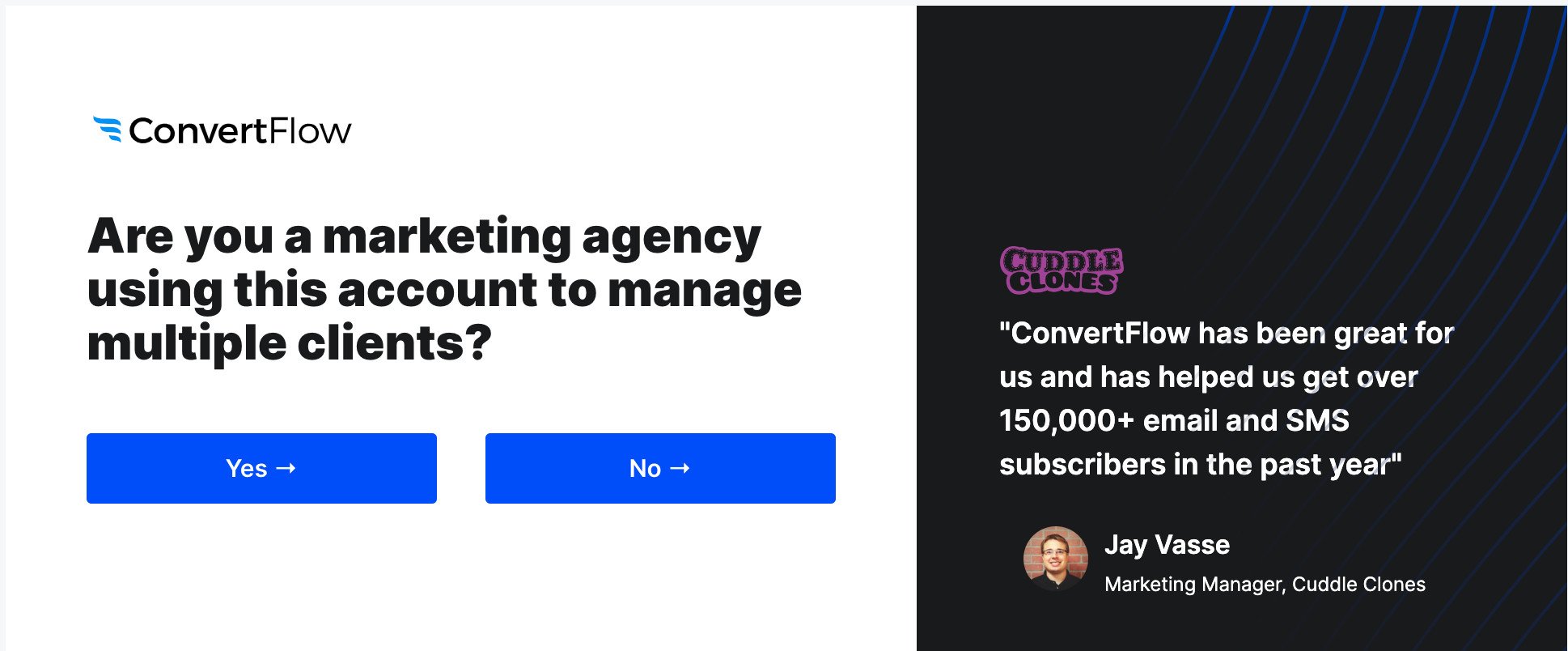
Click (Yes) if you're an ad agency managing clients, or click (No).
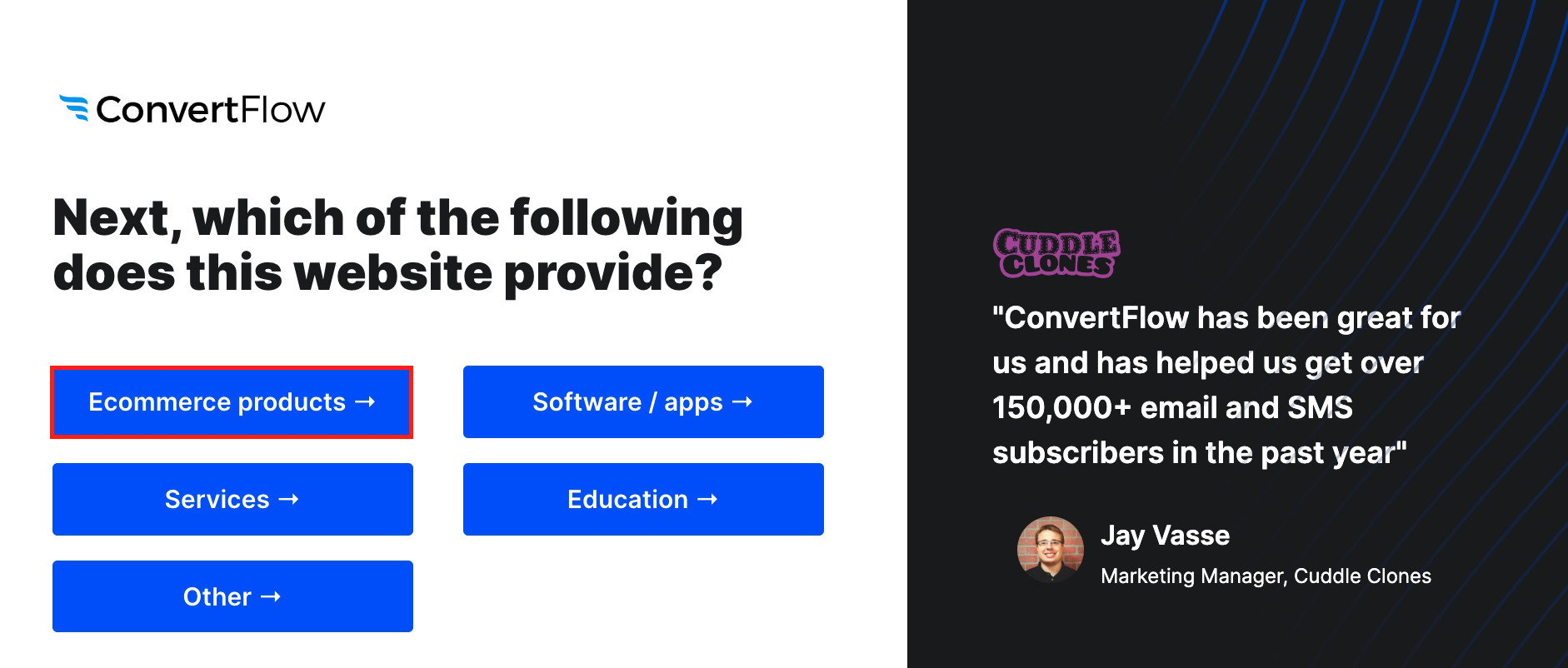
Answer the question about what your site offers by choosing (Ecommerce Products).
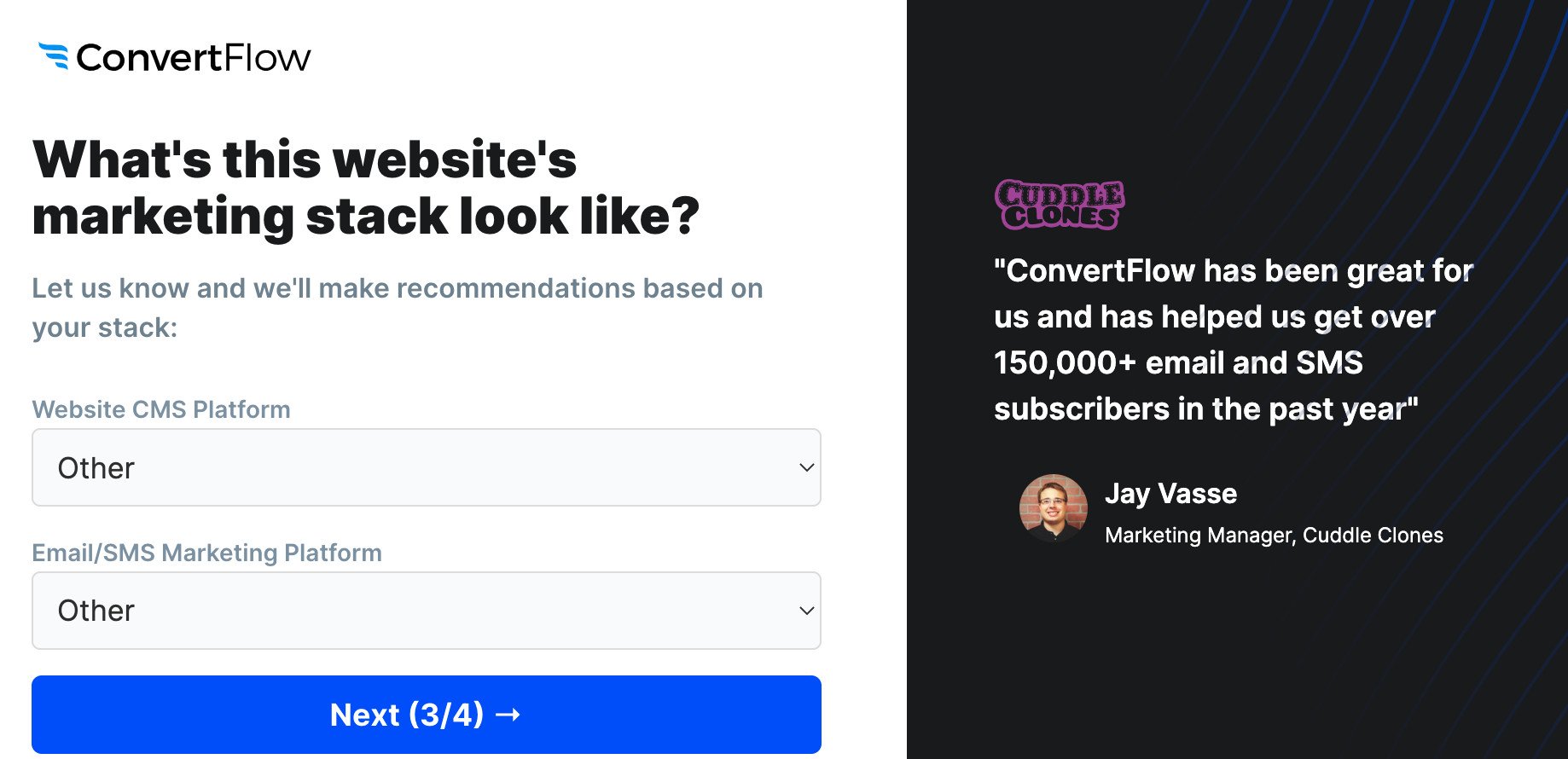
Pick the options that fit your business and click (Next).
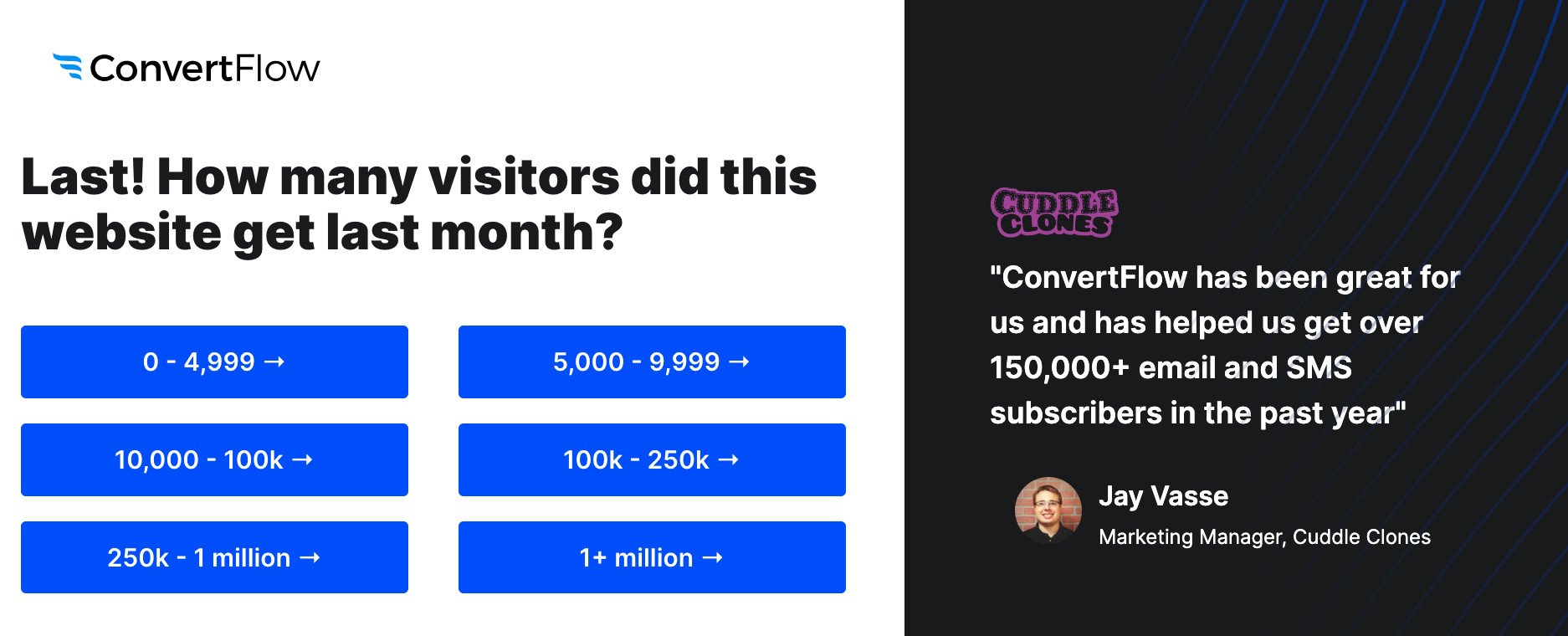
Set how many visitors your store gets in a month to move on to the last step.
2. The home page opens straight away. Click (Use Free Plan) to try the service, or choose a paid plan.
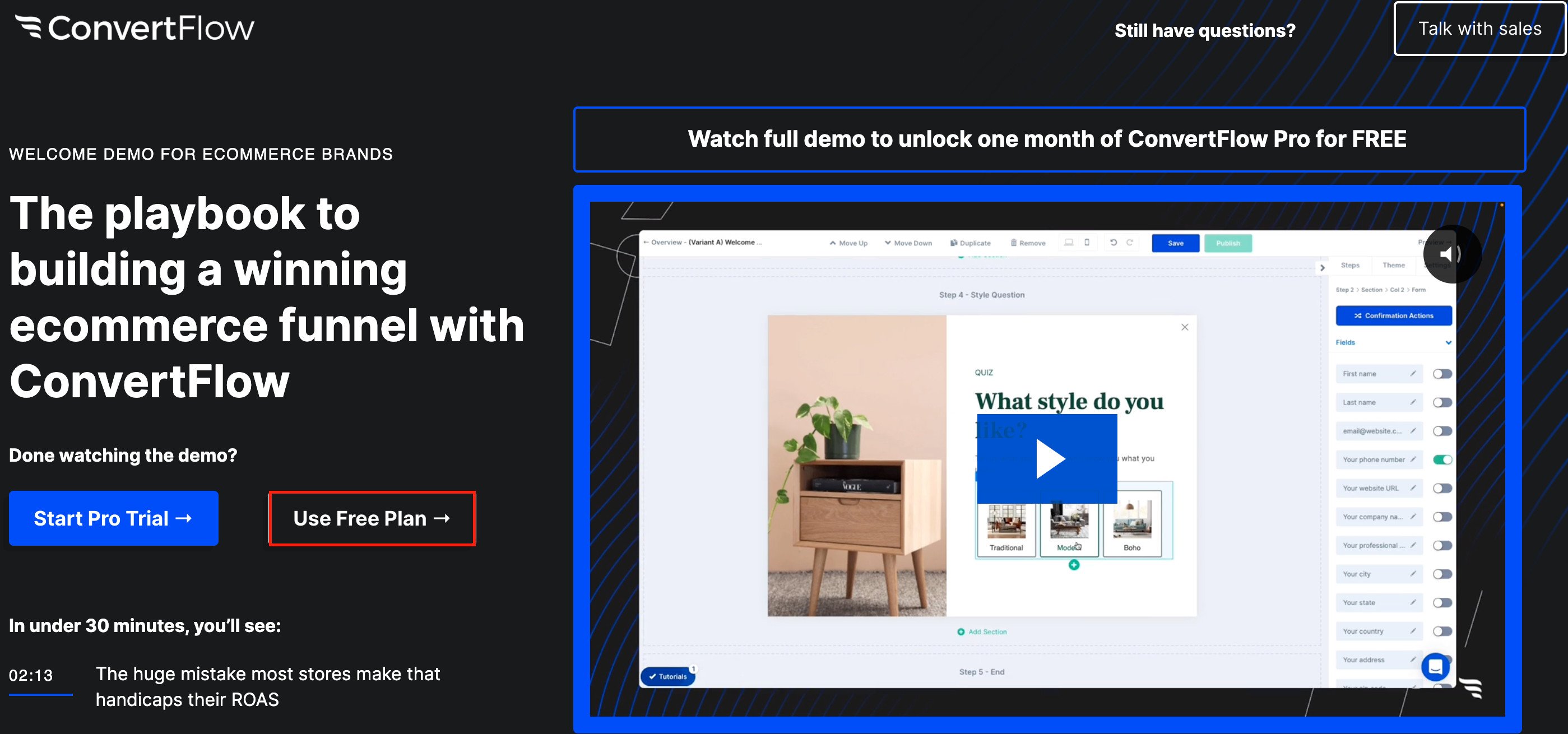
Your dashboard then opens right in front of you.

Stage 2: copy your ConvertFlow key
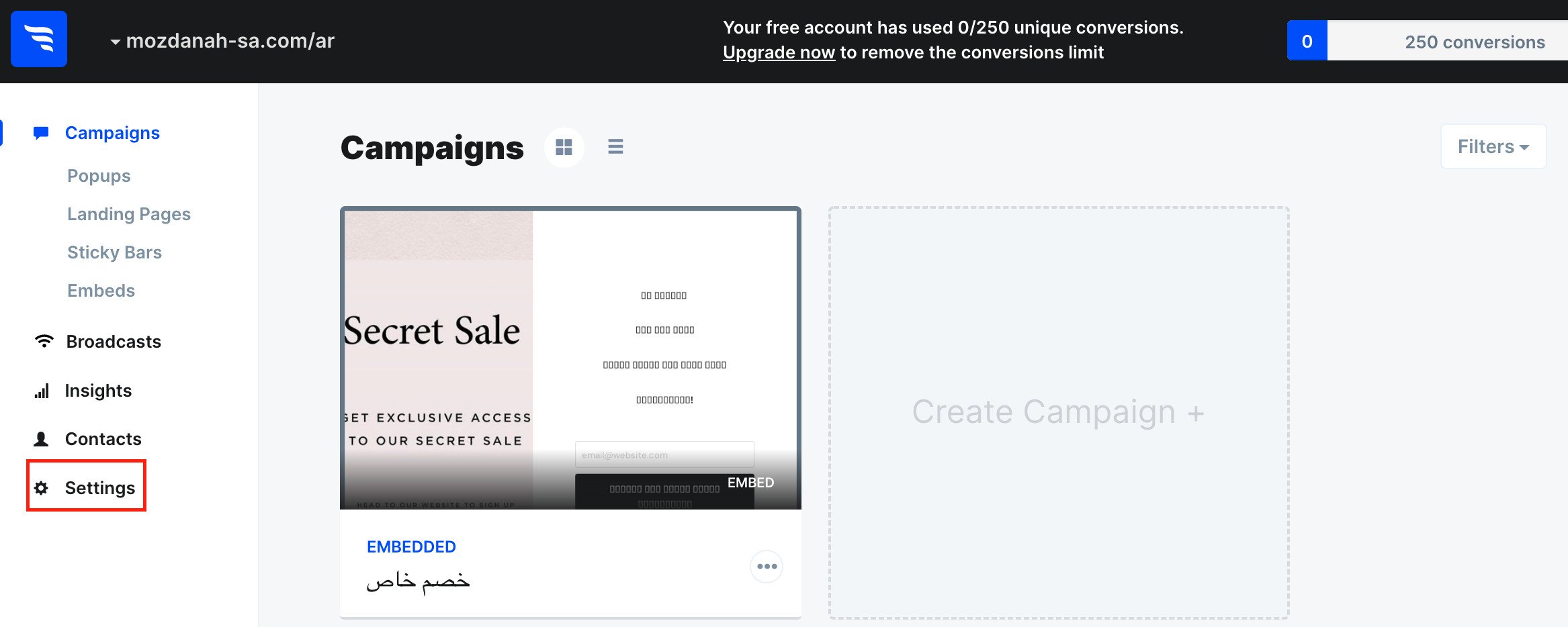
1. In the side panel of the campaigns page, click (Settings).
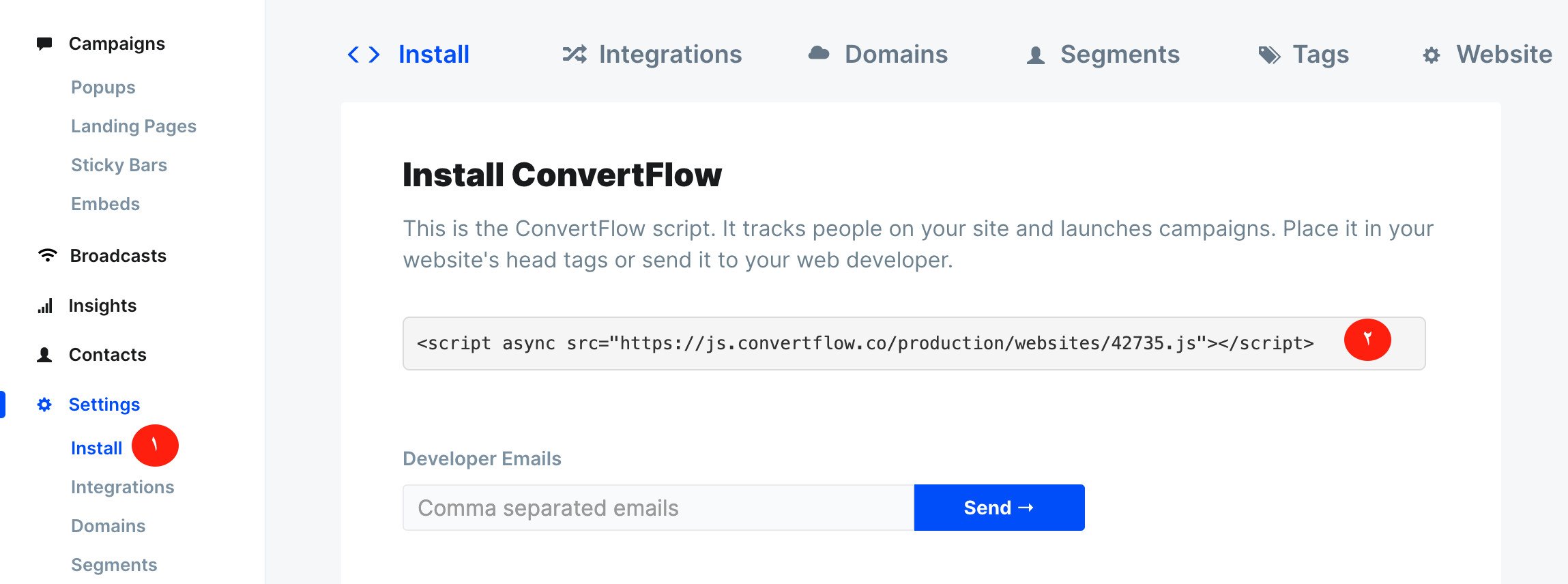
2. Click (Install), then copy the link and keep it to hand so you can connect it to your Salla store.
Stage 3: install the ConvertFlow app on Salla and connect it to your account
1. From the side menu of your dashboard, click (Installed apps).

2. On the Salla App Store banner, click (Browse the Salla App Store).

3. On the ConvertFlow app page, click (Install).
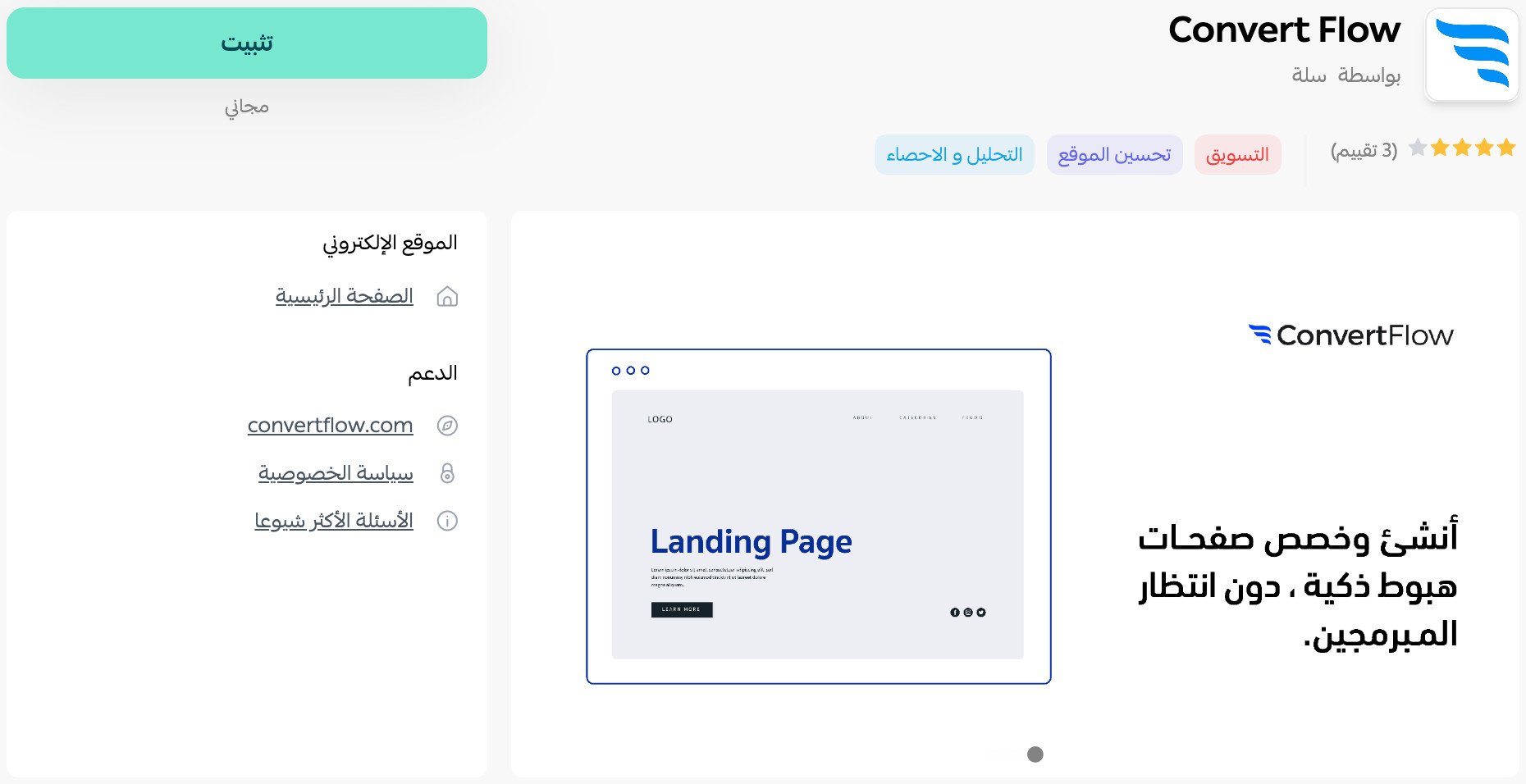
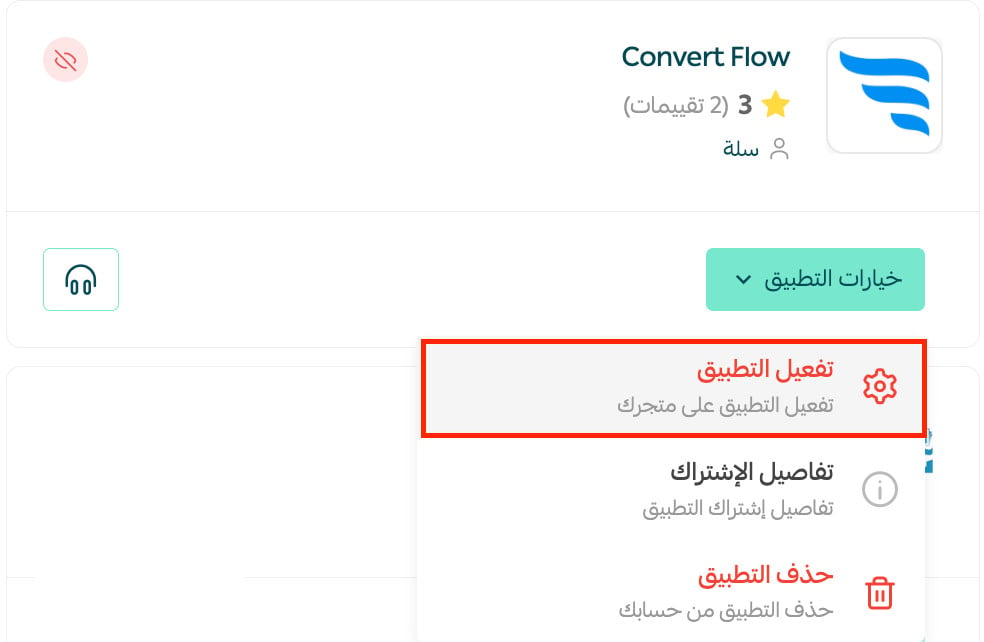
4. On the ConvertFlow app, click (App options), then (Activate app).
5. Paste the code you copied at the end of the previous stage into the field provided and click (Extract), then click (Activate integration).
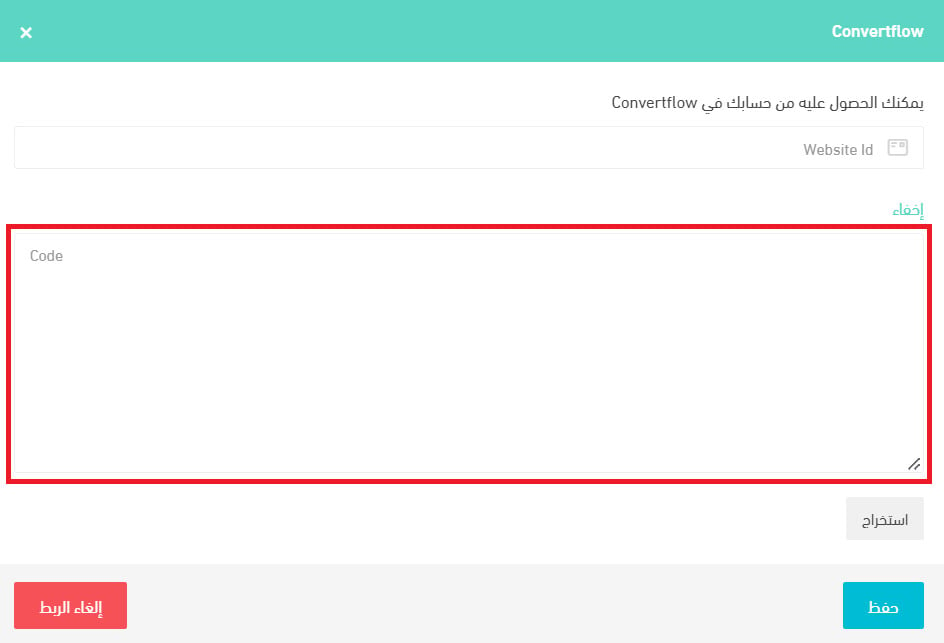
That's it — the app is now active on your store.
❓ Frequently asked questions
How do I launch a pop-up campaign in my store?
1. From the home page of your ConvertFlow account, pick the template that suits you.
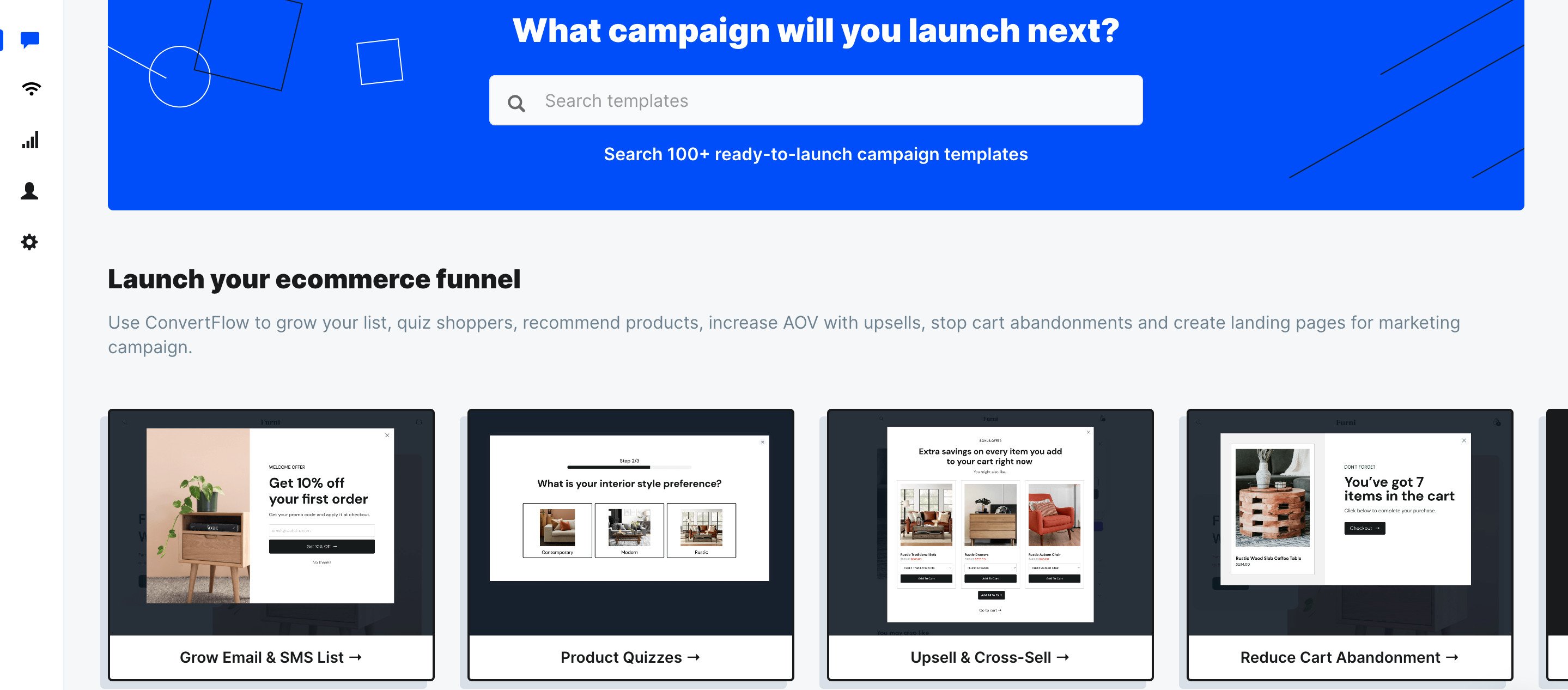
Then click (Use template) to start working with it.
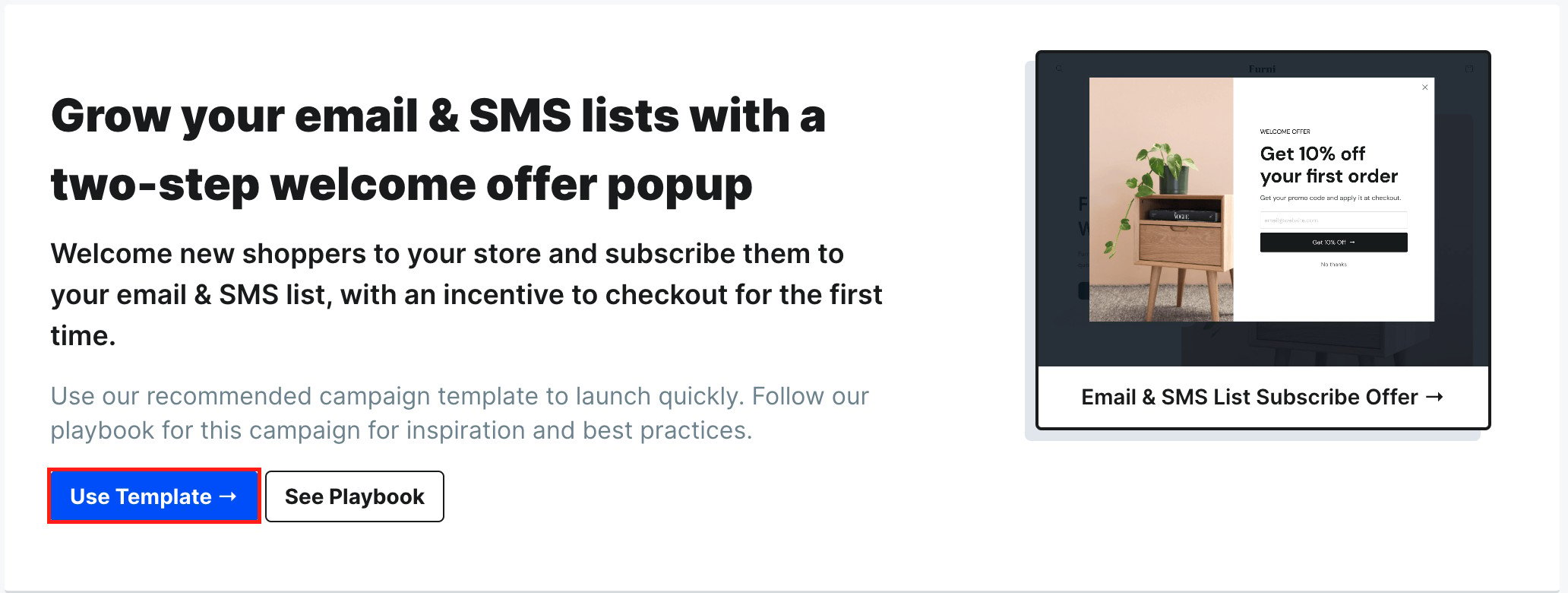
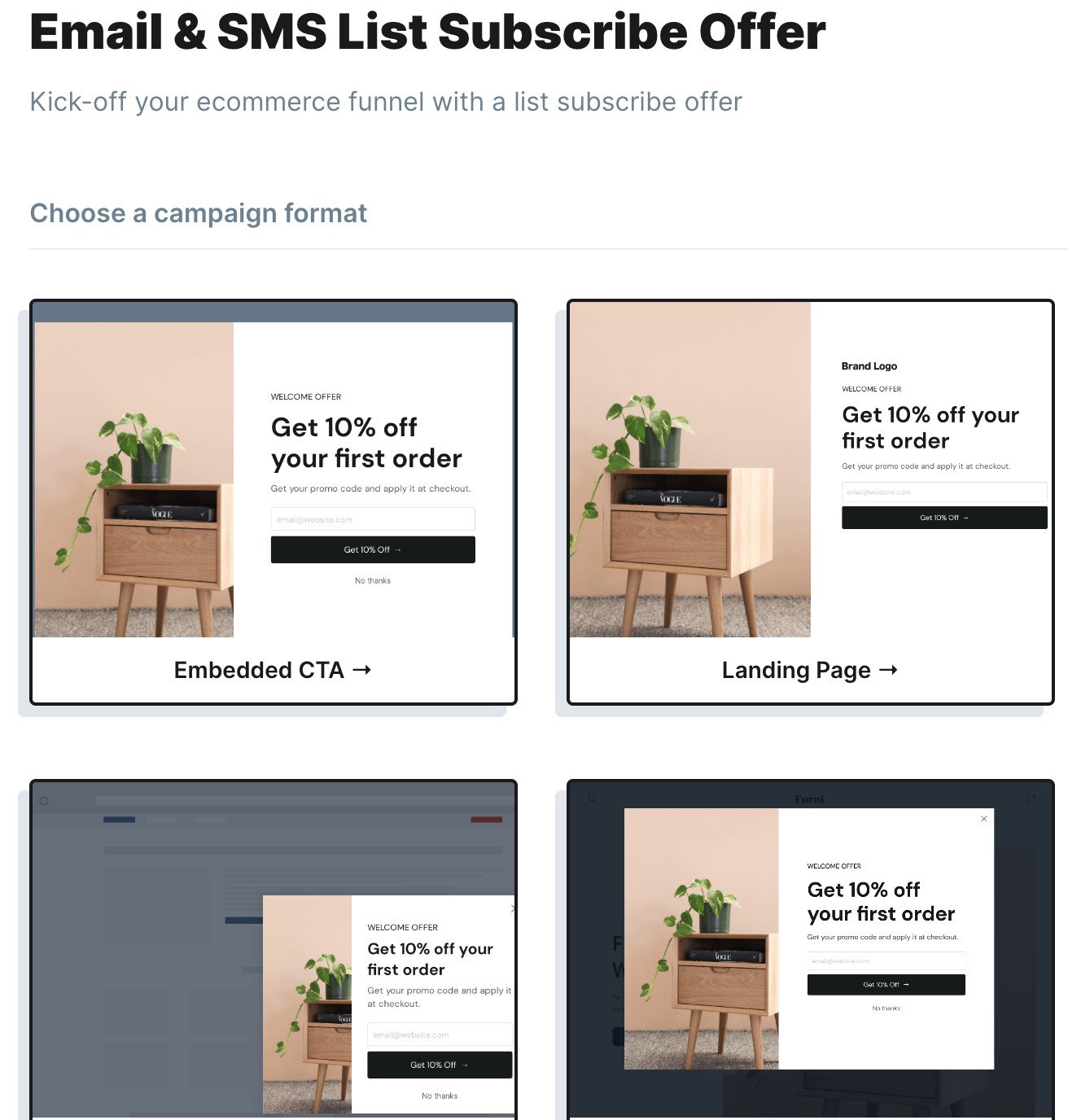
Choose the campaign format you want to launch from the options.
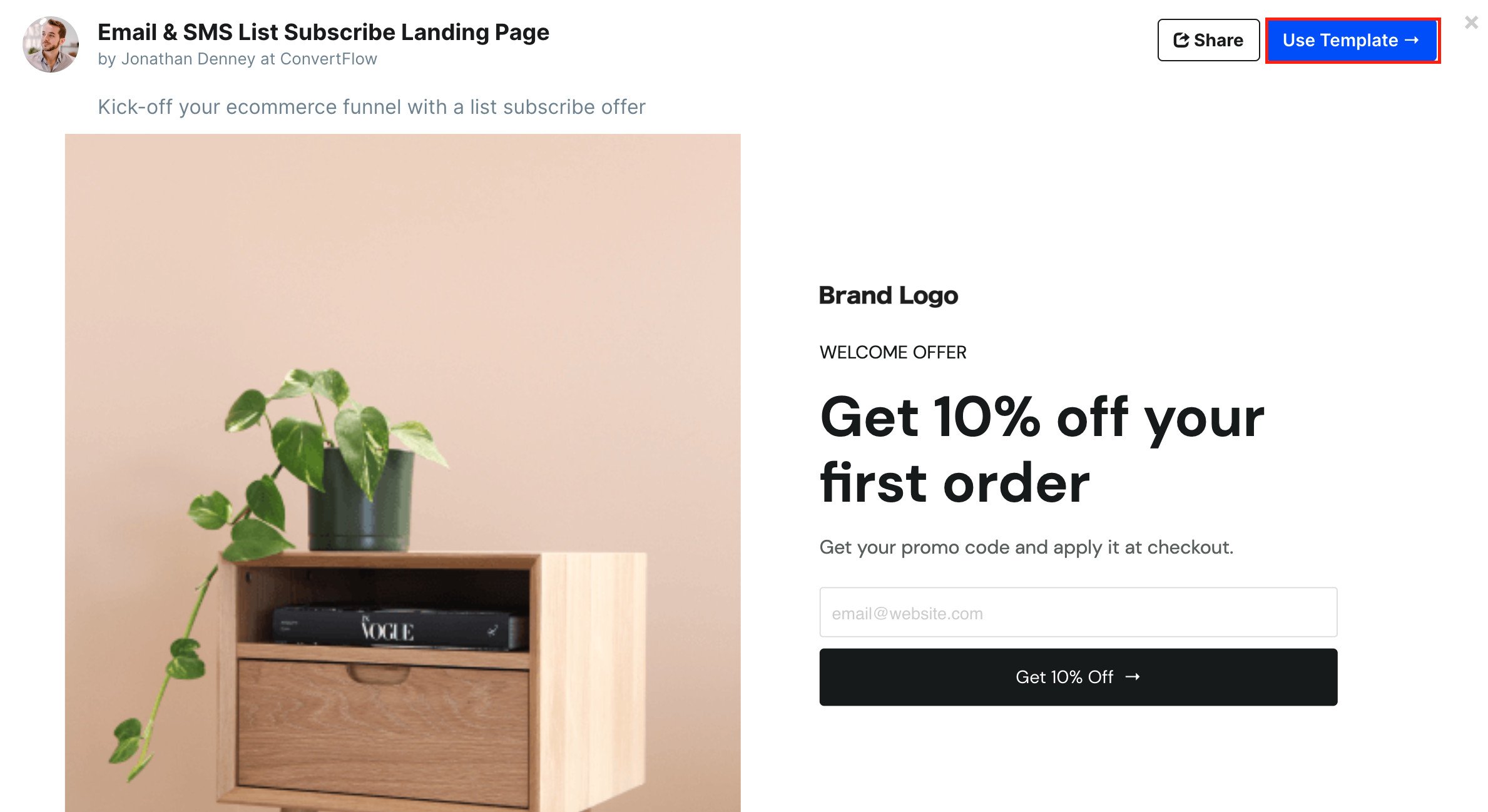
Then click (Use template) to start editing the template's content.
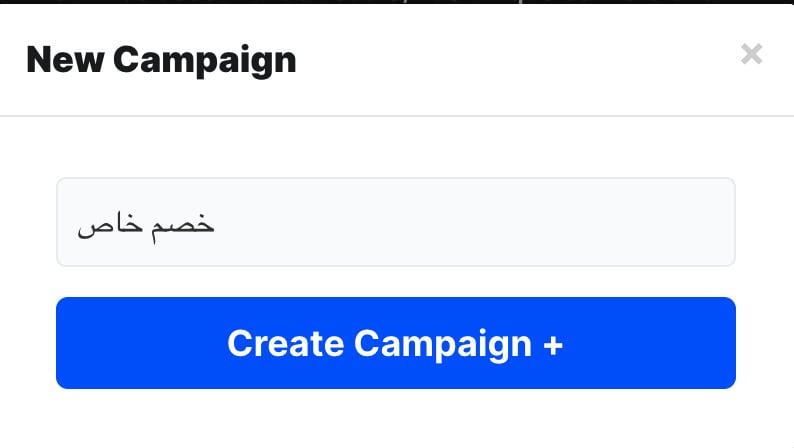
Enter the campaign name you want, then click (Create Campaign).
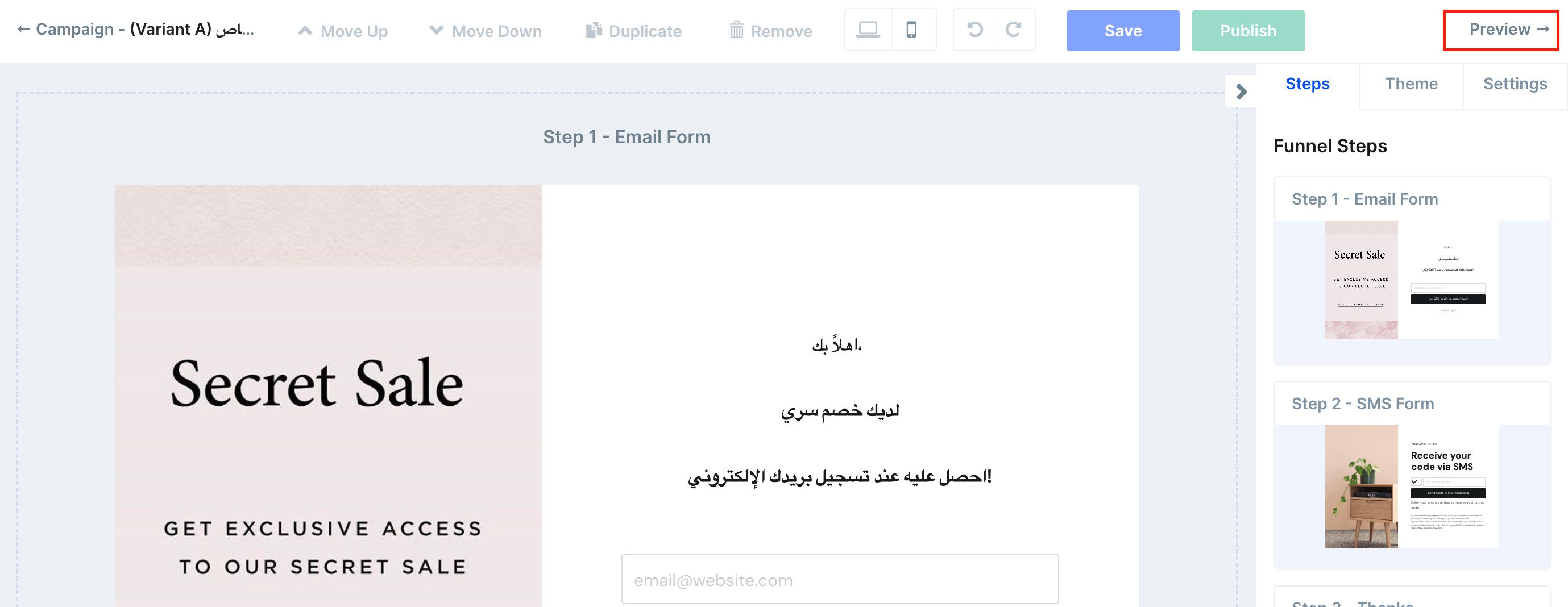
2. Make the changes you need to the template so it fits your store, then click (Preview).
3. Click (Launch) to publish the campaign and make it live on your store.
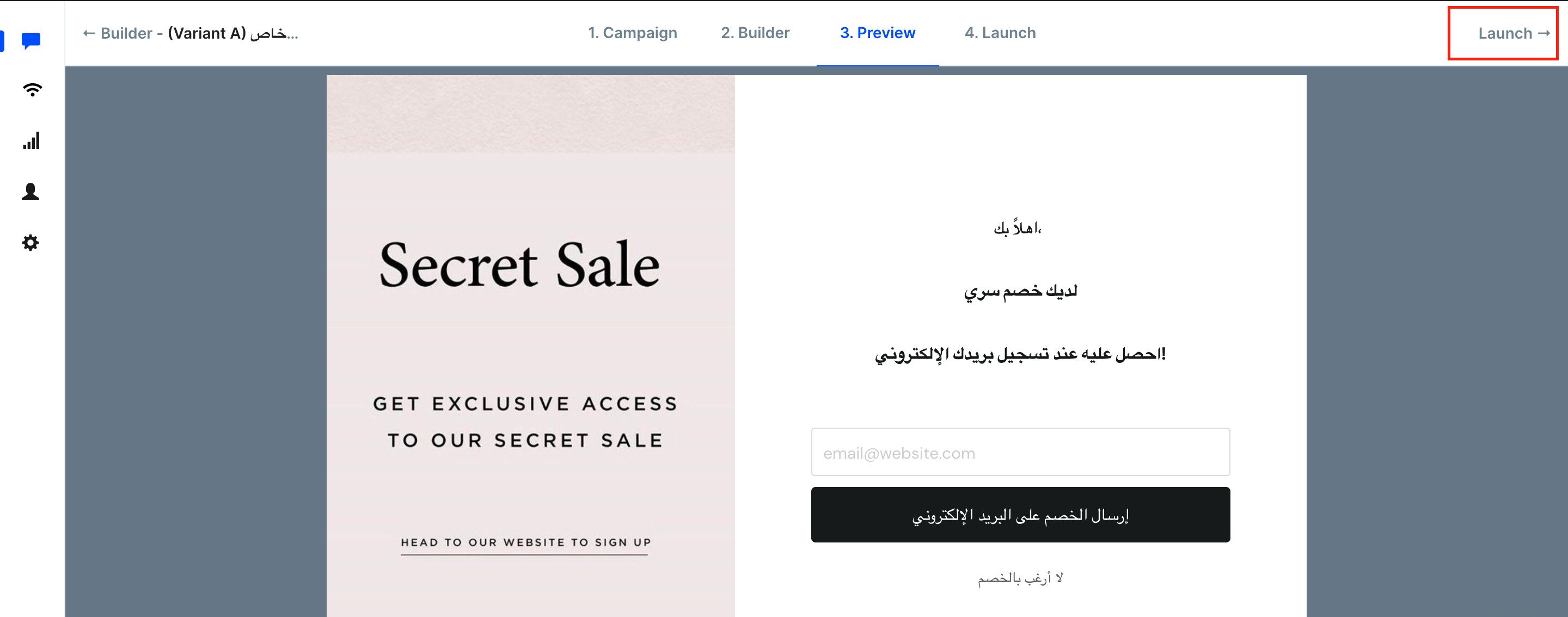
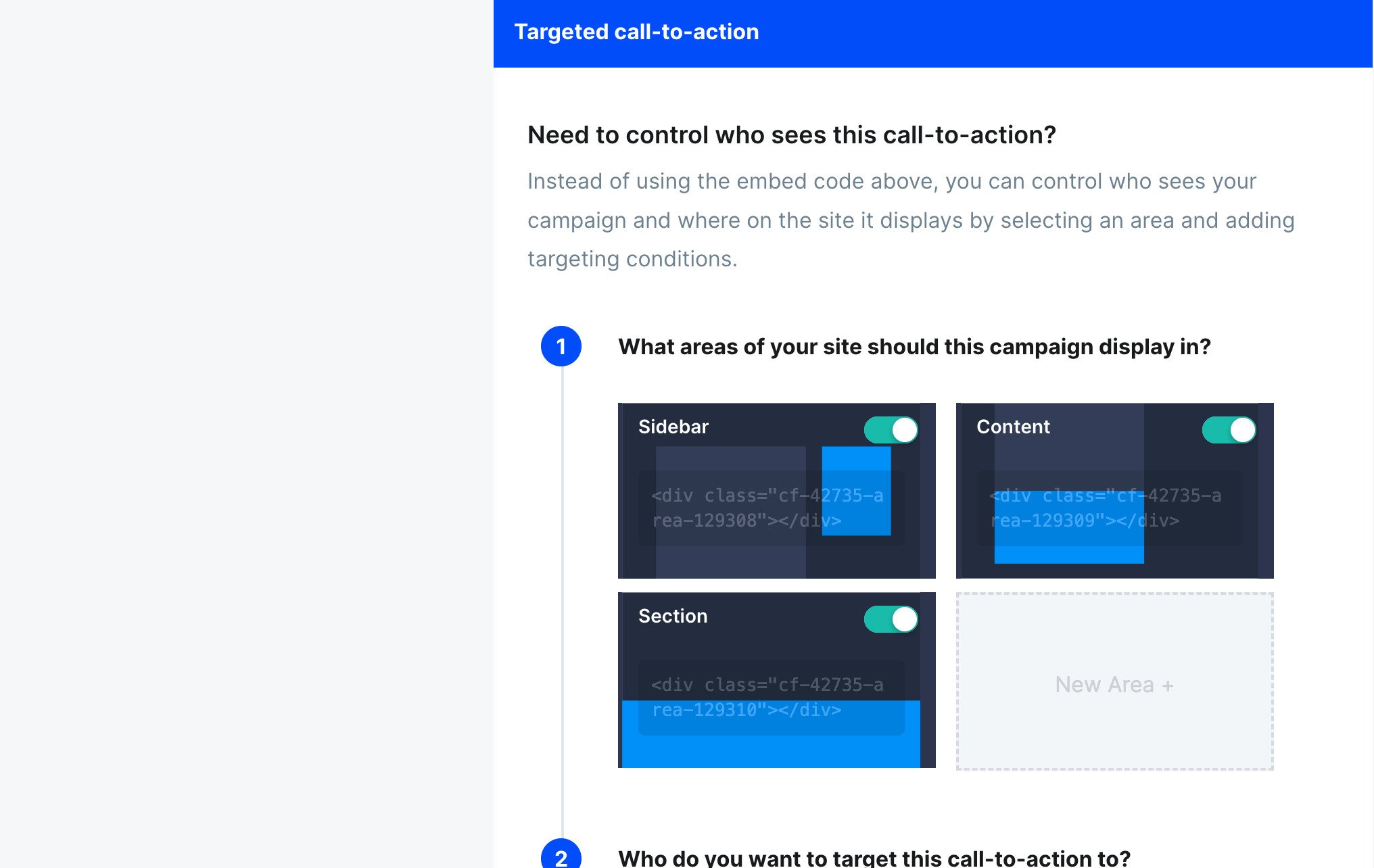
Finally, set your launch settings — they're applied to the campaign automatically.
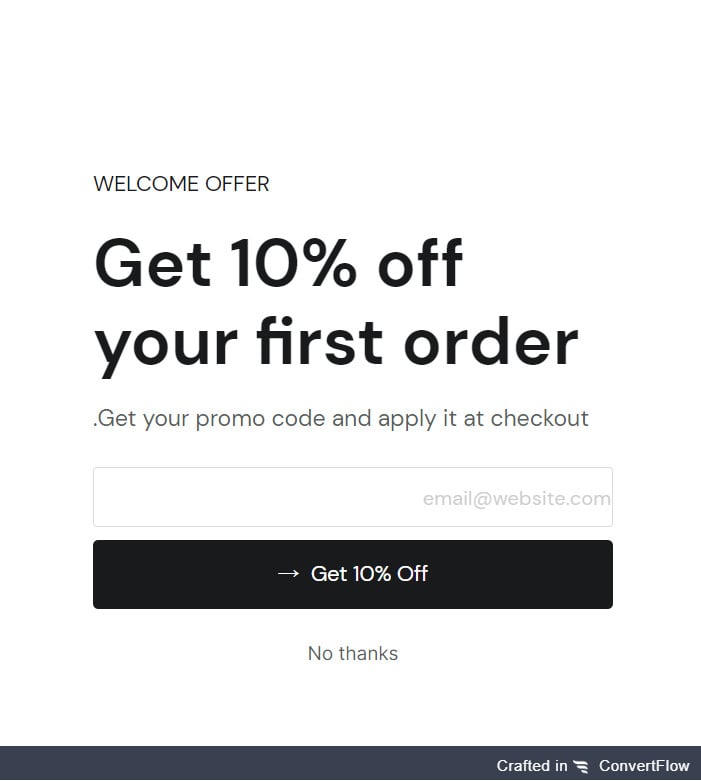
Your pop-ups then appear in your store like this.
Do I need a paid plan to try ConvertFlow?
No. When your account is created you can click (Use Free Plan) to try the service, or pick a paid plan instead.
Do I need coding skills to build pop-ups?
No. You start from a ready-made template, edit its content, and click (Launch) — no programming experience is required.
How do I remove the ConvertFlow app from my store?
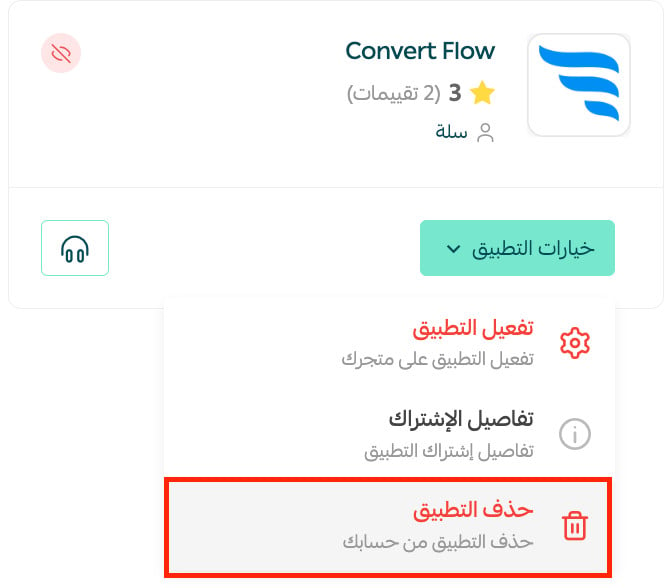
1. From the side menu of your dashboard, click (Installed apps).

2. On the all apps page, find the ConvertFlow app, click (App options), then click (Delete app), as shown in the image.