How many customers give up on a question because picking up the phone was one step too many?
Click to call is a Smartarget app that puts a call button in your store, so a shopper who needs help reaches you in a single tap instead of hunting for a number. It works well for high-value products, complex orders, and anyone browsing on a phone. In this guide, you'll learn how to install Click to call, connect it to your Smartarget account, style the button, and remove it if you no longer need it.
To connect Click to call, open (My installed apps) from your dashboard's side menu, browse the Salla App Store, and install the app. Choose a plan, grant the requested permissions, click (Activate app), paste your Smartarget user ID, click (Save), then customize the button and click (Save Settings).
📌 Article overview
- What Click to call does
- How to connect Click to call to your store
- Frequently asked questions
🎯 What Click to call does
The app adds a button that dials your support number directly, so customers can call you with one click. You control how the button looks and where it sits, and it stays available while shoppers browse.
🚀 How to connect Click to call to your store
1. From the side menu of your dashboard, click (My installed apps).

2. From the Salla App Store banner, click (Browse Salla App Store).

3. On the Click to call app page, click (Install).
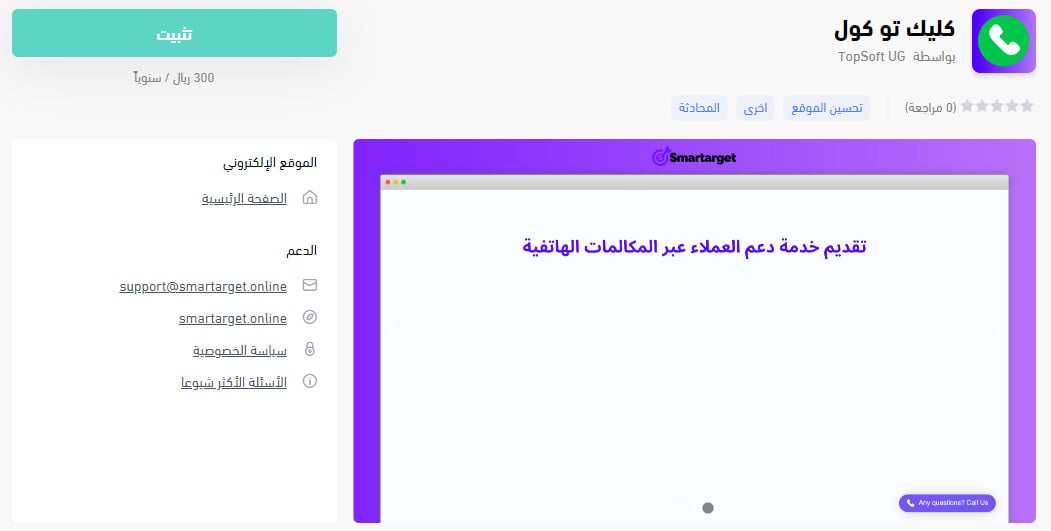
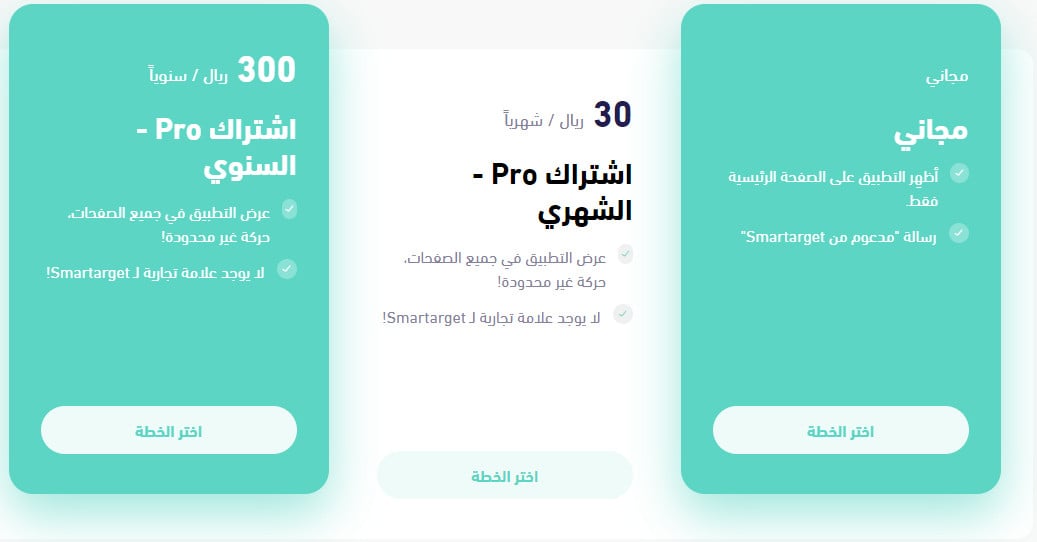
Then click (Choose plan) on the plan that fits your business.
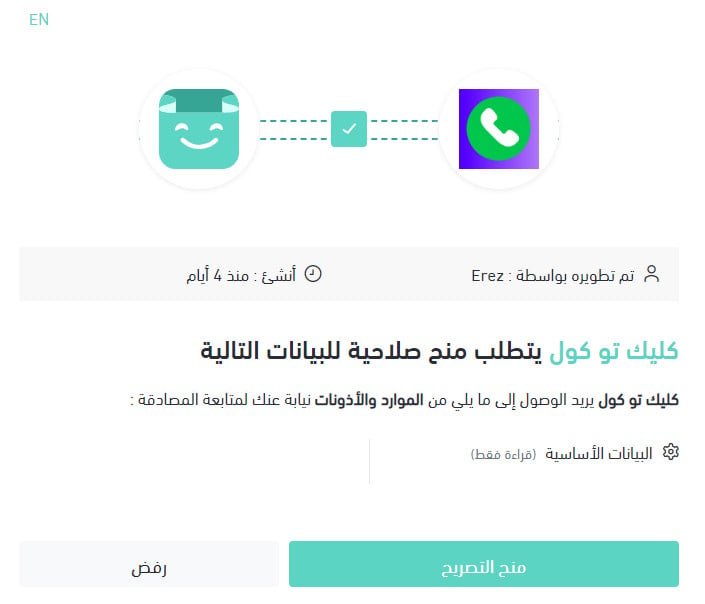
4. Review the permissions the app needs, then click (Grant permission).
Click to call is now installed in your store.
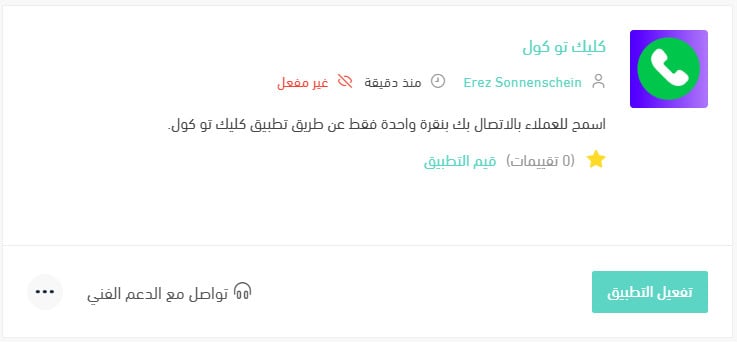
5. Click (Activate app).
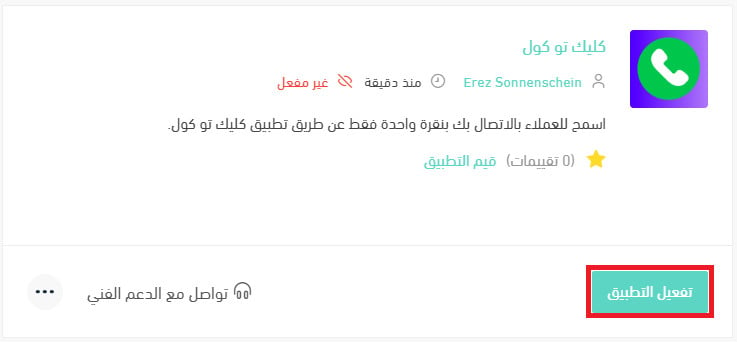
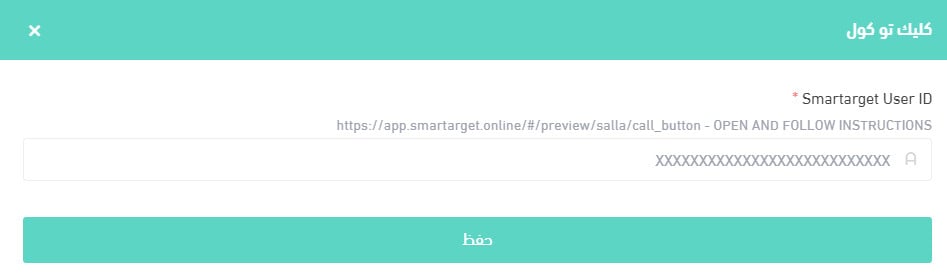
6. Paste your Smartarget user ID into the field provided, then click (Save).
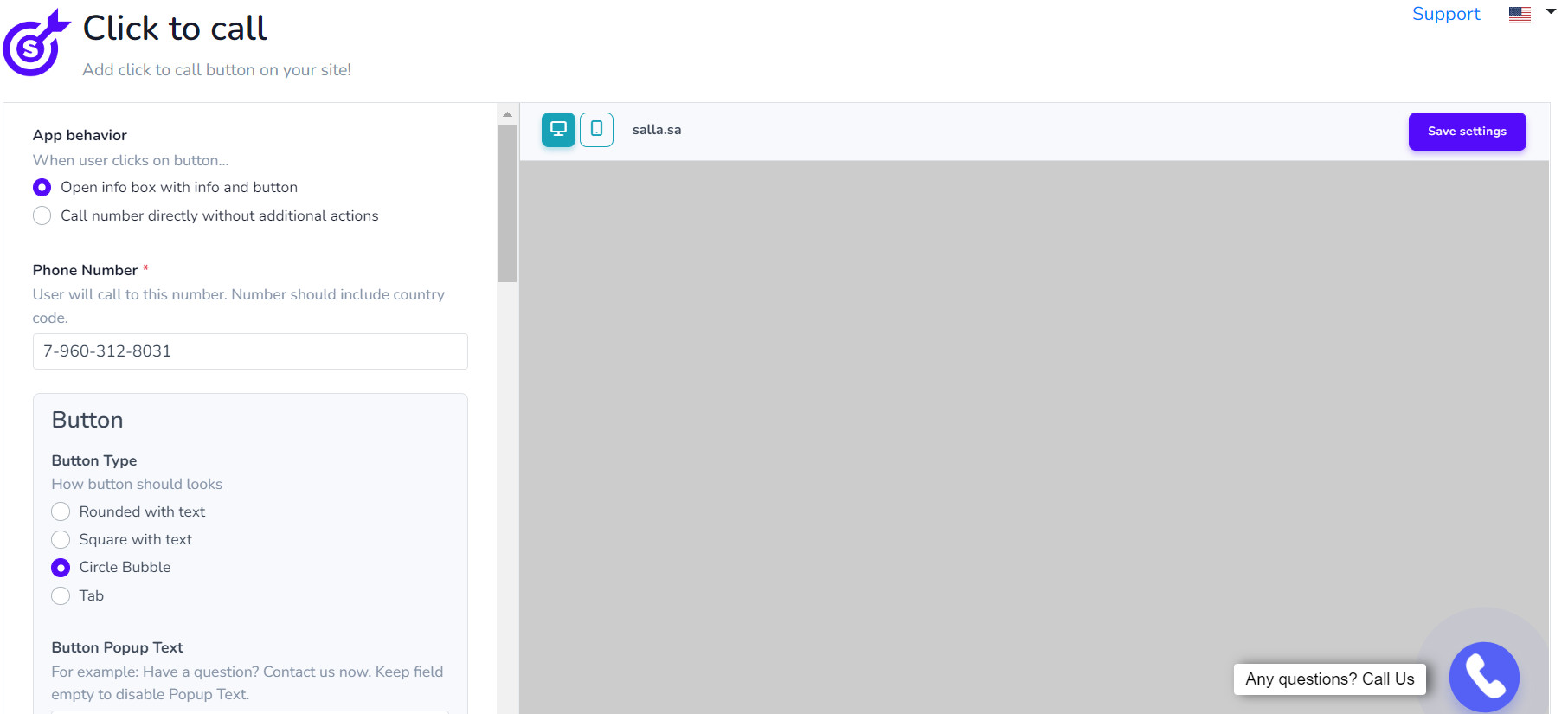
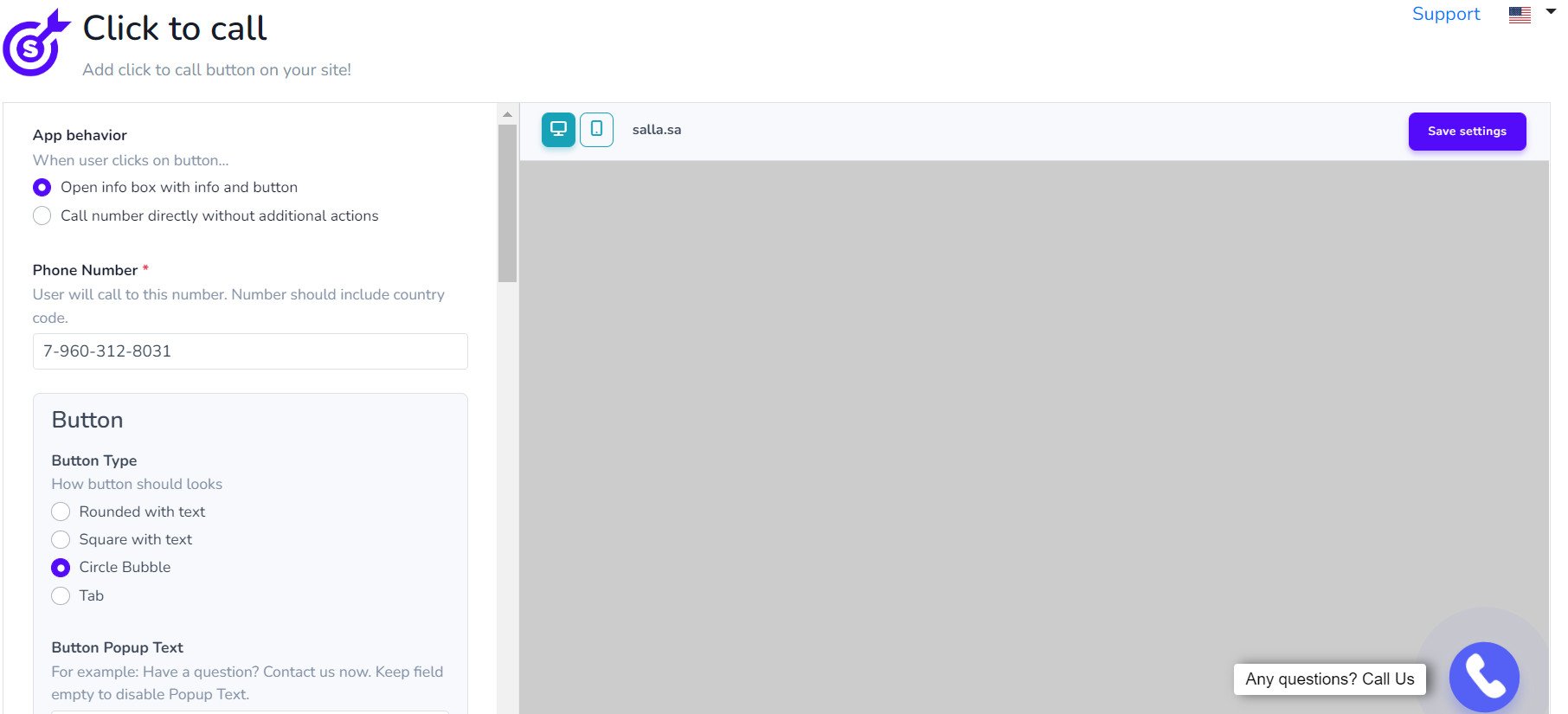
7. Customize the Click to call button to suit your store, then click (Save Settings).
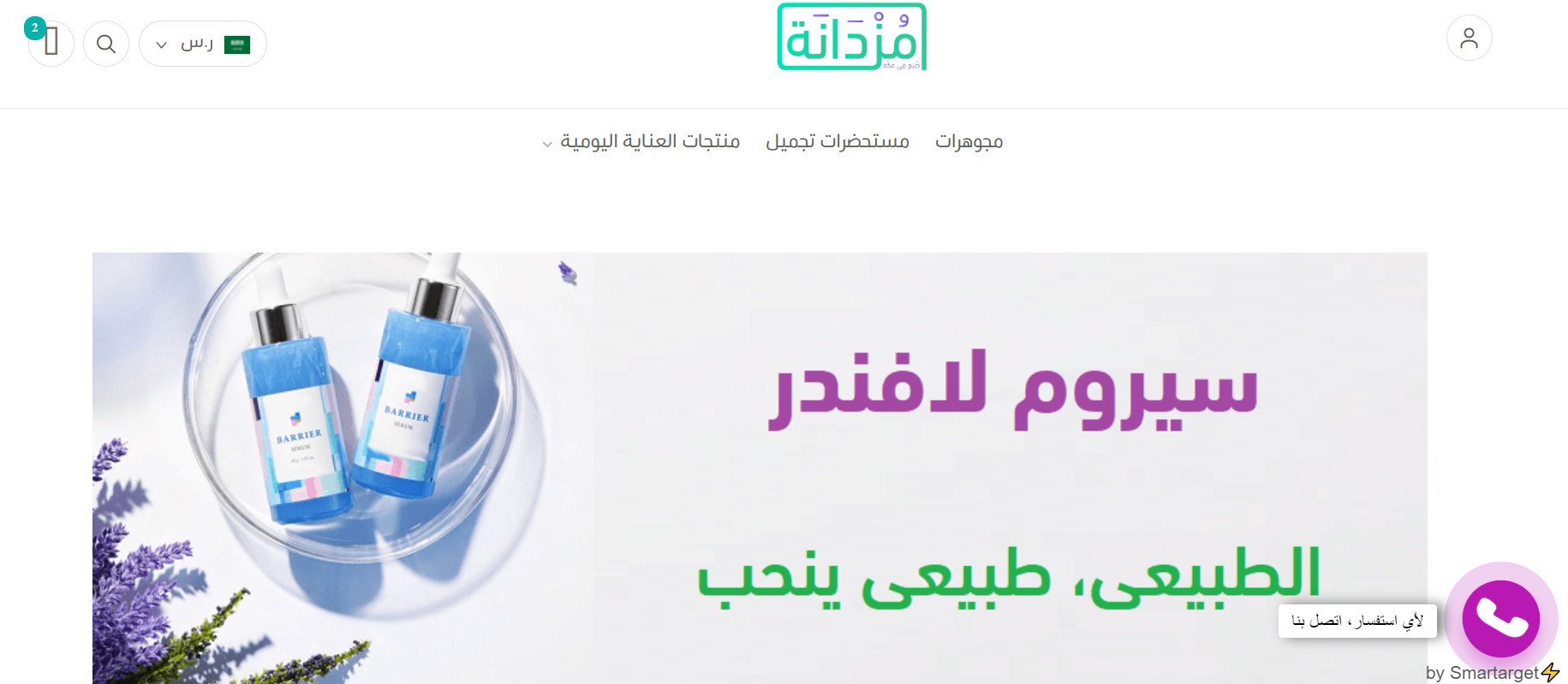
Based on those settings, this is how the button appears to customers in your store.
For more details, see managing your store's apps.
❓ Frequently asked questions
How do I create a Smartarget account?
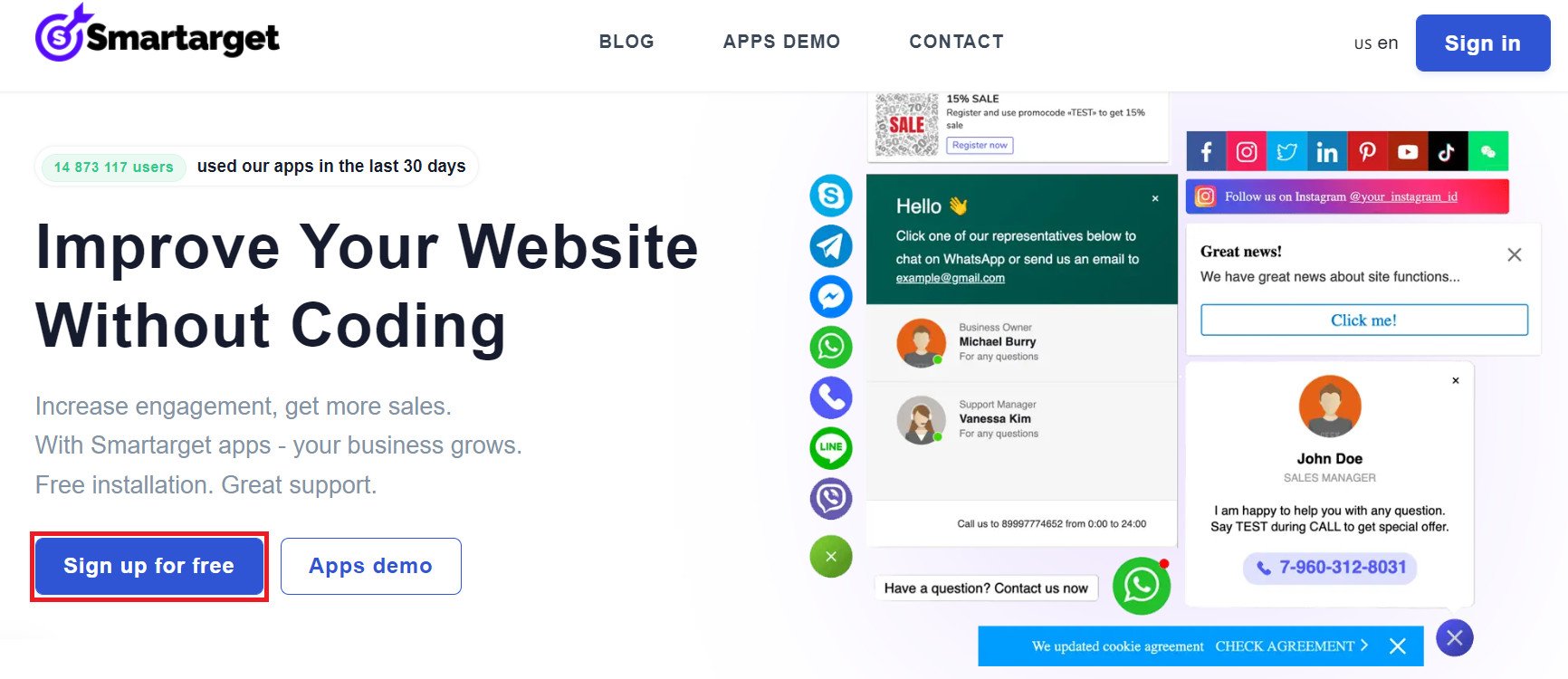
1. From the Smartarget home page, click (Sign up free).
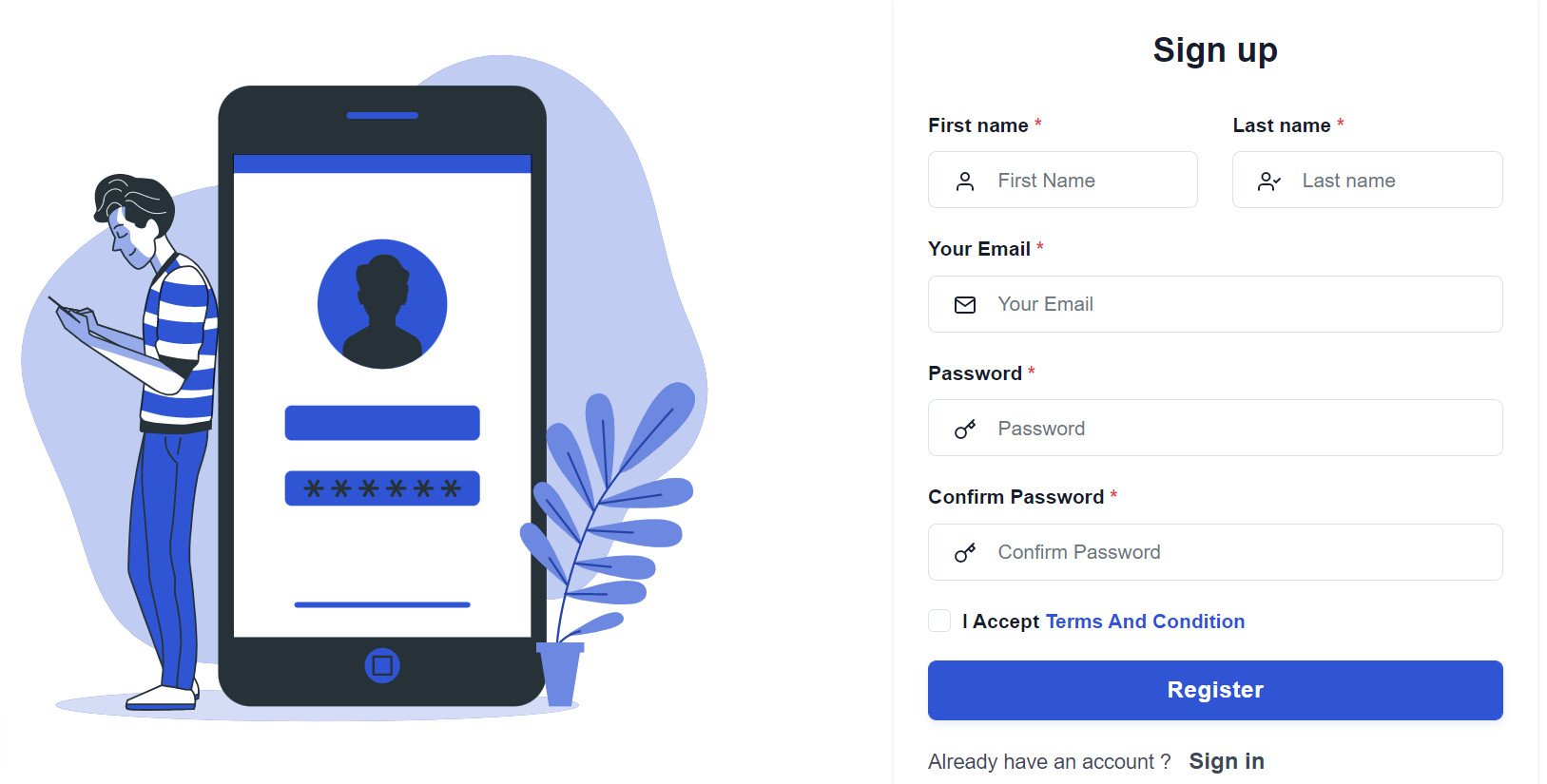
2. Enter the required details, then click (Register).
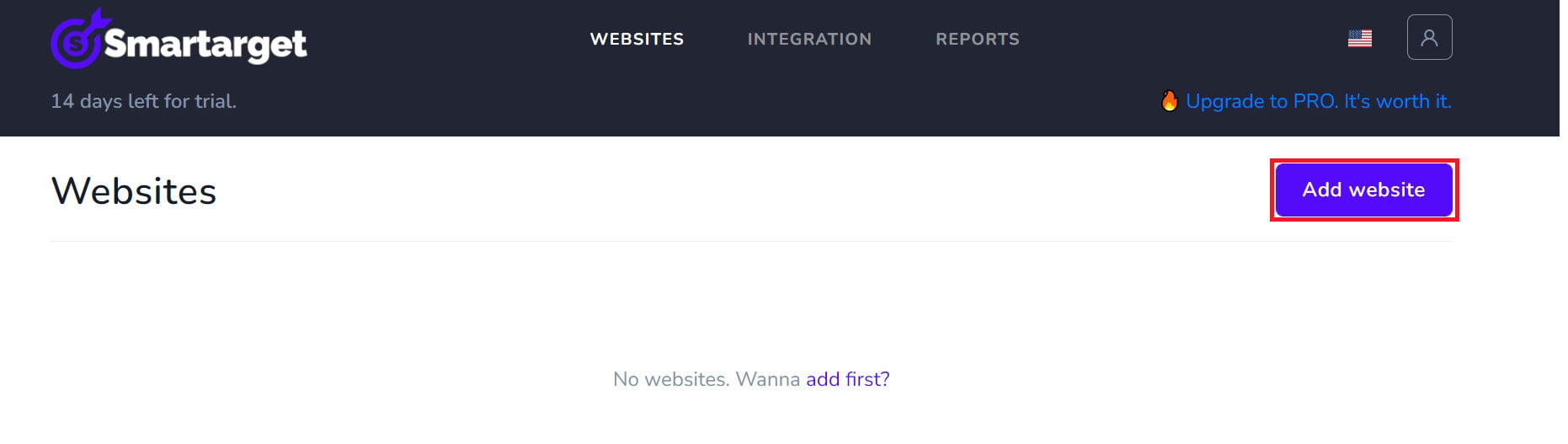
3. Confirm your account from the email you receive, sign in, then click (Add website).
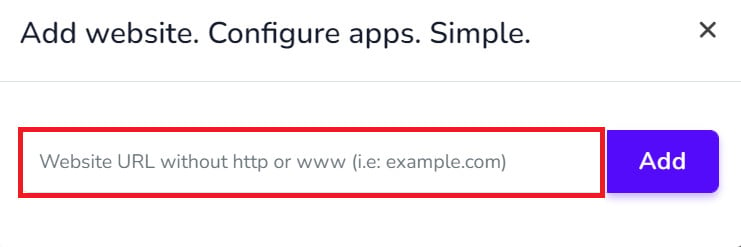
Then add your Salla store domain.
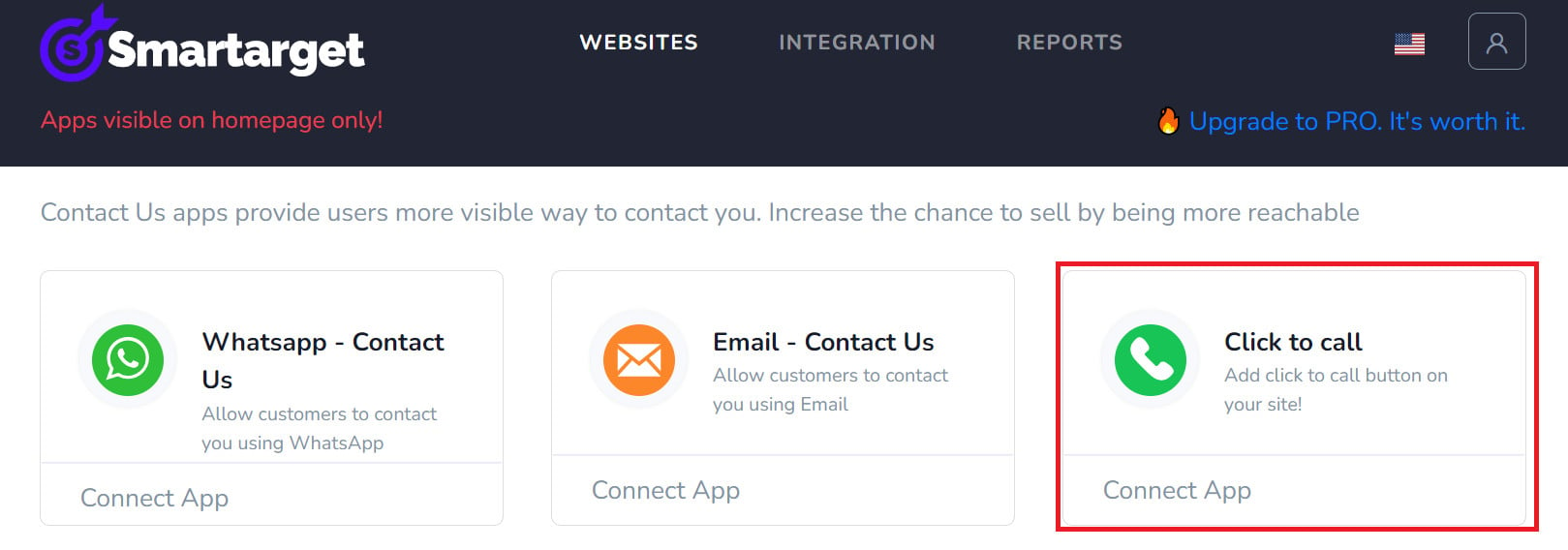
4. To add the call button to your store, click (Click to call). [Verify: the Arabic step says "to install the Contact Us button", which names a different Smartarget app than the button this article sets up.]
Set the Click to call button options you want for your store.
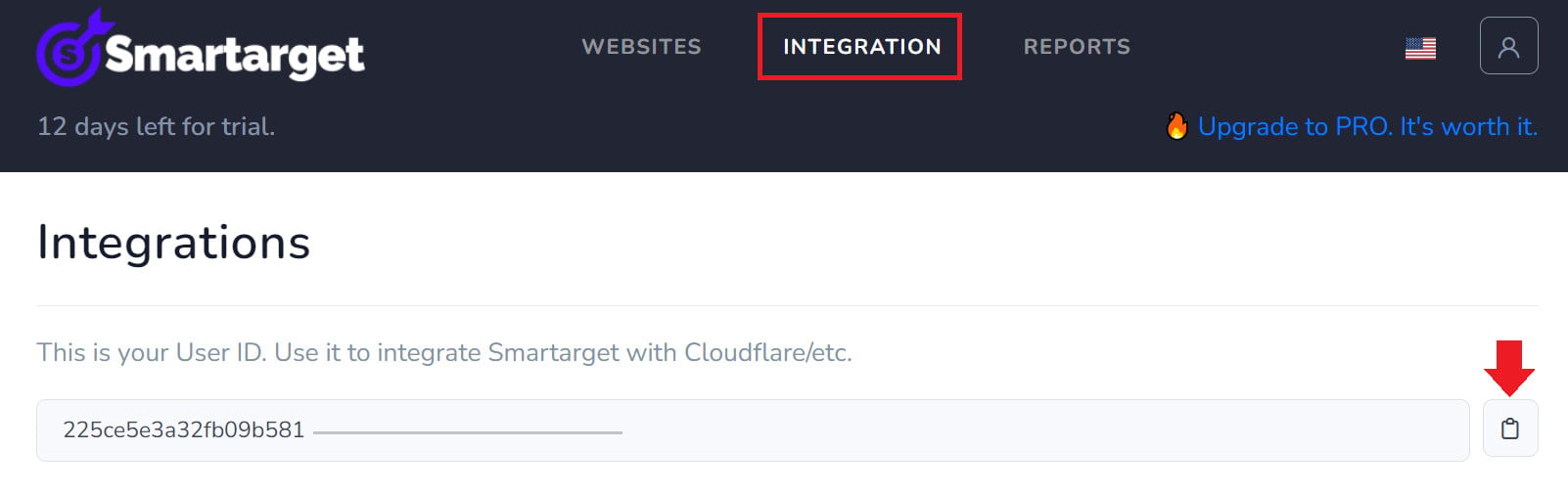
Where do I copy my Smartarget user ID from?
In your Smartarget account, open the INTEGRATION page, then click the copy button next to your user ID.
How do I remove Click to call from my store?
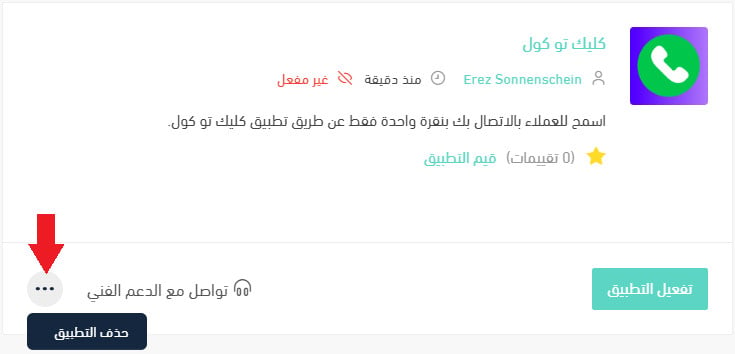
1. From the side menu of your dashboard, click (My installed apps).

2. On the all apps page, find Click to call, click the (...) icon, then click (Delete app), as shown below.
A phone call is still the fastest way to rescue a hesitant order. Make the number one tap away, answer it during the hours you advertise, and the button pays for itself on the first saved sale.