Are customer questions arriving faster than you can answer them?
The Chat Bot app connects an automated chat assistant to your Salla store, so common questions get answered the moment a visitor asks. A bot can reply to enquiries, show and promote your products to potential buyers, and give shoppers automatic shipment tracking — all without a dedicated support agent on shift. In this guide, you'll learn how to set up the Chat Bot integration from end to end.
Connecting Chat Bot takes four stages: create a Chat Bot account, build a conversation flow, copy the organizationId and template_id for that flow, then install the Chat Bot app from the Salla App Store and paste both values into its settings. Once you save and activate it, the bot appears to shoppers in your store.
📌 Article overview
- What the Chat Bot app does
- Stage 1: create a Chat Bot account
- Stage 2: build a conversation flow
- Stage 3: copy the connection codes
- Stage 4: install and activate the Chat Bot app
- Frequently asked questions
🎯 What the Chat Bot app does
Chat Bot is a customer service app that lets you build automated chat bots linked to your store page. The bots answer customer enquiries, display your products, promote them to potential buyers, provide automatic shipment tracking, and handle other services your customers rely on — without needing a separate customer service employee.
🚀 Steps to connect Chat Bot
The integration runs through four stages:
1. Create an account on Chat Bot.
2. Build the conversation flow on Chat Bot.
3. Copy the connection code for the flow you want.
4. Install the Chat Bot app and activate it.
Stage 1: create an account on Chat Bot
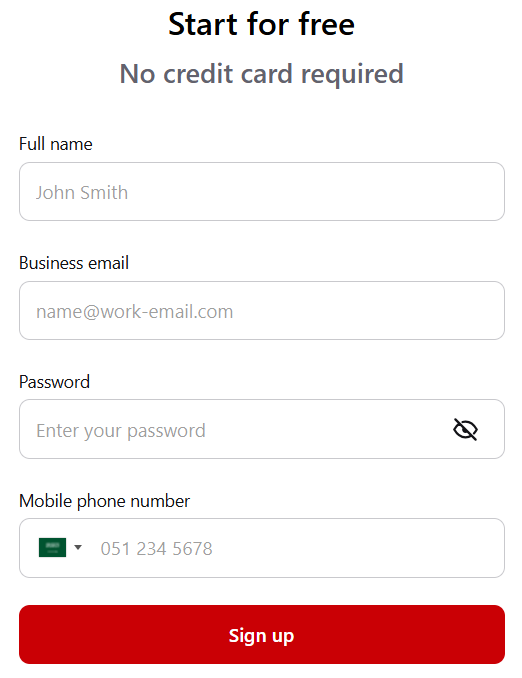
1. On the Chat Bot home page, enter your name, email address, password, and phone number, then click (Signup).
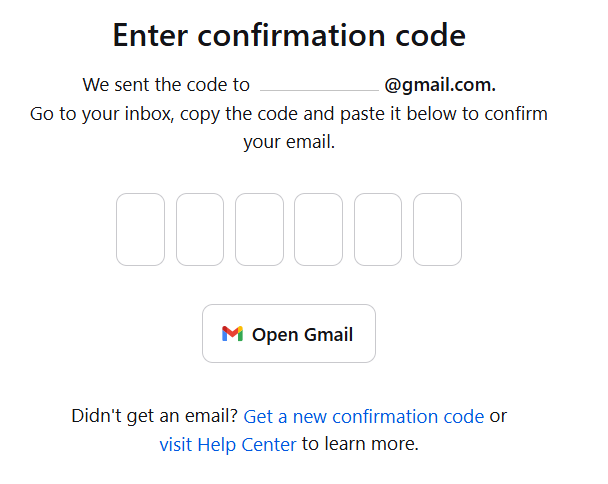
Enter the verification code sent to the email address you registered when setting up Chat Bot.
Give it a moment while your Chat Bot account is prepared.
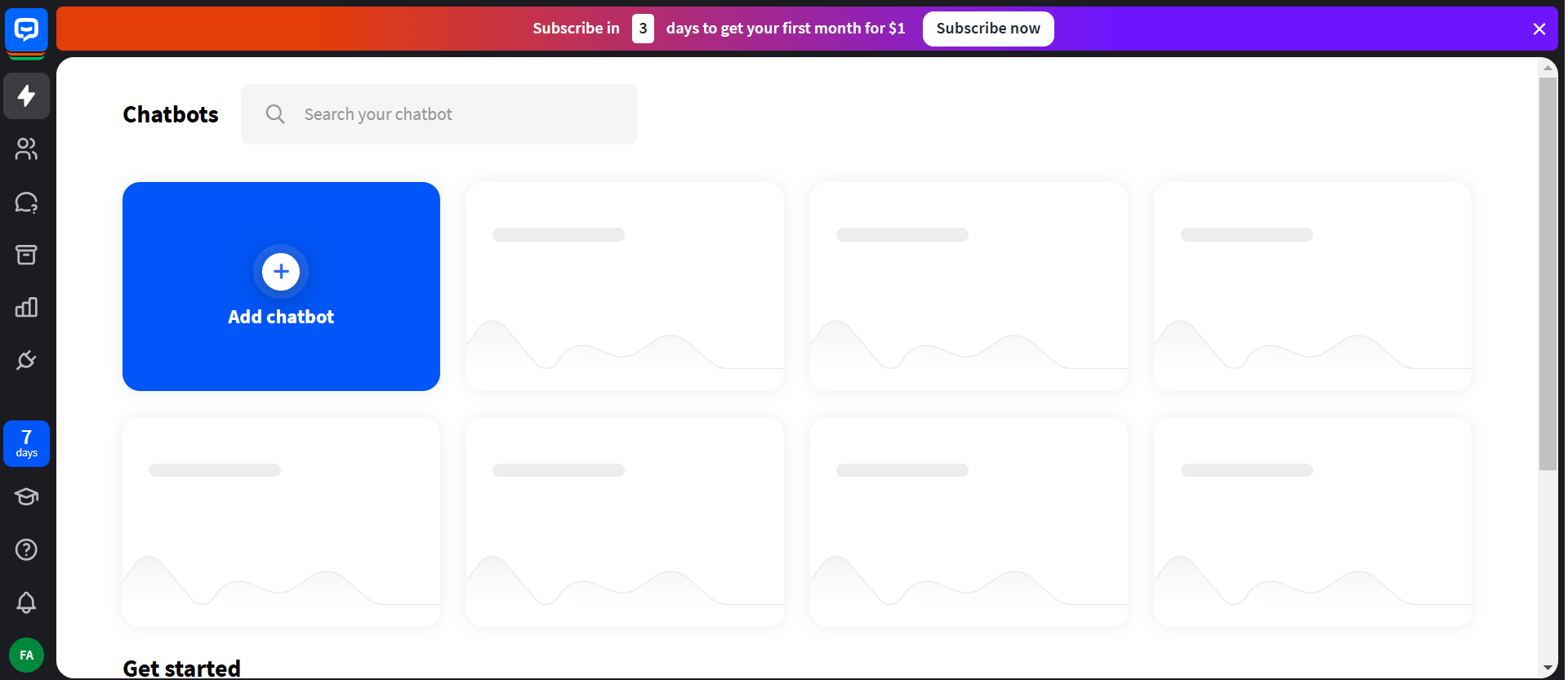
Your Chat Bot account is now ready, and the home page looks like this.
Stage 2: build the conversation flow on Chat Bot
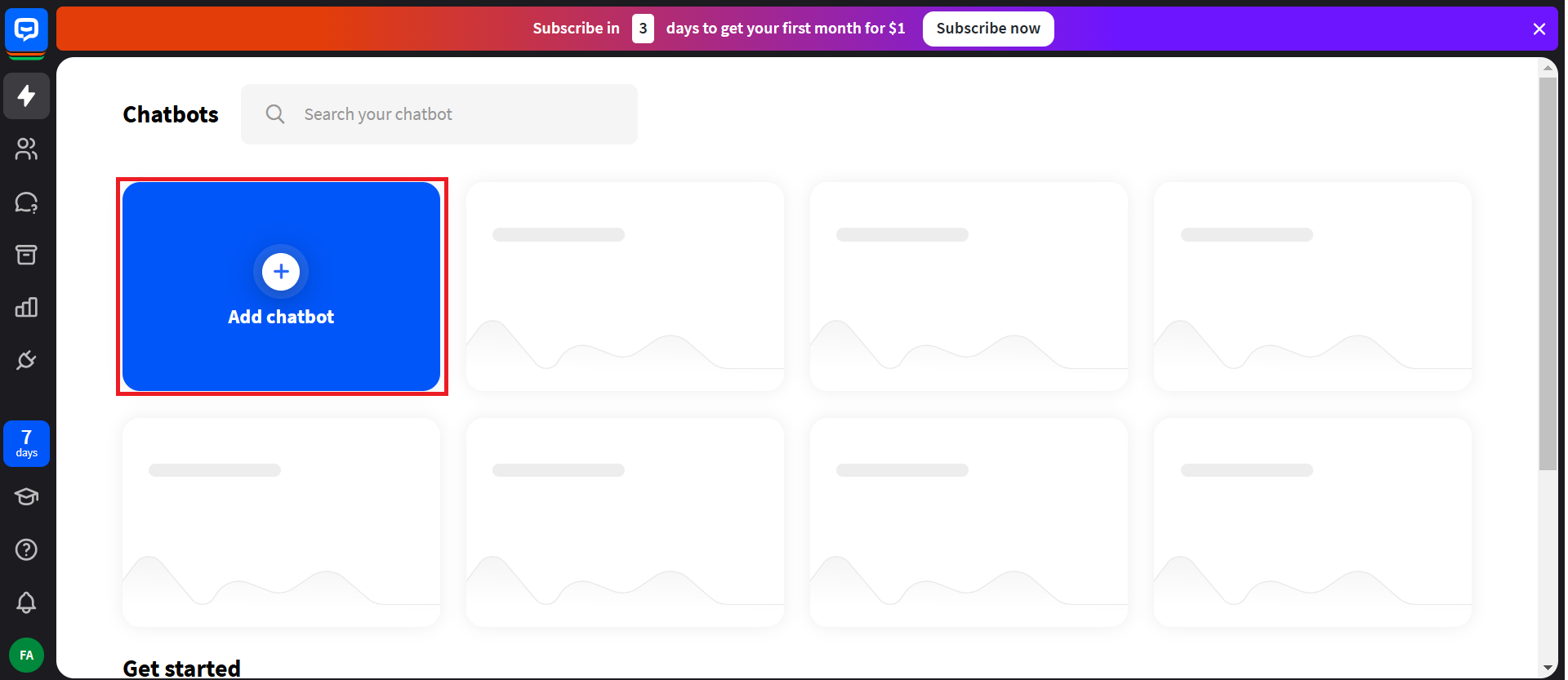
1. In your Chat Bot account, open the Chatbots page and click (Add chatbot) to build a new conversation flow.
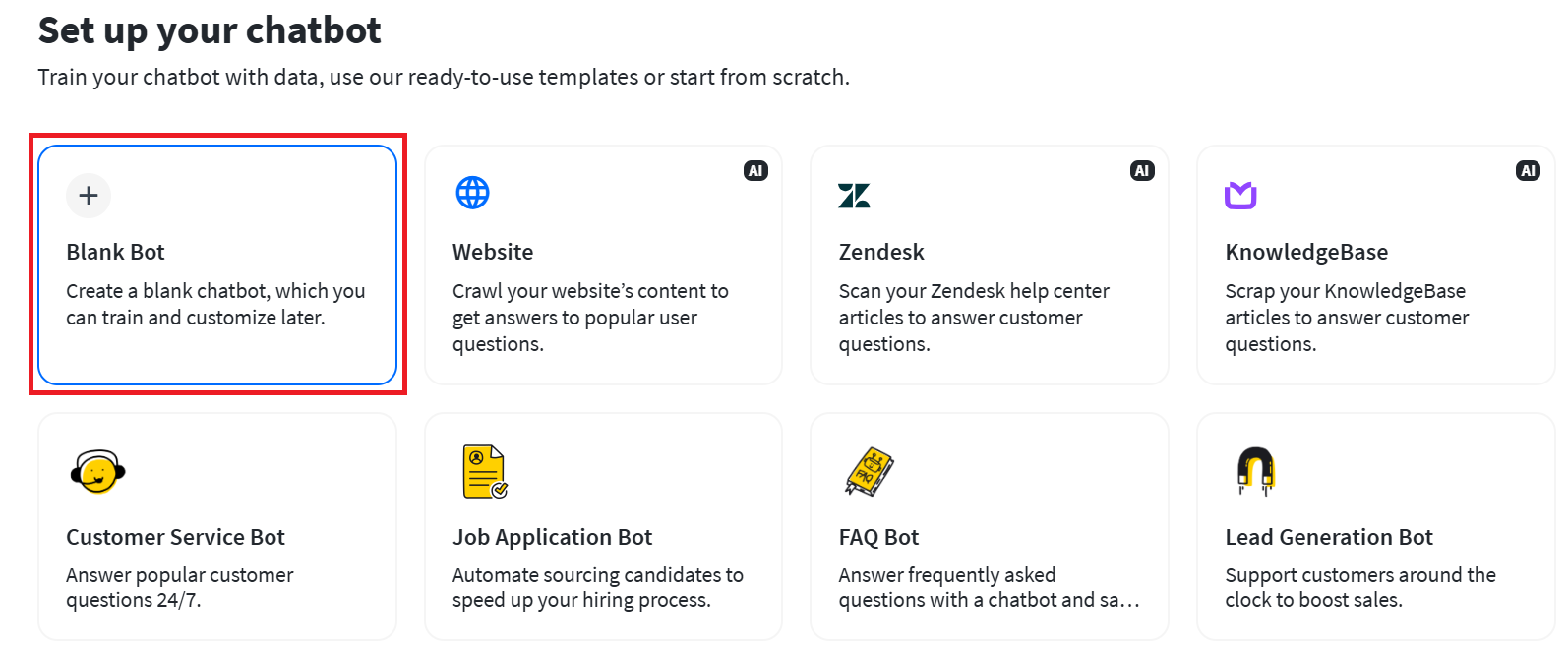
2. Pick one of the ready-made templates, or start from scratch by clicking (Blank Bot).
3. Give the conversation a clear name that describes what it does, then build the automated flow the way you want it using the tools Chat Bot provides.
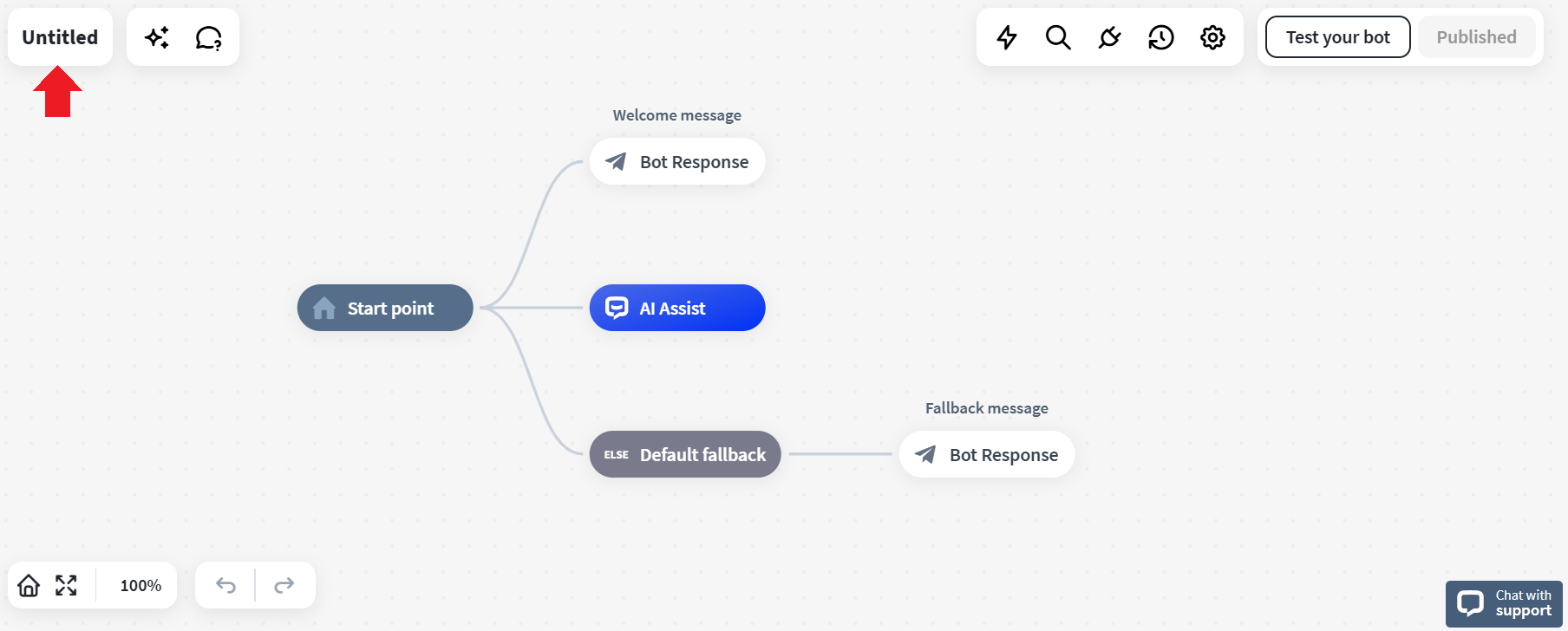
4. Once the flow is built, click (Publish) to make it live.

Stage 3: copy the connection code for your conversation
1. In your Chat Bot account, open the Chatbots page, click the name of the conversation you want, then click (Integrations) followed by (Chat Widget).
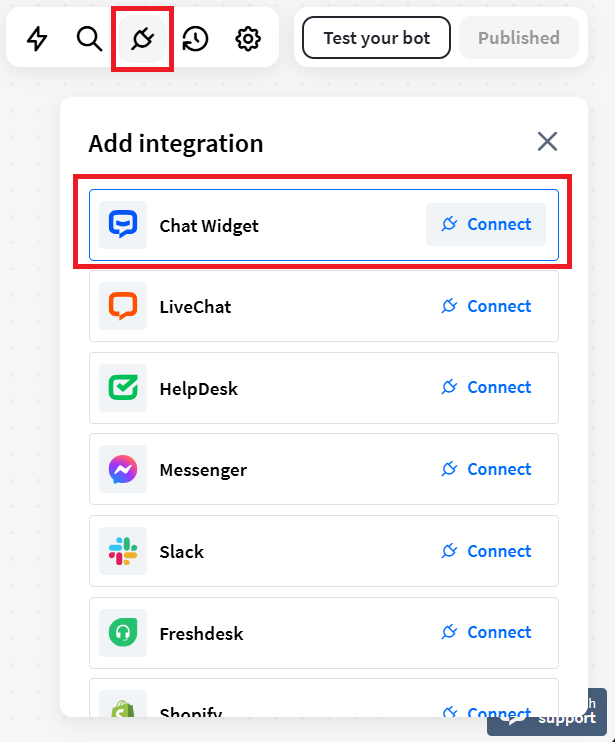
2. On the Chat Widget page, click (Publish).
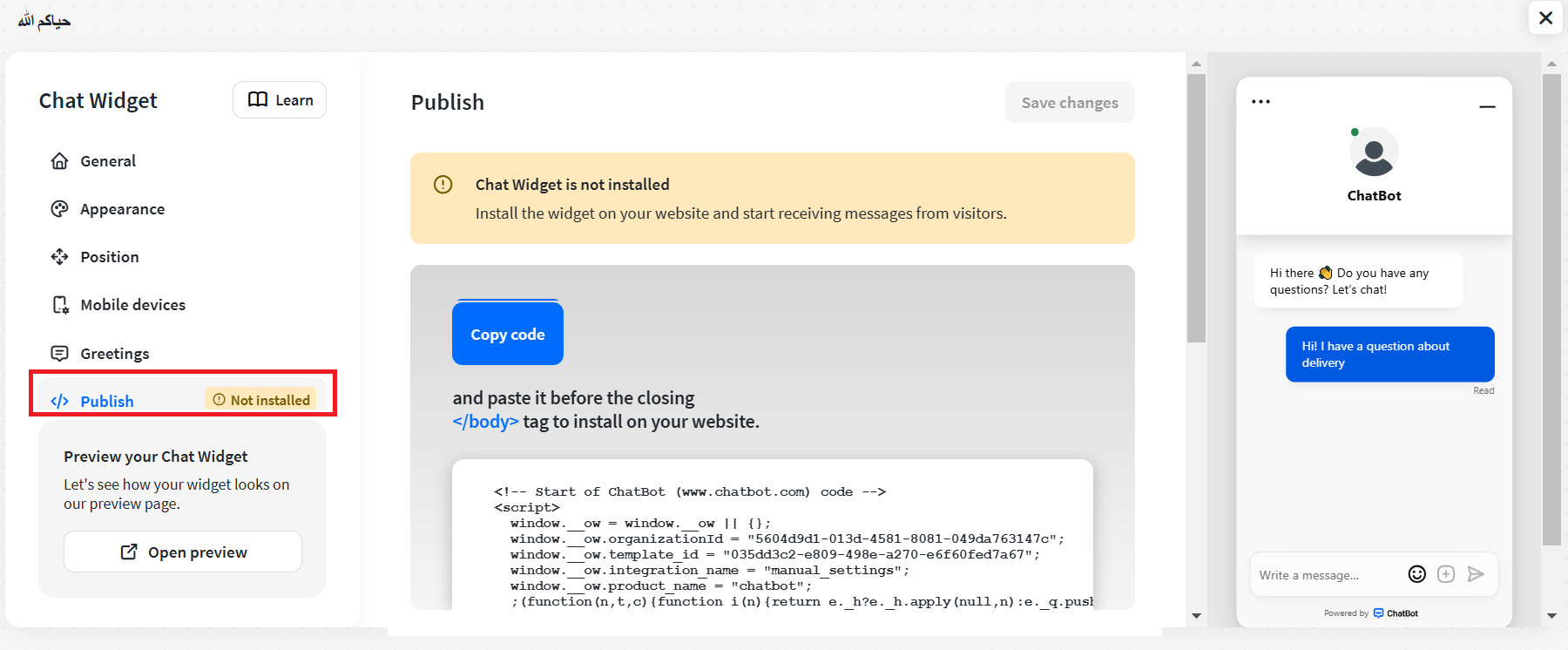
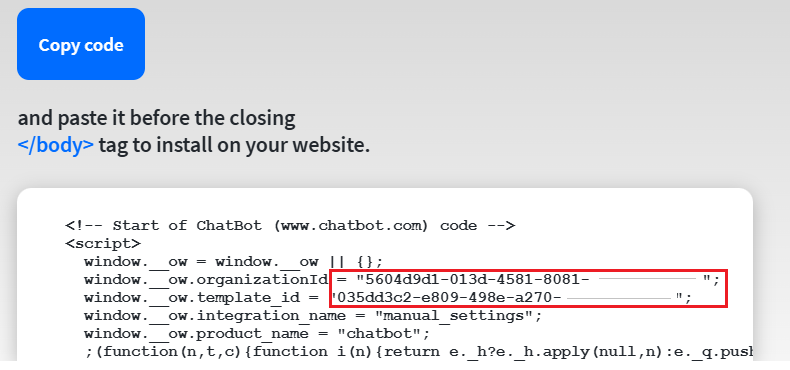
3. Copy both of these values:
- organizationId
- template_id
You'll paste them into the Chat Bot app settings in your store.
Stage 4: install the Chat Bot app
1. From the side menu of your dashboard, click (Installed apps).

2. On the Salla App Store banner, click (Browse the Salla App Store).

3. Open the Chat Bot app and click (Install).
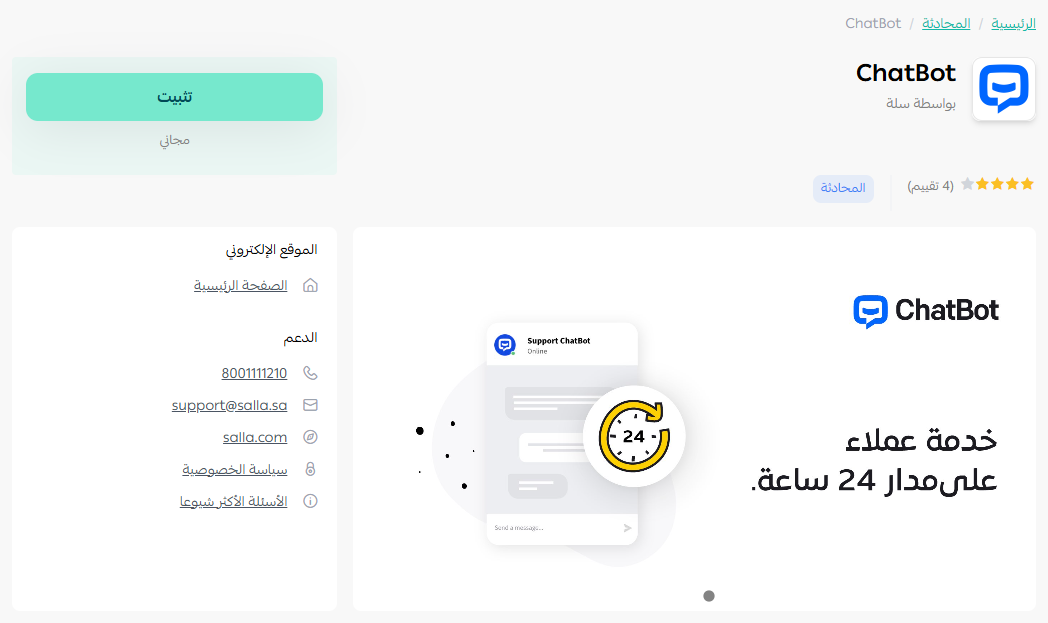
4. Review the permissions the app requests, then click (Grant permission).
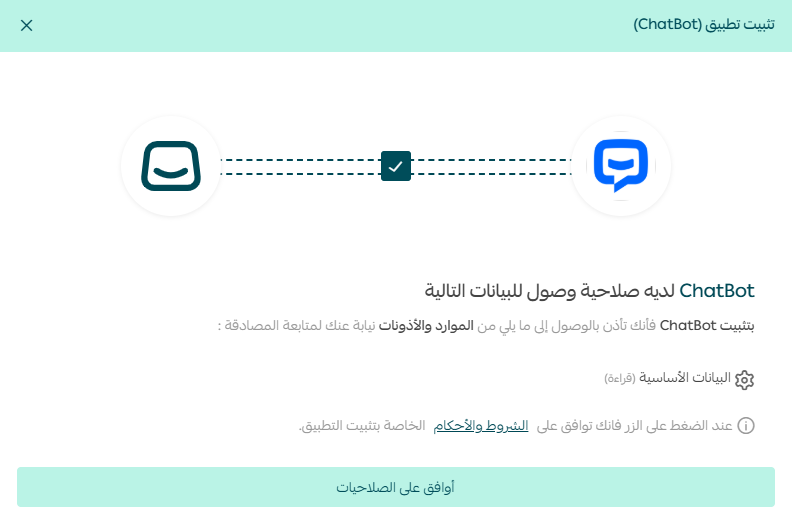
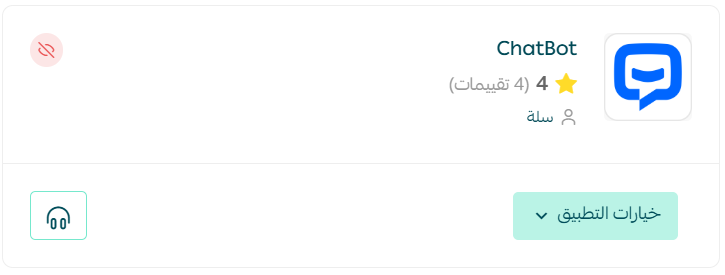
The app is now installed on your store, and only activation is left.
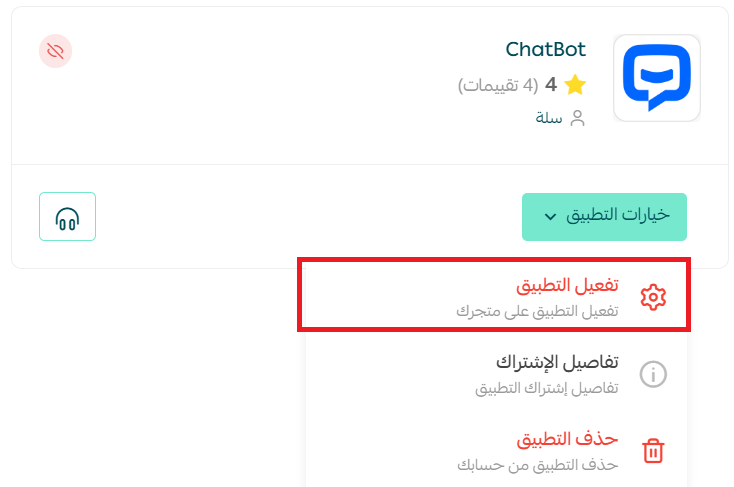
To activate the app, open the (App options) menu and click (Activate app).
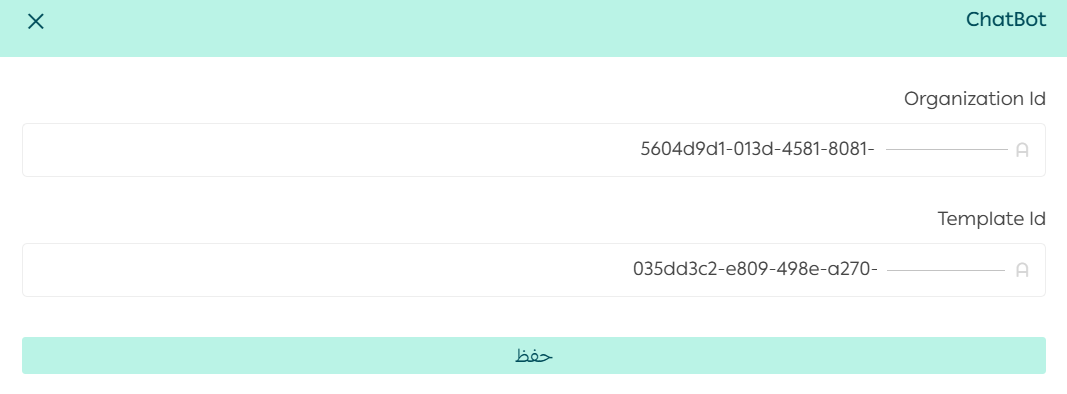
Then paste the (organizationId - template_id) values you copied at the end of stage 3, and click (Save).
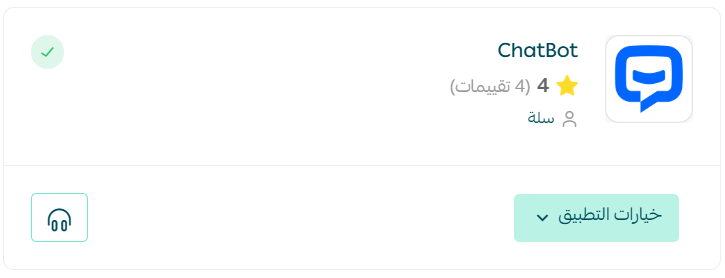
That's it — the Chat Bot app is now active on your store.
✅ What the customer sees
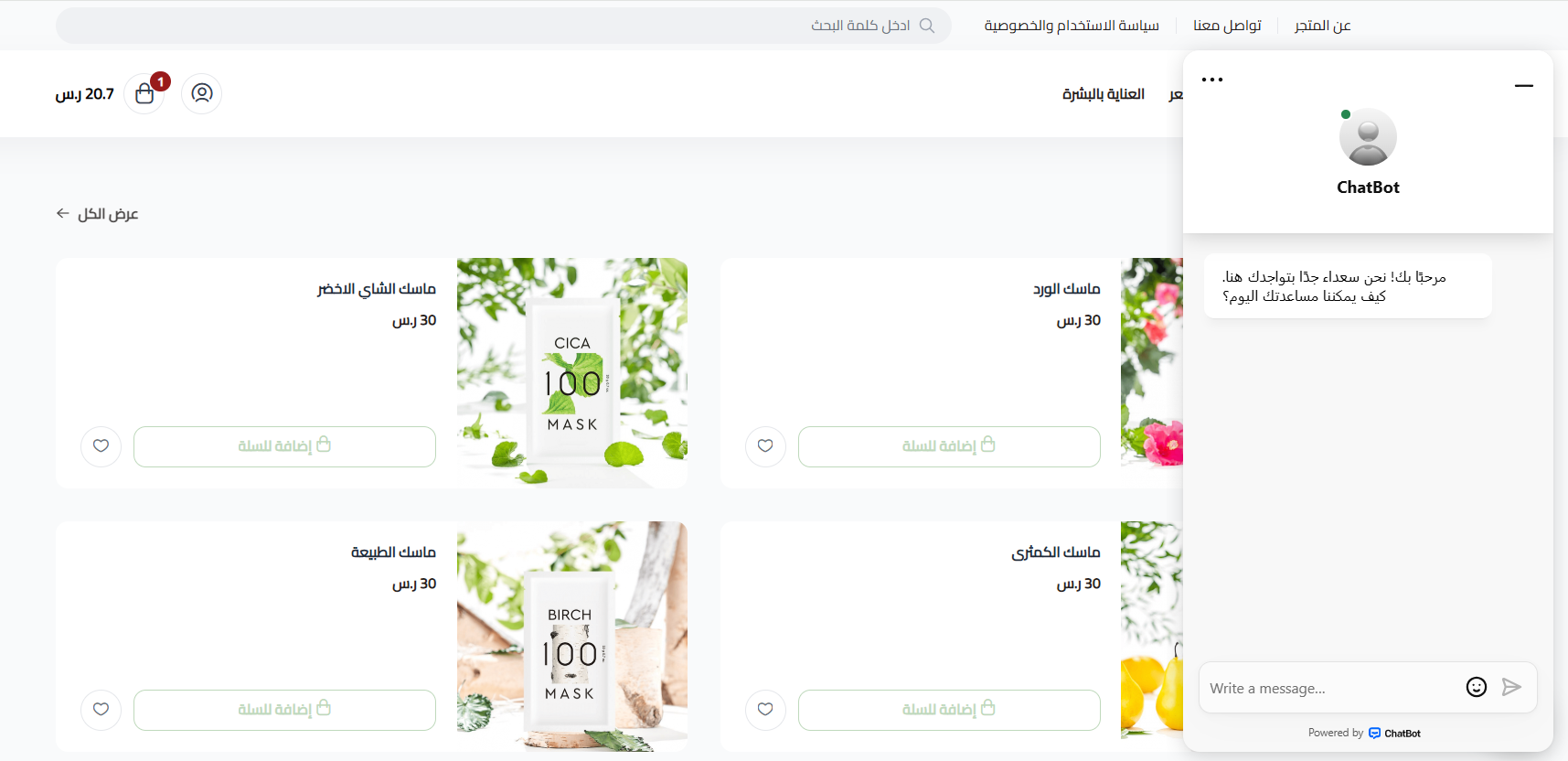
When a shopper visits your store, the bot appears and follows the conversation flow you built, like this.
For more details, see managing your store's apps.
❓ Frequently asked questions
How do I remove the Chat Bot app from my store?
1. From the side menu of your dashboard, click (Installed apps).

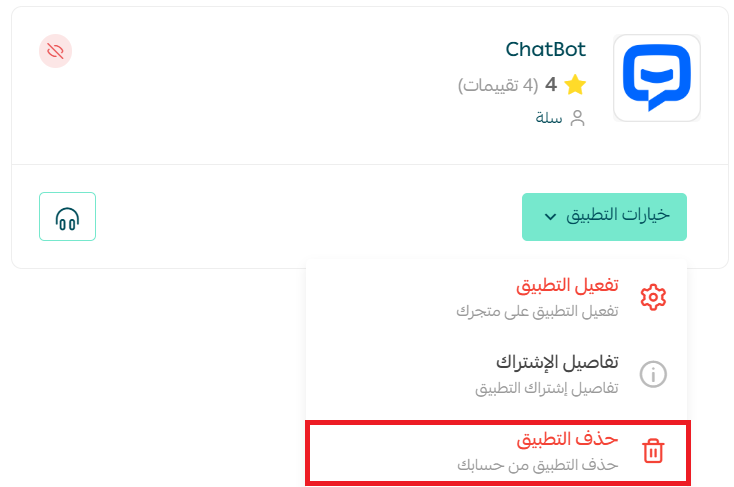
2. On the all apps page, find the Chat Bot app, click (App options), then click (Delete app).
Do I need a separate Chat Bot account, or is the app enough?
You need both. The conversation flow itself is built and published in your Chat Bot account, and the Salla app connects that published flow to your store using the organizationId and template_id.
Do I have to build the conversation from scratch?
No. Chat Bot offers ready-made templates you can start from, or you can click (Blank Bot) and build the flow yourself.
Why isn't the bot showing up in my store?
Check the three things that make it live: the conversation is published in Chat Bot, the app is activated from the (App options) menu, and both the organizationId and template_id are pasted into the app settings and saved.
Can one bot handle more than answering questions?
Yes. Alongside replying to enquiries, a bot can display and promote your products to potential buyers and give customers automatic shipment tracking.