What if talking to a customer felt as easy as chatting with a friend?
That's the idea behind Chaport, and connecting it with Salla takes just a few minutes. Chaport is an instant messaging app with automated replies and automatic chat invitations, and it integrates with Facebook, Viber, and Telegram. In this guide, you'll learn how to create a Chaport account, copy your tracking code, and activate the connection in your Salla store.
To connect Chaport with Salla, create a Chaport account, work through the setup steps, and copy the tracking code it provides. Then open (Installed apps) in your Salla dashboard, click (App settings) on the Chaport app, paste the tracking code, and click (Activate connection).
📌 Article overview
- What is Chaport?
- How to connect your Salla store with Chaport
- Frequently asked questions
🎯 What is Chaport?
Chaport is an instant messaging app that also handles automated replies and automatic chat invitations, and it can be integrated with Facebook, Viber, and Telegram. It was designed to make talking to customers as easy and enjoyable as chatting with friends.
🚀 How to connect your Salla store with Chaport
The connection happens in two stages:
1. Sign up for Chaport.
2. Paste the Chaport tracking code into your Salla store.
Stage one: sign up for Chaport
1. Go to the Chaport website and click (Sign up).

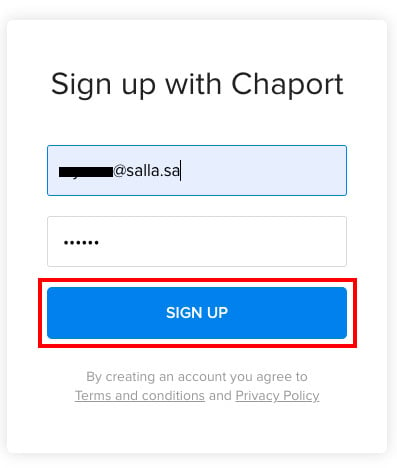
2. Enter your basic details — your email address and a new password — then click (Sign up).
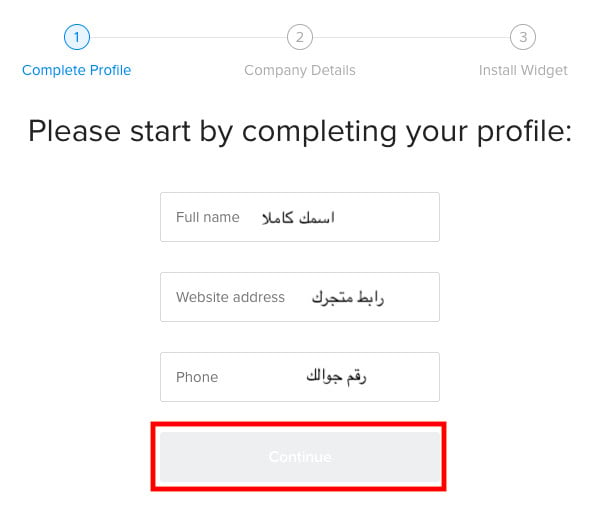
3. Fill in the rest of your details — your full name, your store link, and your mobile number — then click (Continue).
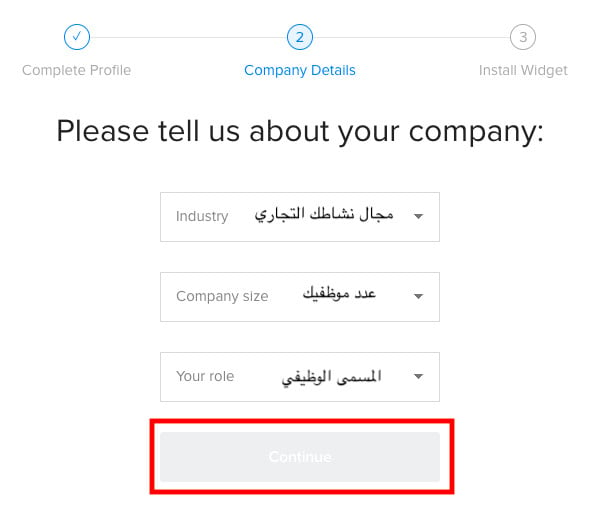
4. Choose your store's information from the dropdown lists — your line of business, your number of employees, and your job title — then click (Continue).
5. Choose how you'll get to your tracking code, and the code page opens.
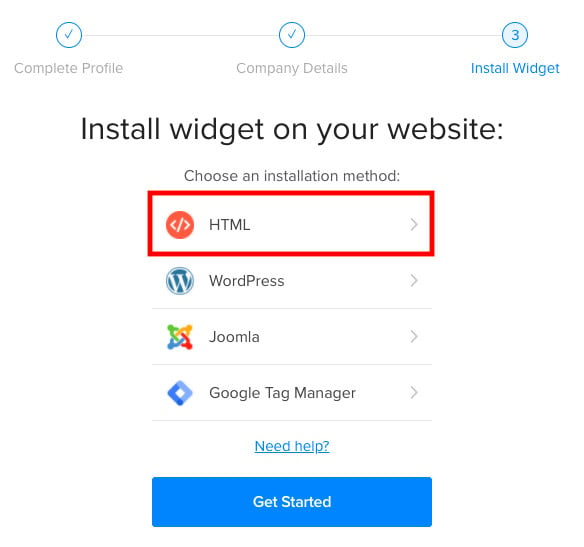
6. Copy the tracking code so you can paste it into your store, then click (Get started) — the Chaport home page opens.
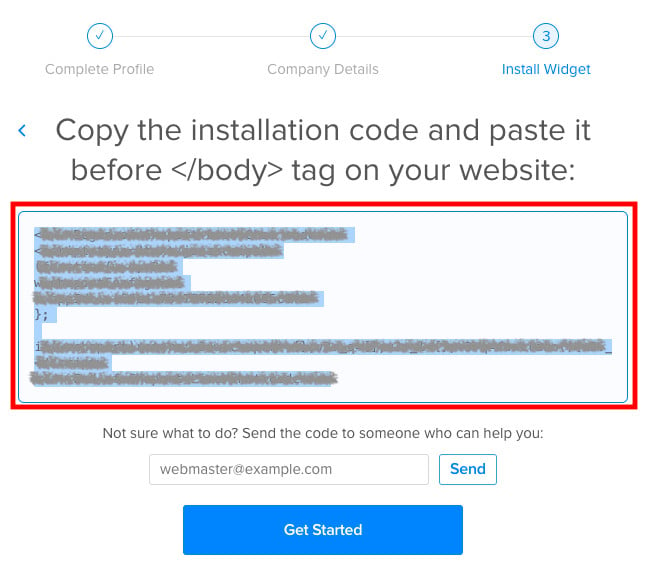
Stage two: paste the Chaport tracking code into your Salla store
1. From the side menu of your dashboard, click (Installed apps).

2. On the Chaport app, click (App settings).
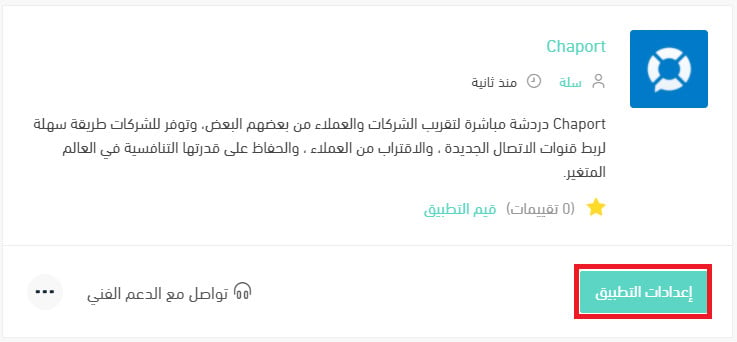
If the app isn't installed in your store yet, install it first. For more details, see installing an app from the Salla App Store.
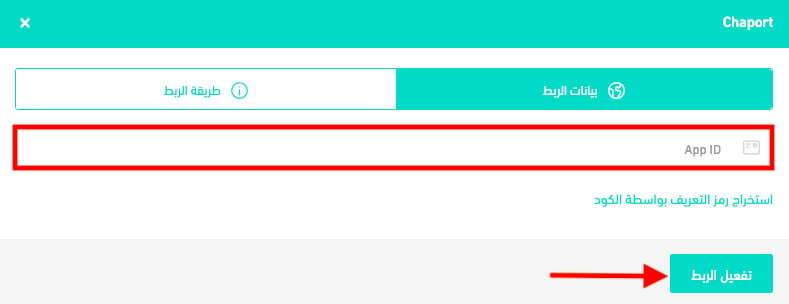
3. Paste the tracking code you copied from Chaport in stage one, then click (Activate connection).
❓ Frequently asked questions
Why should I use Chaport?
1. You can message and chat even in offline mode. [Verify: the Arabic says "online mode" here, which makes the sentence say nothing; offline mode is the likely intent.]
2. It offers web, desktop, and mobile apps, so you can chat with customers from any device and any location.
3. It packs in several features, such as detailed customer information and behavior, and a multilingual tool.
Which apps does Chaport integrate with?
Chaport can be integrated with Facebook, Viber, and Telegram.
Can I disconnect my store from my Chaport account?
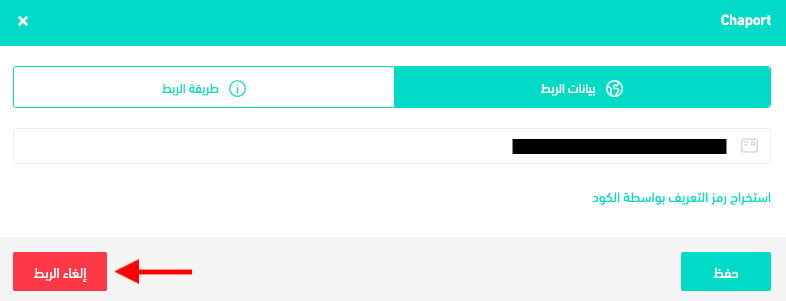
Yes. On the Chaport connection page, click (Disconnect).