Is the most important action in your store easy for a visitor to spot in the first few seconds?
The Button Builder app lets you add a button that triggers your store's main action and style it end to end so it fits the rest of your design. It runs on Smartarget, so you connect a Smartarget account to your Salla store and control the button from there. In this guide, you'll learn how to install and connect Button Builder, how to create the Smartarget account it needs, and how to remove the app if you change your mind.
To connect Button Builder, open (My installed apps) from your dashboard's side menu, browse the Salla App Store, and install the Button Builder app. Grant the permissions it asks for, click (Activate app), then paste your Smartarget User ID into the field provided and click (Save).
📌 Article overview
- What Button Builder does
- How to connect Button Builder to your store
- Frequently asked questions
🎯 What Button Builder does
Button Builder adds a button to your storefront that fires the main action you want visitors to take, and it lets you customize that button completely so it matches your store's look.
🚀 How to connect Button Builder to your store
1. From the side menu of your dashboard, click (My installed apps).

2. From the Salla App Store banner, click (Browse Salla App Store).

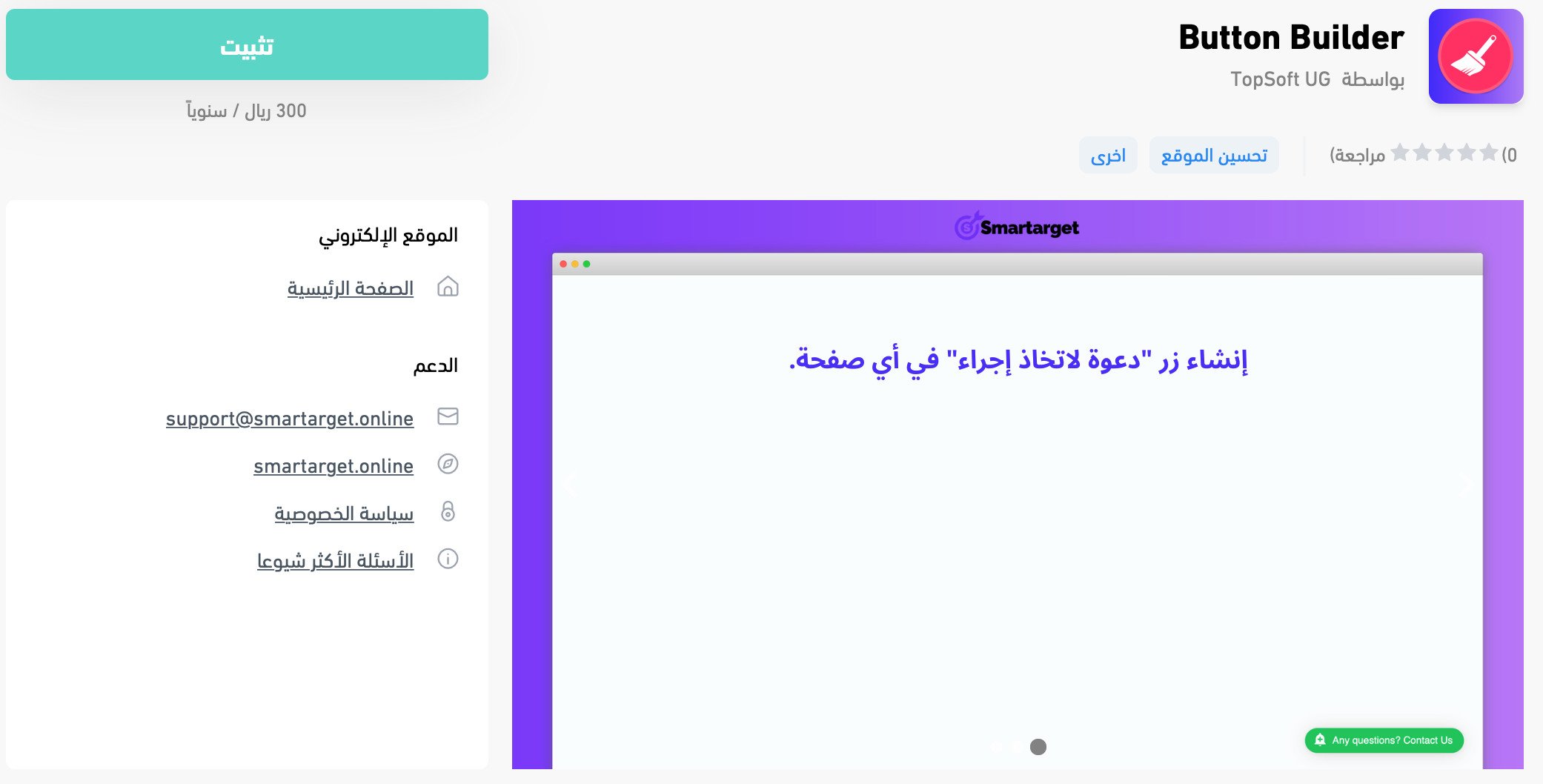
3. On the Button Builder app page, click (Install).
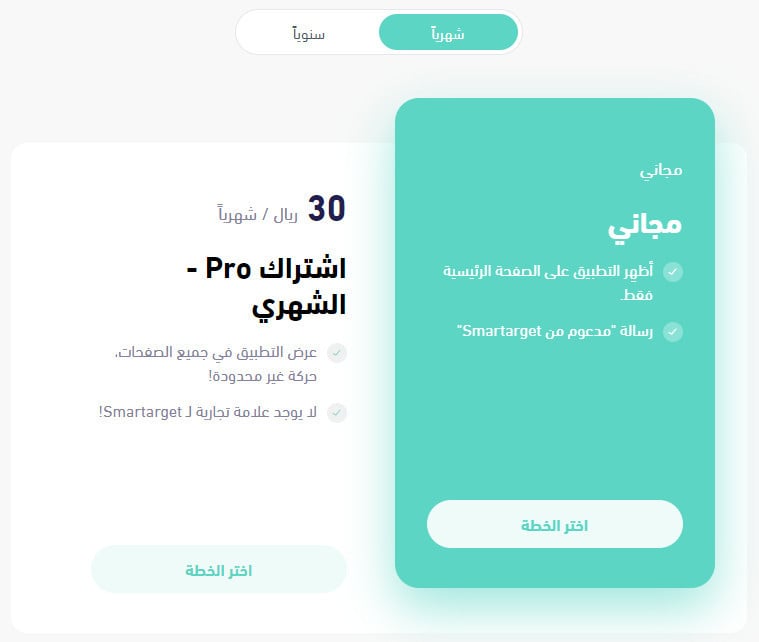
Then choose the plan that suits your business.
4. Review the permissions the app requests, then click (Grant permission).
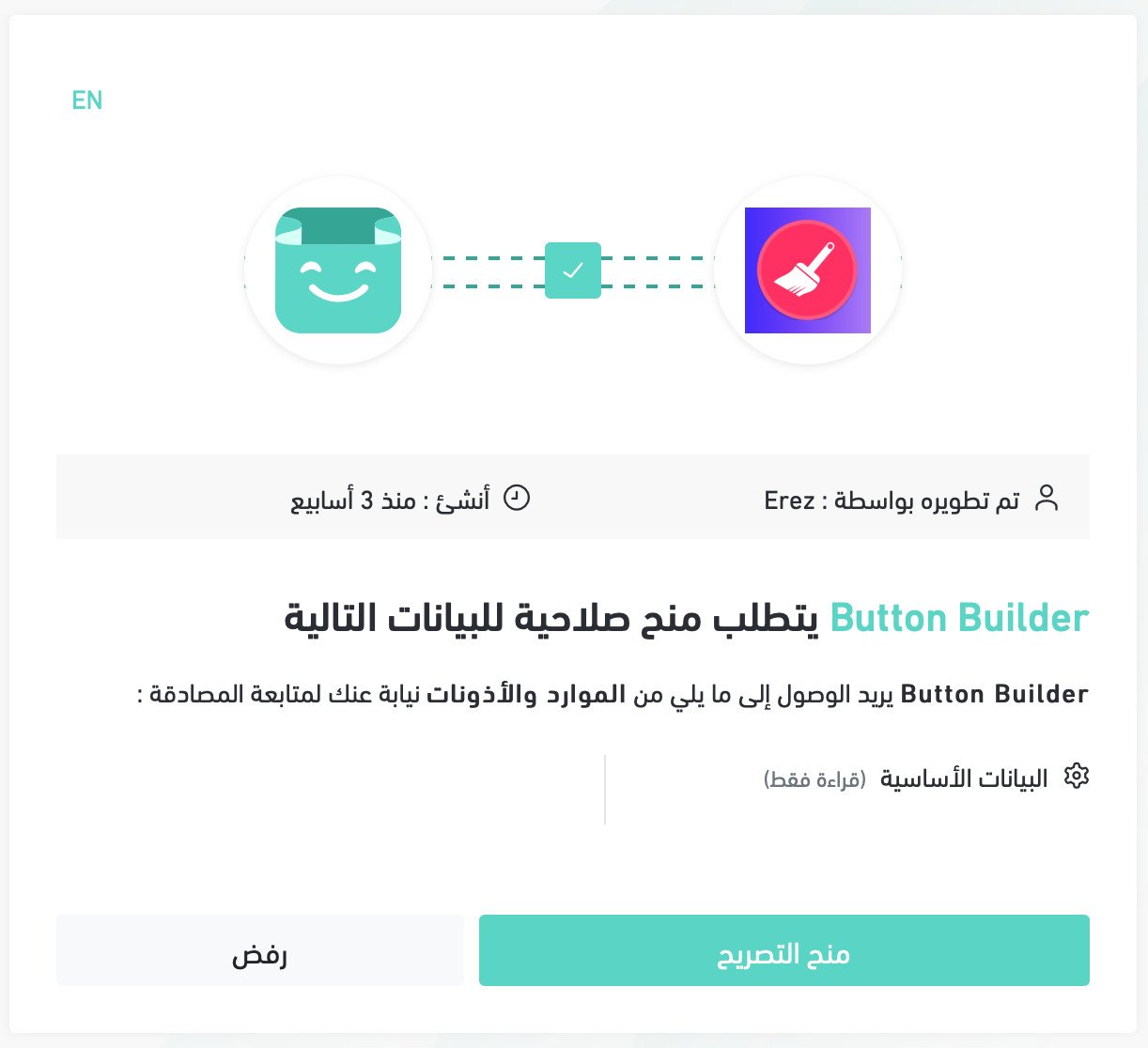
Button Builder is now installed in your store.
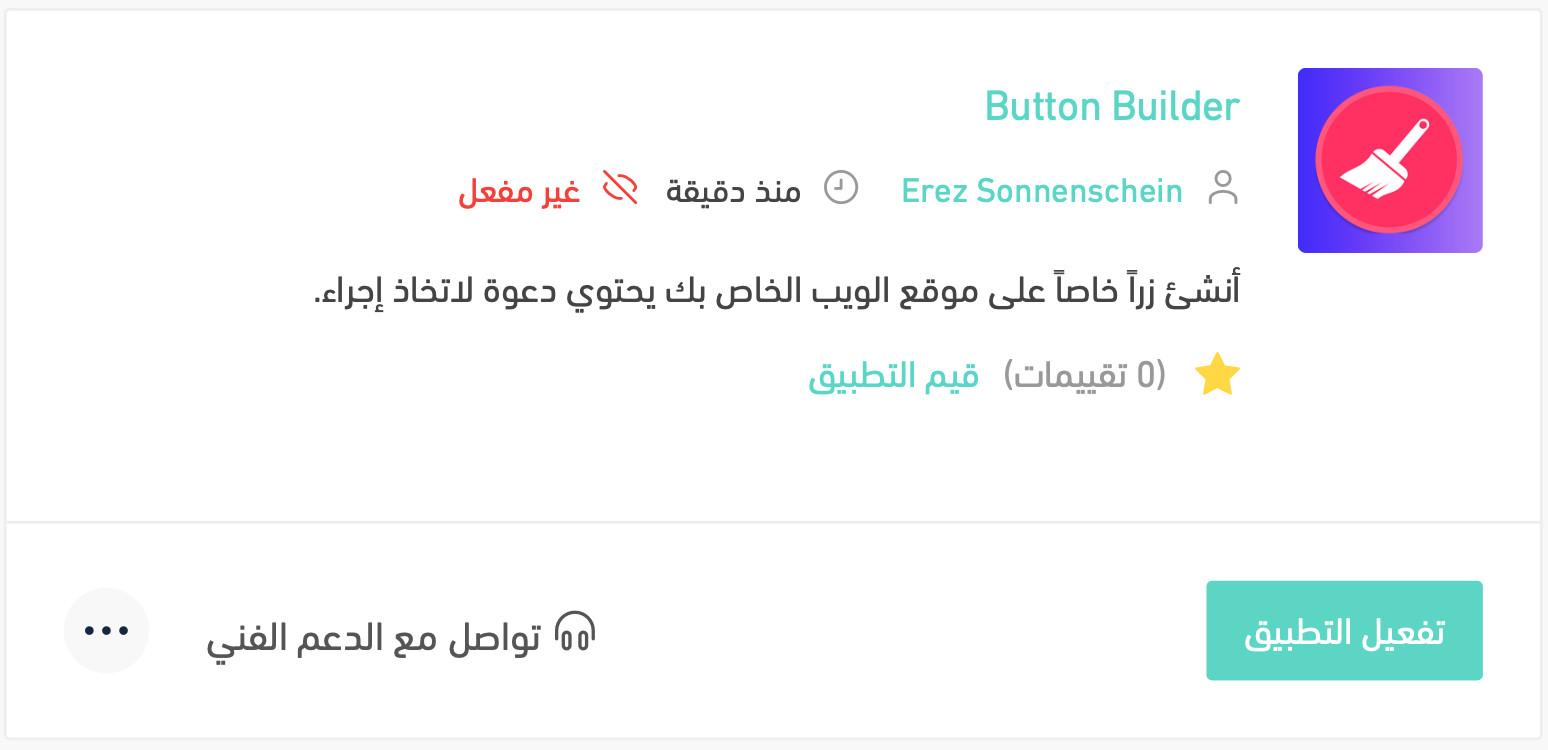
5. From the installed apps page, click (Activate app) on Button Builder.
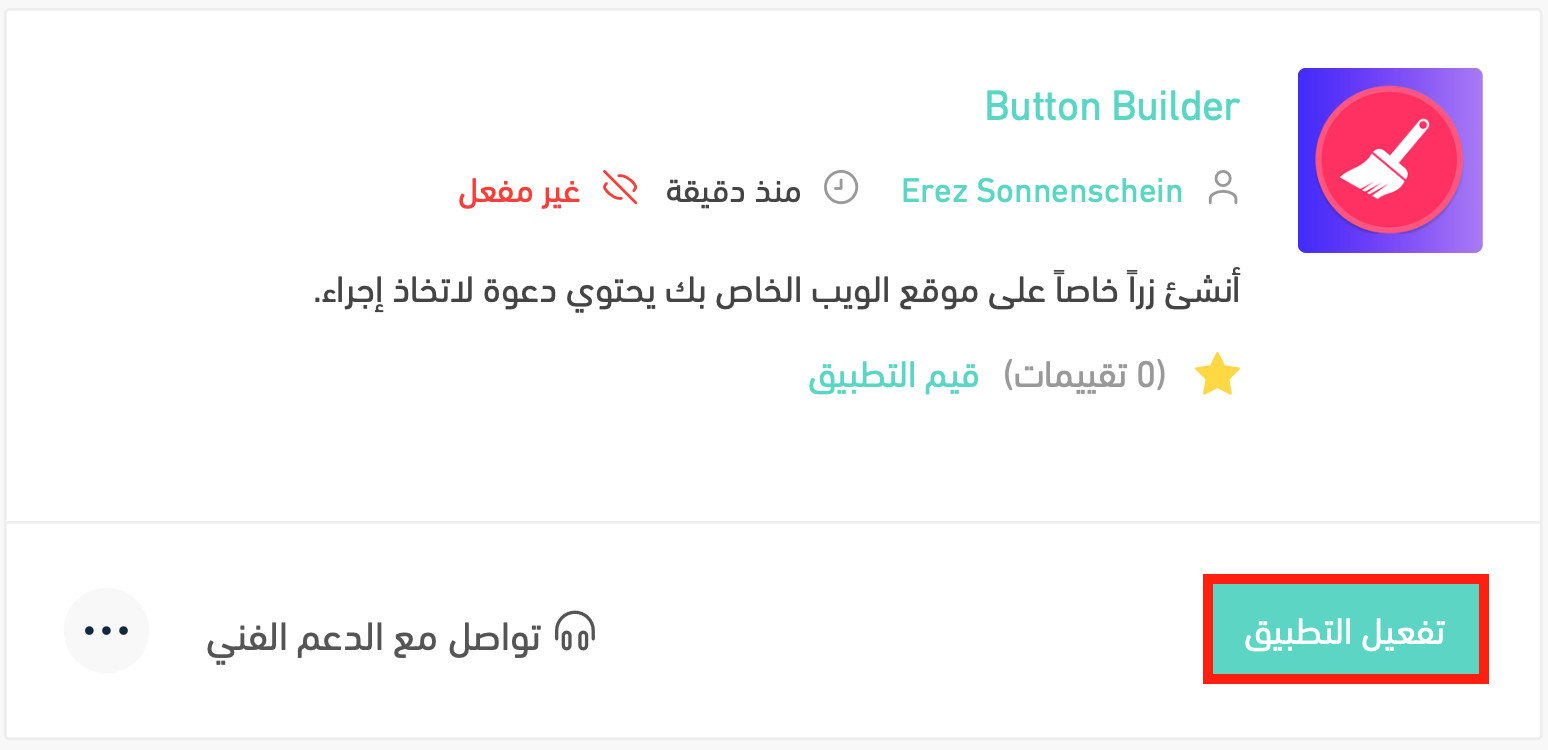
6. Paste your Smartarget User ID into the field provided, then click (Save).
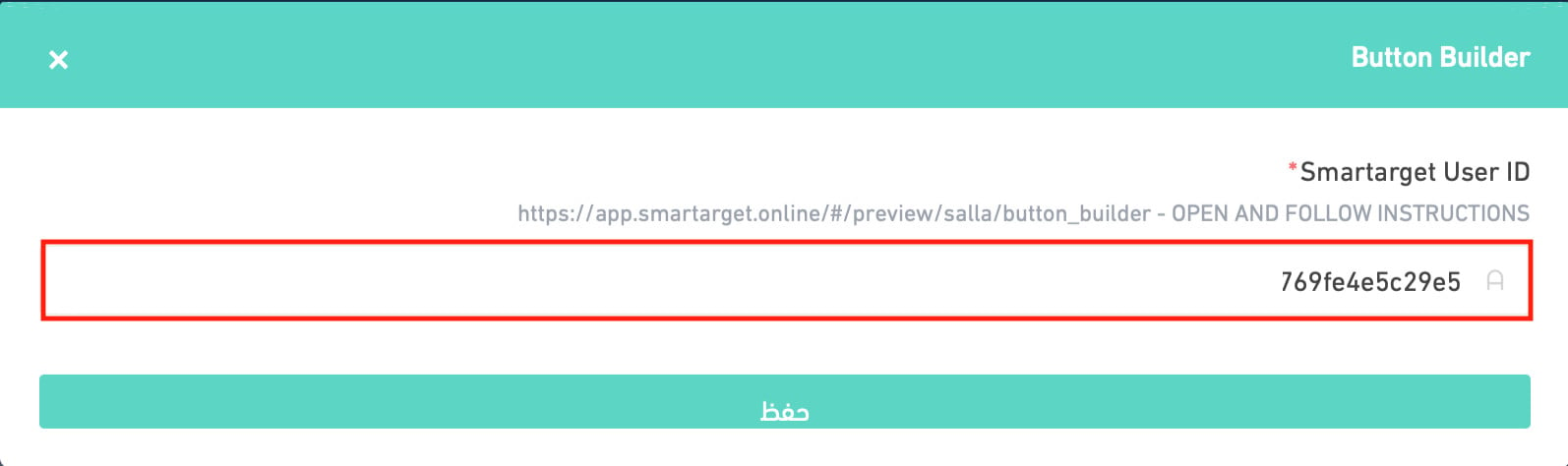
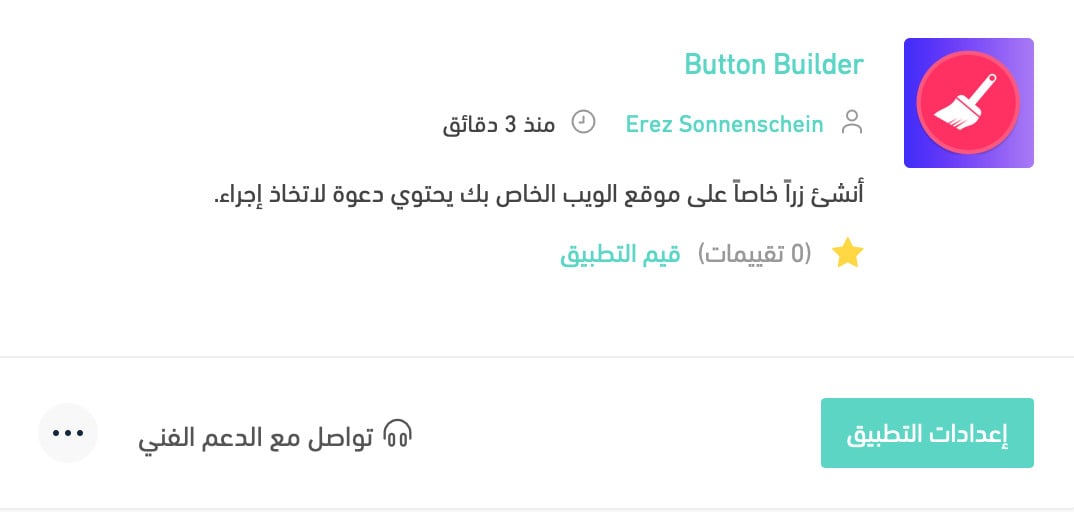
Button Builder is now live in your store. Adjust its settings to match what your business needs.
For more details, see managing my store's apps.
❓ Frequently asked questions
Here are the answers to the questions merchants ask most:
- How do I create a new Smartarget account?
- Where do I copy my Smartarget User ID from?
- How do I remove Button Builder from my store?
How do I create a new Smartarget account?
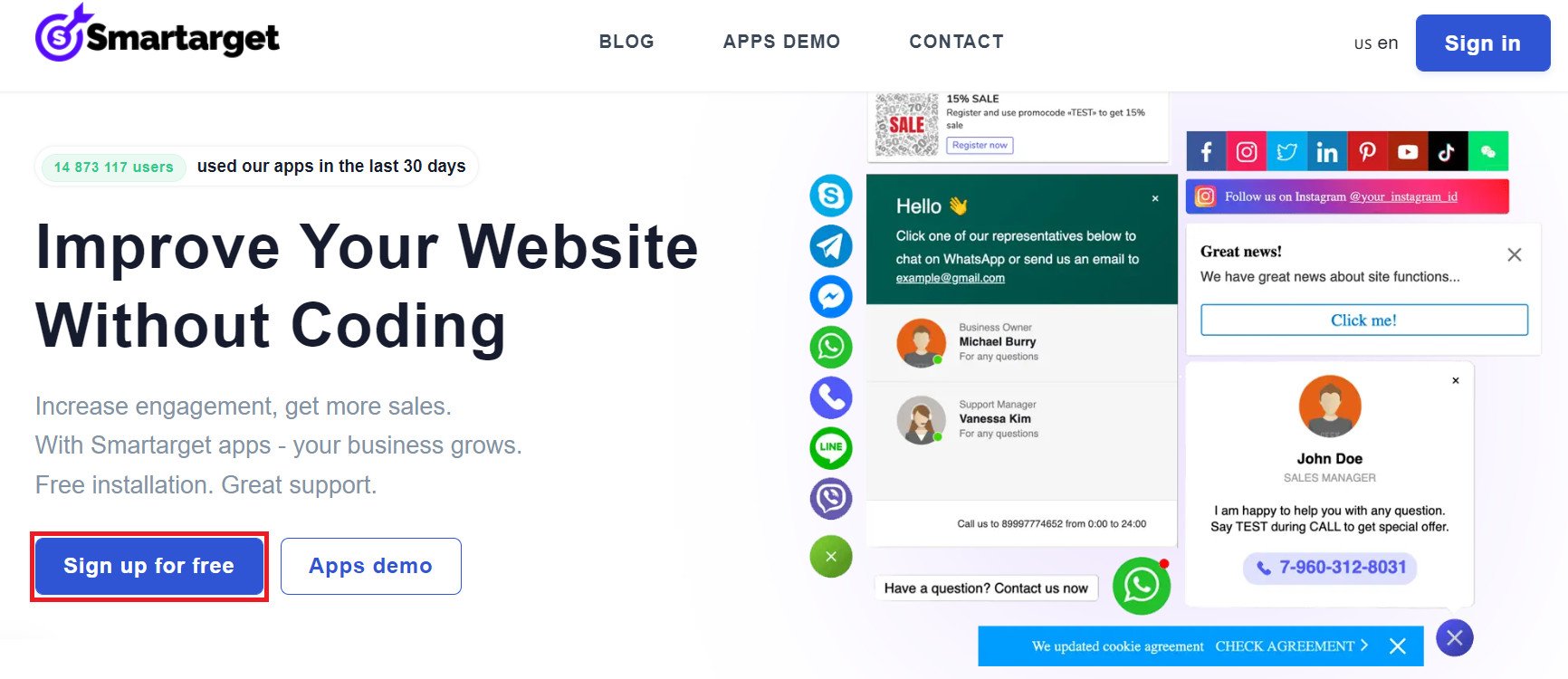
1. From the Smartarget home page, click (Sign up free).
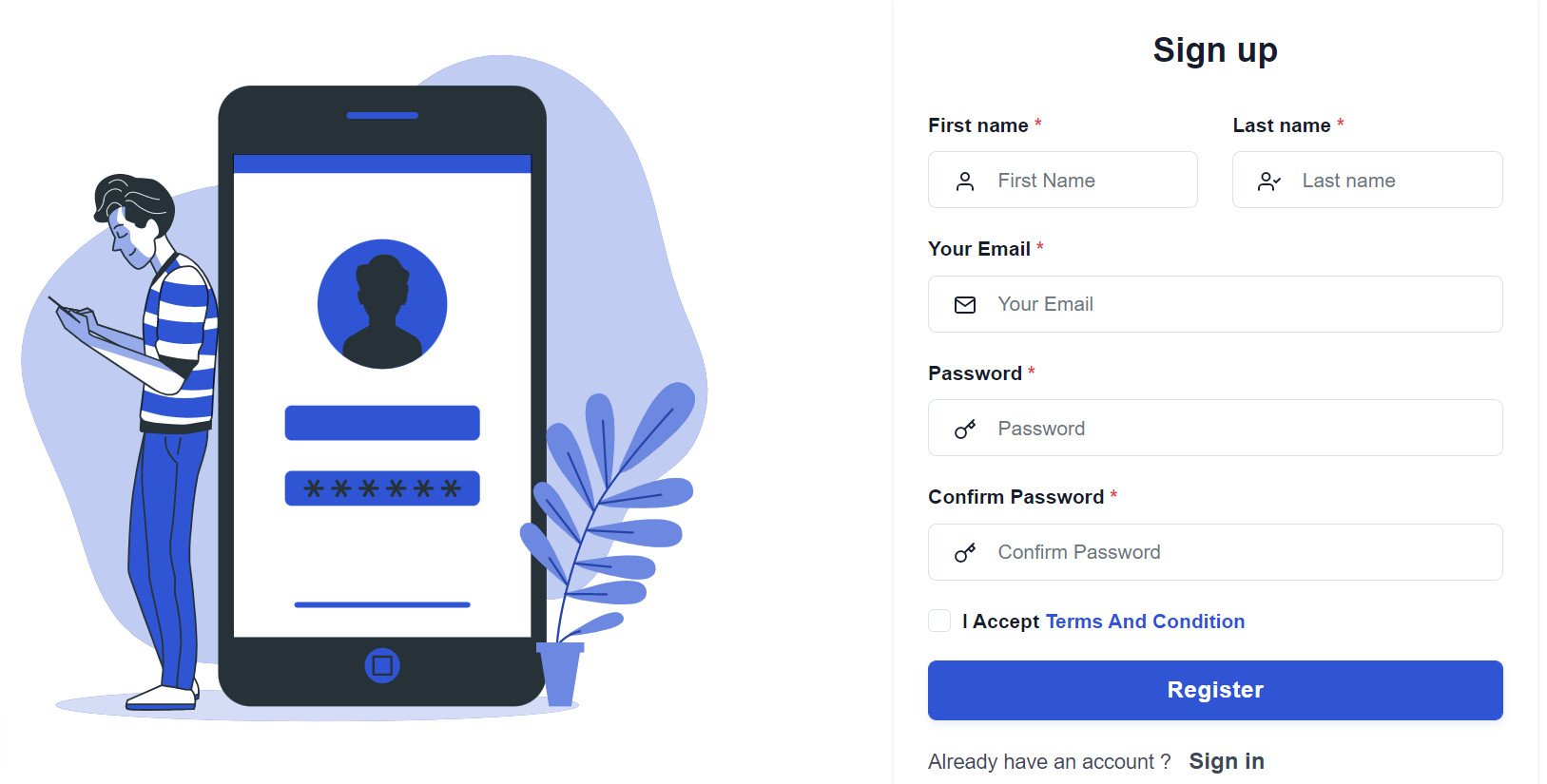
2. Enter the details it asks for, then click (Register).
3. Confirm your account from the email you receive, sign in, then click (Add website).
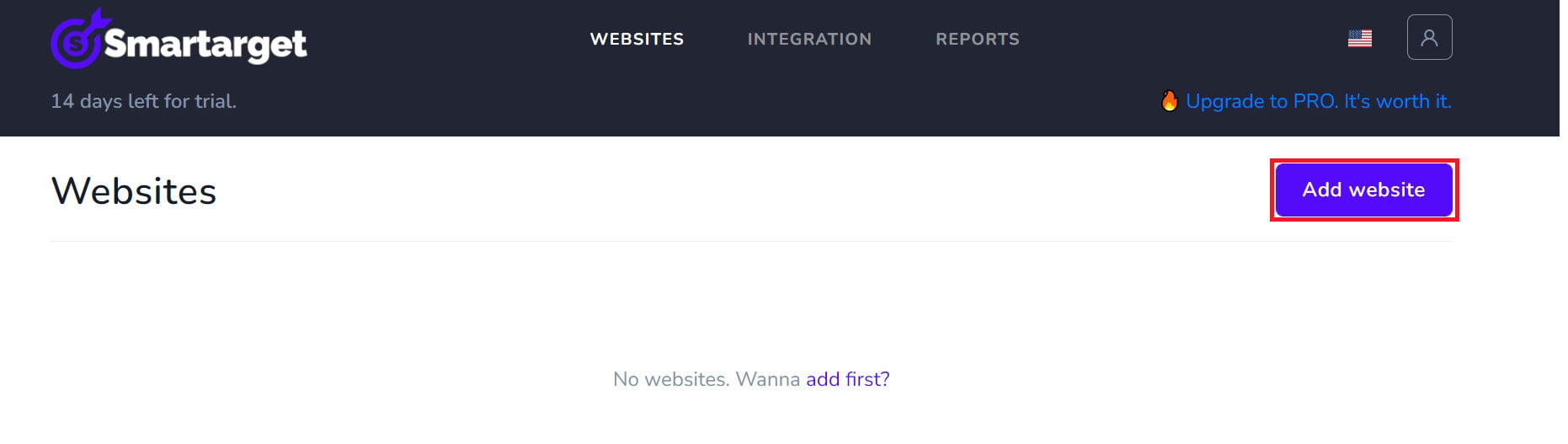
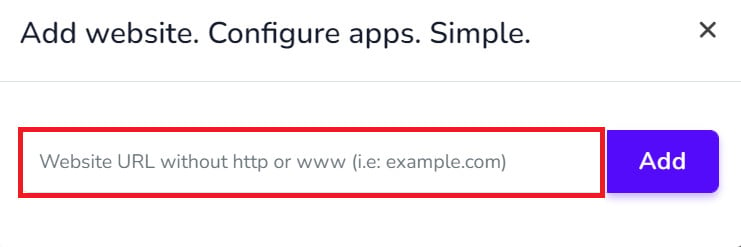
Then add your Salla store domain.
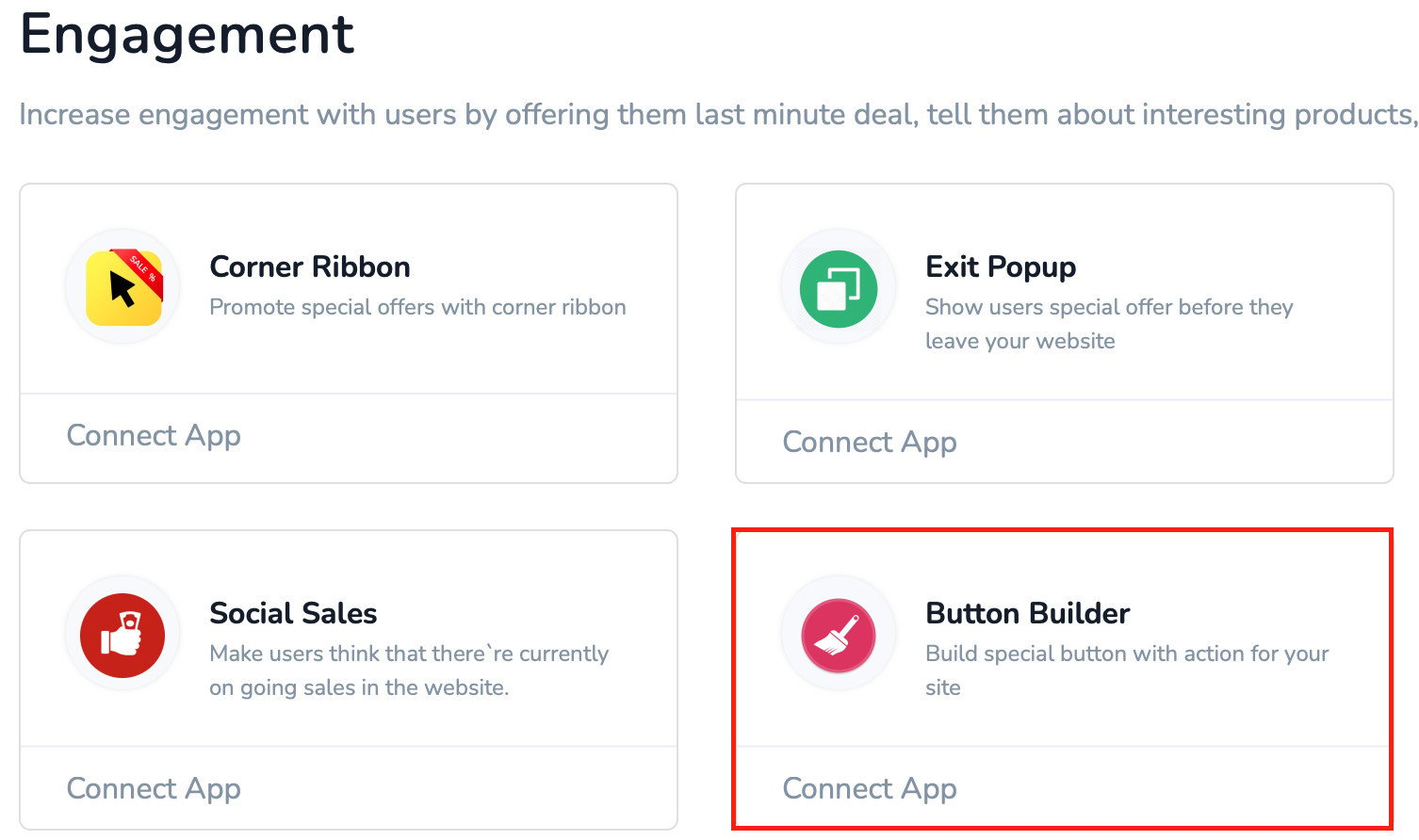
4. To set Button Builder up for your store, click (Contact App).
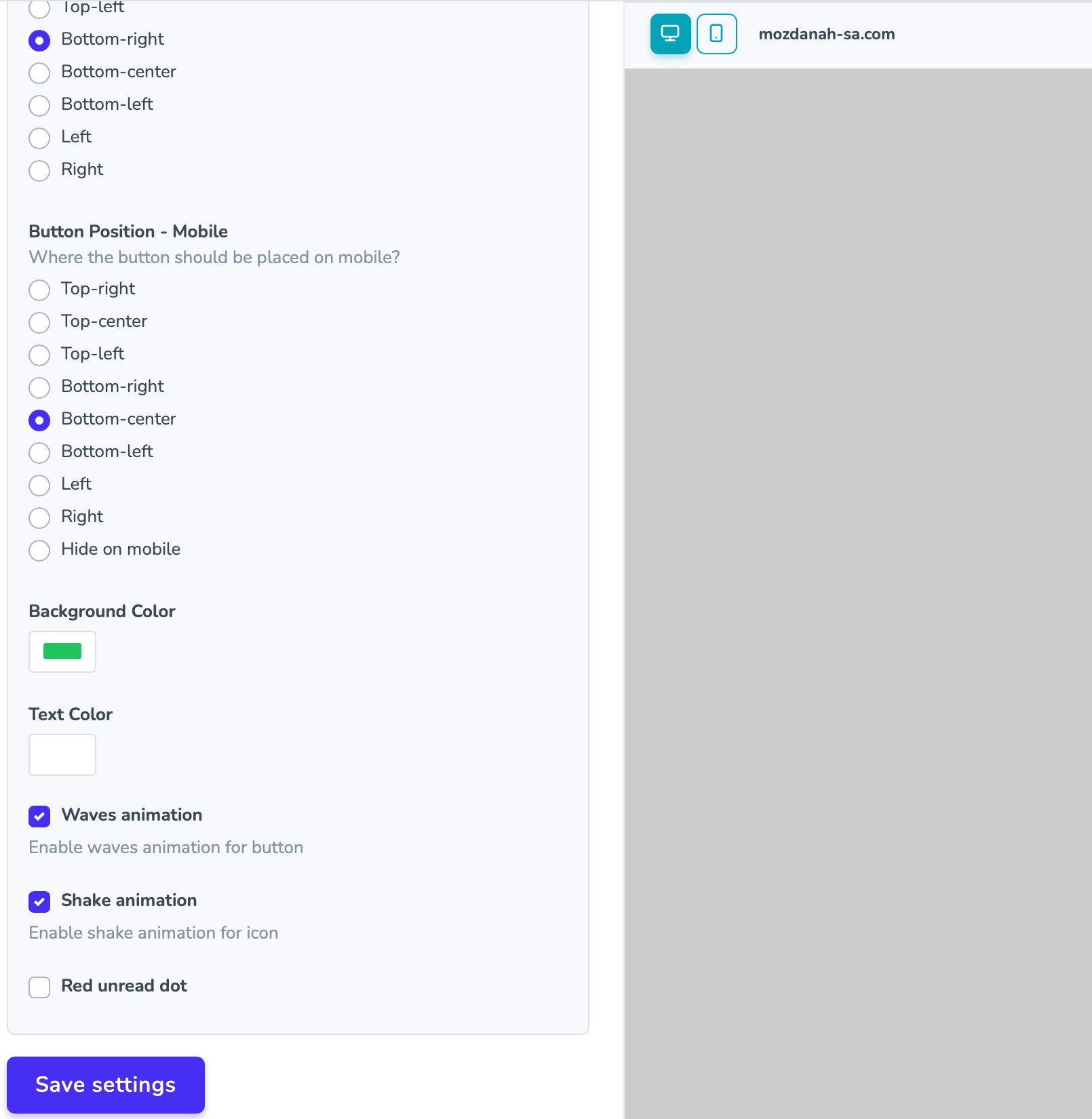
Configure the Button Builder settings for your store, then click (Save setting).
Where do I copy my Smartarget User ID from?
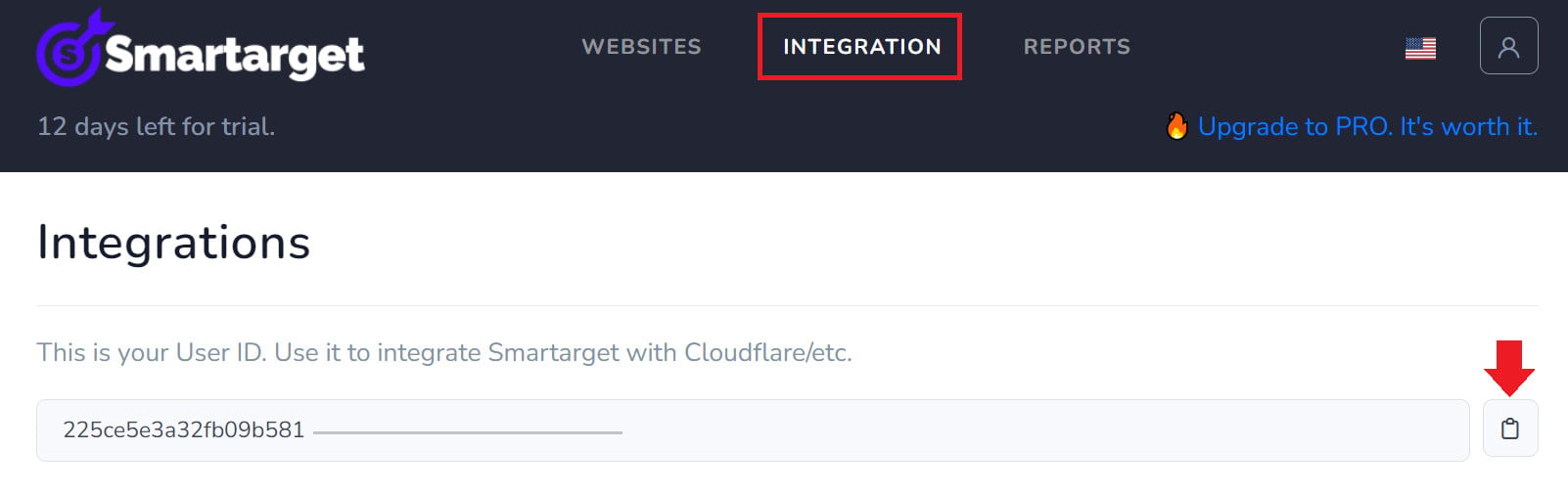
In your Smartarget account, go to the (INTEGRATION) page and click the copy button next to the User ID.
Do I need a Smartarget account to use Button Builder?
Yes. Button Builder runs on Smartarget, and the connection is only complete once you paste your Smartarget User ID into the app settings in your Salla dashboard.
How do I remove Button Builder from my store?
1. From the side menu of your dashboard, click (My installed apps).

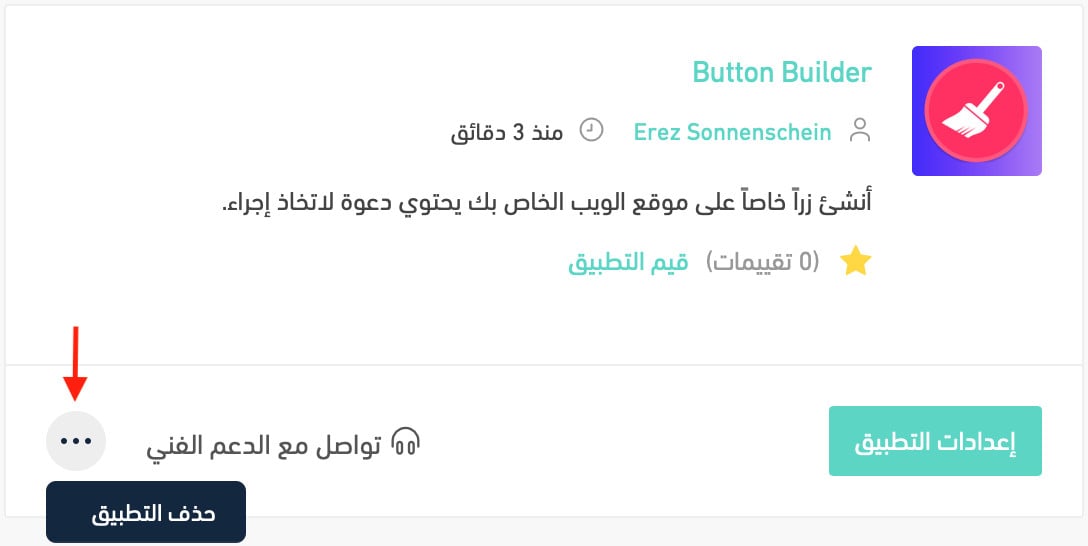
2. From the all apps page, on the Button Builder app, click the (...) icon and then click (Delete app), as shown in the image.