Do you know what your visitors actually do before they leave without buying?
Your reports tell you how many people visited and how many bought, but not what happened in between. The Browsee integration fills that gap: it records browsing sessions and builds interactive maps of how visitors move through your store, so you can see where they hesitate and what they ignore. Connecting it takes three stages — create a Browsee account, copy your tracking key, then install the app on Salla and paste the key in. In this guide, you'll learn how to do all three.
Connecting Browsee to Salla takes three stages. Create a free Browsee account, copy the tracking key from your account settings, then install the Browsee app from the Salla App Store, grant it permission, activate it, and paste the key into the field provided. Your store starts recording sessions right away.
📌 Article overview
- What is Browsee?
- How to connect Browsee to your Salla store
- Frequently asked questions
🎯 What is Browsee?
Browsee is a smart analytics tool that helps you understand the people visiting your store and turn them into customers. It does that by recording and analyzing browsing sessions, and by mapping how a visitor interacts with your store while they shop.
🚀 How to connect Browsee to your Salla store
The Browsee integration is done in three stages:
- Create a Browsee account.
- Copy your Browsee key.
- Install the Browsee app and link it to your Browsee account.
Here is how each one works.
Stage one: create a Browsee account
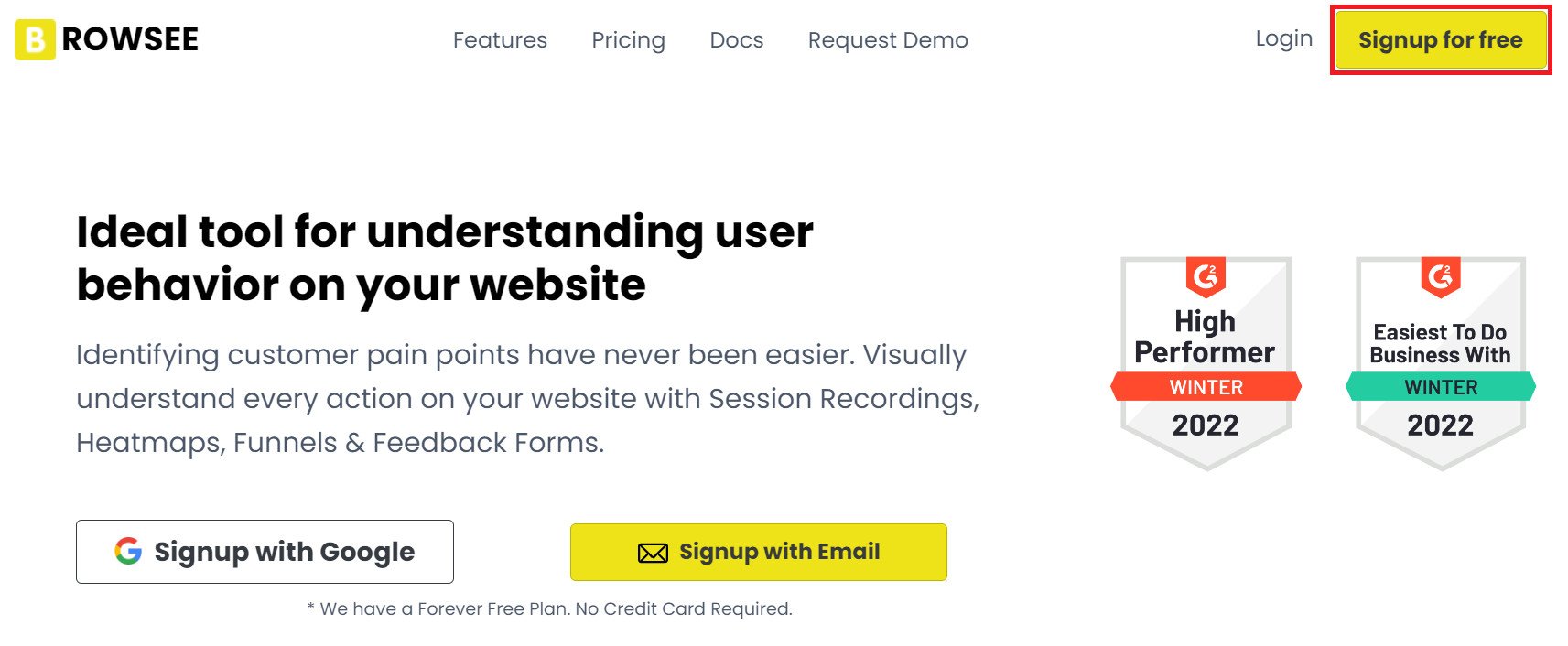
1. From the Browsee home page, click (Signup for free).
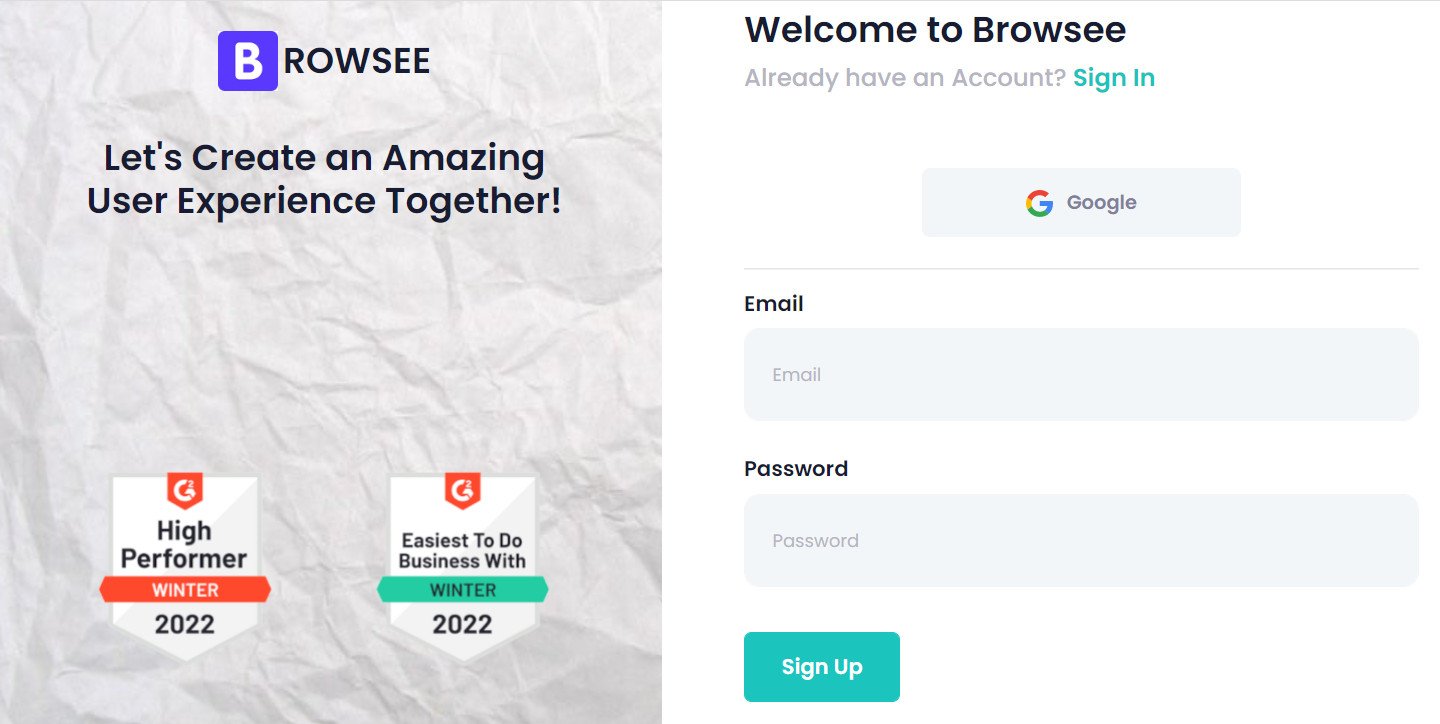
2. Enter the details it asks for (email address and password), then click (Sign Up).
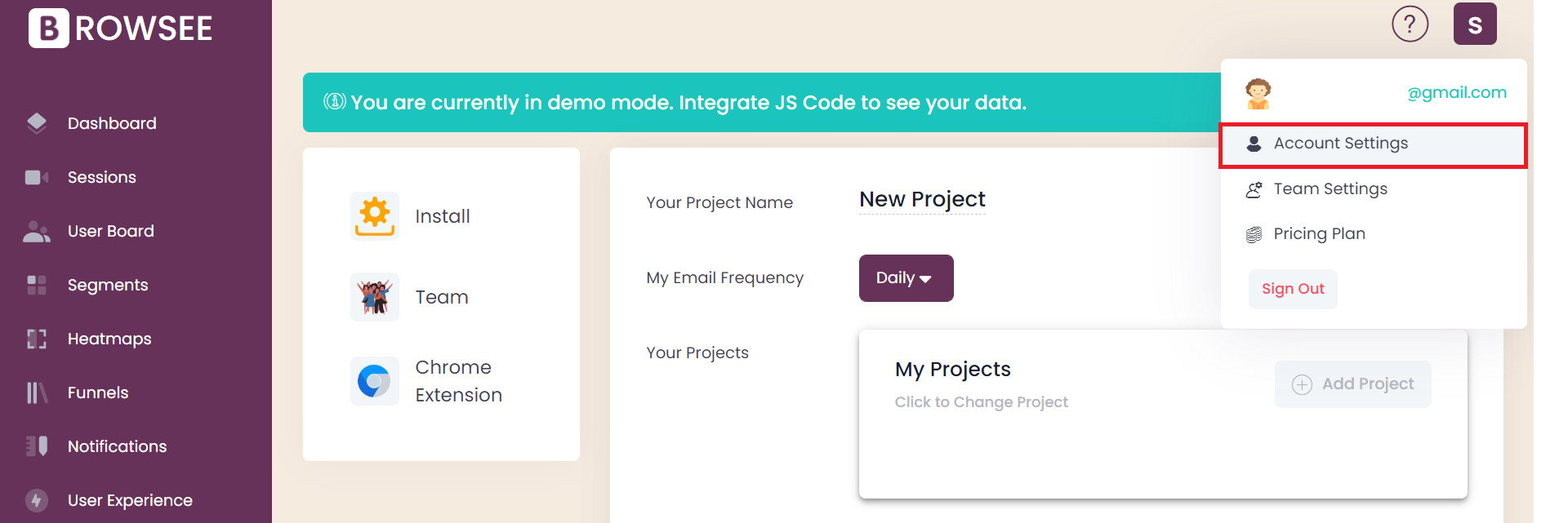
Your Browsee account is ready, and the home page looks like this:

Stage two: copy your Browsee key
1. From your Browsee account, click (Account Settings).
2. On the (Install) page, click (I use Google Tag Manager).
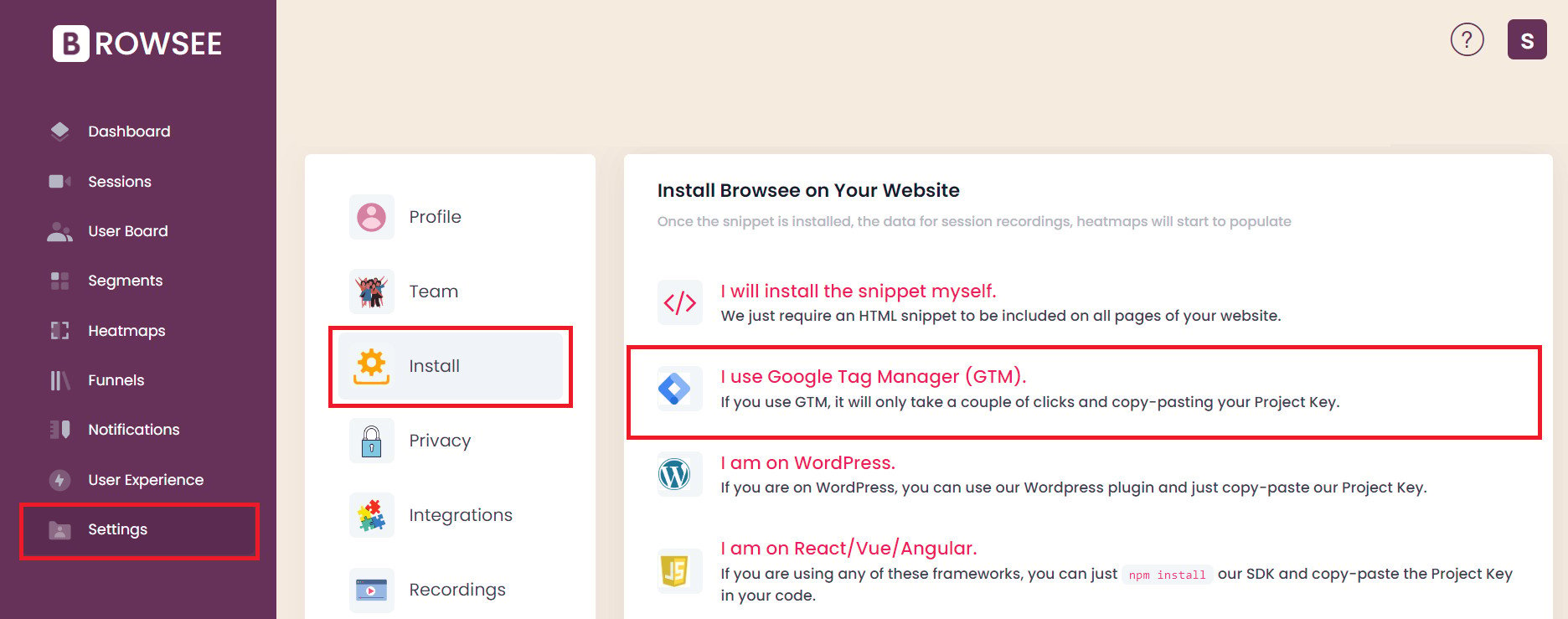
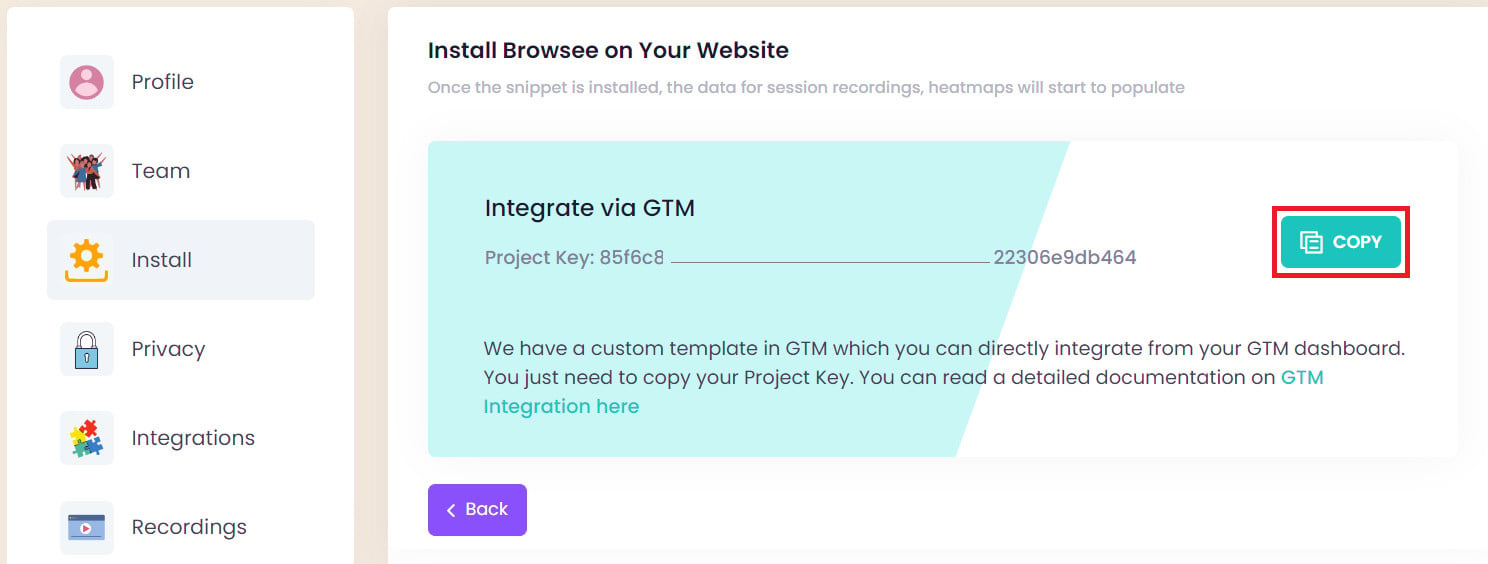
3. On the (Install Browsee on Your Website) page, click (Copy) to copy the tracking key.
Stage three: install the Browsee app and link it to your account
1. From the side menu of your dashboard, click (My installed apps).

2. From the Salla App Store banner, click (Browse Salla App Store).

3. From the Browsee app page, click (Install).

4. Review the permissions the app asks for, then click (Grant permission).
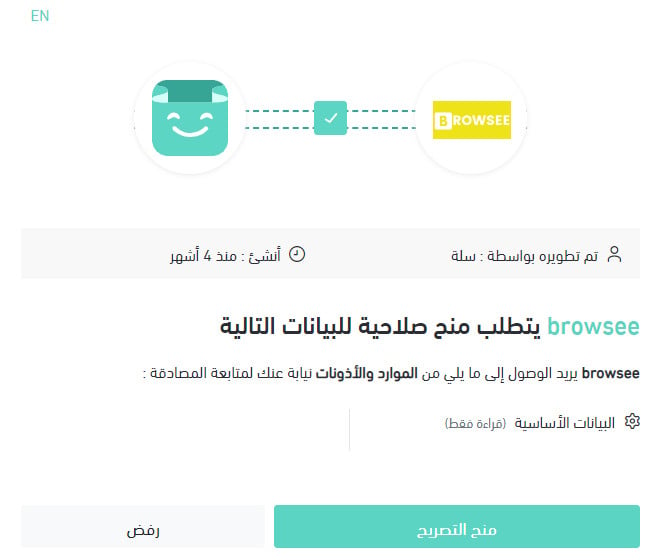
The app is installed. All that is left is to activate it.
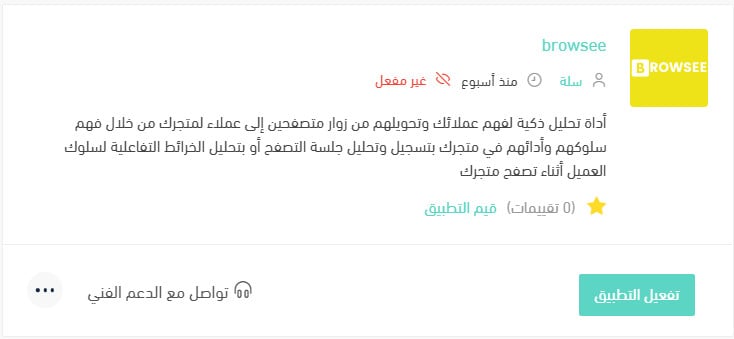
5. From the installed apps page, click (Activate app).
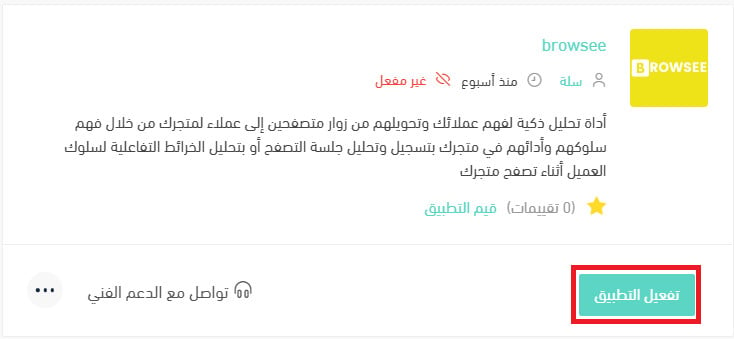
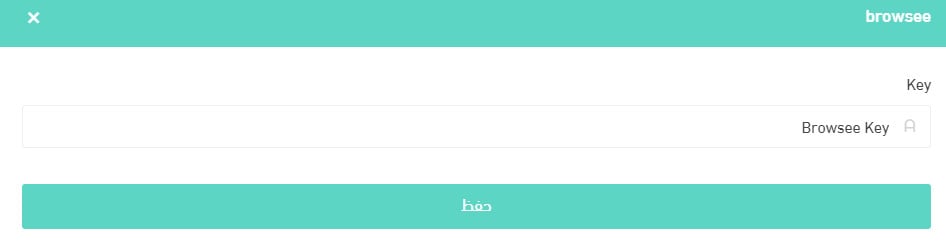
6. Paste the key you copied in stage two into the field provided, then click (Save).
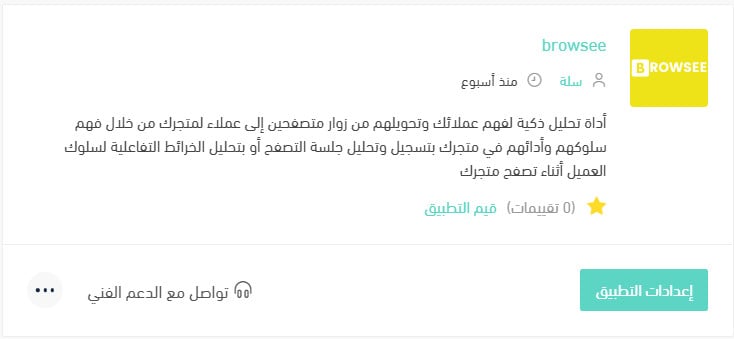
The app is now active, and it looks like this:
For more details, read managing my store's apps.
❓ Frequently asked questions
What are the main benefits of Browsee?
- Recording and analyzing a customer's browsing session shows you the exact points where they hesitated to buy, and what pushed them to complete the payment. Watching those details is how you learn your customer's pattern and behavior.
- Interactive maps go further into that behavior: what draws a shopper's attention and what they skip past. You get a deeper picture of how customers interact with the elements of your store, which helps you improve engagement and lift your purchase rate.
How is Browsee different from Google Analytics?
Browsee is built to help you understand user behavior rather than to give you deep analytics. Traditional tracking asks you to set up events for every interface element; with Browsee you skip all of that. Focus on launching your store and let Browsee track it automatically.
Does Browsee slow my store down?
No. Browsee collects data completely asynchronously, so it does not affect page loading or how fast the store feels to the visitor.
How do I delete the Browsee app from my store?
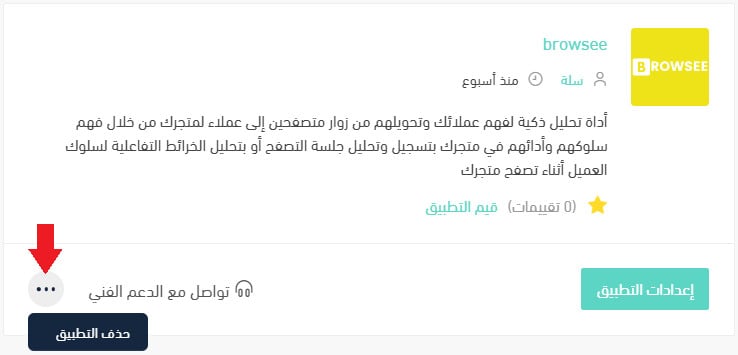
1. From the side menu of your dashboard, click (My installed apps).

2. On the all apps page, find the Browsee app, click the (...) icon, then click (Delete app), as shown below.
📝 Important notes
The app is installed and activated in two separate moves. Granting permission only installs it — it does not start tracking until you activate it and save your Browsee key.
Traffic numbers tell you that visitors left. Session recordings and interactive maps tell you why, and that is the part you can actually fix.