Your customers read WhatsApp within minutes. Are your order updates going there?
Auto Whats sends marketing and transactional WhatsApp messages to your customers — order status updates, abandoned cart reminders, and more. The Auto Whats integration connects your Salla store to the service through the Salla App Store, and installing the app creates your Auto Whats account automatically. In this guide, you'll learn how to install the app and pick a plan, how to sign in to the account created for your store, and how to remove the app.
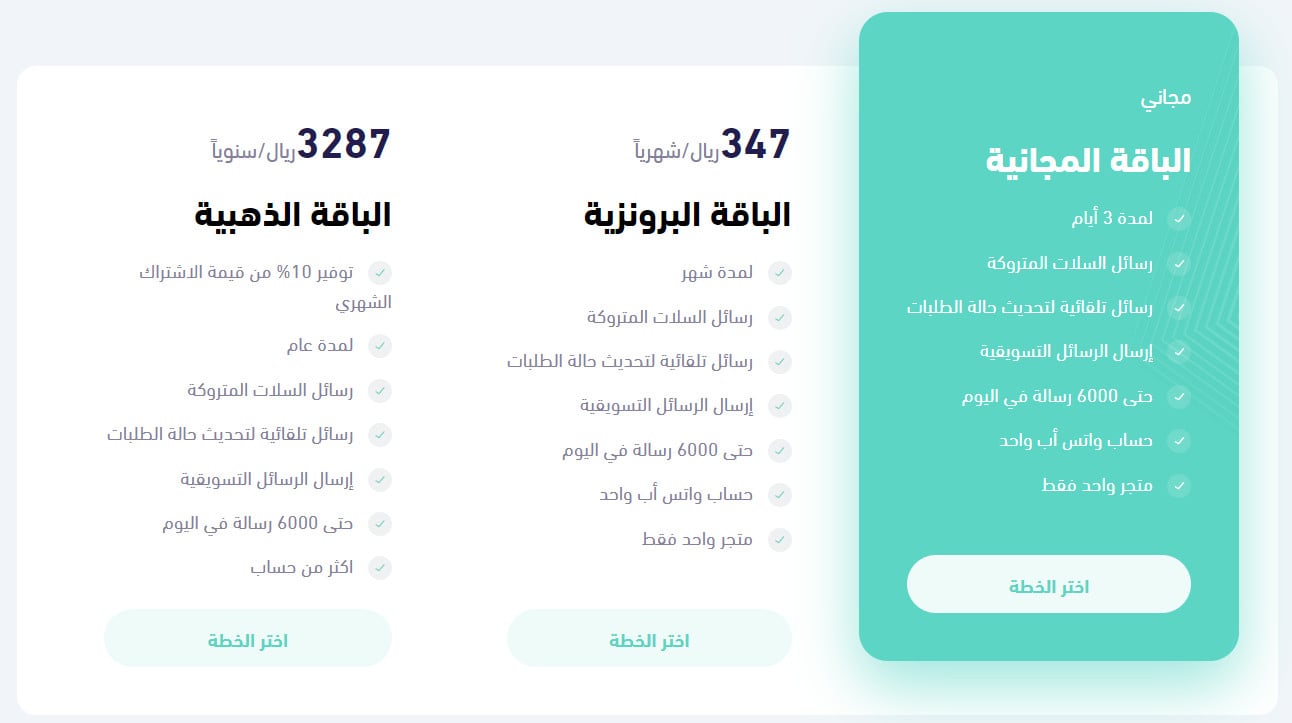
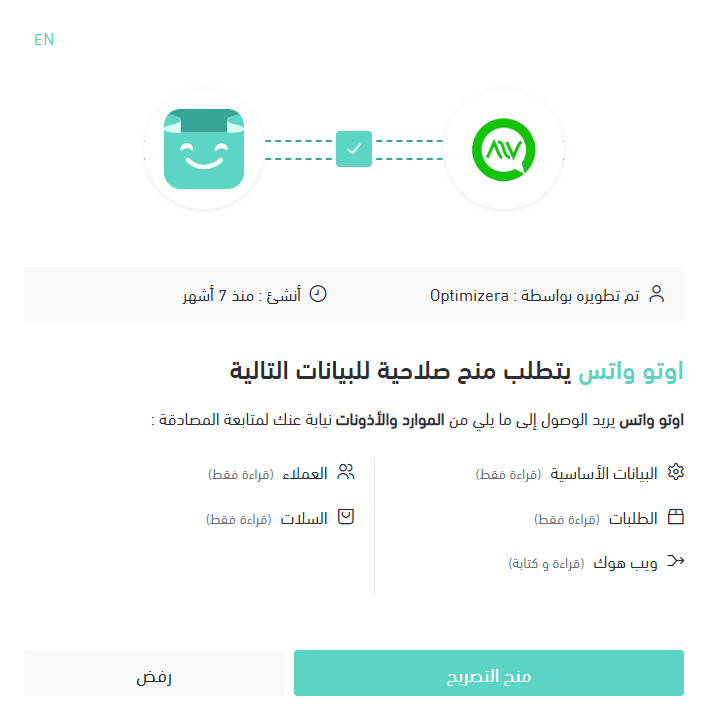
To connect Auto Whats to your Salla store, open (Installed apps) from your dashboard's side menu, click (Browse Salla App Store), and open the Auto Whats app page. Click (Install) for the Gold plan, or pick the plan you need from the bottom of the page. Review the permissions, then click (Grant permission).
📌 Article overview
- What is Auto Whats?
- Do you need an Auto Whats account first?
- How to connect Auto Whats to your store
- Frequently asked questions
🎯 What is Auto Whats?
Auto Whats sends WhatsApp messages to your customers on your behalf — order status updates, abandoned cart reminders, and other marketing messages — so you reach shoppers on the channel they already check.
📝 Do you need an Auto Whats account before connecting?
No. When you install the Auto Whats app from the Salla App Store, a new Auto Whats account is created for you automatically. If you already have an Auto Whats account, contact their technical support to activate that account on your Salla store instead.
🚀 How to connect Auto Whats to your store
1. From your dashboard's side menu, click (Installed apps).

2. From the Salla App Store banner, click (Browse Salla App Store).

3. On the Auto Whats app page, click (Install) to install the app on the Gold plan.

Or scroll to the bottom of the app page, choose the plan that fits your needs, and click (Choose plan).
4. Review the permissions the app requests, then click (Grant permission).
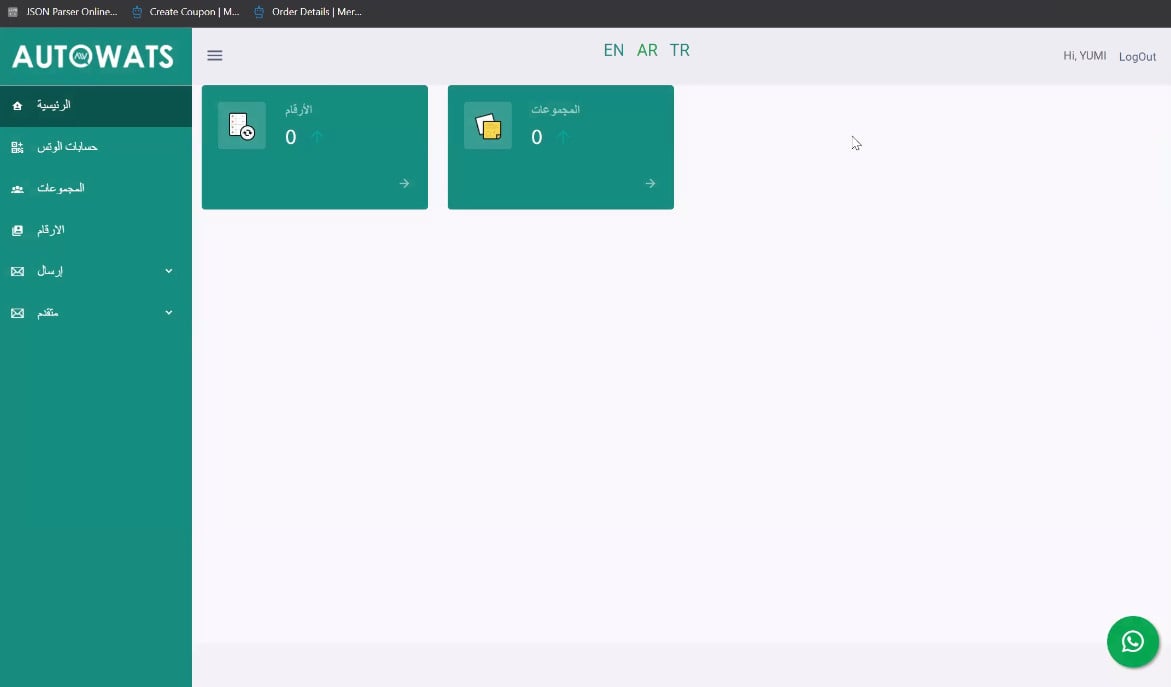
The app page opens straight away, signed in to the account created automatically for your store.
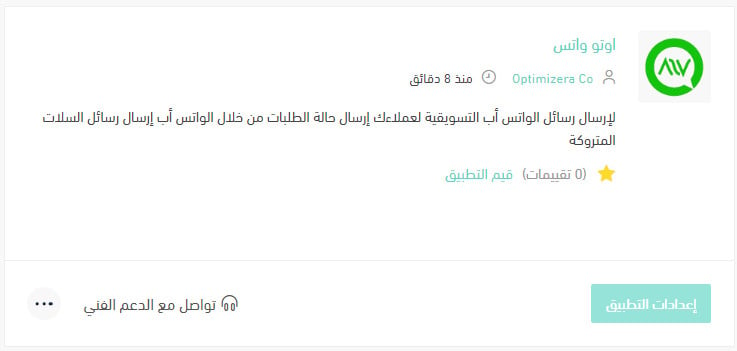
The Auto Whats app is now installed on your store.
For more details, see managing my store's apps.
❓ Frequently asked questions
How do I sign in to the Auto Whats account linked to my Salla store?
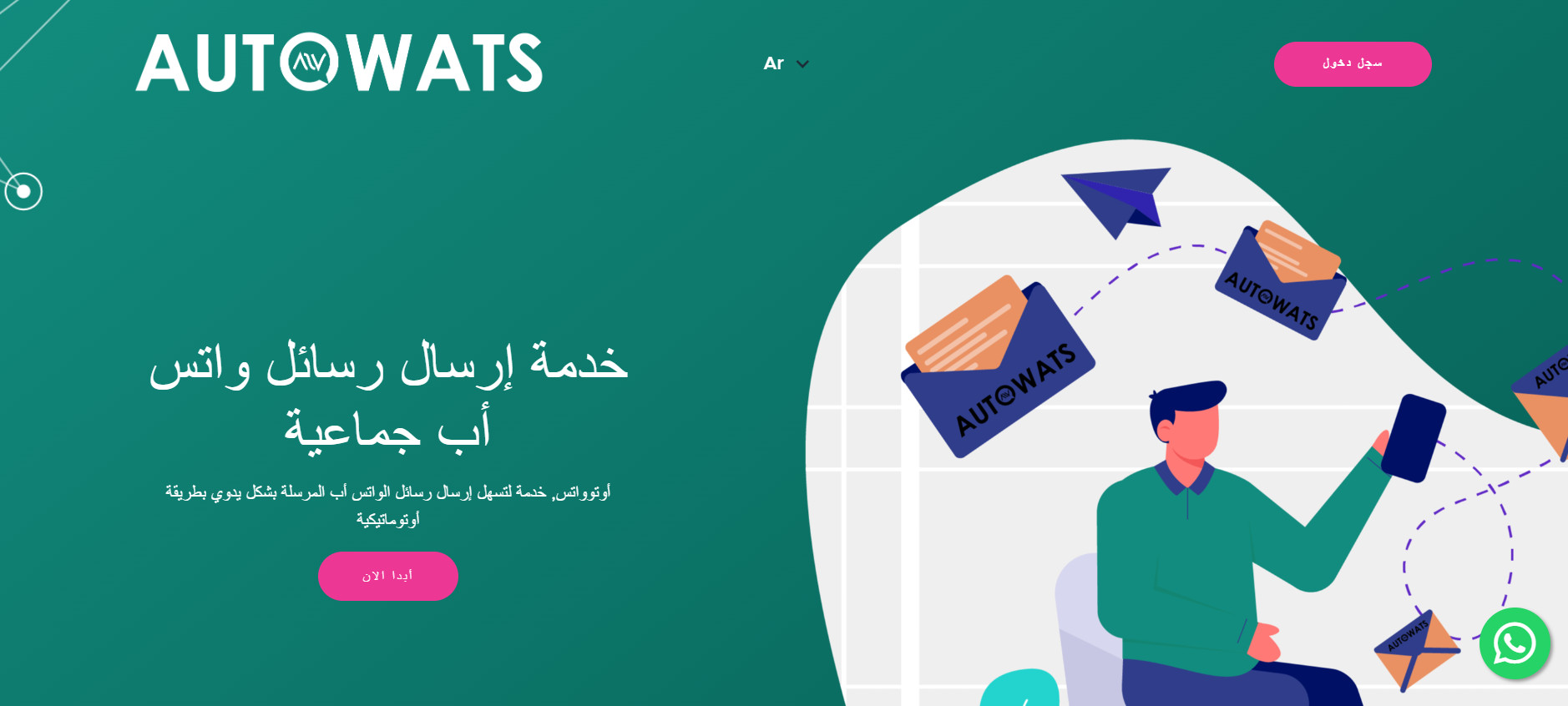
1. From the Auto Whats sign-in page, click (Sign in).
2. Click (Sign in with Salla).
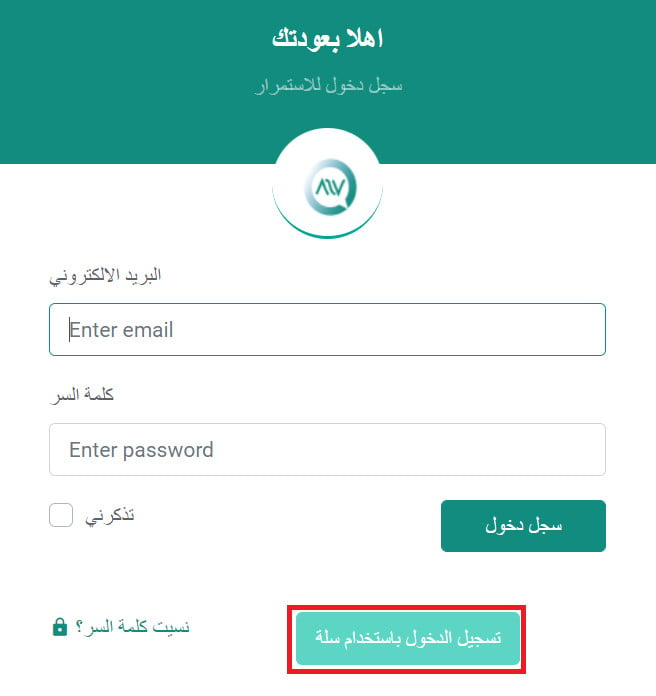
You land on the home page of your Auto Whats account.
How do I remove the Auto Whats app from my store?
1. From your dashboard's side menu, click (Installed apps).

2. On the all apps page, find the Auto Whats app, click the (...) icon, then click (Delete app), as shown in the image.

What kinds of messages can Auto Whats send?
WhatsApp marketing messages to your customers, including order status updates and abandoned cart reminders.
Can I choose a different plan than the one shown first?
Yes. Instead of clicking (Install) at the top of the app page, scroll to the plans at the bottom, pick the one that fits your needs, and click (Choose plan).
Order updates and cart reminders land where your customers actually read them, and the account is set up for you the moment the app is installed.