Do your support requests arrive from five different places and get answered in none of them?
Zendesk is a paid live chat and support service that pulls those requests into one place. It is built to help you prioritize, solve customer problems around the clock, and tailor your support messages on whichever channel your customers use. In this guide, you'll learn how to connect your Salla store app to Zendesk, how to sign up for a Zendesk account, and how to disconnect the two.
To connect Zendesk, open (Store settings) in your Salla dashboard, click (Connect services), then click (Edit) under the chat service. Copy the keys from the Mobile SDK section of your Zendesk account, paste them into the connection page, and click (Activate connection). A green check mark confirms it worked.
📌 Article overview
- What the Zendesk chat service is
- How to connect your Salla store to Zendesk
- Frequently asked questions
What is the Zendesk chat service?
Zendesk is a paid, streamlined live chat service for handling support requests. It is designed to help you prioritize and resolve customer issues around the clock, and to customize your support messages across any channel you want to use.
👣 How to connect your Salla store to Zendesk
1. From the side menu of your dashboard, click (Store settings).

2. Click (Connect services).

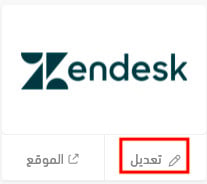
3. Click (Edit) under the chat service.
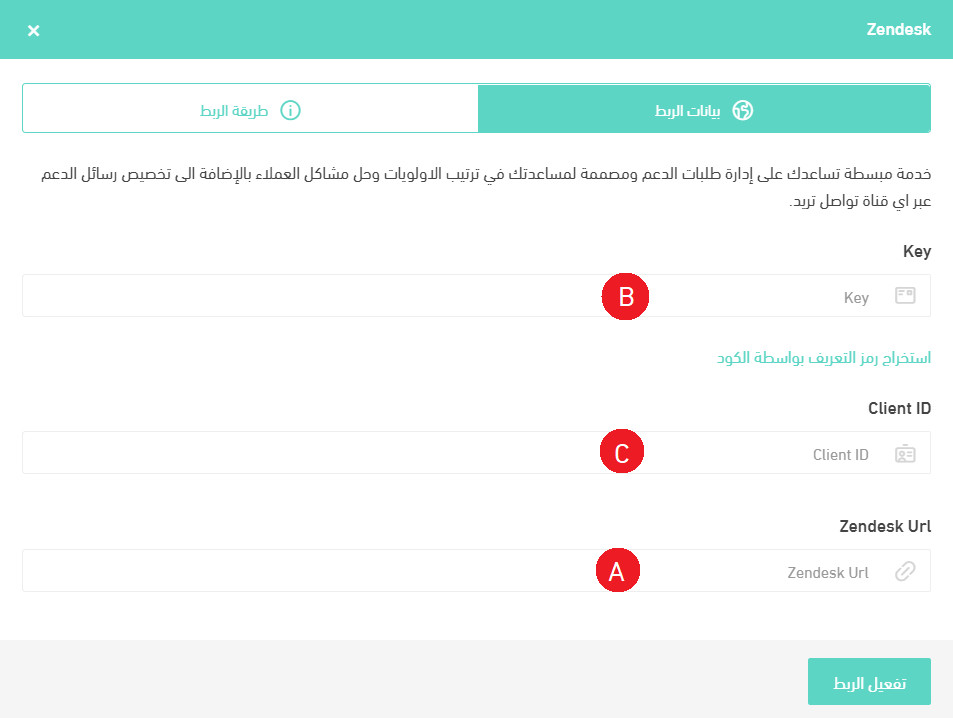
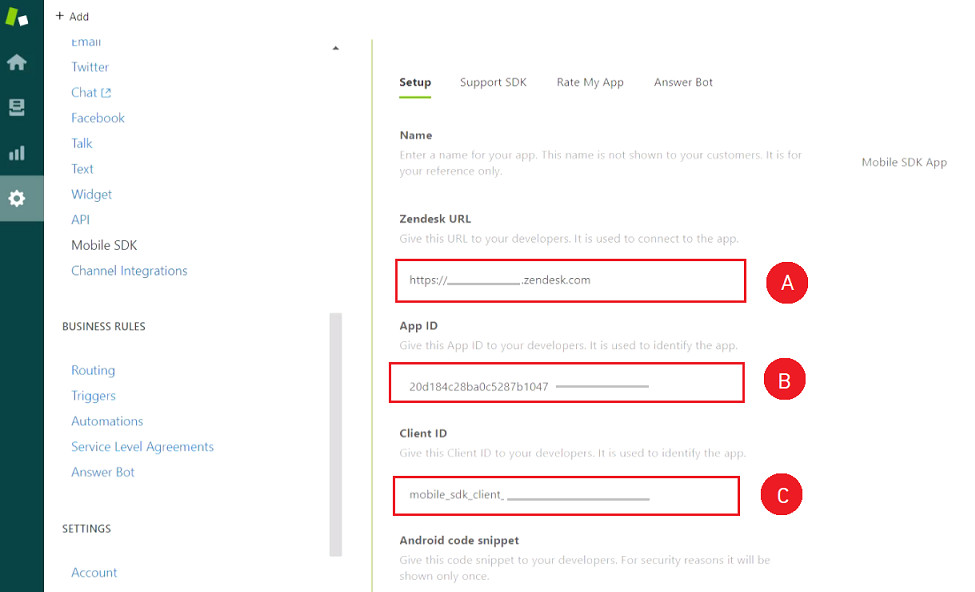
4. Copy the required keys from your Zendesk account — step 5 shows where they are — paste them into the matching fields on the Zendesk connection page, then click (Activate connection).
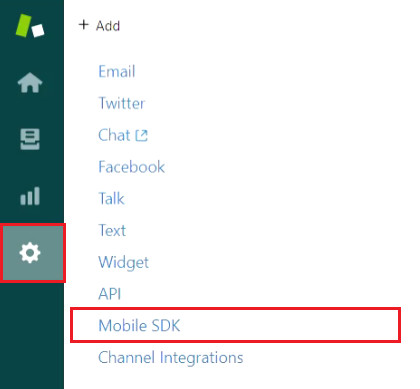
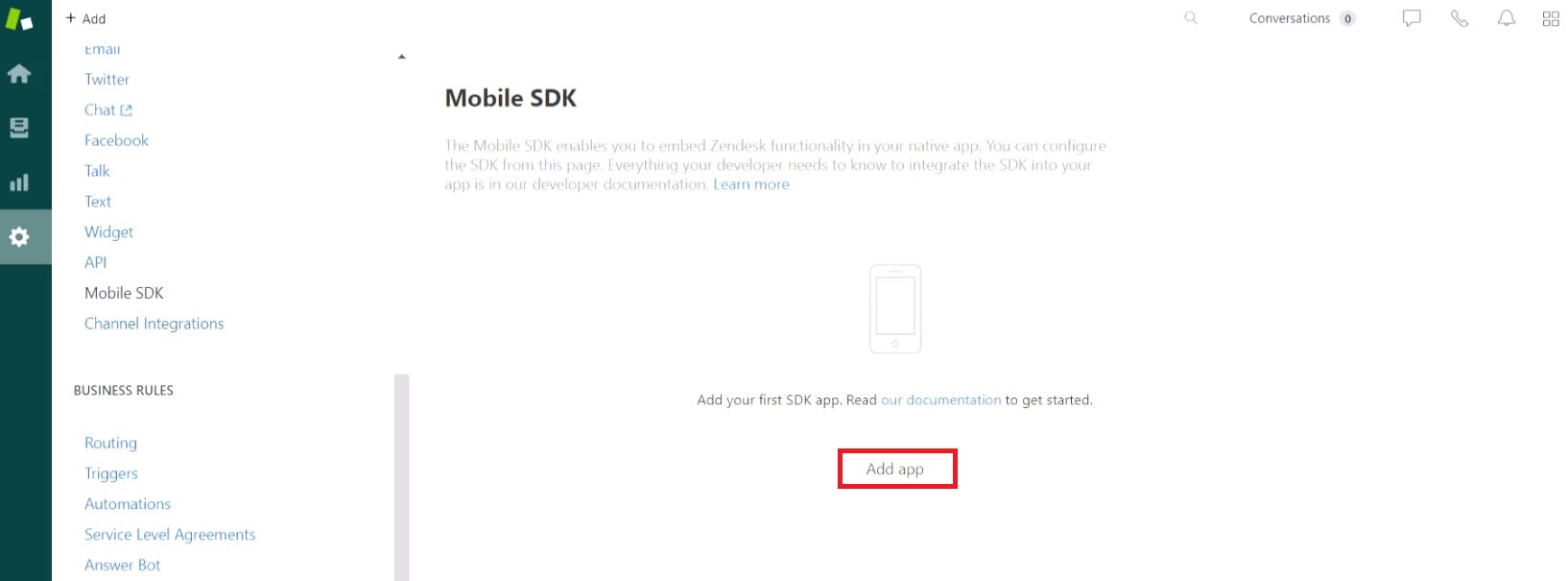
5. Open your Zendesk account in another browser tab, click settings in the Zendesk dashboard, then click (Mobile SDK).
Click (Add app).
Now copy the keys and paste them into the matching fields on the activation page from step 4.
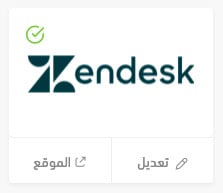
A green check mark then appears next to the Zendesk chat service icon.
❓ Frequently asked questions
Why use Zendesk?
- Raise tickets and gather support requests from different social platforms, and handle them quickly in one place.
- Solve customer problems by voice with Zendesk Talk.
- Measure and improve the customer experience with broad analytics reports generated automatically.
- Build a full help guide of answers to the questions your customers ask most, so they can solve problems before they contact you.
- Work in several languages.
Is Zendesk free or paid?
It is a paid service, priced modestly for what it offers, and it comes with a trial period of up to 14 days.
How do I sign up for Zendesk?
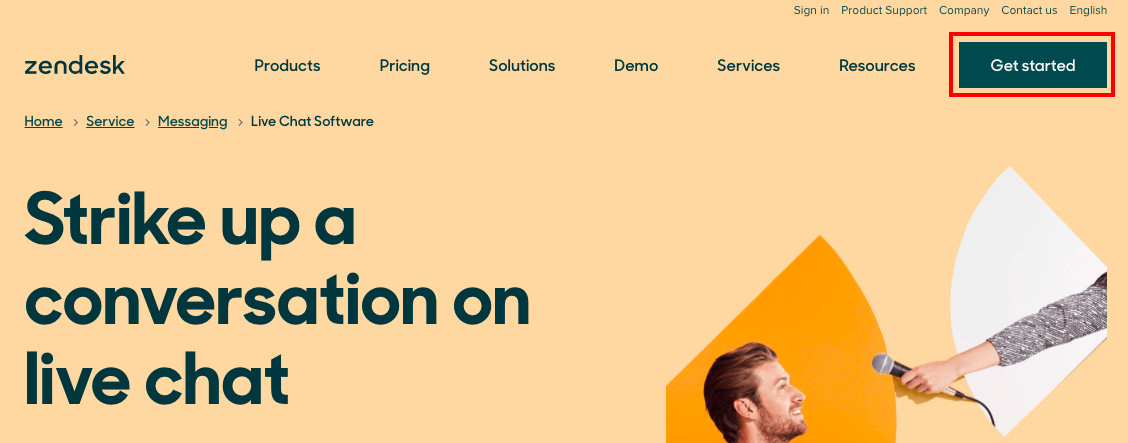
1. Go to the Zendesk website and click (Get started) to open a trial account. You can subscribe later.
2. Enter your email address and click (Next).
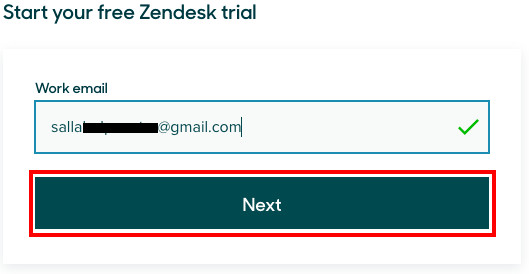
3. Enter your basic details, then click (Next).
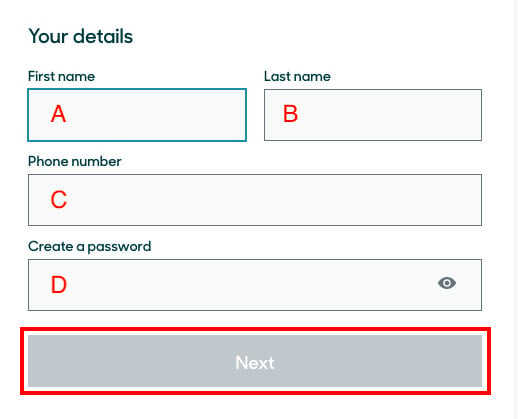
A. First name.
B. Last name.
C. Mobile number.
D. A new password — at least 5 characters, mixing numbers, Latin letters, and symbols.
4. Enter information about your store, then click (Start your free trial).
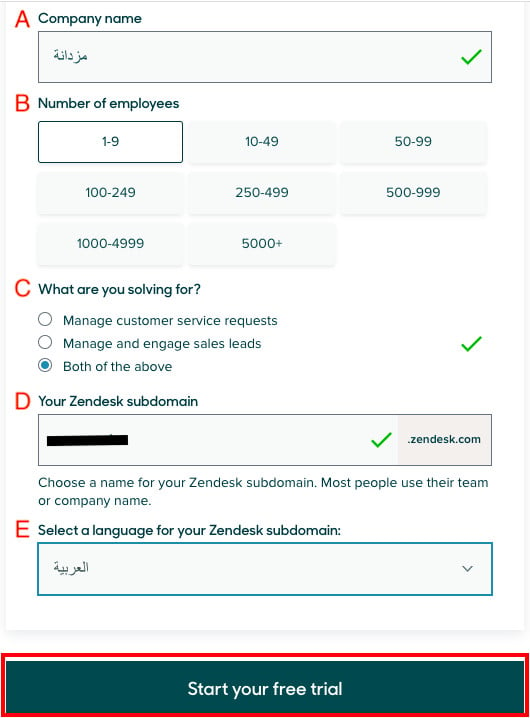
A. Your store name.
B. Number of employees.
C. Why you are using the software.
D. The subdomain for your account on the service, usually your store name in English.
E. Your preferred language.
5. A message appears asking you to check the email address you registered with to activate the account.
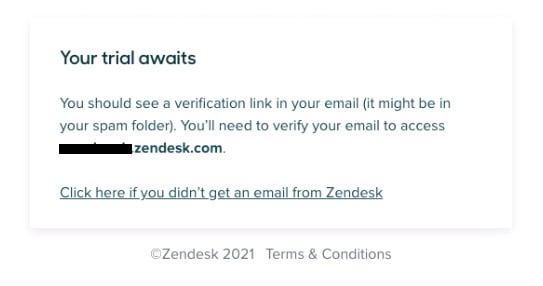
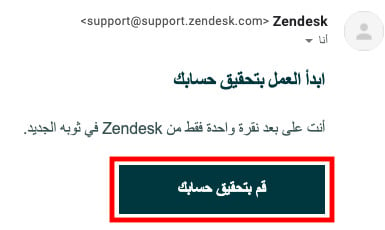
6. Click the account verification button in that email, and you'll be taken to your Zendesk account.
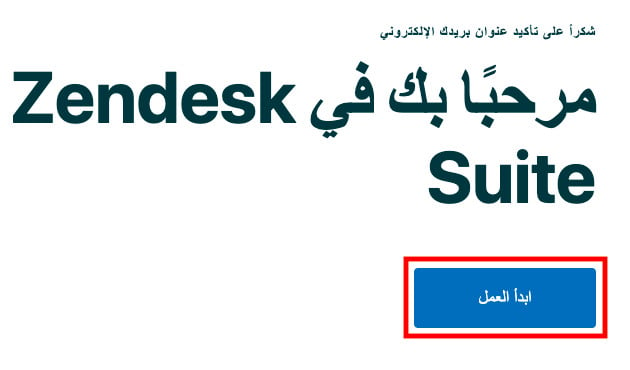
7. The getting-started page opens. Click (Get started) to begin.
Can I disconnect my store from my Zendesk account?
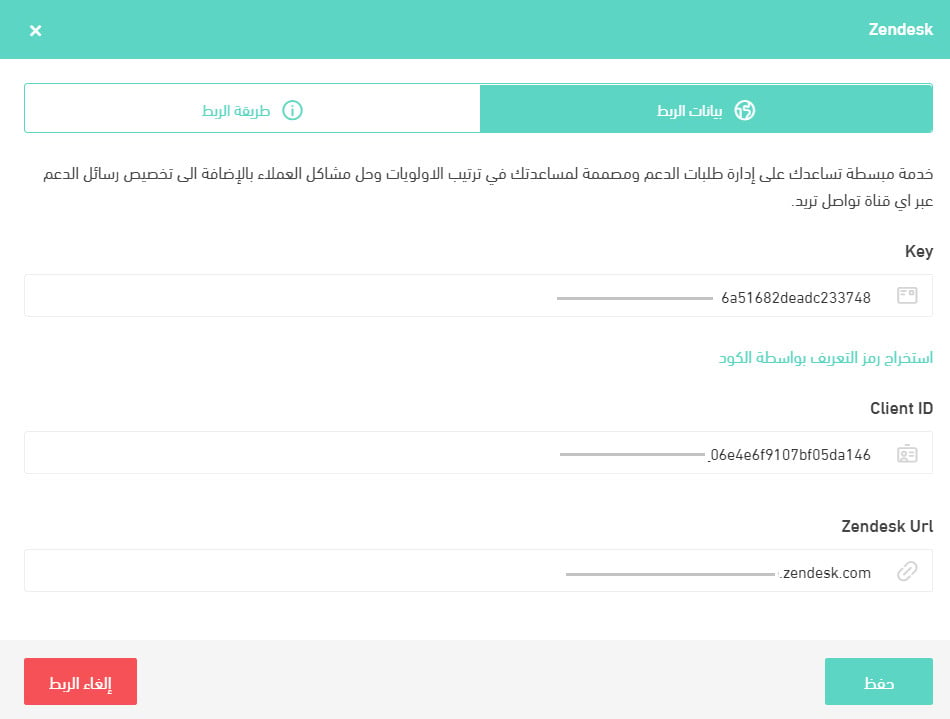
Yes. On the Zendesk connection page, click (Disconnect).