Is your accounting system always a few days behind what your store actually sold?
The AmanSoft app links your Salla store to your AmanSoft accounting software, adding customers, products, and orders to it automatically and updating quantities back in Salla. Once the connection is live, the two systems stay in step without anyone re-keying an order. In this guide, you'll learn what you need before you start, how to install and activate the app, what the connection gives you, and how to remove it.
AmanSoft is accounting software you connect to Salla through the Salla App Store. Install the AmanSoft app, grant the permissions it requests, complete the payment step, then activate it from your installed apps page and enter the connection code from your AmanSoft program to start syncing.
📌 Article overview
- What the AmanSoft app does
- What you need before you start
- How to connect AmanSoft to your Salla store
- Frequently asked questions
🎯 What is the AmanSoft app?
The app connects Salla to your AmanSoft software. It adds customers, products, and orders to your program automatically, and updates quantities in Salla as they change.
📝 Before you start
You need an account with AmanSoft.
🔍 How do I get help?
If you hit a technical problem or need a hand using the software, message technical support through live chat on the AmanBox page. You can also visit the AmanSoft blog. [Verify: the Arabic names AmanBox as the live chat page but gives no link, and that name does not match the AmanSoft product referenced everywhere else in the article.]
🚀 How to connect AmanSoft to your Salla store
1. From the dashboard side menu, click (Installed apps).

2. On the Salla App Store banner, click (Browse the Salla App Store).

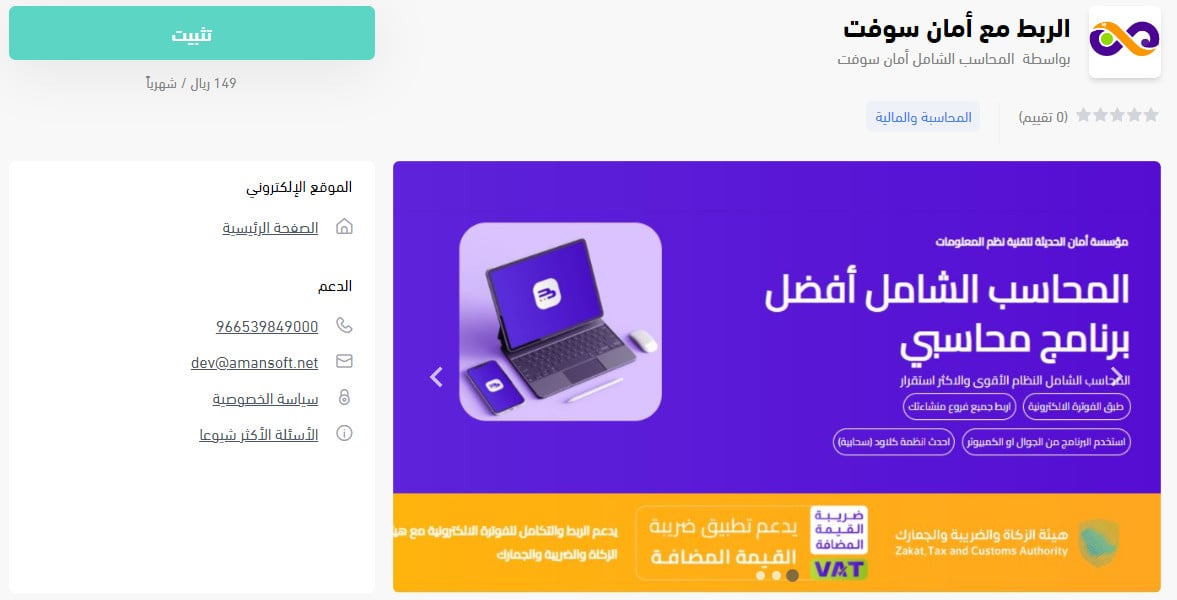
3. On the AmanSoft app page, click (Install).
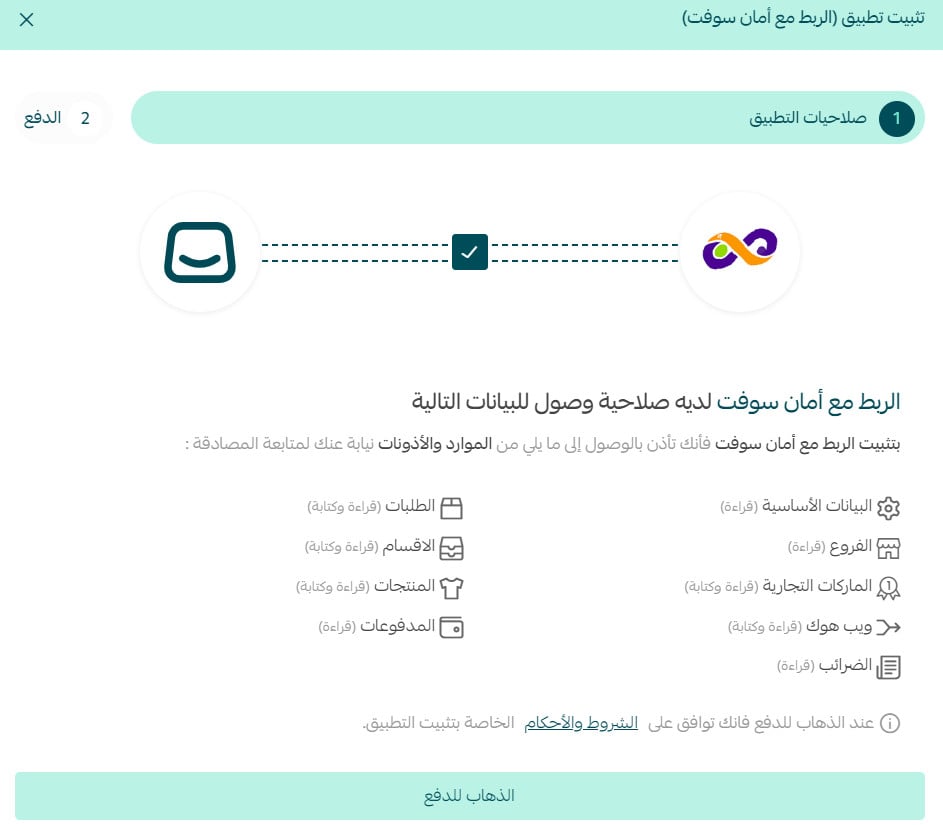
4. Review the permissions the app requests, then click (Grant permission).
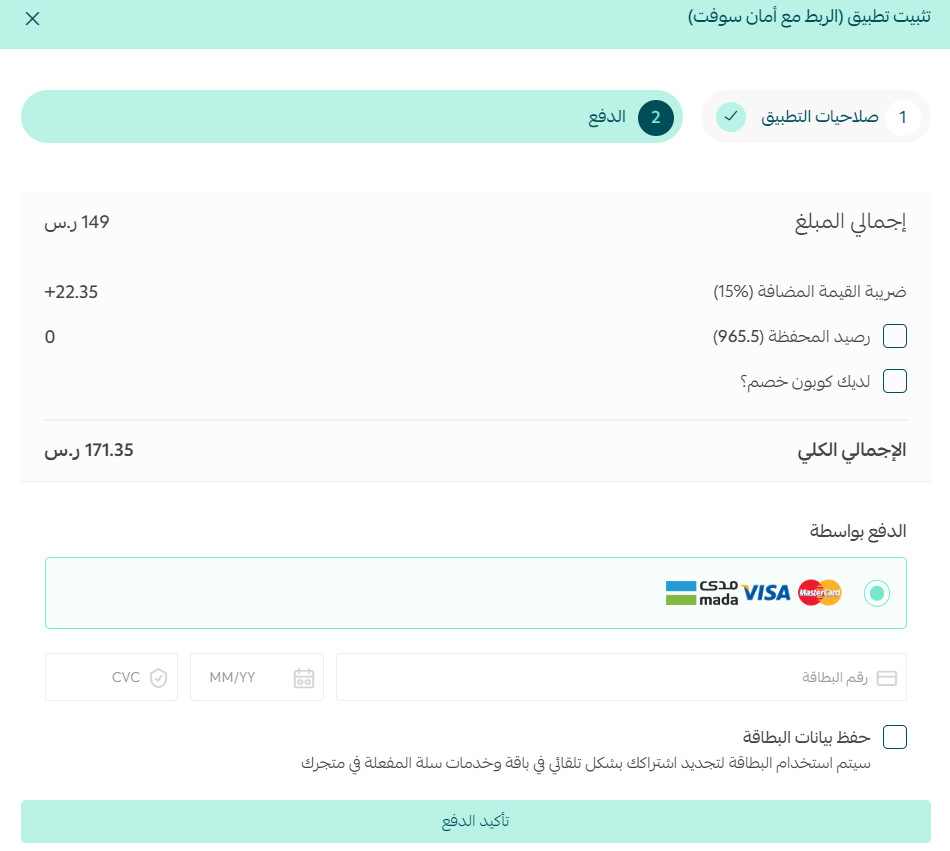
5. Complete the payment step.
The AmanSoft app is now installed on your store.
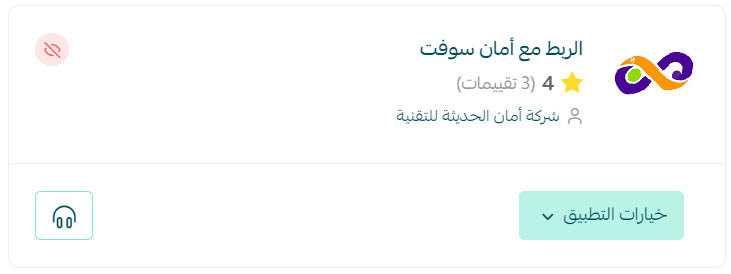
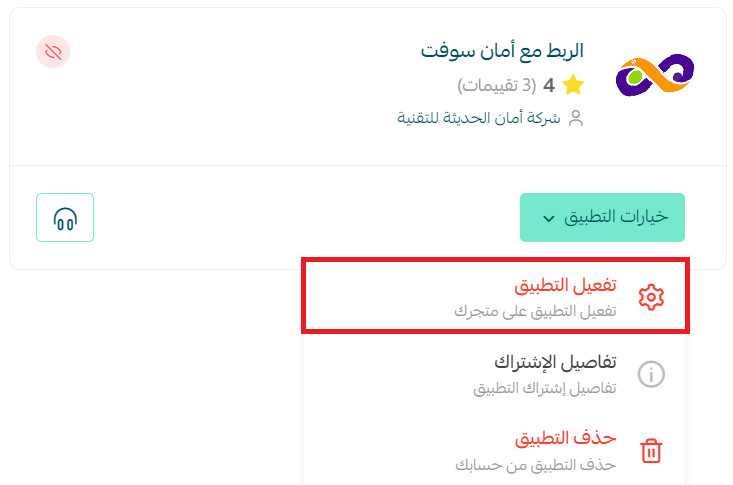
6. On the installed apps page, find the AmanSoft app, click (App options), then click (Activate app).
7. Enter the connection code from whichever AmanSoft accounting program you subscribe to, then click (Save).
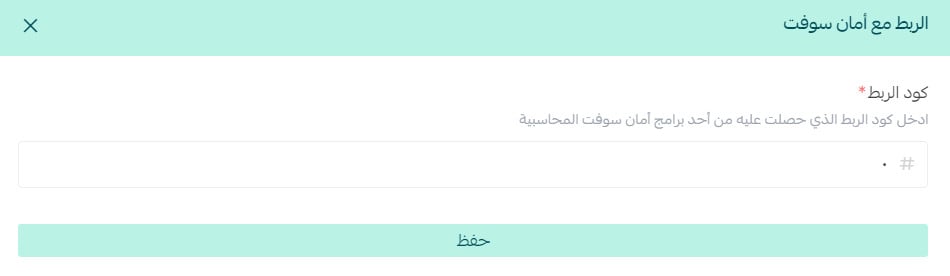
Your Salla account is now connected to AmanSoft, and you can import orders and follow your activity from there.
For more on managing your store's apps.
❓ Frequently asked questions
What does the AmanSoft connection give me?
1. A simple connection process — two steps and you are done.
2. You can apply the product pricing policies used in Al Shamel, or pricing set specifically for the store.
3. You can keep shipping company accounts separate or combine them into one account.
4. You can choose which statuses reserve stock in the warehouse before the order is invoiced and prepared.
5. You can set which warehouse the store draws from.
6. Bundled (composite) products are supported.
7. Quantities update automatically when they change in Al Shamel.
8. You can update order statuses from Al Shamel or from Salla.
9. You get order data, summarized or itemized, by shipping, payment method, payment status, and delivery status.
10. You can work with delivery couriers, manage their accounts, and track the amounts they collect on cash-on-delivery orders.
11. You can reconcile your bank account and your bank transfer payments, with no manual journal entries.
12. Products: manage them from Al Shamel or from Salla, with automatic or manual syncing. Quantities sync automatically from your warehouses to the store, and you control pricing and whether it syncs automatically or manually.
Do I need an AmanSoft account before I install the app?
Yes. The connection code you enter in step 7 comes from your AmanSoft program, so the account has to exist first.
Is the app free?
No. Installation includes a payment step, which you complete before the app is added to your store.
Where do I get support for the software itself?
Through live chat with AmanSoft technical support, or the AmanSoft blog.
How do I delete the AmanSoft app from my store?
1. From the dashboard side menu, click (Installed apps).

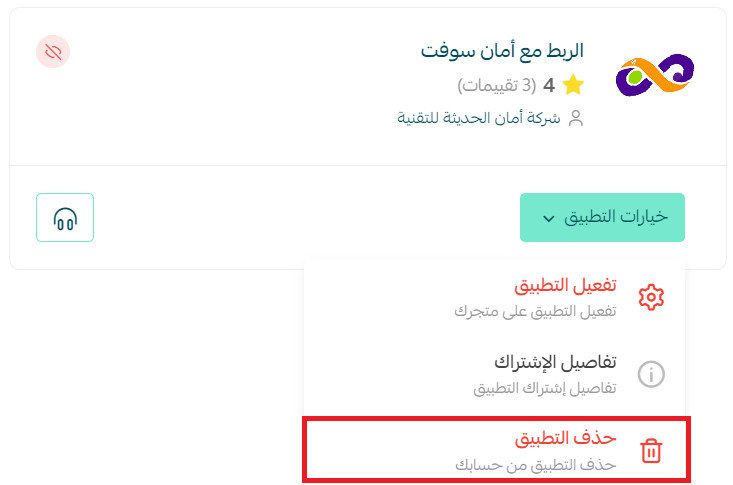
2. On the installed apps page, find the AmanSoft app, click (App options), then click (Delete app).
📝 Important notes
Installing and paying is not the whole job — the sync only starts once you activate the app and save your connection code.
Deleting the app stops the sync between the two systems, so check what you still need out of AmanSoft before you remove it.
When stock and orders live in one place, the monthly close stops being data entry and starts being a review.