Running out of room to store, pack, and ship every order yourself?
Al Sandouq is a fulfillment company for online stores: it stores your products, picks and packs customer orders, ships them to the end customer, and tracks each shipment until delivery is confirmed. The Al Sandouq integration connects your Salla store to the company through the Salla App Store, and installing the app creates your Al Sandouq account automatically. In this guide, you'll learn how to install and authorize the app, set your shipping rates, and manage or remove the integration.
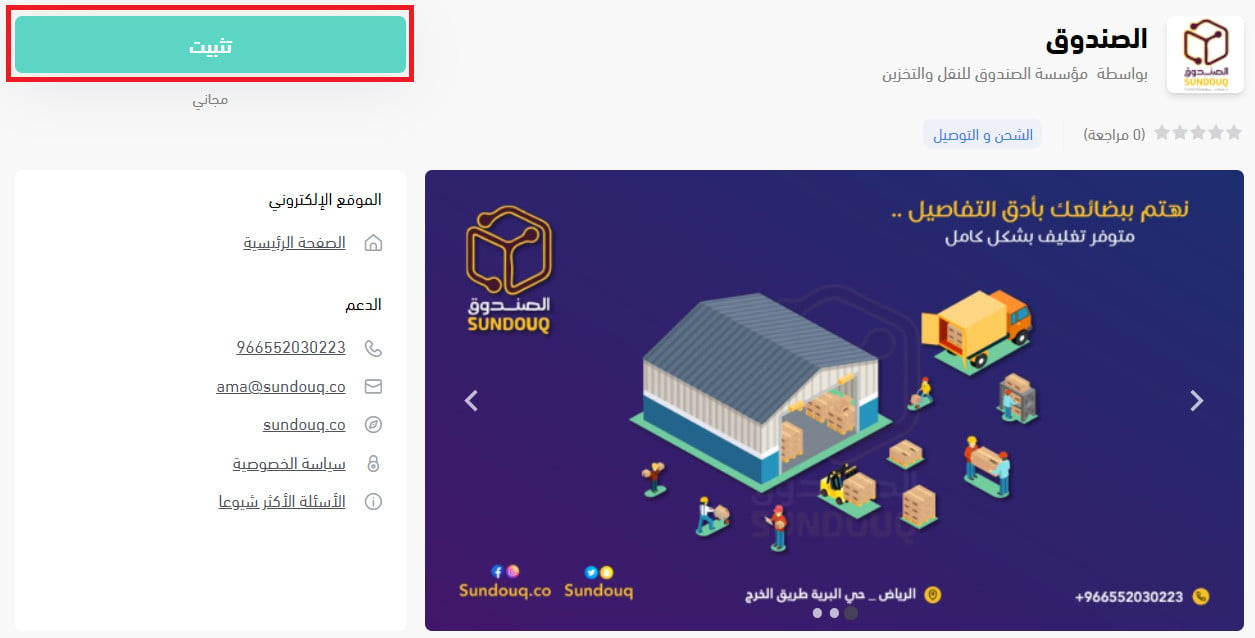
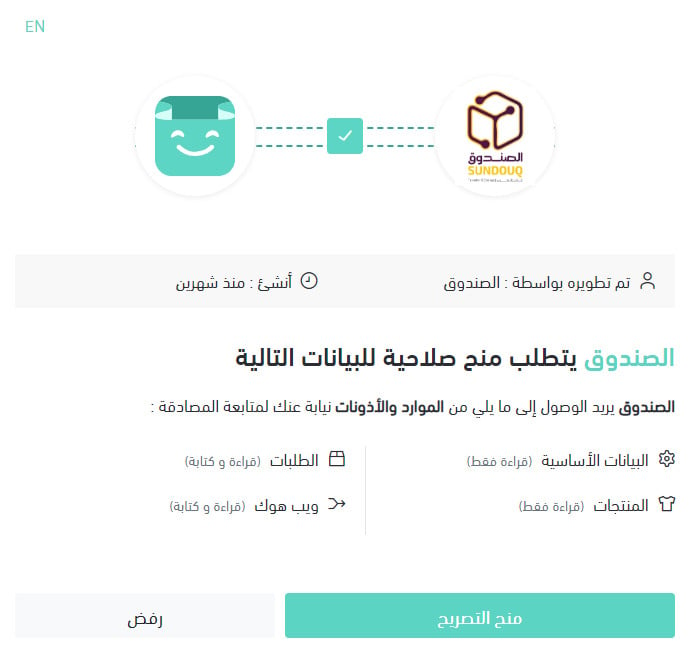
To connect Al Sandouq to your Salla store, open (Installed apps) from your dashboard's side menu, click (Browse Salla App Store), and install the Al Sandouq app. Review the permissions the app requests, then click (Grant permission). Your Salla store is now linked to your Al Sandouq account.
📌 Article overview
- What is Al Sandouq?
- Do you need an Al Sandouq account first?
- How to connect Al Sandouq to your store
- Frequently asked questions
🎯 What is Al Sandouq?
Al Sandouq is a company specializing in storage for online stores. It holds your stock, prepares customer orders, ships them to the end customer, and then tracks the shipment through to confirmed delivery.
📝 Do you need an Al Sandouq account before connecting?
No. When you install the Al Sandouq app from the Salla App Store, a new Al Sandouq account is created for you automatically. If you already have an Al Sandouq account, contact their technical support to activate that account on your Salla store instead.
🚀 How to connect Al Sandouq to your store
1. From your dashboard's side menu, click (Installed apps).

2. From the Salla App Store banner, click (Browse Salla App Store).

3. On the Al Sandouq app page, click (Install).
4. Review the permissions the app requests, then click (Grant permission).
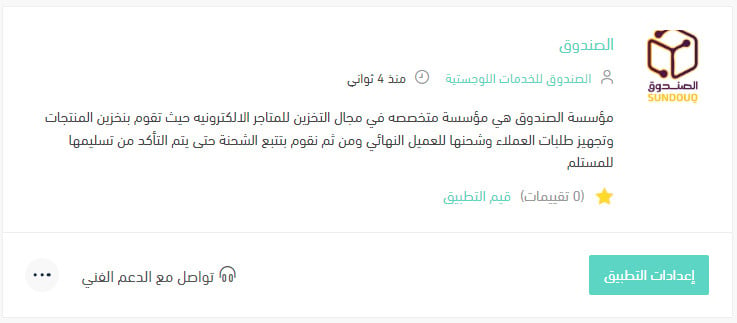
Your Salla store is now linked to your Al Sandouq account.
For more details, see managing my store's apps.
❓ Frequently asked questions
How do I set up my shipping rates for Al Sandouq?
1. From your dashboard's side menu, click (Installed apps).

2. On the all apps page, find the Al Sandouq app and click (App settings).
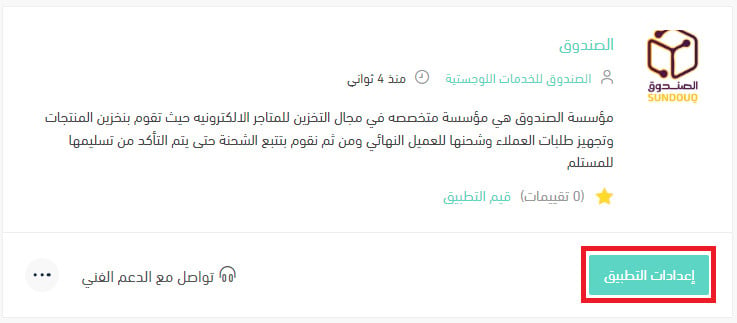
3. From the (Shipping rates) tab, enter the rates for the cities and regions you need.
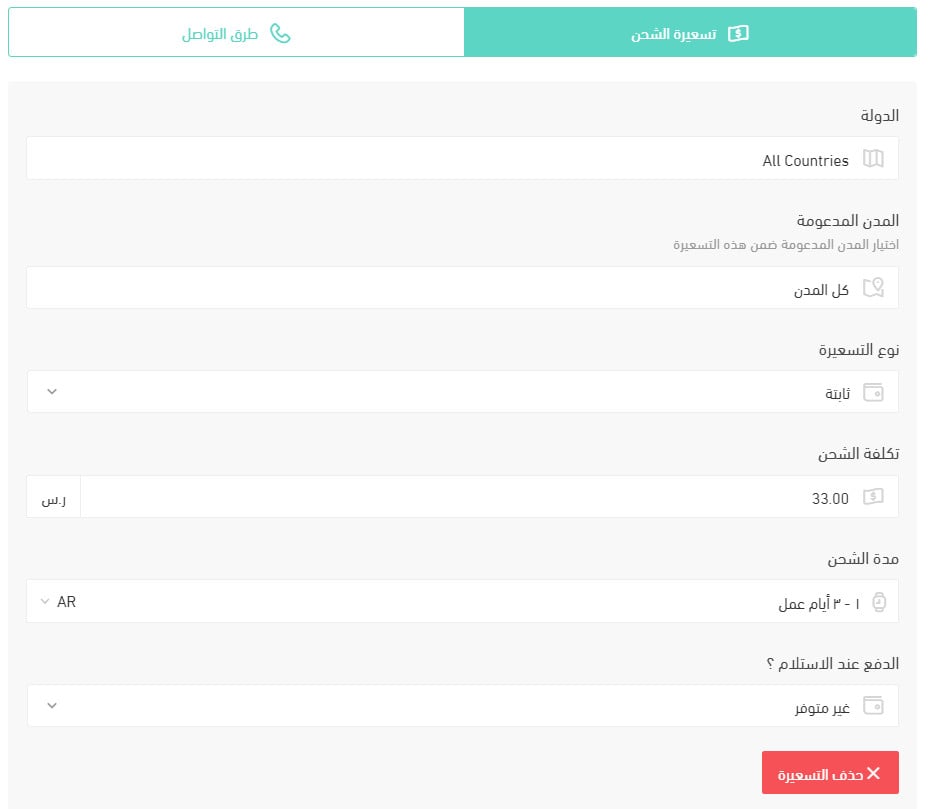
For more details, see shipping and delivery options settings.
How do I temporarily disable the app in my store?
1. From your dashboard's side menu, click (Installed apps).
2. On the all apps page, find the Al Sandouq app and click (App settings).
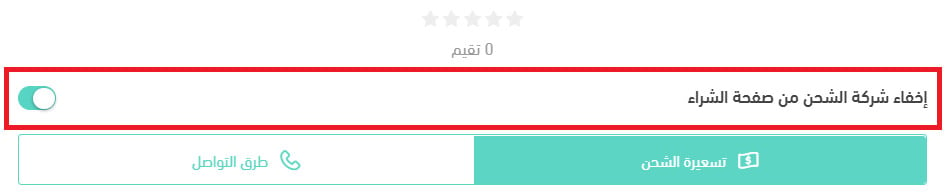
3. Turn the (Hide the shipping company from the checkout page) option on or off.
How do I remove the Al Sandouq app from my store?
1. From your dashboard's side menu, click (Installed apps).
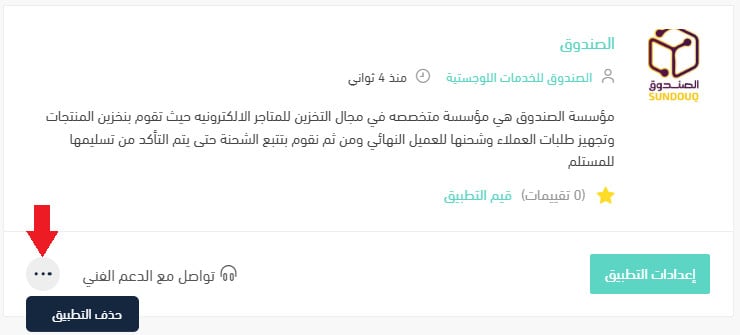
2. On the all apps page, find the Al Sandouq app, click the (...) icon, then click (Delete app), as shown in the image.
Which cities does Al Sandouq support for merchants?
Riyadh.
📝 Important notes
The Arabic source ends here. It does not answer the questions merchants usually ask next — coverage for customers, settlement, weight limits, cash on delivery, or delivery times. [Verify: the remaining service details for Al Sandouq are missing from the source article and need to be supplied by the content owner.]
With Al Sandouq connected, storage, order preparation, and delivery tracking run through one partner, so you can spend your time on selling instead of packing.