Would you rather hand your storage and delivery to one logistics partner instead of juggling several?
Al Nawras is a logistics provider that bundles inventory management and delivery into a single service, and it connects directly to your Salla store. The Al Nawras integration lets your orders flow to the company automatically, so fulfillment keeps moving without manual handoffs. In this guide, you'll learn what Al Nawras offers, how to connect it to your store, how to set your shipping rates, and how to disable or remove the app when you need to.
To connect Al Nawras to your Salla store, open (My installed apps) in your dashboard, click (Browse Salla App Store), and install the Al Nawras app. Review the permissions it requests, grant access, and the connection is live. You can then set your shipping rates from the app settings.
📌 Article overview
- What is Al Nawras?
- How to connect Al Nawras to your store
- Frequently asked questions
🎯 What is Al Nawras?
Al Nawras offers a package of logistics solutions that covers inventory management and delivery. Because it links directly to your Salla store, the operations between the two run automatically rather than through manual updates.
🚀 How to connect Al Nawras to your store
1. From the side menu of your dashboard, click (My installed apps).

2. From the Salla App Store banner, click (Browse Salla App Store).

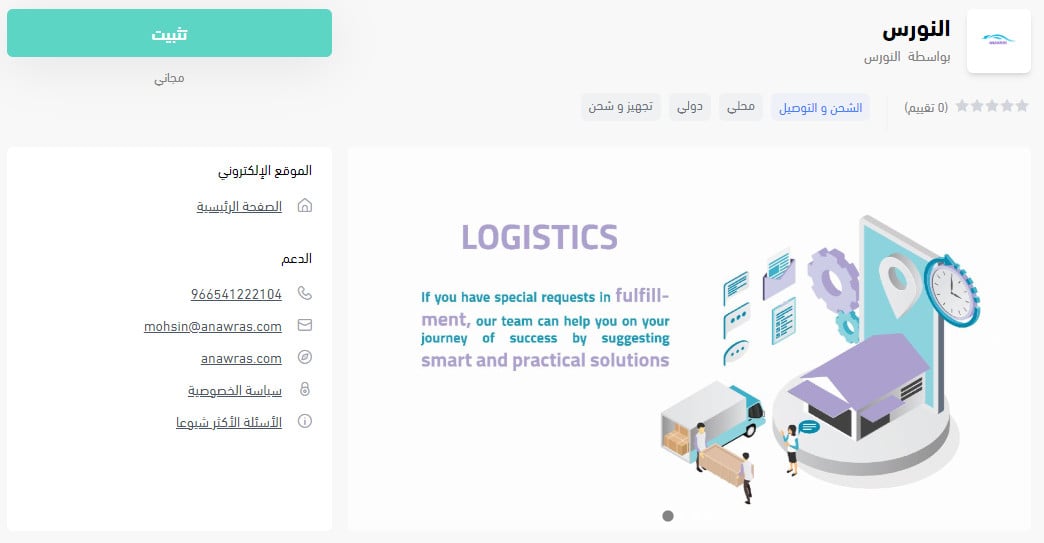
3. From the Al Nawras app page, click (Install).
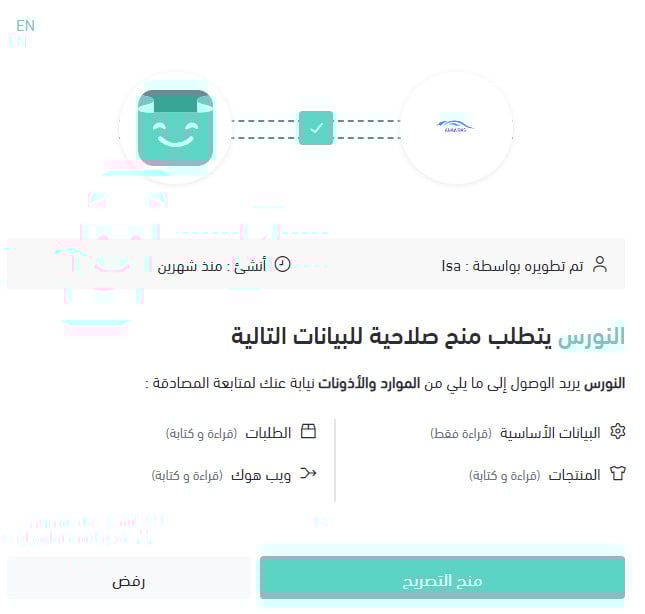
4. Review the permissions the app requests, then click (Grant permission).
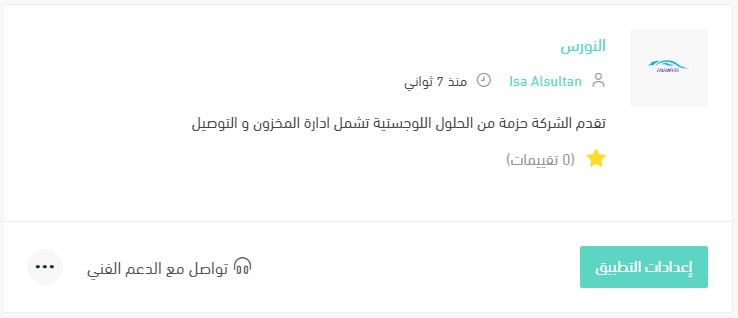
Your Salla store is now connected to your Al Nawras account.
For more details, see managing my store's apps.
❓ Frequently asked questions
How do I set up my shipping rates on Al Nawras?
1. From the side menu of your dashboard, click (My installed apps).

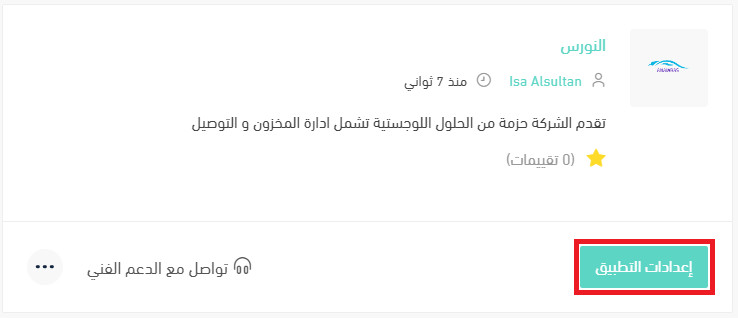
2. From the all apps page, find the Al Nawras app and click (App settings).
3. From the (Shipping rates) tab, enter the rates for the cities and regions you need.
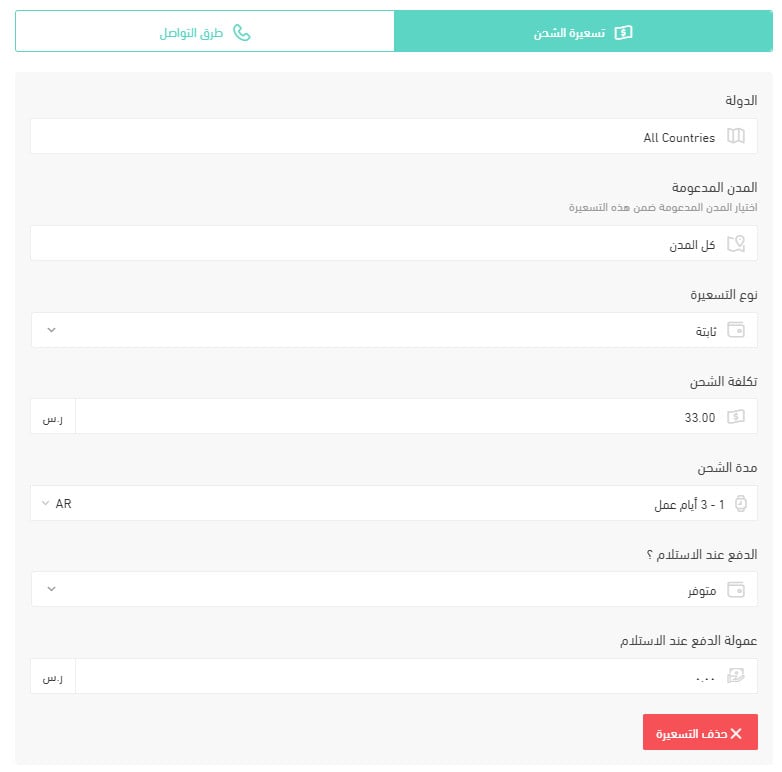
For more details, see shipping and delivery options settings.
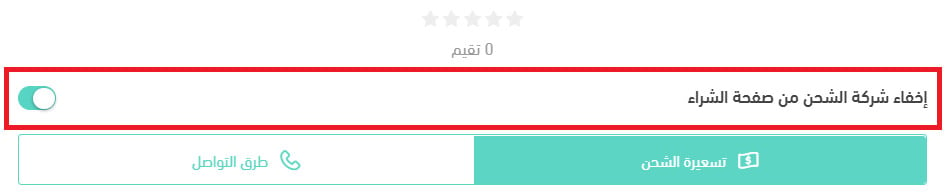
How do I temporarily disable the app in my store?
1. From the side menu of your dashboard, click (My installed apps).
2. From the all apps page, find the Al Nawras app and click (App settings).
3. Turn the (Hide the shipping company from the checkout page) option on or off.
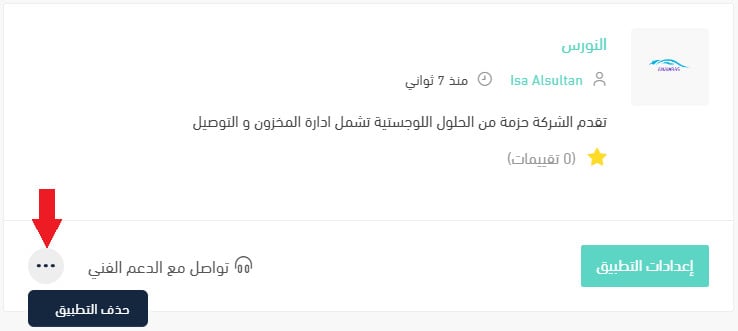
How do I remove the Al Nawras app from my store?
1. From the side menu of your dashboard, click (My installed apps).
2. From the all apps page, find the Al Nawras app, click the (...) icon, then click (Delete app), as shown in the image.
With Al Nawras connected, storage and delivery run through one partner and one set of shipping rates — which is one less thing standing between an order and your customer's door.