Do you still rebuild your store's numbers in a spreadsheet at the end of every month?
Accounting and reporting quietly eat more time than almost anything else in a growing store. The Bousla accounting app connects to your Salla store and turns your daily activity into accurate figures you can read in real time, so decisions are based on current numbers instead of manual calculations and complicated spreadsheets. In this guide, you'll learn what Bousla gives you, how to install it on your store, how to confirm your account, and how to remove the app if you no longer need it.
Bousla is an accounting and statistics app you install from the Salla App Store. Choose a plan, approve the requested permissions, pay for the subscription, then confirm your account from the email Bousla sends to your store. Once confirmed, your store data syncs automatically and your figures appear in the Bousla dashboard.
📌 Article overview
- What the Bousla accounting app gives your store
- How to connect Bousla to your Salla store
- Frequently asked questions
🎯 What the Bousla accounting app gives your store
Bousla reads your store activity and presents it as ready statistics, updated moment by moment:
- Accurate figures for your store, refreshed in real time.
- Confidence when you make a decision, because the numbers behind it are current.
- No more complicated spreadsheets or manual calculations to keep up to date.
👣 How to connect Bousla to your Salla store
1. From the dashboard side menu, click (Installed apps).

2. From the Salla App Store banner, click (Browse the Salla App Store).

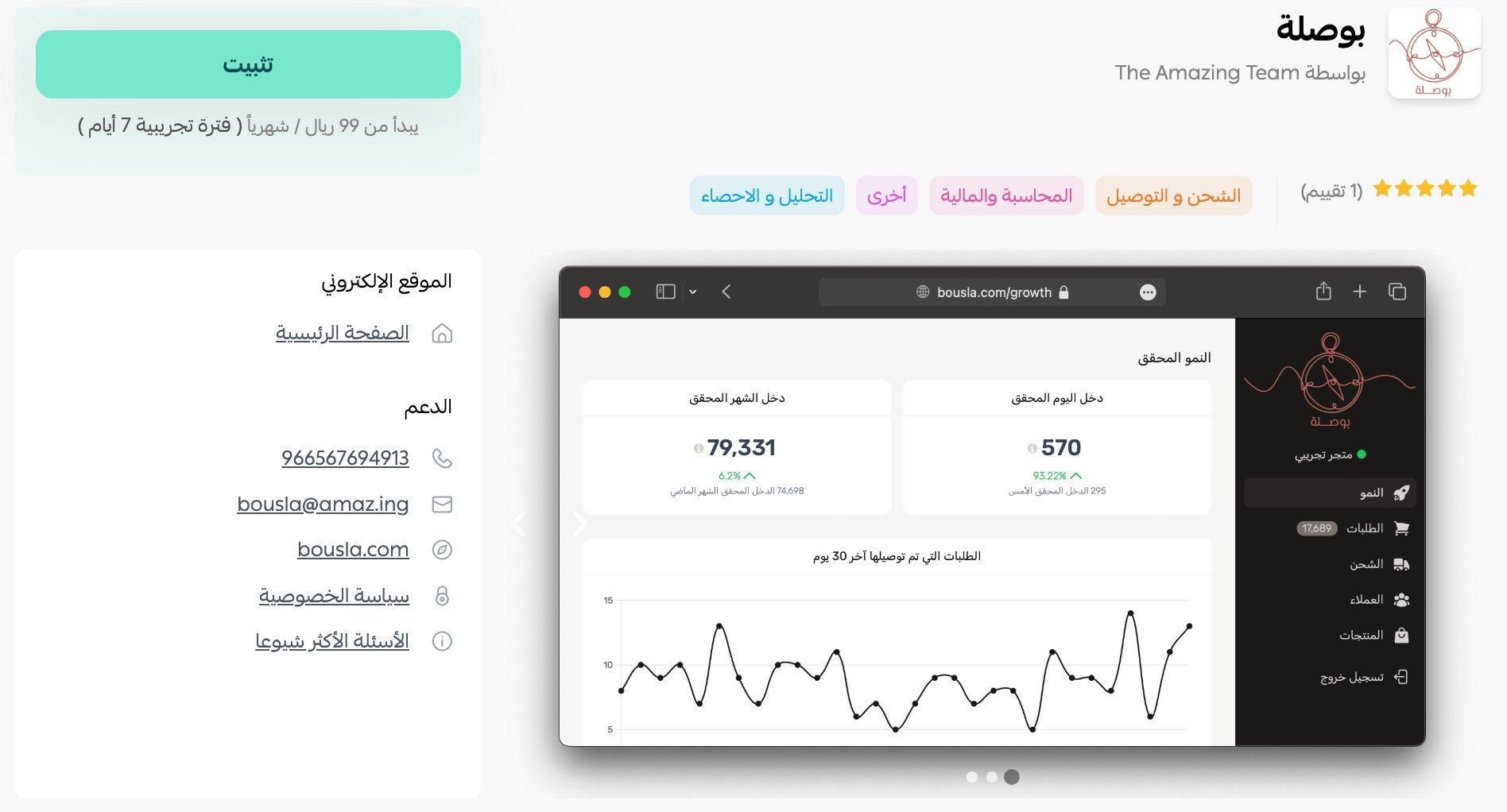
3. From the Bousla app page, click (Install).
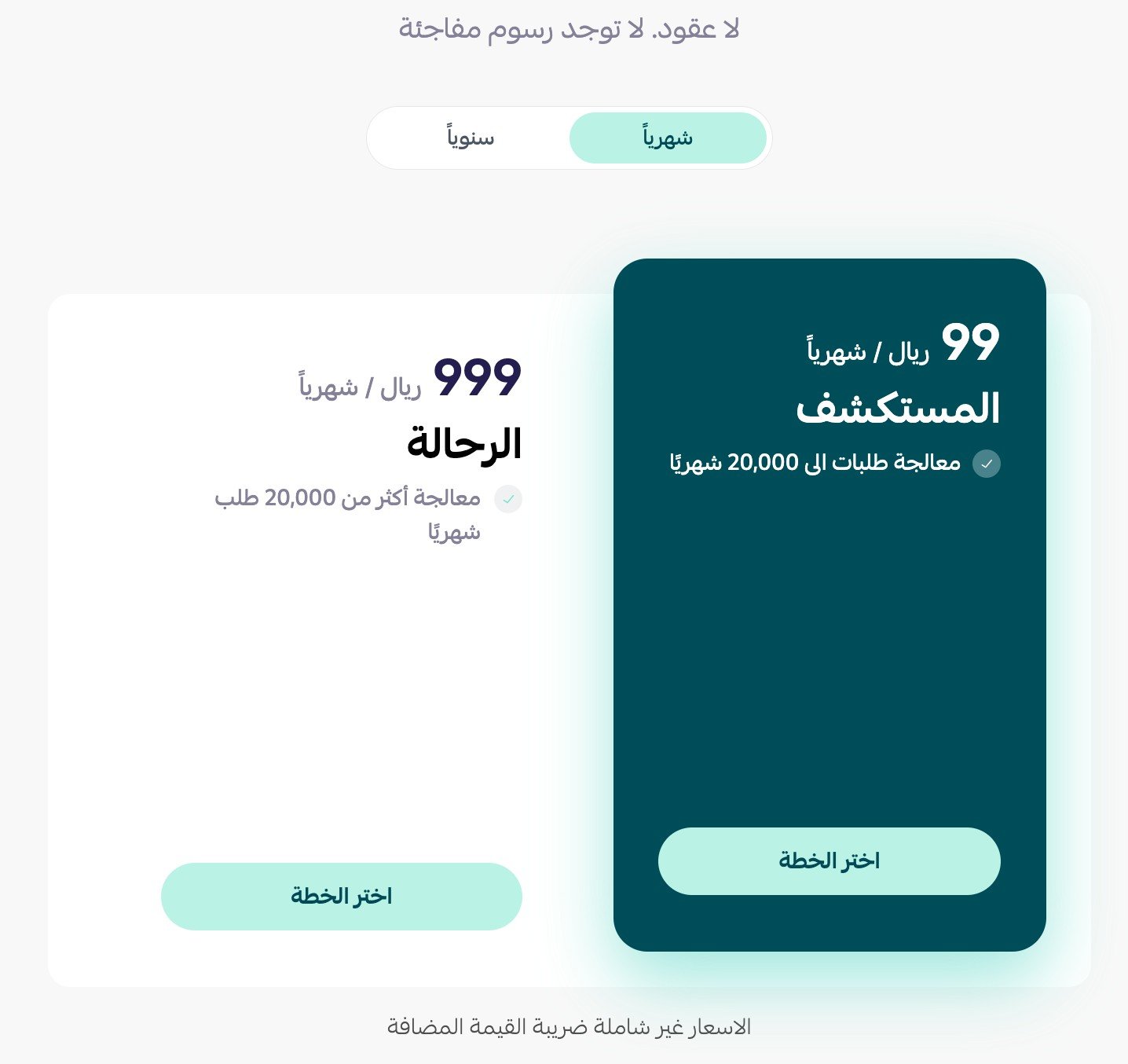
Then scroll to the bottom of the page and choose the plan that fits your business.
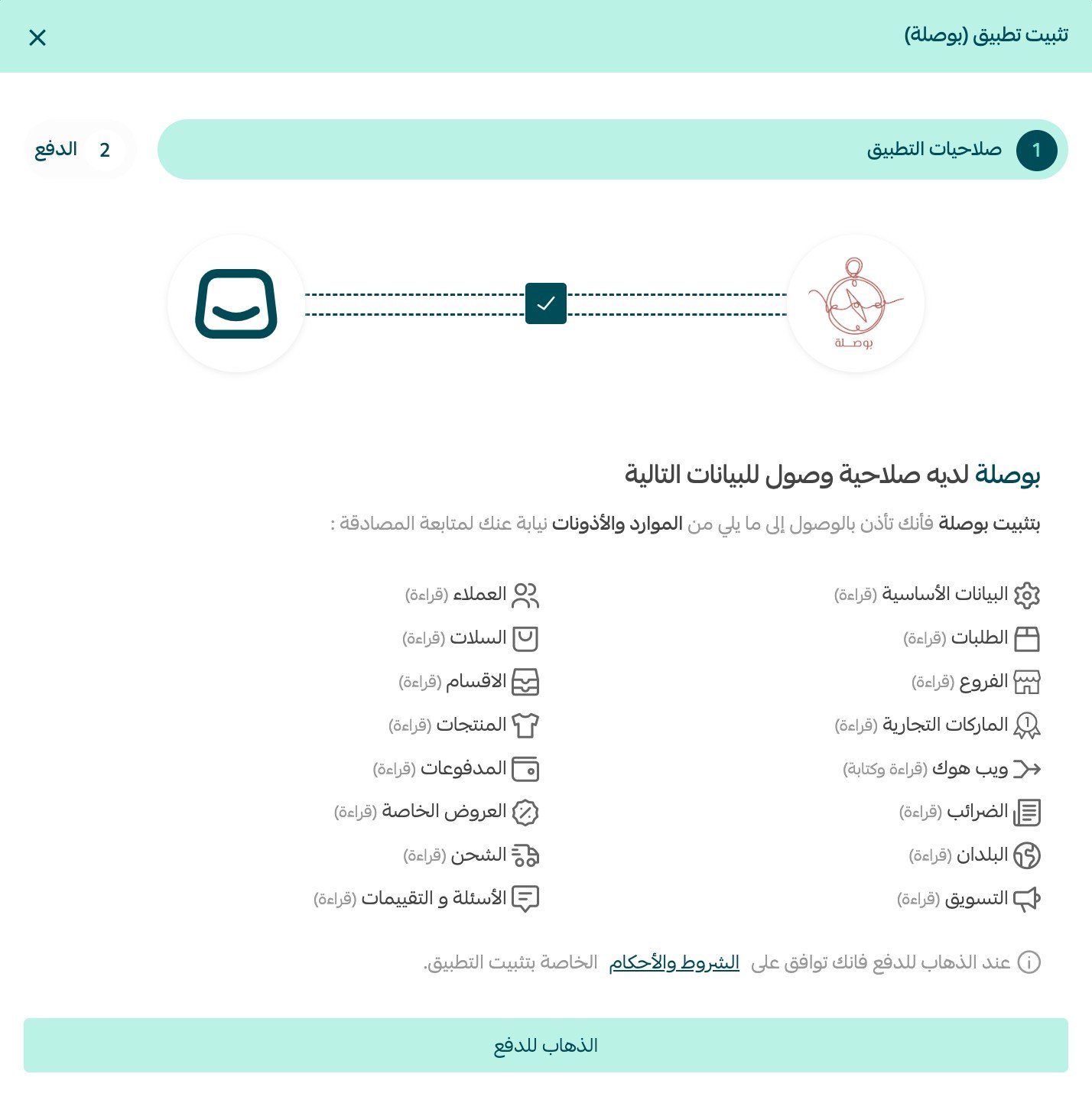
4. Review the permissions the app asks for, then click (Go to payment).
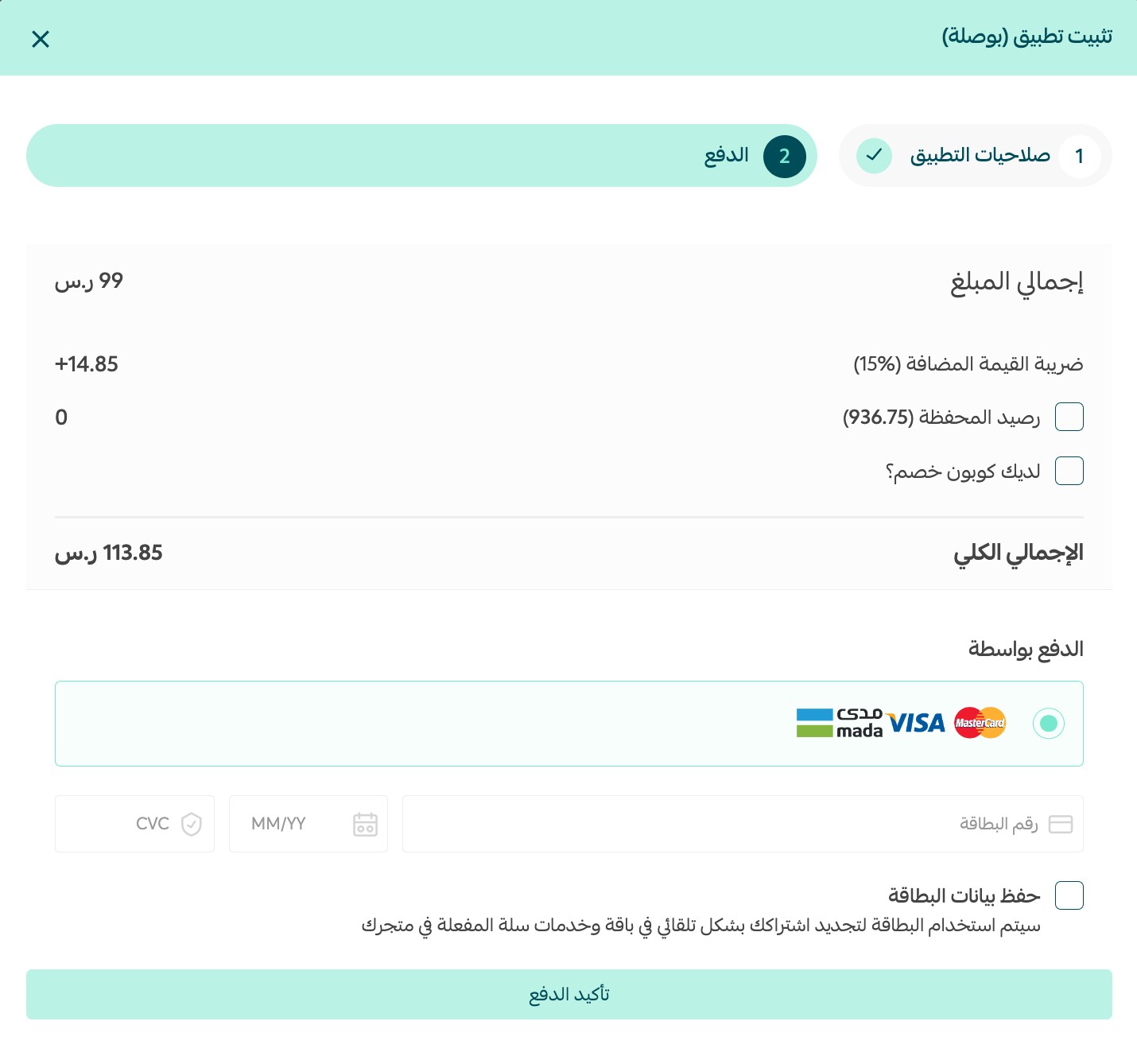
5. Complete the payment to finish installing the app.
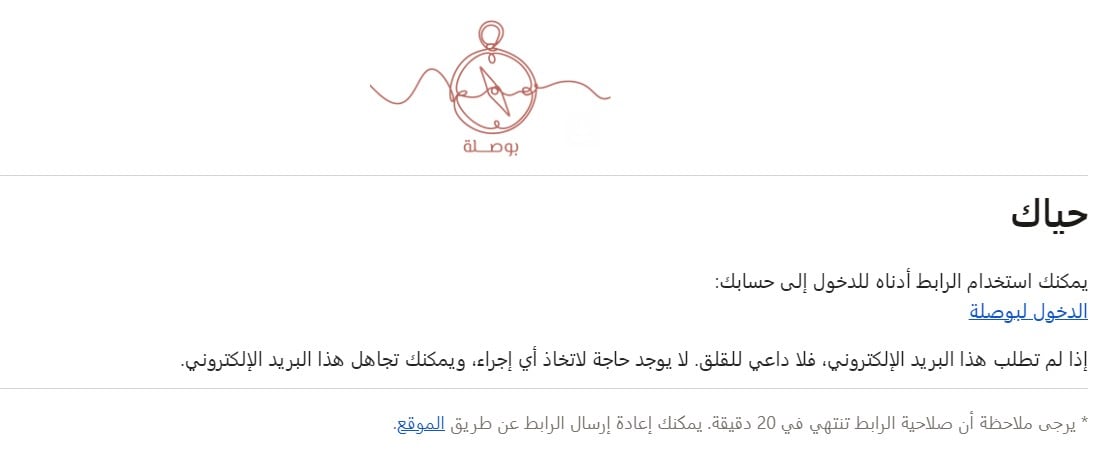
6. Open the Bousla message sent to your store's email address, then click (Log in to Bousla).
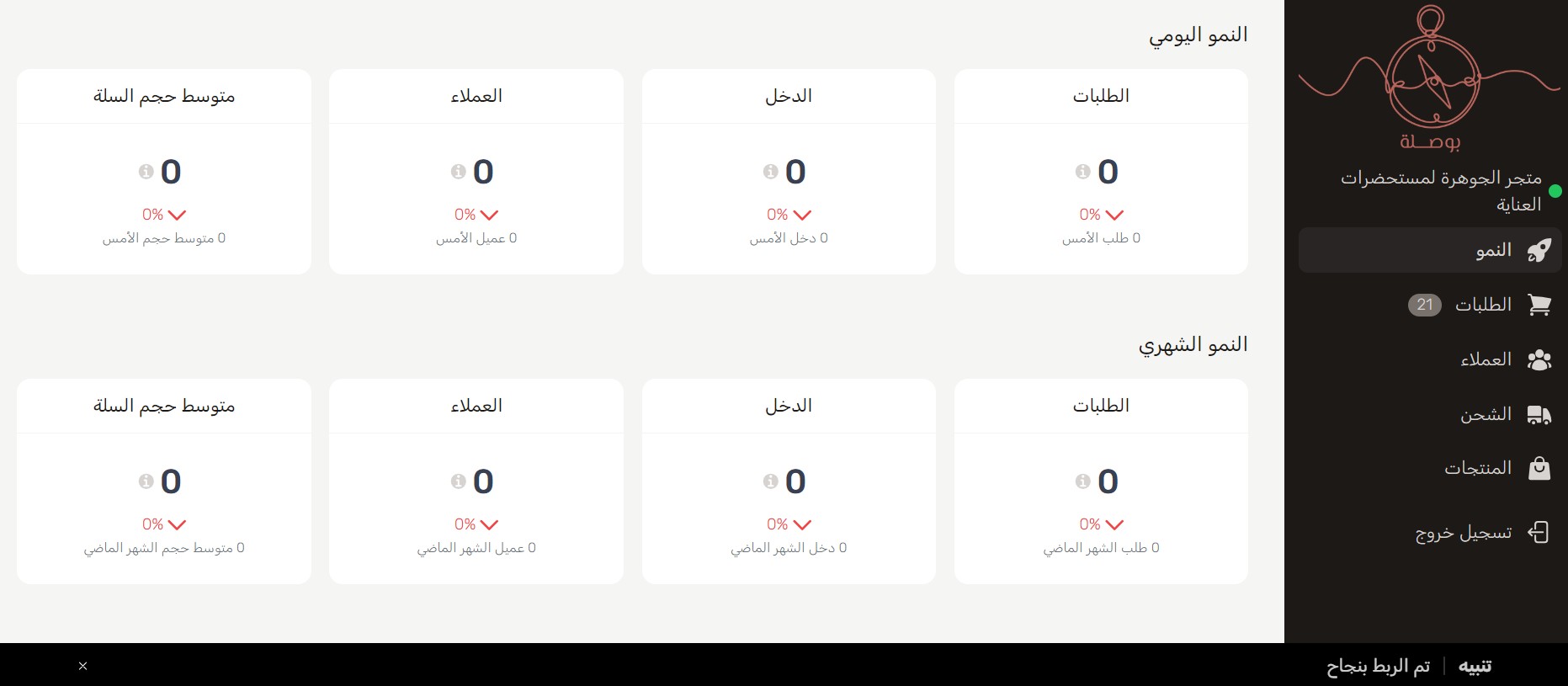
Once the account is confirmed, the Bousla dashboard opens like this:
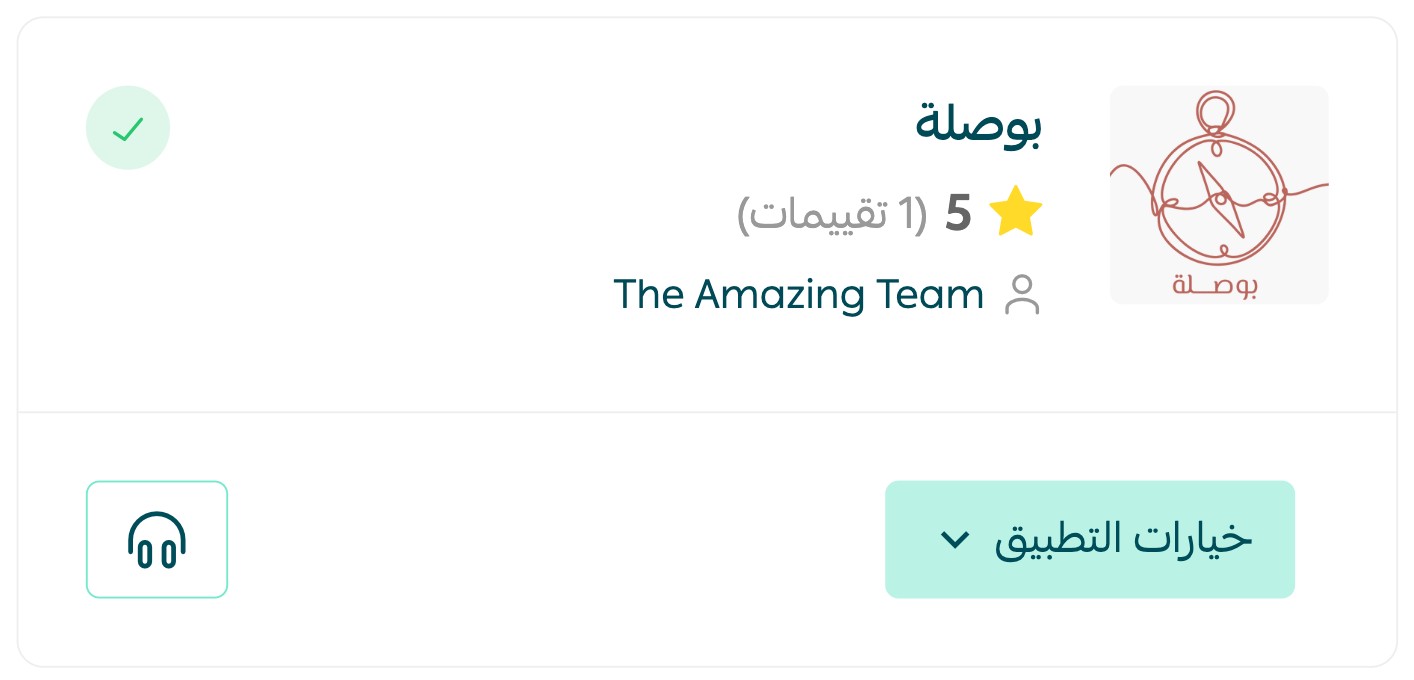
That's it — Bousla is installed on your store.
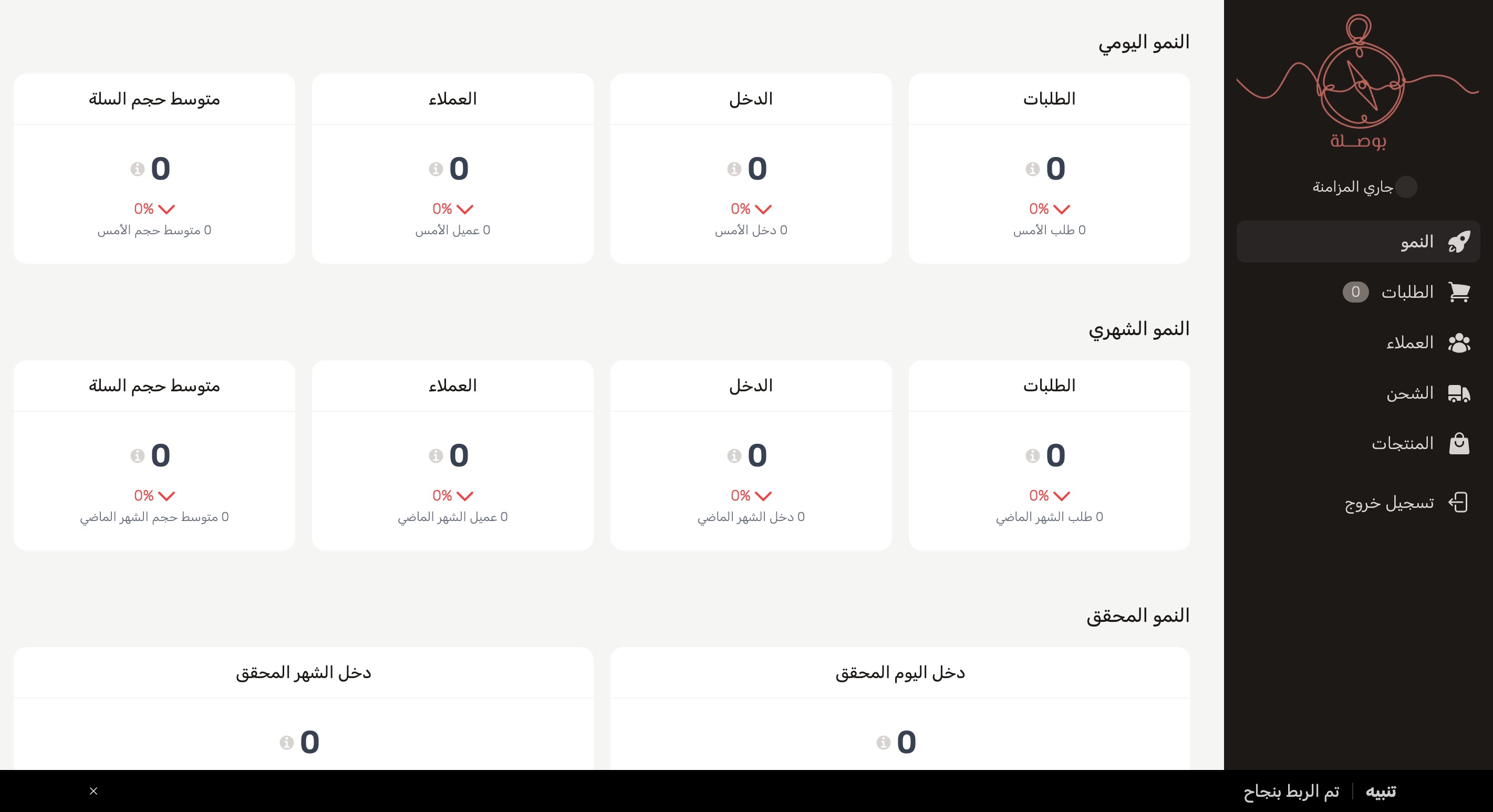
You're taken to the Bousla page automatically. The connection is live and syncing starts.
📝 Important notes
- Bousla is a paid app. The plan you pick on the app page decides your subscription, and payment is part of the installation.
- The confirmation message goes to your store's email address, so check that inbox after paying.
For more on installing, updating and removing apps, see managing your store's apps.
❓ Frequently asked questions
Do I need a separate Bousla account?
Yes. After payment, Bousla emails your store address. Click (Log in to Bousla) in that message to confirm the account and open your dashboard.
Is Bousla free?
No. You choose the plan that suits your business on the app page and complete the payment before installation finishes.
When does my store data start syncing?
As soon as the account is confirmed. You're redirected to the Bousla page, the connection is registered, and syncing begins on its own.
Where do I see my store's statistics?
In the Bousla dashboard, which opens once your account is confirmed. It's separate from your Salla dashboard.
How do I remove the Bousla app from my store?
1. From the dashboard side menu, click (Installed apps).
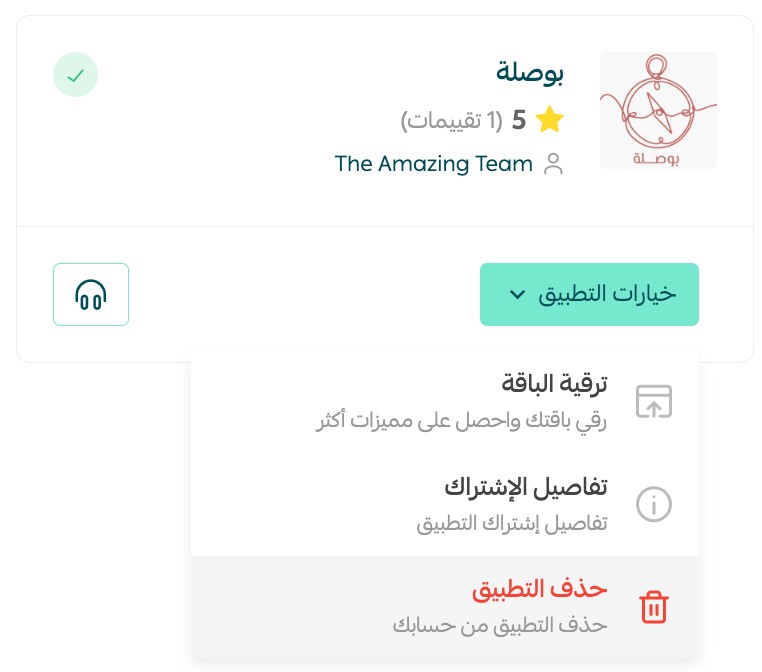
2. On the all apps page, find Bousla, click (App options), then click (Delete app).
Clear numbers make better decisions. Once Bousla is connected, your store's figures are ready whenever you need them — no spreadsheet rebuild required.