Who answers your customers at 2 a.m. when they want to know where their order is?
Awn Bot is a WhatsApp automation app for your Salla store that handles the two conversations you never have time for: reminding shoppers about the carts they left behind, and telling customers what is happening with their orders. It uses AI-powered automatic replies over a WhatsApp integration, so the replies keep coming around the clock. In this guide, you'll learn how to install Awn Bot, activate it with the credentials sent to you, customize the message for each order status, and upgrade your plan.
Awn Bot is a Salla App Store app that sends abandoned cart reminders and order status updates to customers over WhatsApp, with AI-powered automatic replies available 24 hours a day. After installing it, you activate the app using the ID and access code sent to your WhatsApp, then customize the message for each order status.
📌 Article overview
- What Awn Bot does
- How to install and connect Awn Bot
- How to activate Awn Bot and customize your messages
- Frequently asked questions
🎯 What is Awn Bot?
Awn Bot works on the two moments where stores lose the most goodwill. It reminds a customer about a cart they walked away from, and it keeps them updated as their order moves through its stages, all on WhatsApp. Because the replies are automated and powered by AI, a customer who asks a question late at night still gets an answer instead of waiting for your team to open the laptop.
🚀 How to install and connect Awn Bot
1. From the main menu of your store dashboard, click (Installed apps).

2. From the Salla App Store banner, click (Browse the Salla App Store).

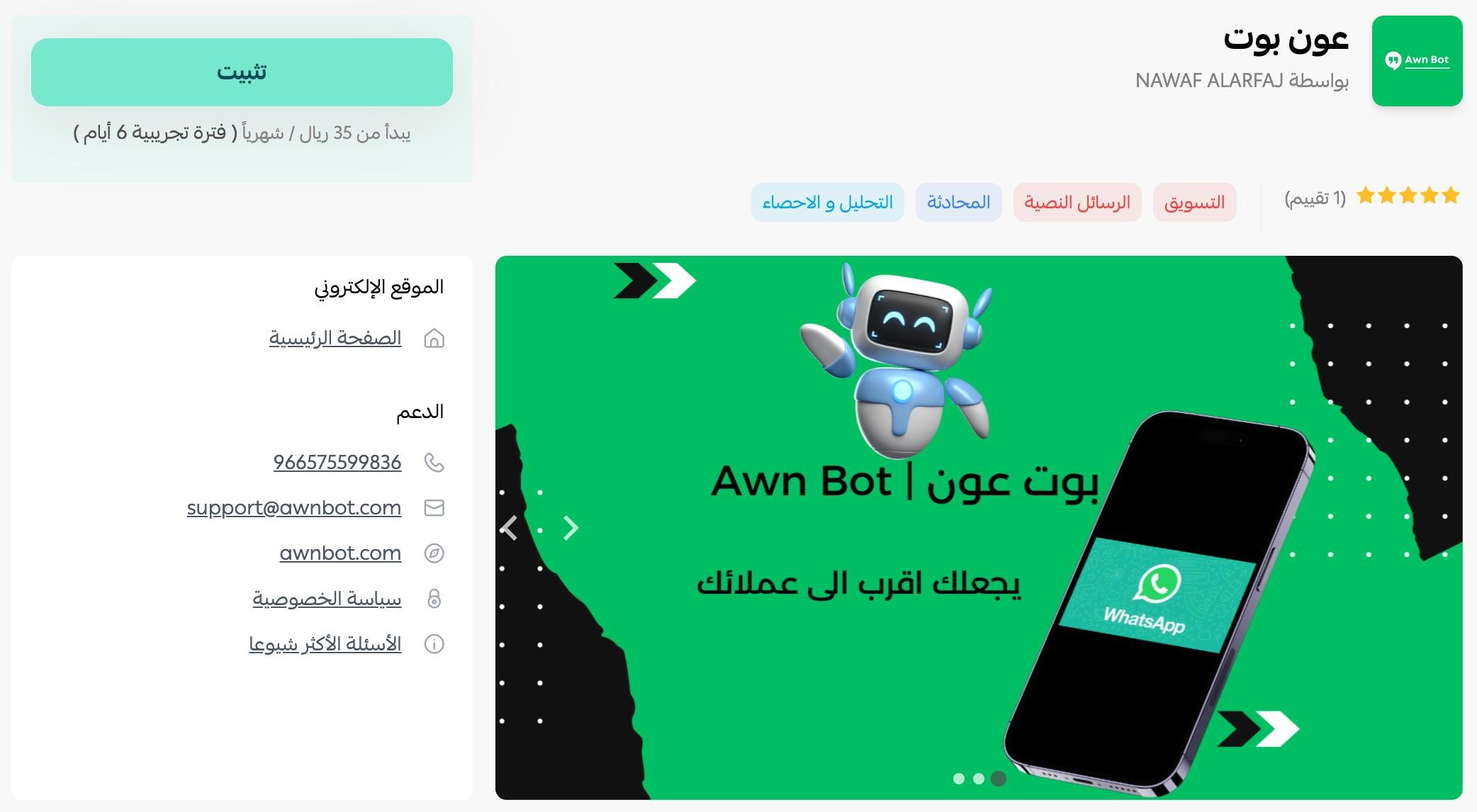
3. On the Awn Bot app page, click (Install).
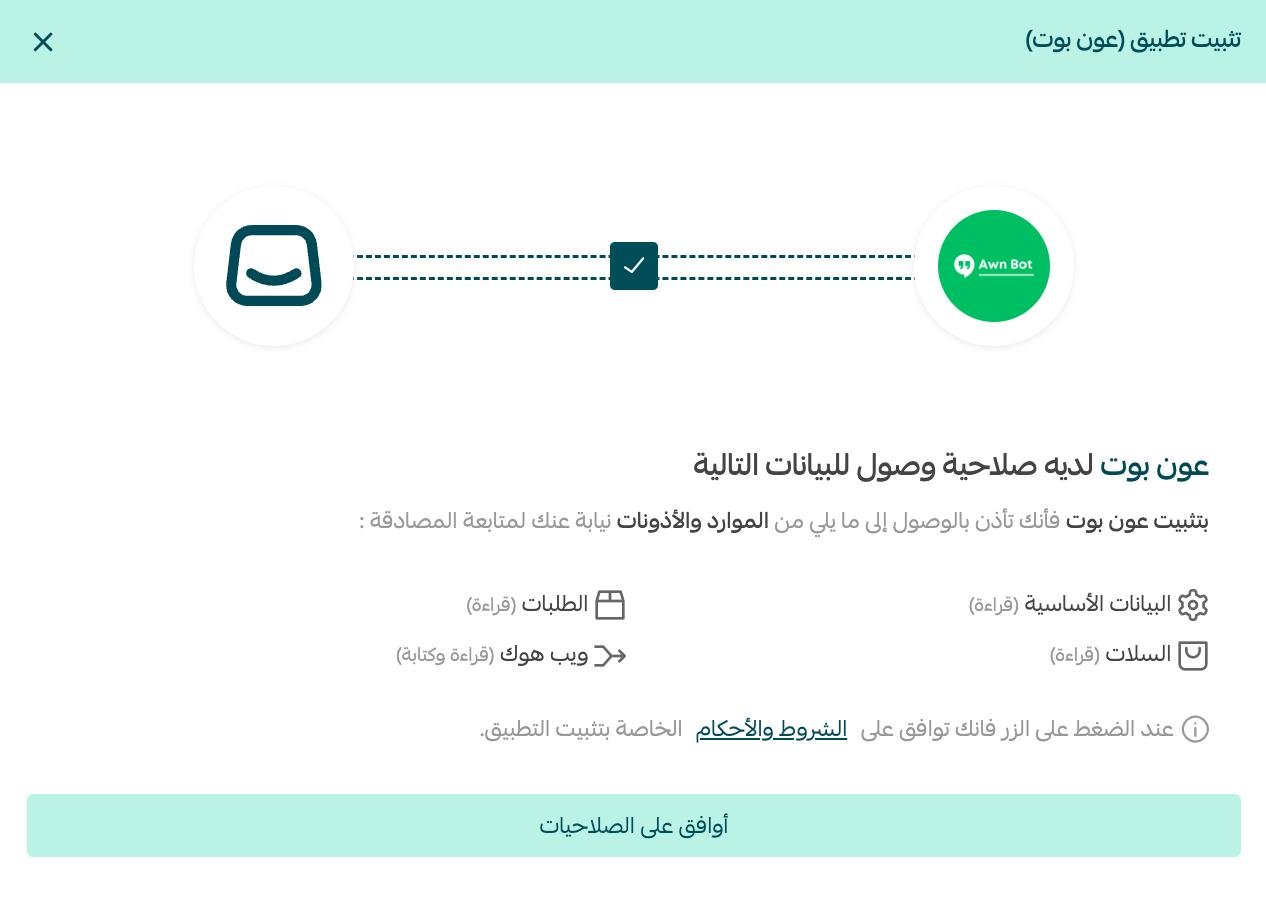
4. Review the permissions the app asks for, then click (Agree to permissions).
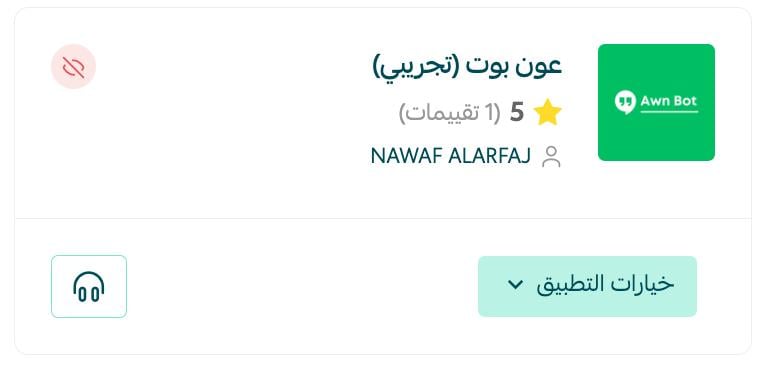
Awn Bot is now installed on your store.
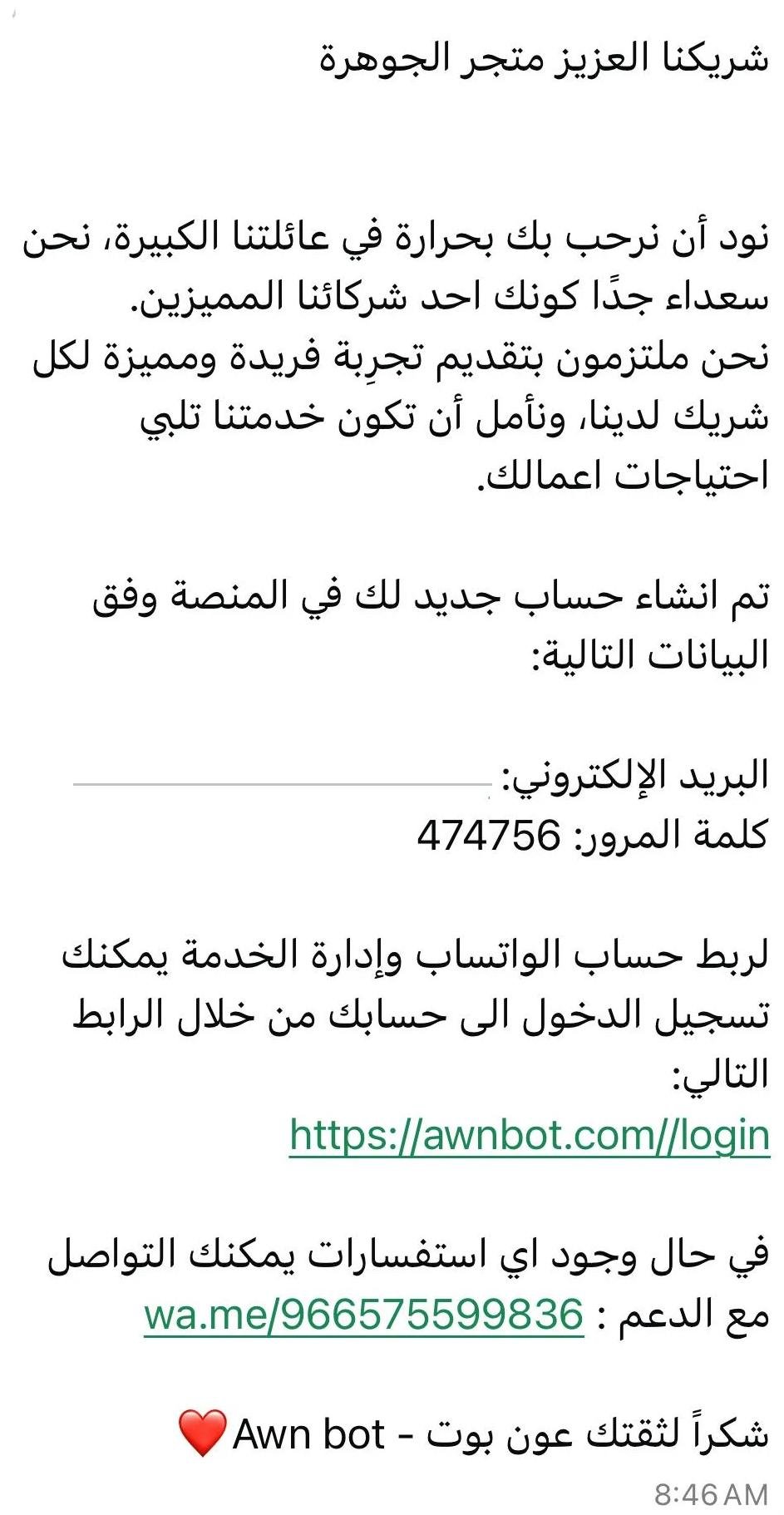
The Awn Bot team then sends you a WhatsApp message containing the activation details you will enter in the app settings.
Your Awn Bot account home page looks like this:
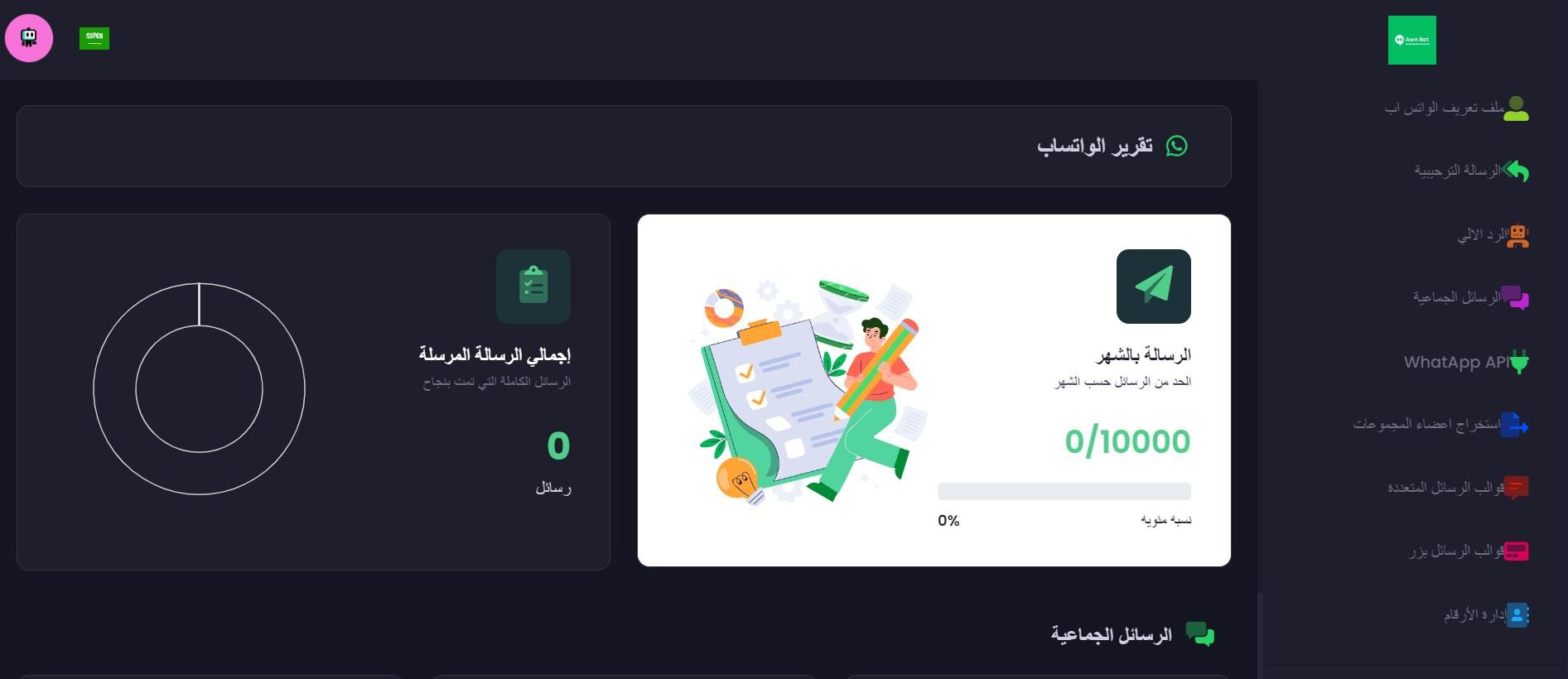
👣 How to activate Awn Bot and customize your messages
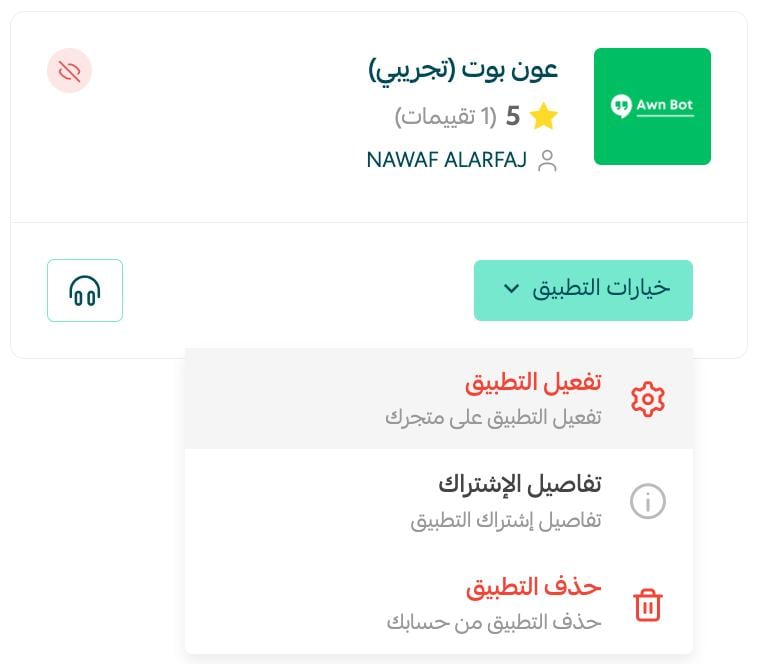
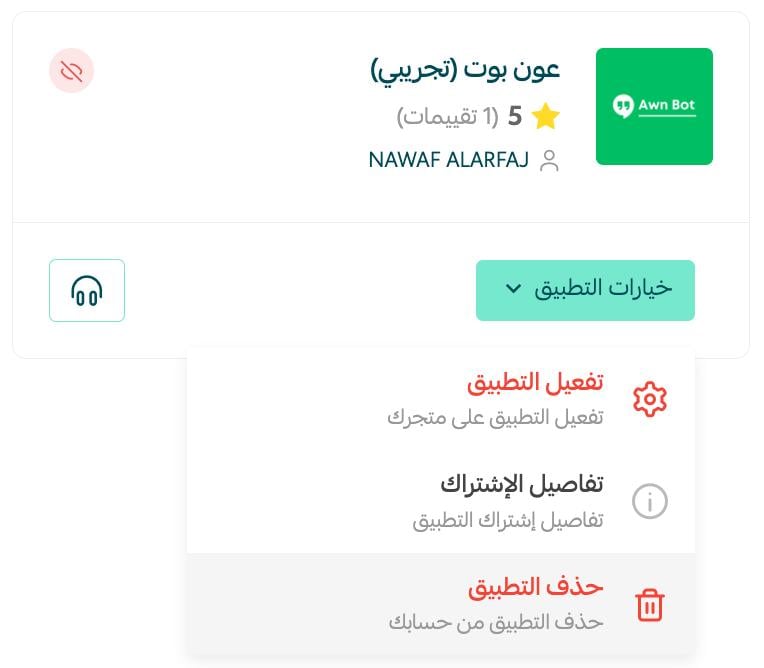
5. On the installed apps page, find the Awn Bot app, click (App options), then click (Activate app).
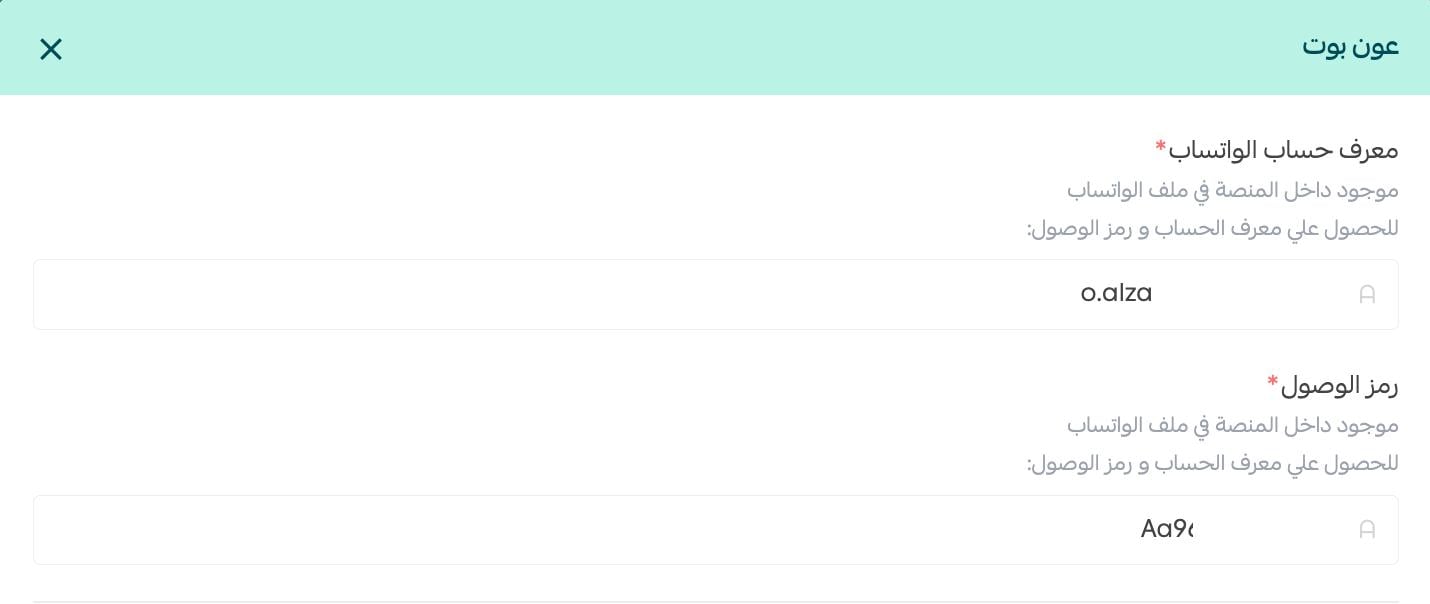
6. Enter the ID number and the access code the Awn Bot team sent to your WhatsApp.
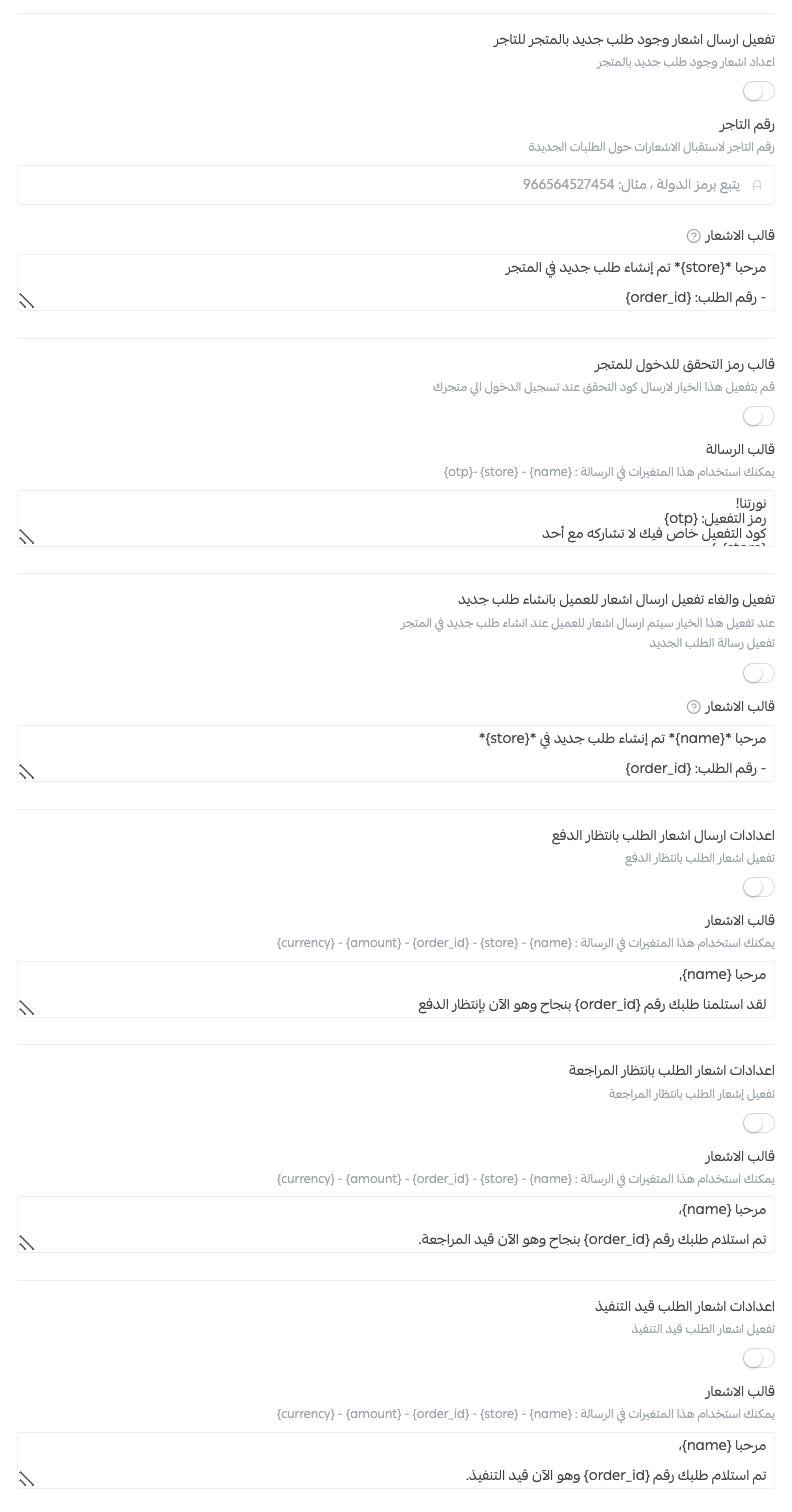
7. Turn on the WhatsApp messages you want, write the wording for each order status, then click (Save).
📝 Important notes
- The activation details arrive by WhatsApp from the Awn Bot team, so the app is not live until you enter them in the app settings.
- Each order status has its own message, and you can edit any of them at any time and save again.
- For more on installing, activating, and removing apps, read Managing your store apps.
❓ Frequently asked questions
How do I upgrade and buy a paid Awn Bot plan?
1. From the main menu of your store dashboard, click (Installed apps).

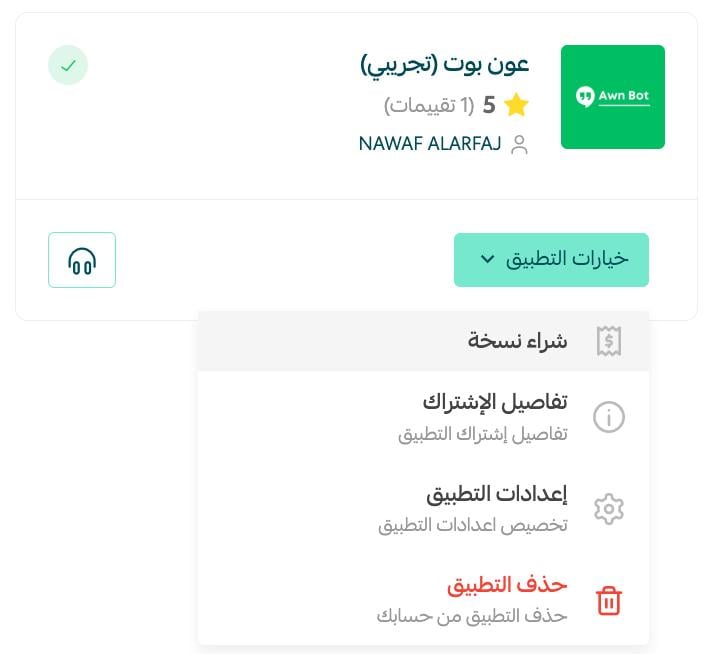
2. On the app card, click (App options), then click (Buy version).
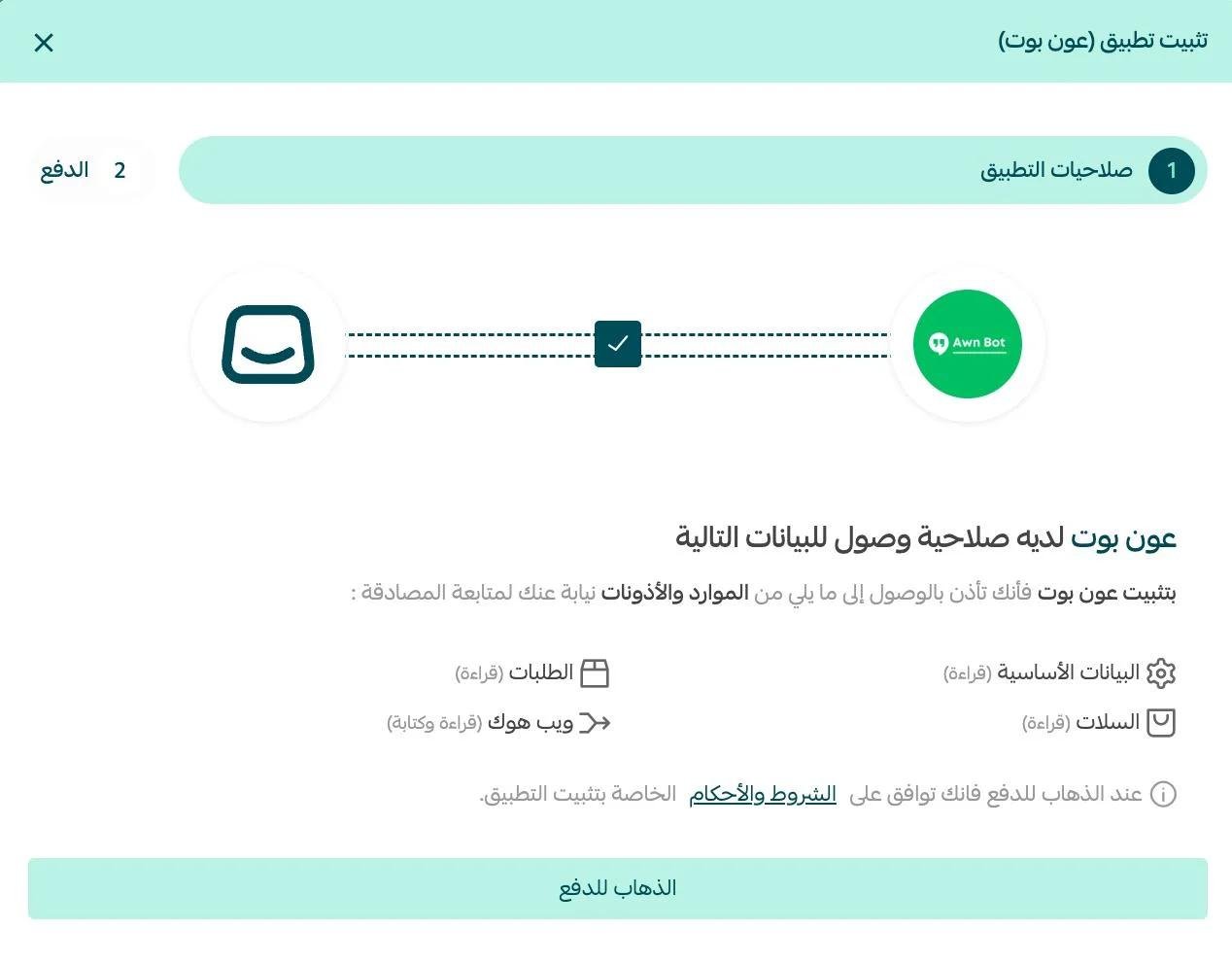
3. Review the permissions the app asks for, then agree to them.
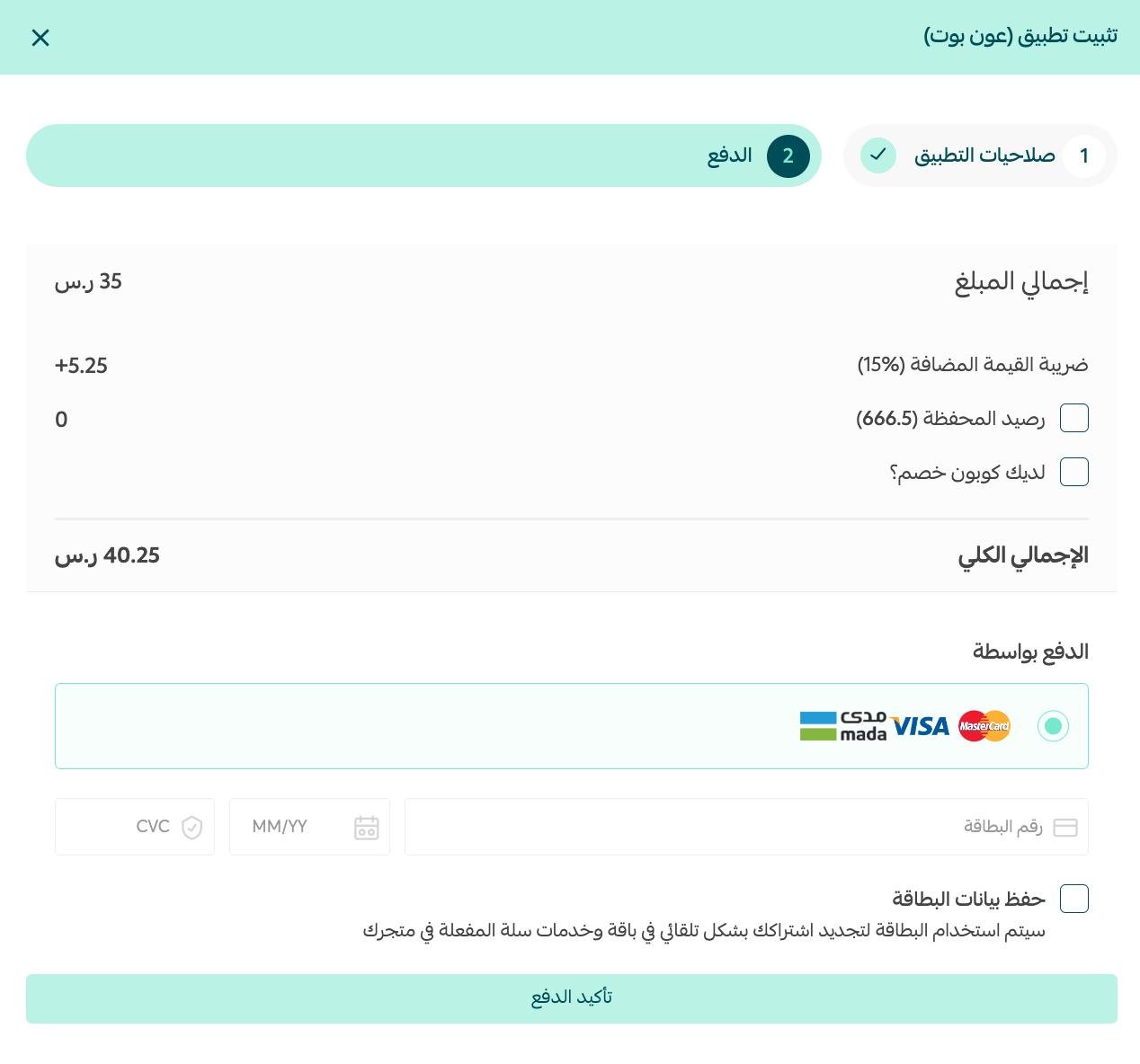
4. Complete the payment.
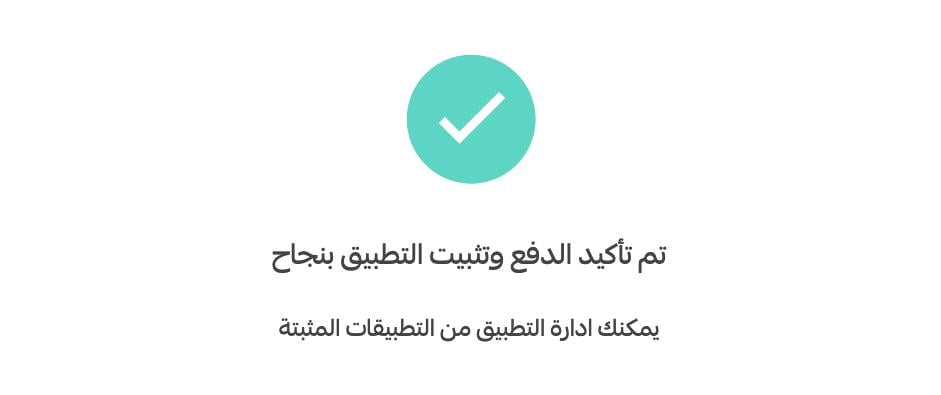
Your plan is now upgraded.
How do I remove the Awn Bot app from my store?
1. From the main menu of your store dashboard, click (Installed apps).
2. On the all apps page, find Awn Bot, click (App options), then click (Delete app).
Where do I get the ID number and access code?
The Awn Bot team sends both to your WhatsApp once the app is installed. You enter them when you activate the app from (App options).
Can I write a different message for each order status?
Yes. In the app settings you turn on the WhatsApp message for each order status and customize the wording, then click (Save).
Every unanswered question is a customer deciding to buy somewhere else. Awn Bot keeps the replies flowing while your team sleeps.