Ready to pay the Apple Developer Program fee and get your store's iOS app on the way?
Completing the payment is the final stage of creating an Apple Developer account — once Apple processes it, your membership is active and your app can move forward. The payment page has a few quirks that trip up many merchants, especially around which cards Apple accepts. In this guide, you'll learn how to complete the Apple Developer account payment step by step, plus what to do if the charge fails.
To complete the payment, sign in at the Apple Developer Program site with your Apple ID, click (complete your purchase now), then (Purchase), enter your credit card and billing details, and click (Place Order). Apple processes the payment within two business days and emails you a confirmation with the invoice details.
📌 Article overview
- Important notes before you pay
- Steps to complete the Apple Developer account payment
- Frequently asked questions
📝 Important notes
1. You can skip steps 1 to 5 if you are continuing the account creation you started in part one.
2. Make sure your credit card has enough balance — at least $99, or roughly SAR 420.
3. Creating a developer account through the mobile app lets you pay with Apple Pay. For more details, see (Creating an Apple developer account through the mobile app).
👣 Steps to complete the Apple Developer account payment
1. Go to the official (Apple Developer Program) site, then click (Account).

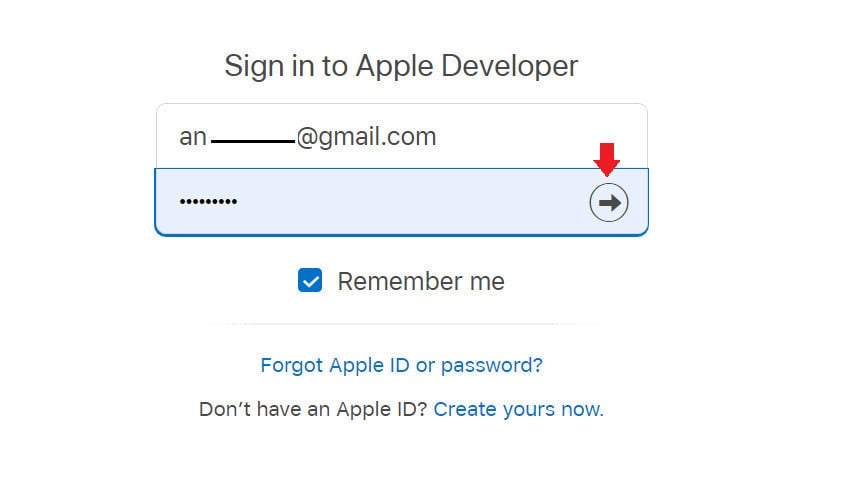
2. Sign in with an active Apple ID.
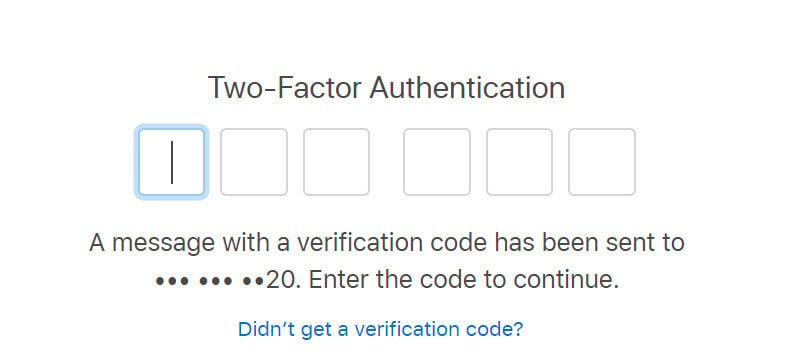
3. Enter the verification code sent to the phone linked to your Apple ID.
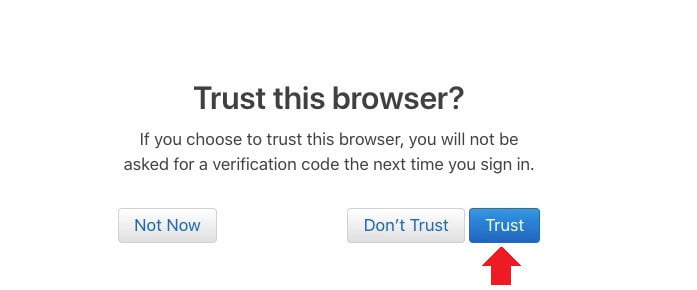
4. Choose (Trust) to keep the browser trusted and continue.
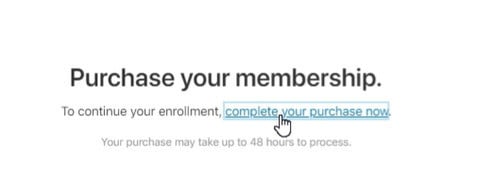
5. Click (complete your purchase now) to continue to payment.
6. On the payment page that appears, click (Purchase).
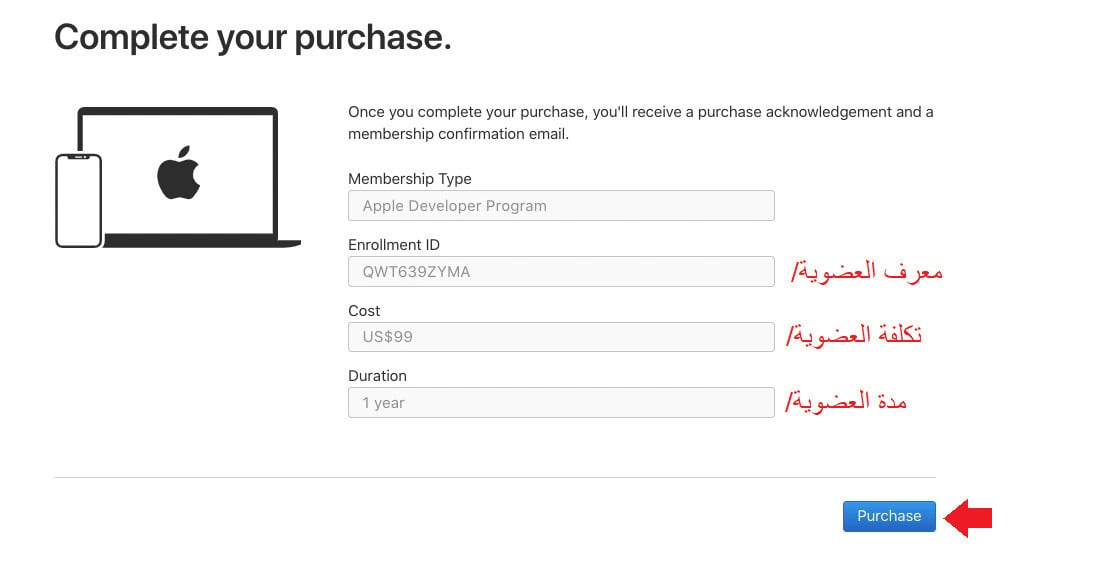
7. Fill in your payment details, then click (Continue) to finish setting up your iOS developer account.
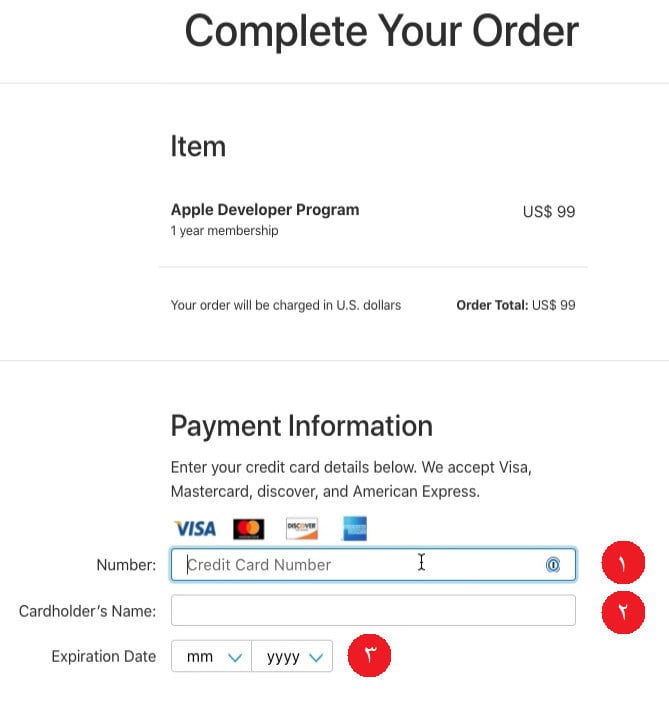
1. Card number.
2. Cardholder name — matching the account owner's name is preferred, but not required.
3. Card expiration date.
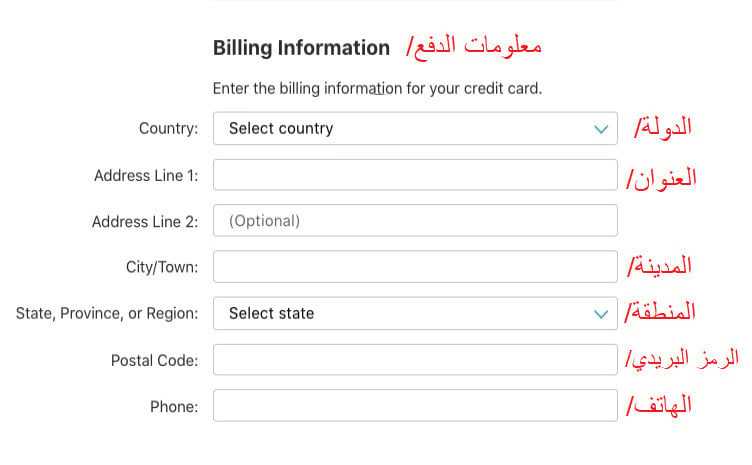
Fill in the remaining billing address fields on the page — ideally matching the billing details of the cardholder whose card you are using.
8. A confirmation page shows your payment details — click (Place Order) to confirm.
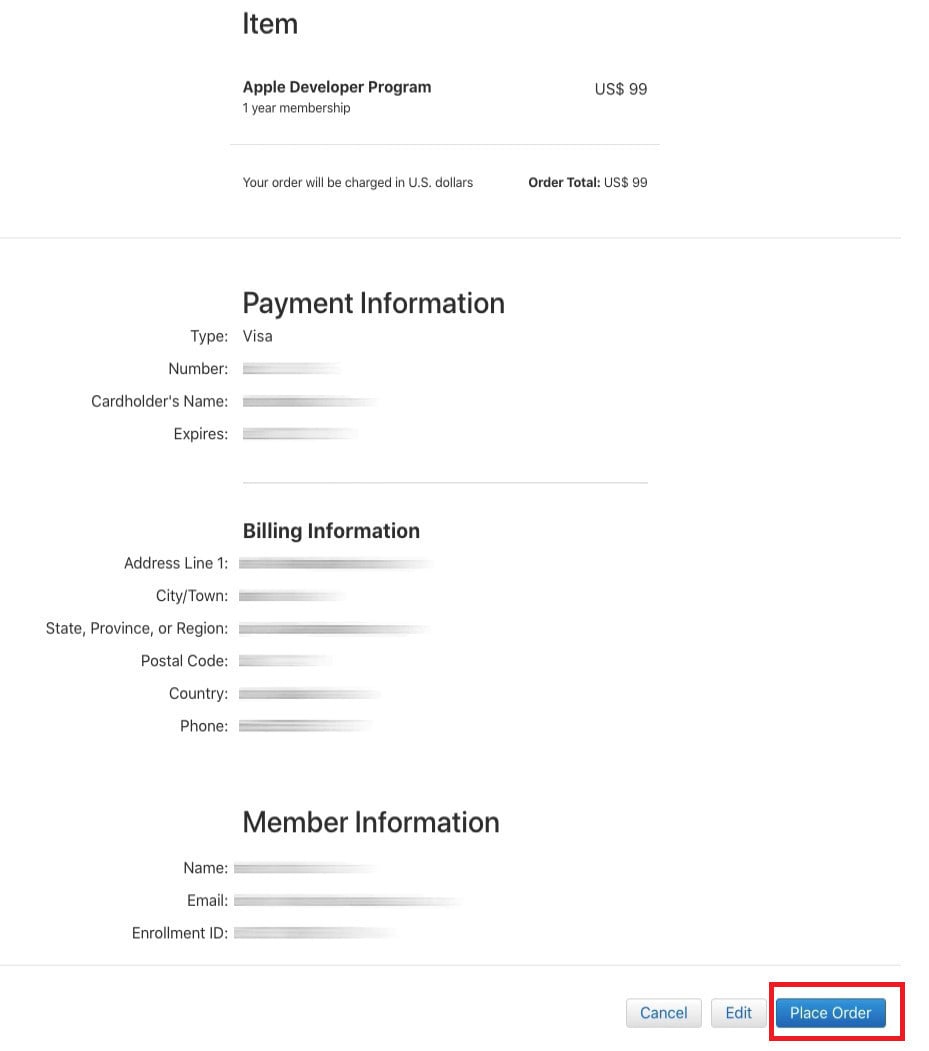
A thank-you message tells you the payment will be processed within two business days. Once processing finishes, Apple emails you a confirmation with the invoice details, letting you know your iOS developer account is set up successfully.
Frequently asked questions
❓ Does the cardholder name have to match the developer account owner's name?
No, that is not required.
❓ What type of card does Apple usually accept?
A credit card — not a prepaid or debit card — that has been used for purchases before, has online purchases enabled, and holds the required $99 plus a little extra to cover currency conversion differences.
❓ Two business days have passed and the amount was not charged. What can I do?
The first attempt failed because the charge could not be taken from the card you used. Sign in to your account again and try a different credit card.
❓ Apple emailed me saying they could not charge my card and I should contact my bank or try registering again. What should I do?
Call your card issuer's support team and ask why the bank declined Apple's charge. The agent may resolve it on the spot by lifting the block and approving the request — or tell you there is no block on your card, in which case wait another day and try again, or contact Apple support.
For more details, see (Getting help from Apple support by phone).
For more details, see (Getting help from Apple support by email).