Are your products invisible to Google because they have no unique identifier?
Search engines struggle to classify products submitted without unique product identifiers, and those products may not qualify for every search engine feature. Adding MPN and GTIN numbers to your product data improves the chances your products show up in search results and reach the right shoppers. In this guide, you'll learn what each identifier is, how to add MPN and GTIN to a product in your Salla store, and the rules Google applies to them.
GTIN is the globally recognized number that uniquely identifies a product, and MPN is the part number the manufacturer assigns. To add them, open the product from your products page, click (Product data), fill in the MPN and GTIN fields, and click (Save). Both fields are optional, but at least one is recommended.
📌 Article overview
- What are MPN and GTIN?
- How to add MPN and GTIN to your product data
- Frequently asked questions
🎯 What are MPN and GTIN?
GTIN
GTIN stands for Global Trade Item Number. It is an internationally recognized identifier that is unique to your product. Search engines use it to improve the performance of your ads and your unpaid listings, and it makes your products easier for shoppers to find.
MPN
MPN stands for Manufacturer Part Number. It identifies one specific product among everything the same manufacturer produces. Shoppers sometimes search for an MPN directly, so supplying it helps make sure your product is shown to the right people.
👣 How to add MPN and GTIN to your product data
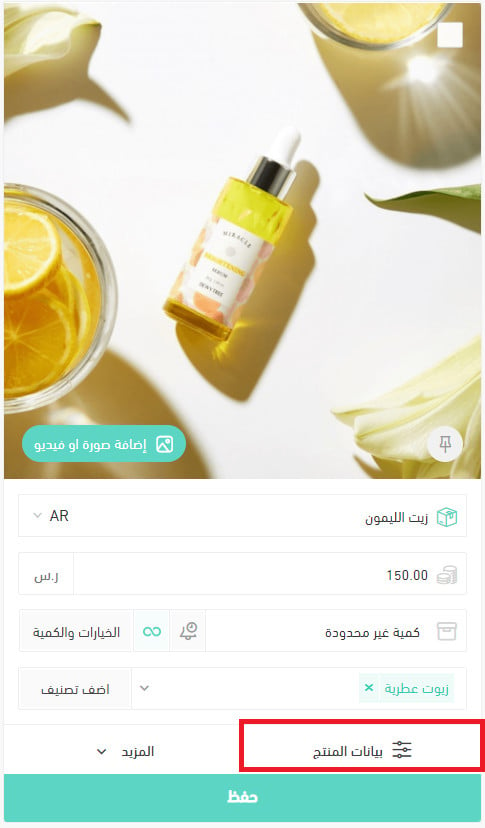
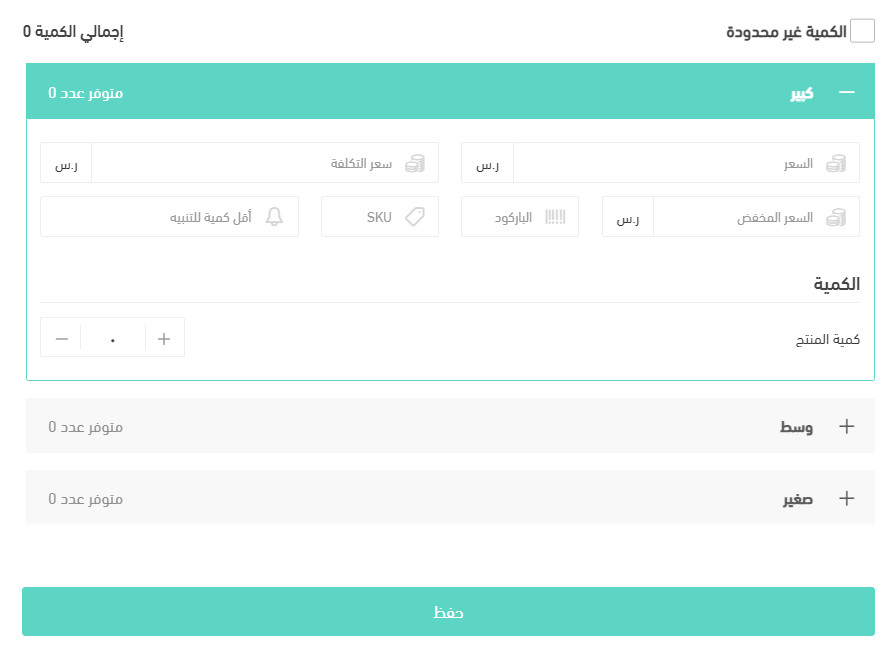
1. From the products page, open the product card and click (Product data).
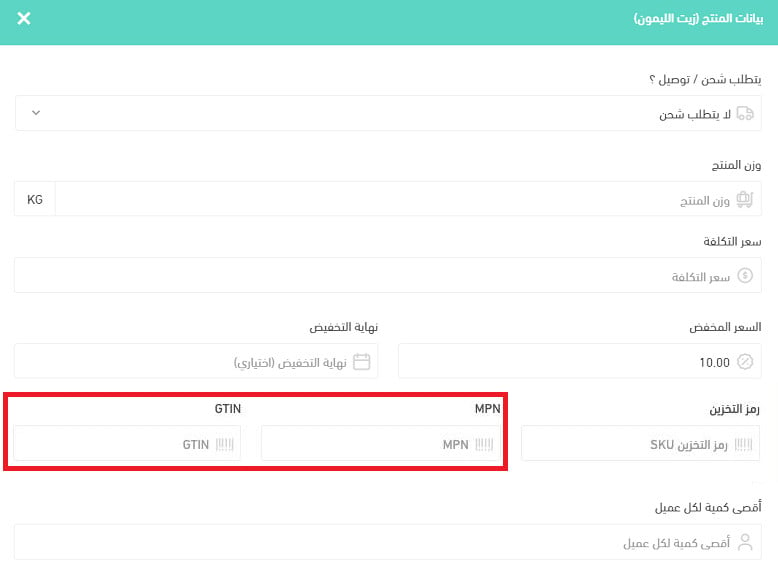
2. Fill in the MPN and GTIN fields, then click (Save).
❓ Frequently asked questions
Can I add the MPN and GTIN fields to every product?
No. The two fields appear in product data for all product types except bookings, made-to-order products, and food products.
Do the MPN and GTIN fields appear in search results?
They sit in the product page's code rather than on the page itself, unlike your other fields, because they are meant for search engines rather than shoppers.
When is a GTIN required?
A GTIN is required for every product the manufacturer has assigned one to. Several identifier types count as a GTIN, and you can submit any of the following.
Universal Product Code (North America, GTIN-12)
12 digits. Eight-digit UPC-E codes must be converted to 12-digit codes.
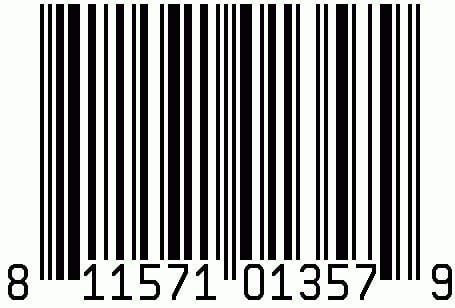
EAN, JAN, or ISBN
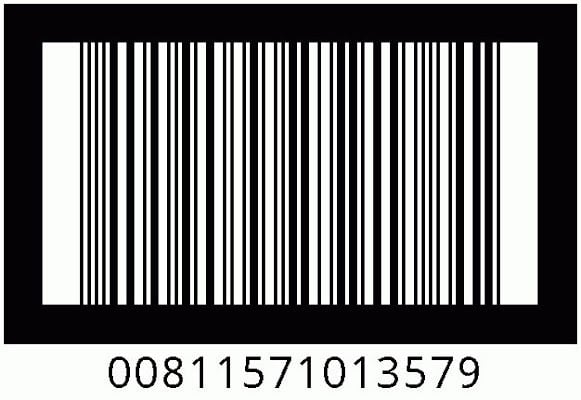
You'll find this GTIN type on products sold in Europe or Japan, and on books sold worldwide. It is the 13-digit number underneath the barcode.
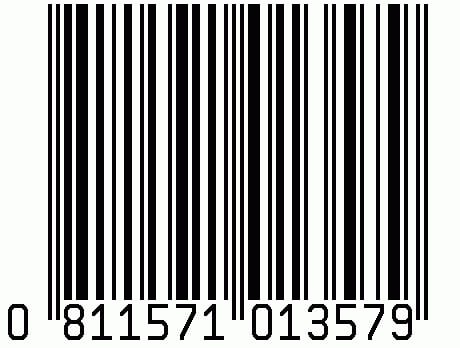
ITF-14
You'll find this GTIN type on products sold in packs, such as shipping cases. The GTIN is the 14-digit number underneath the barcode.
For more details, see unique product identifiers.
How do I find out which GTIN type my product uses?
If you're checking the GTINs on your product packaging, download the Barcode Scanner app from the Google Play Store. It scans the barcode, gives you the GTIN, and tells you which GTIN type you just scanned.
When is an MPN required?
An MPN is required for every product the manufacturer has not assigned a GTIN to. It is optional when the product isn't clearly tied to a manufacturer part number, or when it is made to order — artwork, custom shirts, novelty items, and handmade goods, for example.
Do I have to enter GTIN and MPN?
No, both are optional. But adding at least one of them improves how your products surface in search engines, puts them in front of the right shoppers, and improves your ad performance.
Do I have to enter both GTIN and MPN?
No. You can enter both, but if you've entered a GTIN you don't need to add an MPN.
Do I need a number for every product option?
Yes. Enter a valid GTIN for every product, including its options. Each product and each product option — different colors or sizes — has its own unique GTIN.
💡 Example:
Product name: face serum
Size option: large, medium, small
Formula option: lavender, green tea, rose
You need a GTIN for every available combination, such as:
- Face serum, large, lavender formula
- Face serum, large, rose formula
Enter the GTIN, the MPN, or both for each option like this.
What are the minimum requirements for submitting high-quality product data?
Meet these requirements to get your product shown.
First. Make sure your GTIN meets these conditions:
1. Confirm the GTIN is valid using the GTIN check digit calculator.
2. Confirm the GTIN isn't in a restricted range. Restricted ranges carry the prefixes 02, 04, and 2.
3. Confirm the GTIN isn't in a coupon range. Coupons use the GS1 prefix ranges 05 and 98 to 99.
Second. Use a valid GTIN for every product, including its options.
Third. When you enter a manufacturer part number, you may also be asked for your products' brand. If you don't have a brand to supply, avoid entering a placeholder such as "N/A", "generic", "no brand", or "does not exist".
How do I find out why my products were rejected?
When a product is rejected, you're notified on the "Diagnostics" page in your Google Merchant Center account.
For more details, see requirements that may apply to your country or product.
Adding MPN and GTIN takes seconds per product, and it's the difference between a listing search engines can match to a real product and one they can only guess at.