Would your customers rather get a verification code by email, or on the app already open in their hand?
The 4Whats app gives your Salla store one WhatsApp channel for the messages that matter most: activation codes, order statuses, alerts, and abandoned cart reminders. On top of that it lets you build promotional campaigns, and it adds a WhatsApp chat widget to your storefront that you can style to match your brand. In this guide, you'll learn how to install 4Whats, open its settings, customize the message and widget, and upgrade to a paid plan.
4Whats is a Salla App Store service that sends activation codes, order status updates, alerts, and abandoned cart messages to your customers over WhatsApp, and creates promotional campaigns. After installing it, you open the app settings, enter your phone number, customize the WhatsApp message and widget color, and save.
📌 Article overview
- What 4Whats does
- How to install and connect 4Whats
- How to set up your message and widget
- Frequently asked questions
🎯 What is 4Whats?
4Whats is a WhatsApp messaging service for stores. It handles the transactional side of your customer communication, activation codes, order statuses, alerts, and reminders for carts left behind, and it also gives you a way to run promotional campaigns rather than only sending notifications. Everything reaches the customer on WhatsApp, so nothing sits unopened in a spam folder.
🚀 How to install and connect 4Whats
1. From the main menu of your store dashboard, click (Installed apps).

2. From the Salla App Store banner, click (Browse the Salla App Store).

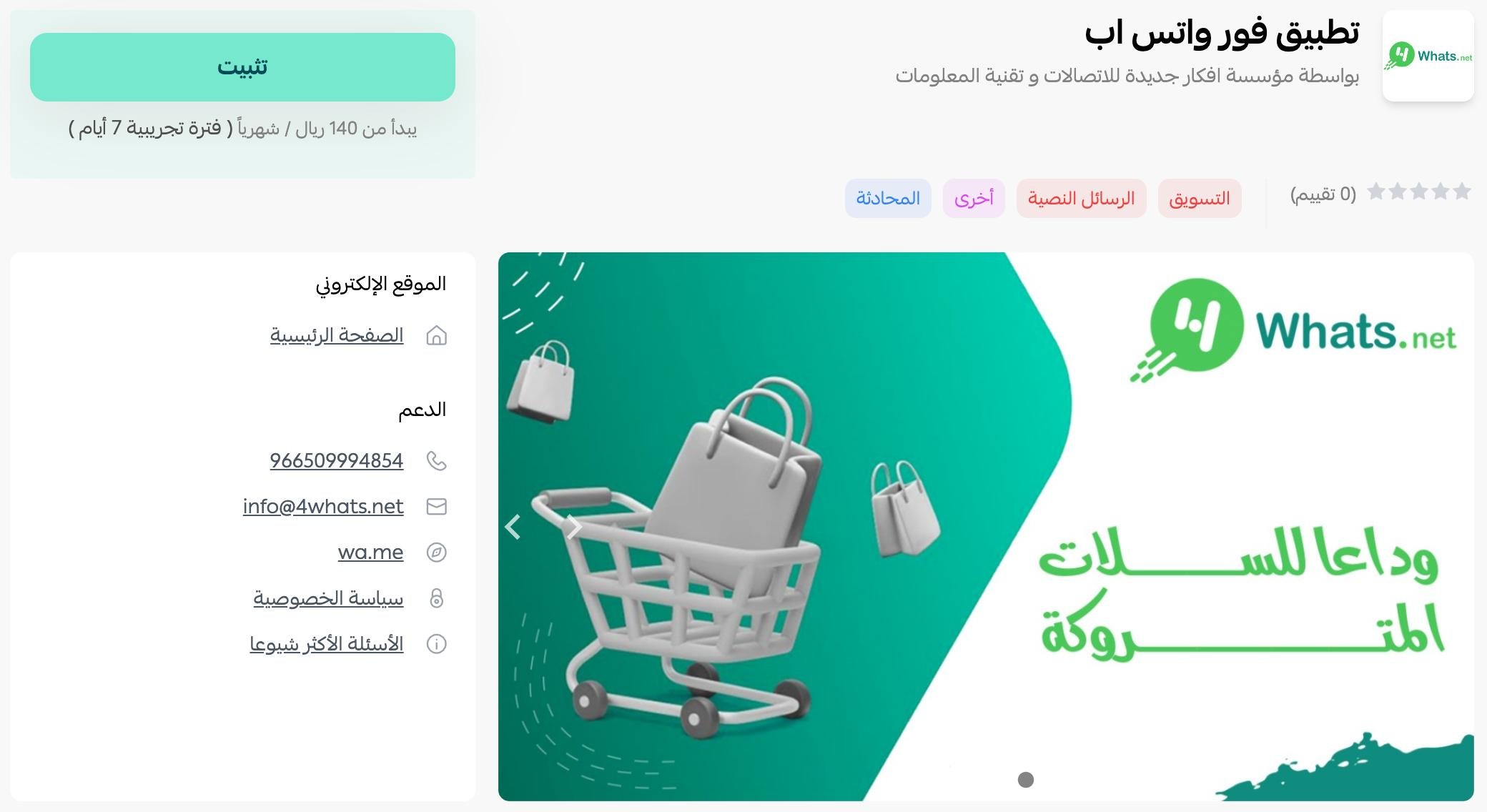
3. On the 4Whats app page, click (Install).
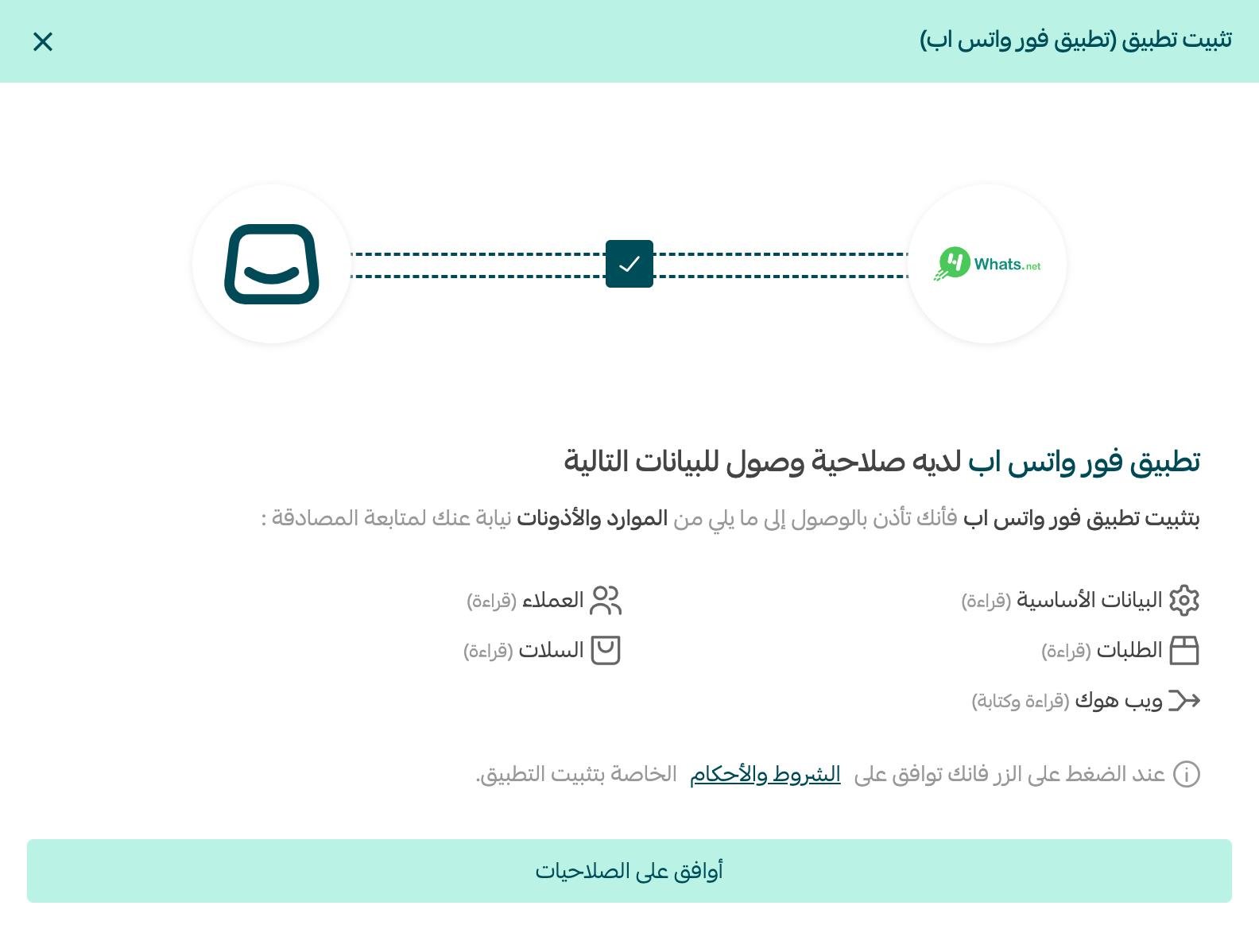
4. Review the permissions the app asks for, then click (Agree to permissions).
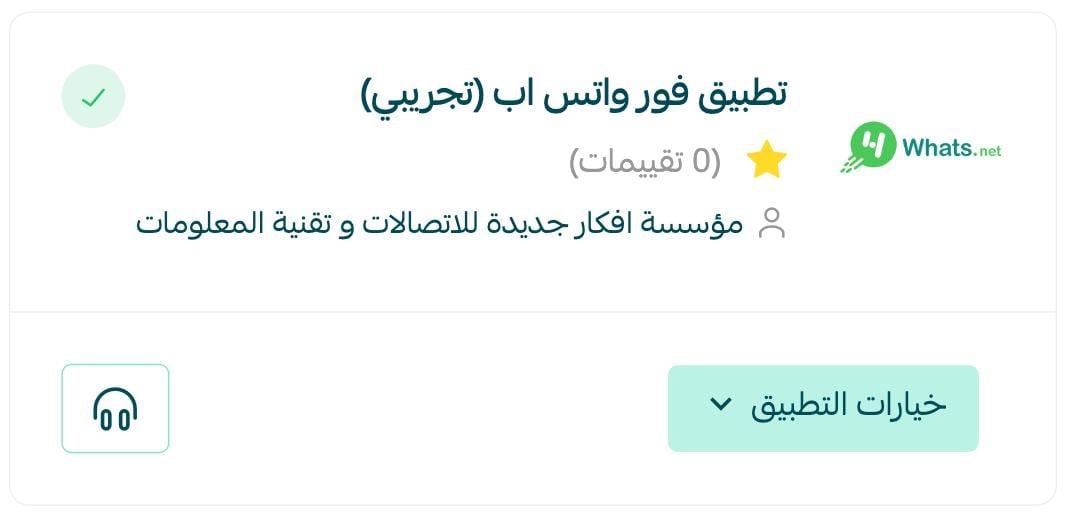
4Whats is now installed on your store.
After the app is installed, you receive an email with sign-in instructions for the service platform and a short guide to activating it. Setup takes only a few minutes. [Verify: the Arabic names the sign-in platform "Easy Whats" here while the app itself is 4Whats. Confirm with the provider which platform merchants actually sign in to.]
👣 How to set up your message and widget
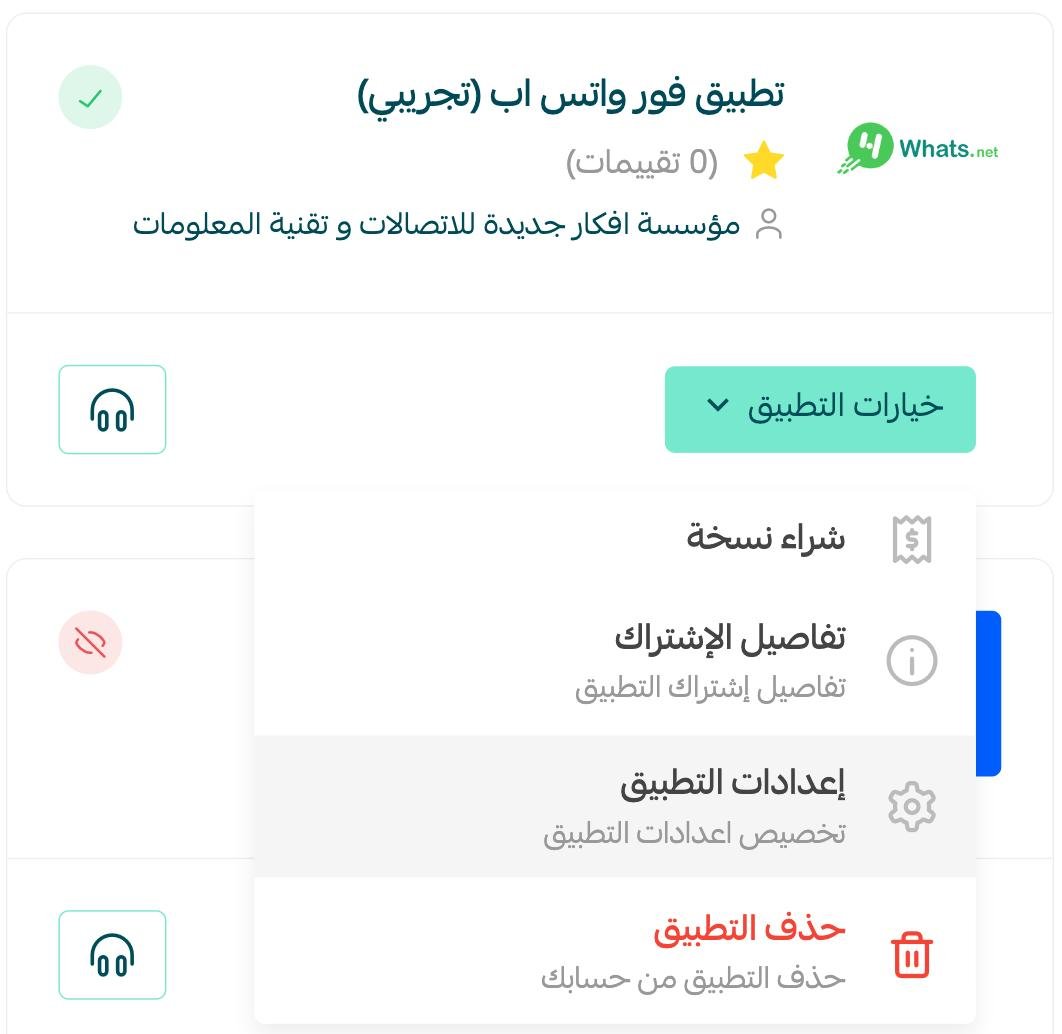
5. On the installed apps page, find the 4Whats app, click (App options), then click (App settings).
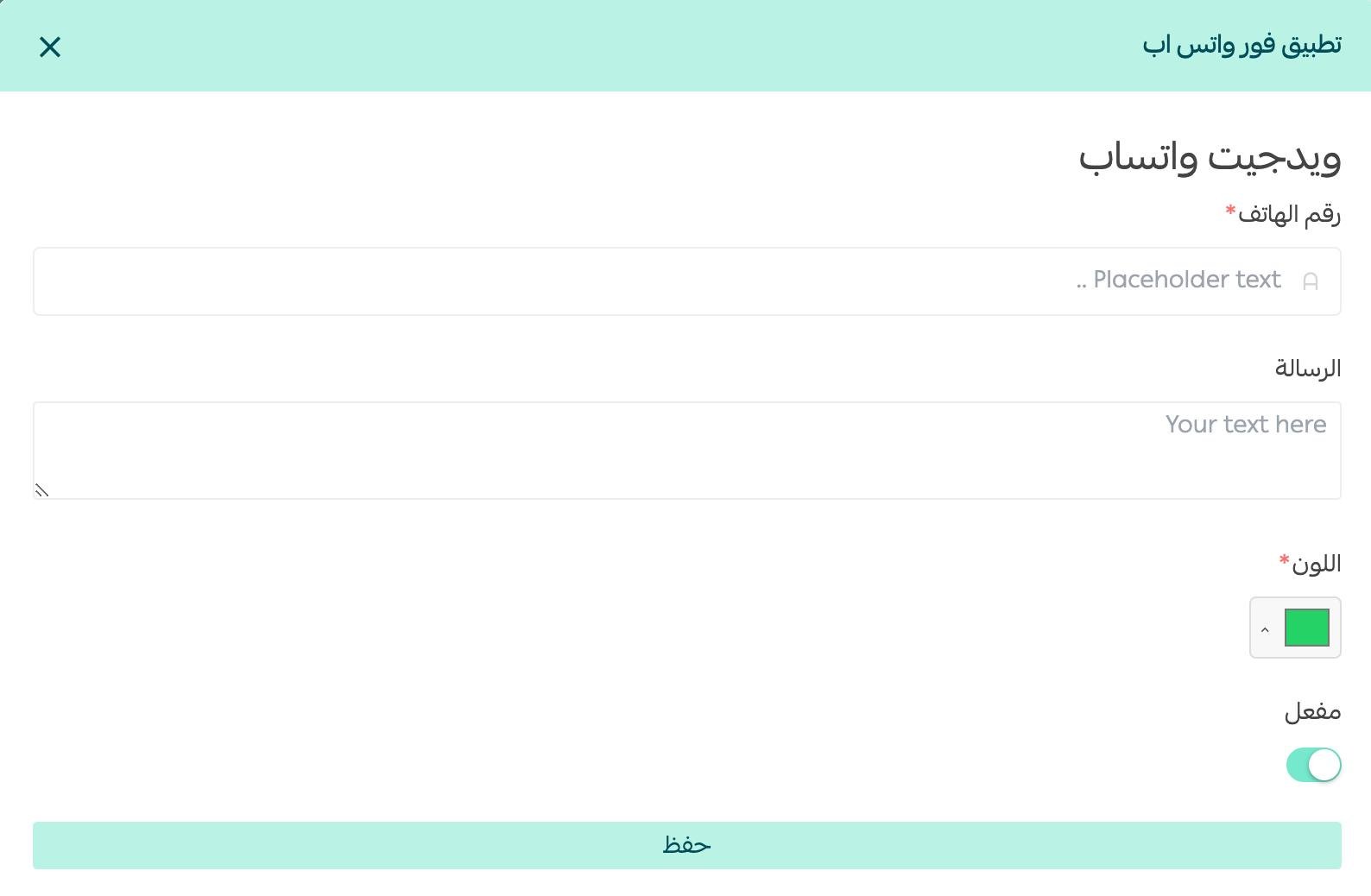
6. Enter your phone number, write the WhatsApp message you want customers to see, pick the widget color, then click (Save).
📝 Important notes
- The sign-in instructions arrive by email after installation, so use an address you check.
- The widget color is set in the app settings, which is where you match it to your storefront.
- For more on installing, activating, and removing apps, read Managing your store apps.
❓ Frequently asked questions
How do I upgrade and buy a paid 4Whats plan?
1. From the main menu of your store dashboard, click (Installed apps).

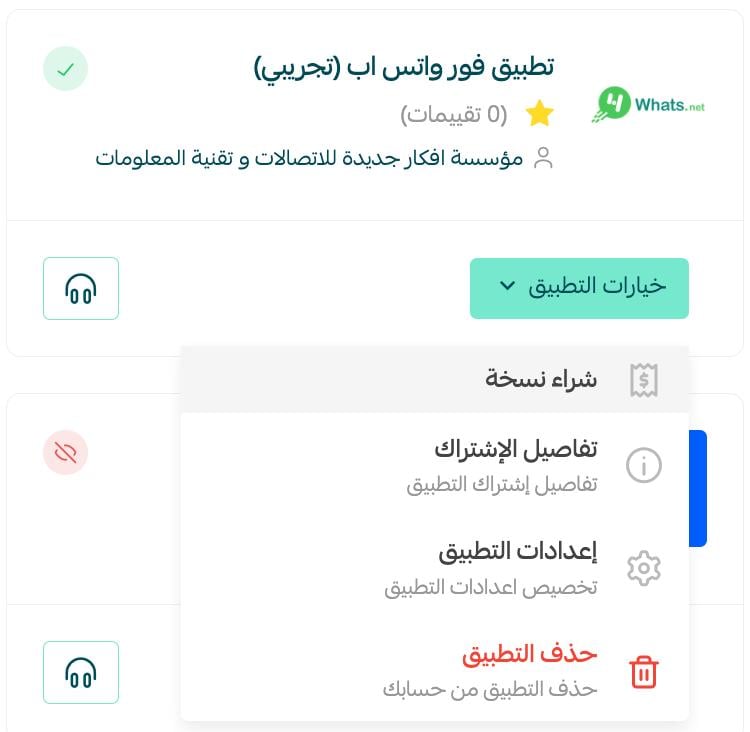
2. On the app card, click (App options), then click (Buy version).
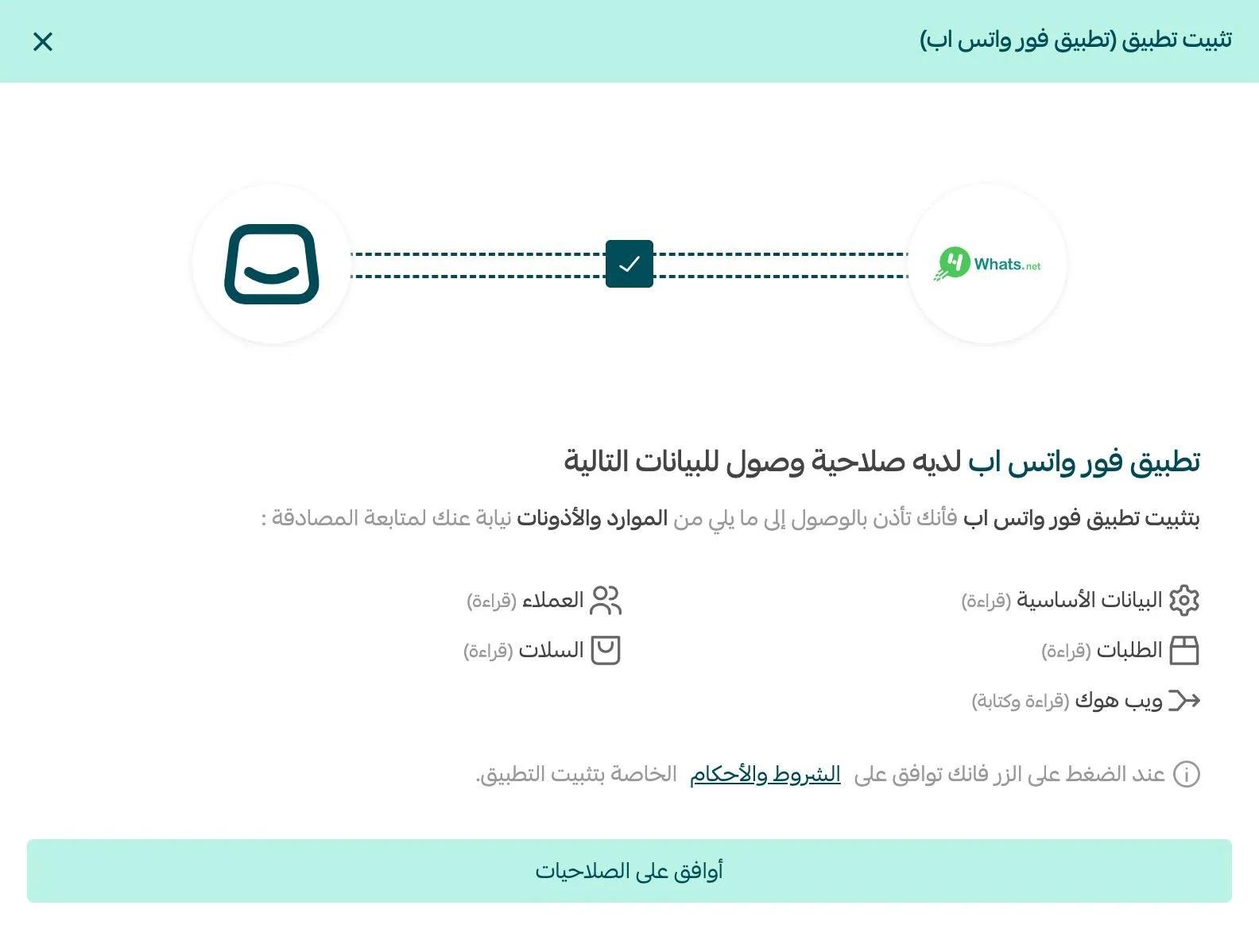
3. Review the permissions the app asks for, then agree to them.
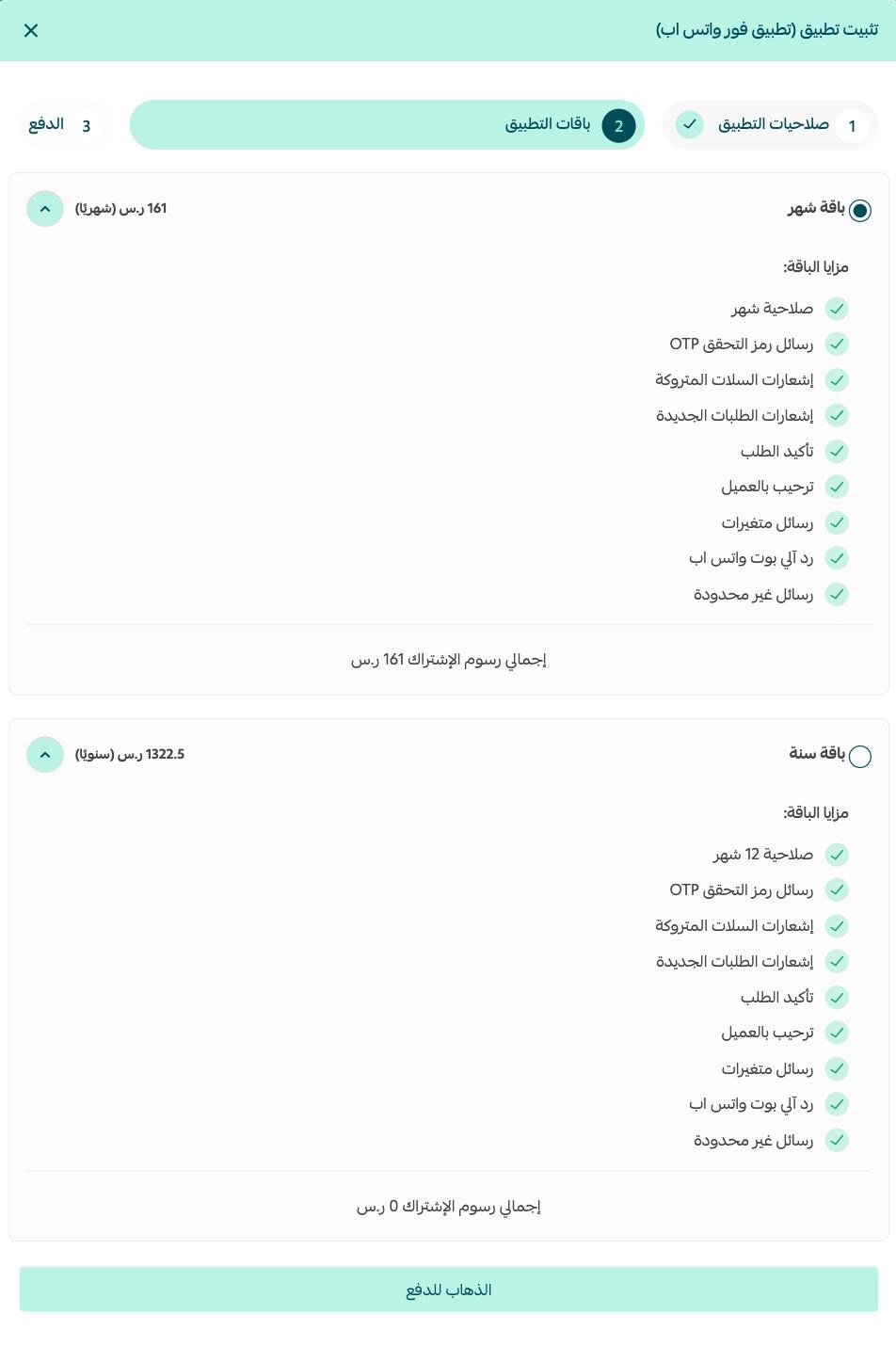
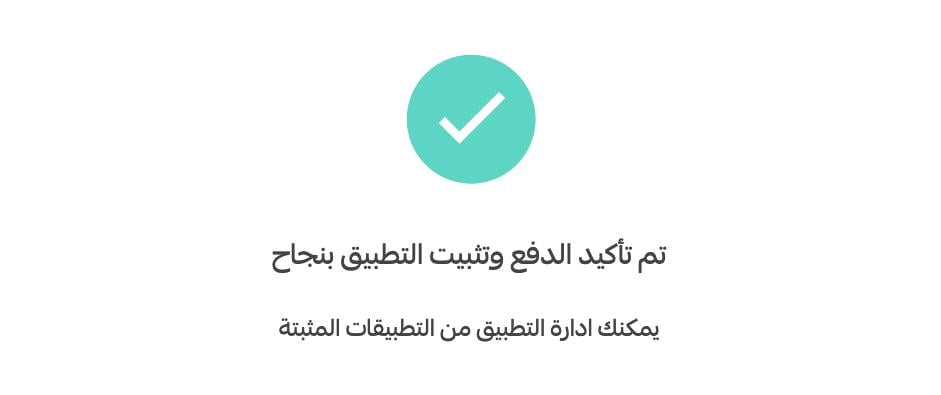
4. Choose the subscription plan that suits you, complete the payment steps, then click (Go to payment).
Your plan is now upgraded.
How do I remove the 4Whats app from my store?
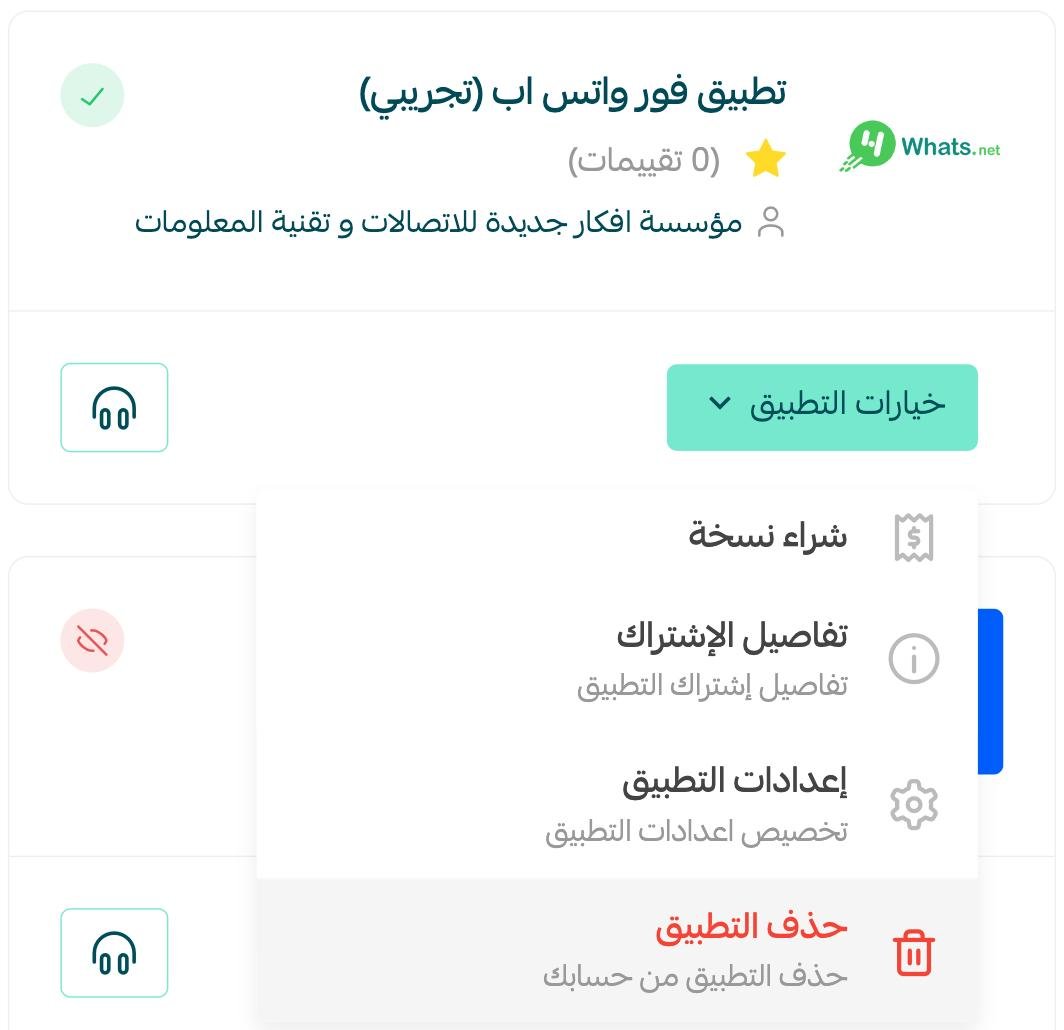
1. From the main menu of your store dashboard, click (Installed apps).
2. On the all apps page, find 4Whats, click (App options), then click (Delete app).
What kinds of messages can 4Whats send?
Activation codes, order status updates, alerts, and abandoned cart messages, plus promotional campaigns you create yourself.
Can I change the widget color later?
Yes. Open (App options), click (App settings), pick a different color, and click (Save).
An activation code that never arrives costs you a signup. 4Whats puts those messages on the one channel your customers always answer.