Do your store's numbers and your accounting reports ever disagree?
If you run your books by hand, in a spreadsheet or a notebook, you already know the symptoms: totals that don't match, VAT that takes an afternoon to work out, and profit figures that arrive weeks late. The Zoho Books integration closes that gap by turning every sale in your store into an invoice and a set of accounting entries, with no manual step in between. In this guide, you'll learn what the integration gives you, how to install and activate it, which settings to get right on day one, and how to read wallet payments in your books.
Zoho Books is accounting software that manages your finances, calculates tax, and automates your bookkeeping. Connecting it to your store means each order is written into Zoho Books automatically as an invoice with accurate entries, so your sales, VAT, and profit reports stay current without anyone rekeying them.
📌 Article overview
- What the Zoho Books integration does for your store
- How to connect the ZOHOBOOKS app
- The settings to get right after connecting
- Common problems and how to avoid them
- How wallet payments appear in Zoho Books
- Frequently asked questions
🎯 What the Zoho Books integration does for your store
Zoho Books is an accounting program that handles your financial management, works out your taxes, and automates the routine finance work, so you can see exactly what is happening in your business.
🎯 Why the integration matters
The bigger your store gets, the heavier the finance side becomes:
- Sales recorded by hand.
- Tax calculated separately.
- Real profit hard to pin down.
🔄 With the accounting integration, every order in your store turns into an invoice and accurate accounting entries inside Zoho Books.
💡 What you get
✔ Full automation of your financial operations
- An invoice created automatically for every order
- VAT recorded without you touching it
- Reports updated in real time
✔ A clearer financial picture
- Accurate profit and loss reports
- Tax obligations you can follow
- Fewer human errors
✔ Integration with the wider Zoho suite
You can connect your accounting to:
- Customer management (CRM)
- Customer service (Desk)
- Live engagement (SalesIQ)
🚀 How to connect the ZOHOBOOKS app
🔔 Before you start
To get the connection right the first time, check the following in your Zoho Books account:
✅ Taxes are enabled in Zoho Books
✅ Your accounts are ready (sales, shipping, fees)
✅ You've decided how customers are handled (one default customer, or a customer per order)
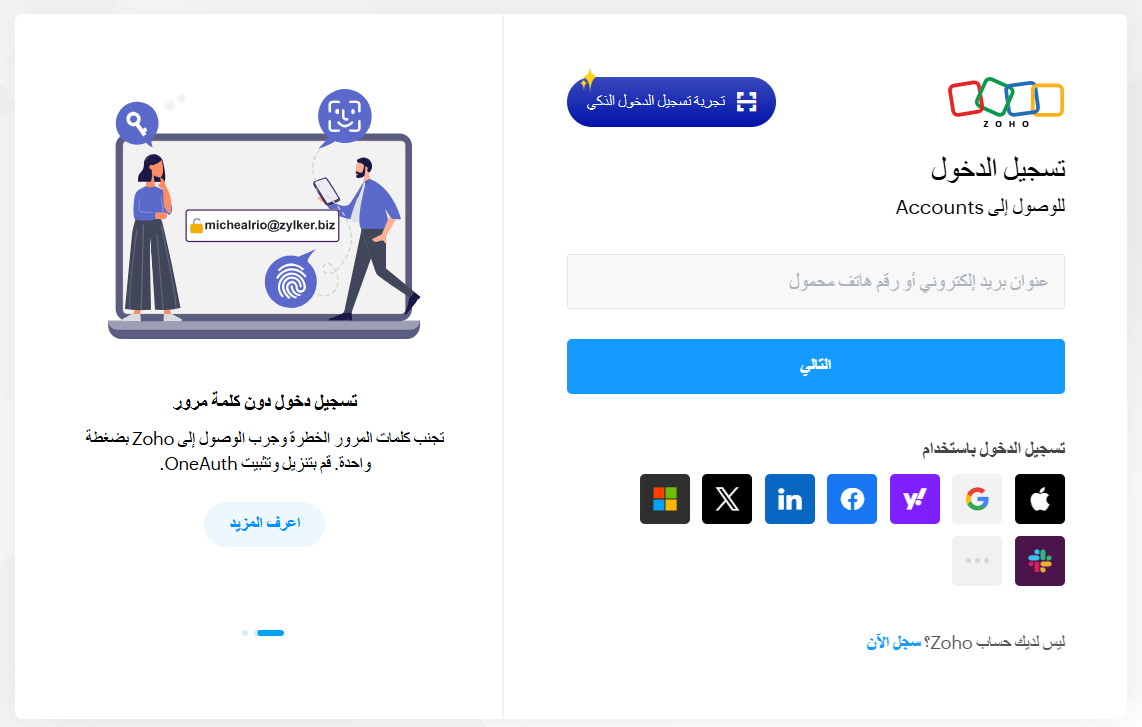
Sign in to your Zoho Books account.
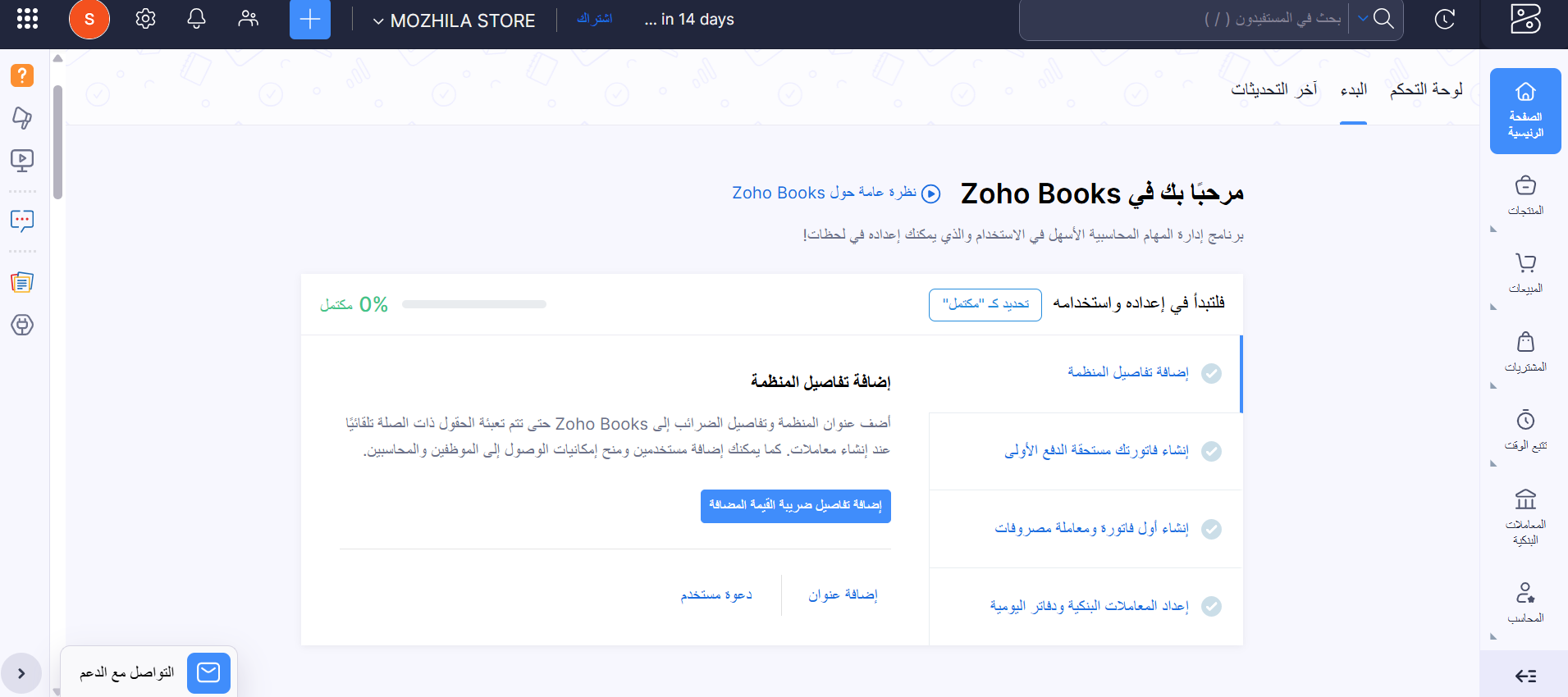
Your home page may look like this:
⚠️ Setting the integration up properly from the start prevents 90% of the problems merchants run into later.
⚙️ The connection steps
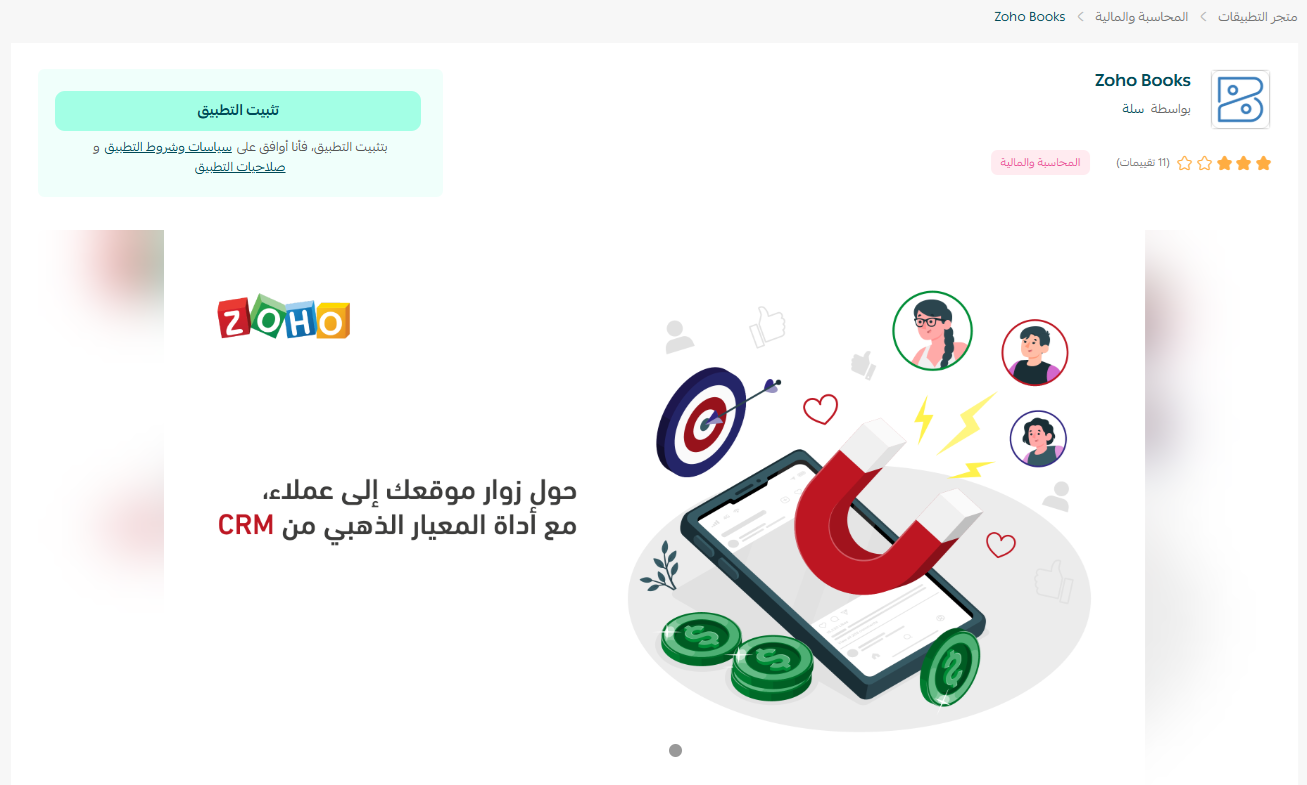
1. From the main menu, click (All), then under helpful tools, click (App Store).

2. On the ZOHOBOOKS app page, click (Install).
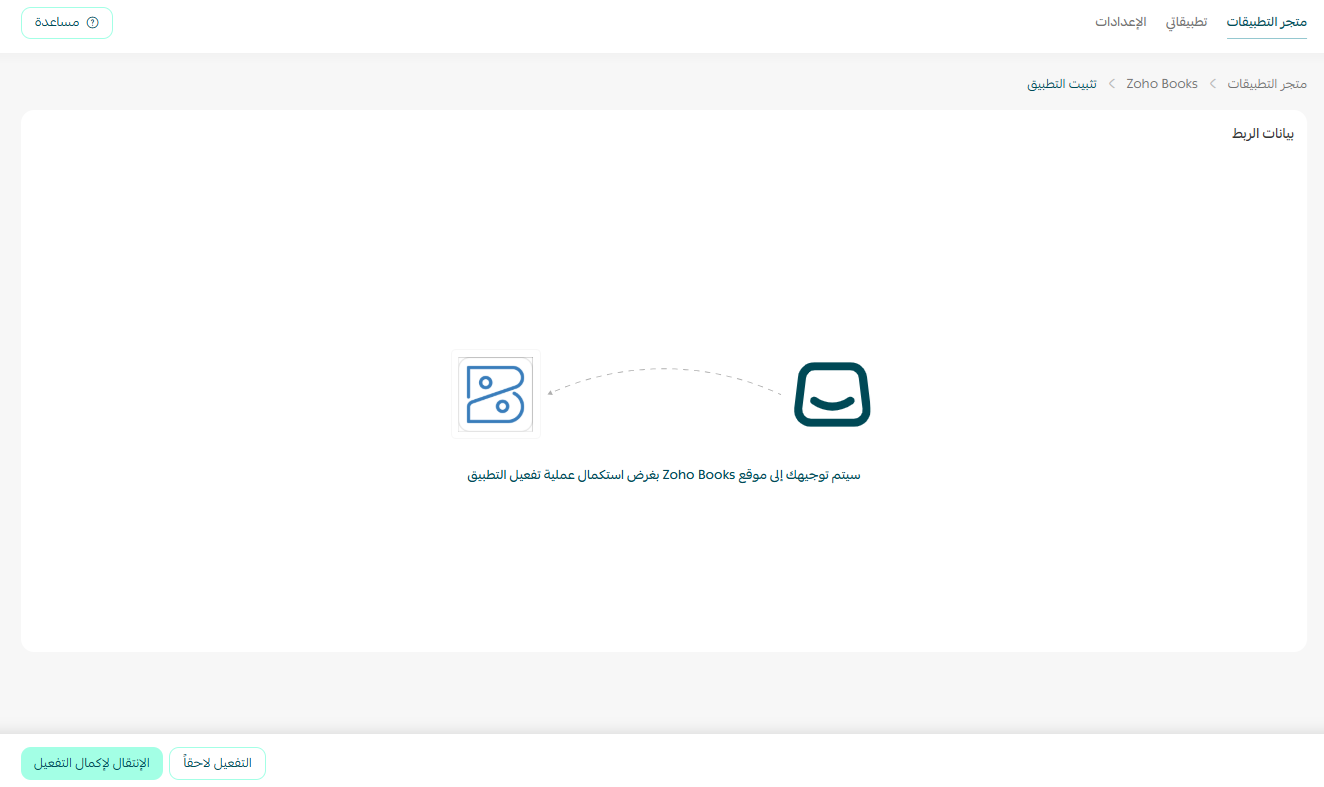
3. You'll be sent to Zoho Books to finish activating the app. Click (Go to complete activation).
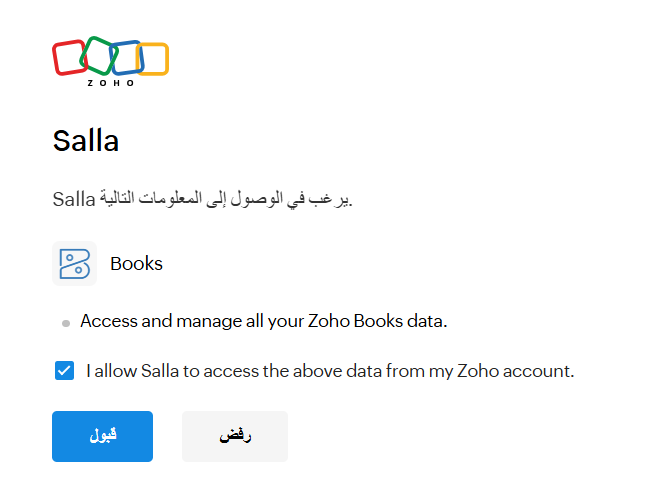
4. Approve the app's request to access your Zoho Books account.
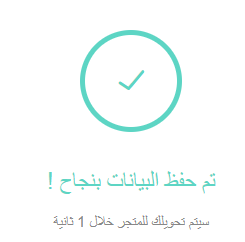
Once the details are saved, you're taken back to your store.
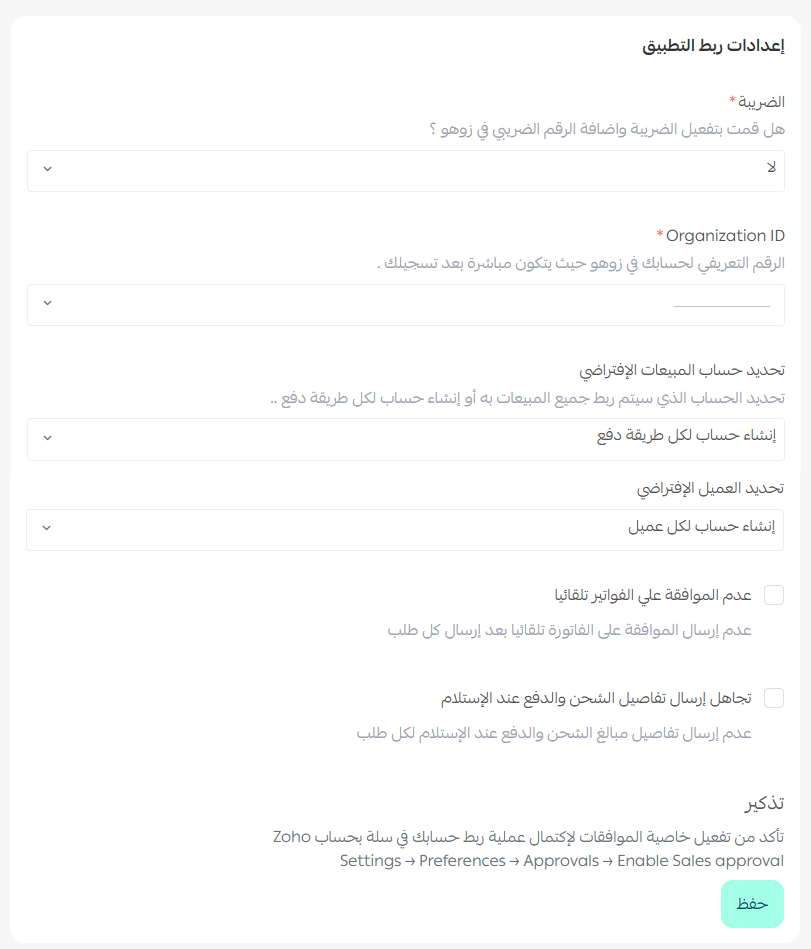
5. Back in the app details, the Organization ID, the identifier of your Zoho account, has been filled in for you automatically.
📝 Important note
⏳ Give it a moment. Activation can take a little while to finish.
⚙️ The settings to get right after connecting
1. Choose your sales account
Pick the account your store's sales will be recorded in.
Best practice: create a dedicated account for the online store.
2. Choose the default customer
You can either:
- Create a customer for every order
- Or use one default customer
Best practice: use a default customer to keep the bookkeeping simple.
3. Set up VAT
Check that:
- The tax rate matches between Salla and Zoho
- Tax is enabled inside Zoho
4. Decide when the invoice is created
Choose the moment an invoice is issued:
- When the order is created
- When it's paid
- When it ships
Best practice: create the invoice when payment is confirmed.
⚠️ Common problems and how to avoid them
Problem |
Cause |
Fix |
❌ Duplicate invoices |
Integration settings changed after activation. |
Settle the settings at the start and don't change them at random. |
❌ Financial reports don't match |
Tax or fees are set differently on each side. |
Review the tax settings and map your shipping and fee accounts. |
❌ Customer list balloons |
A customer is created for every order. |
Use a default customer instead. |
❌ Invoices don't show up |
Approvals aren't enabled inside Zoho. |
Turn on Sales Approval and reconnect. |
💳 How wallet payments appear in Zoho Books
Wallet balances are the part of the integration merchants ask about most, so it's worth a section of its own.
❓ Why does a wallet payment show up as a cash amount in Zoho Books?
The wallet is recorded as a payment method because it's real credit belonging to the customer that can settle the order. So it appears as a Payment, exactly like any other method.
❓ Is the wallet the same as cashback?
Not always. A wallet can hold:
- Cashback from the loyalty system
- Refunds
- Credit topped up manually by the merchant
That's why it can't be classified in the books as cashback alone.
❓ Why isn't the wallet recorded as a discount on the order?
A discount is applied before payment and reduces the value of the order. The wallet is used as payment after the order exists, and it doesn't change the value of the invoice itself.
❓ Does using the wallet inflate sales in the reports?
No. The sales figure stays at the original order value. The payment method, wallet included, only shows how the order was settled.
❓ Why does it look like the amount is counted twice?
Because the order is recorded under sales and the wallet is recorded as a payment method. Revenue isn't counted twice; the second entry just explains where the money came from.
❓ Can cashback be separated from the rest of the wallet balance in Zoho Books?
Not at the moment. The wallet is treated as a single balance, because it can hold more than one kind of money, not only cashback.
❓ When does the wallet affect the accounting differently?
When you're analyzing where revenue comes from or building detailed reports. In that case you may need to trace the source of the wallet balance, cashback, refund, or manual top-up, inside your own system rather than through Zoho Books alone.
💡 Example: how a wallet payment is recorded
The situation:
A customer has SAR 50 in their wallet.
They buy a product worth SAR 200.
How they pay:
SAR 50 from the wallet
SAR 150 by card
How it's recorded
1. In the order:
Order value: SAR 200
No discount applied
2. In Zoho Books:
- Invoice: SAR 200, the full value of the order
- Payments: SAR 50 wallet, SAR 150 card
💡 What that means
The order value wasn't reduced, so this isn't a discount.
Only the payment was split.
The wallet is treated as a payment method like any other.
⚠️ The part that causes confusion
You'll see SAR 200 under sales and SAR 50 under wallet payments. That's normal: SAR 200 is the revenue, and SAR 50 is part of how it was settled, not extra revenue.
The takeaway: using the wallet doesn't change your sales figure, only how the order was paid, which is why it appears in Zoho Books as a payment and not as a discount.
Frequently asked questions
❓ How do merchants actually use it?
Store stage |
Typical setup |
New store |
A default customer, and straightforward tax tracking. |
Mid-size store |
Separate accounts for sales, shipping, and fees, with accurate monthly reports. |
Advanced store |
Connected to CRM, with deeper financial analysis. |
❓ Do I need accounting experience to use Zoho Books?
No. The app is built to be easy to use, and most of the work is automated.
❓ Does it support VAT?
Yes, it's fully compliant with VAT requirements.
❓ Can I change the settings after connecting?
Yes, but it's better to settle them at the start to avoid errors.
❓ How do I sign up for Zoho Books if I don't have an account?
1. On the Zoho Books sign-up page, enter your registration details, then click (CREATE MY ACCOUNT).
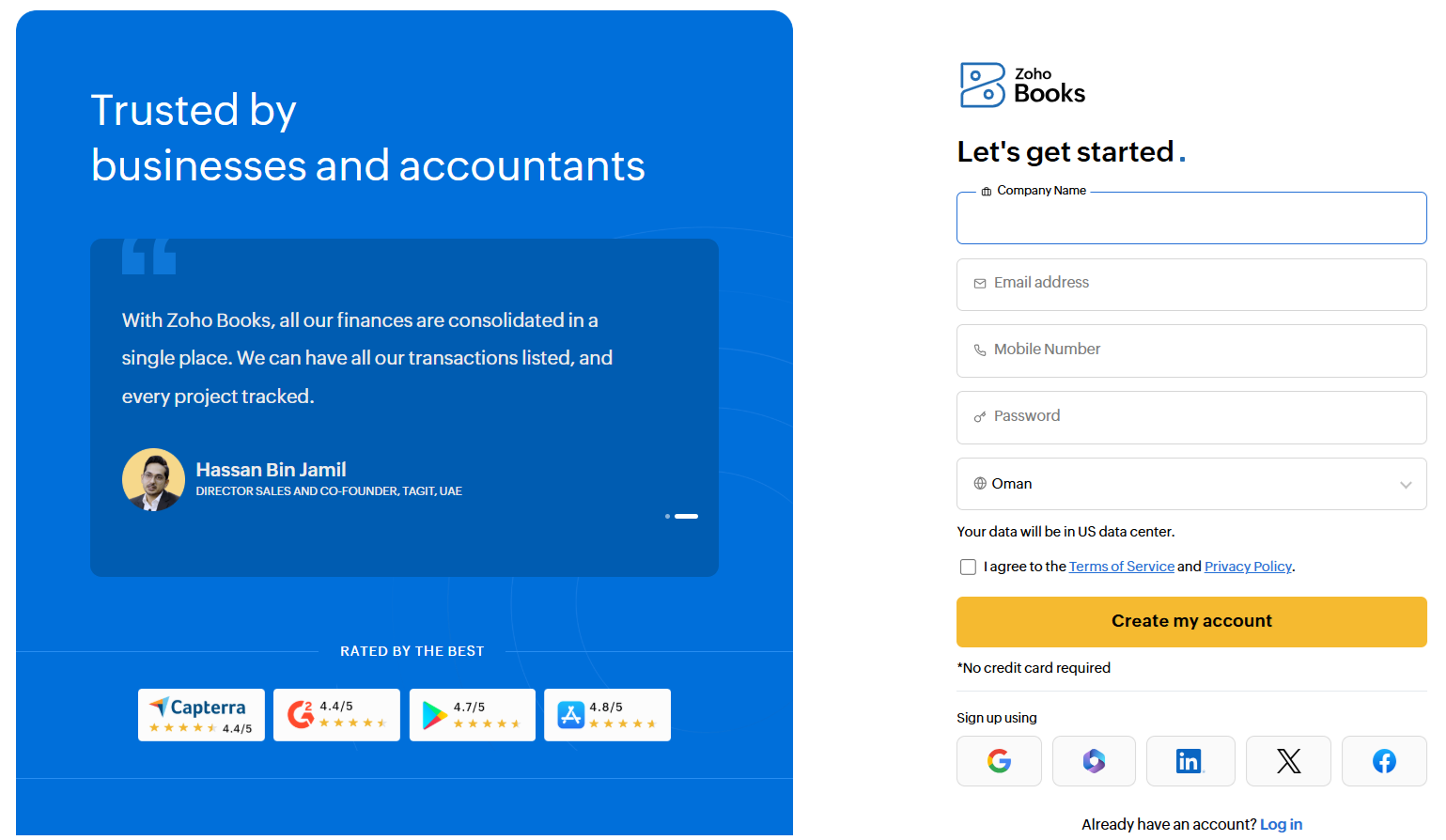
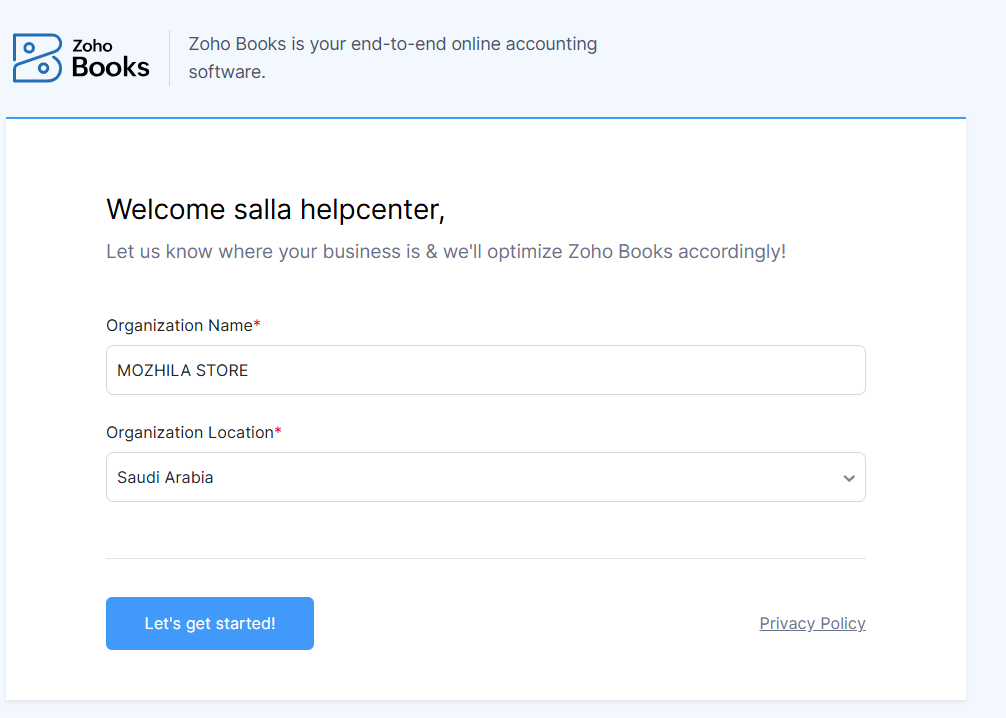
2. On the welcome page, enter your company name and address, then click (Let's Get Started).
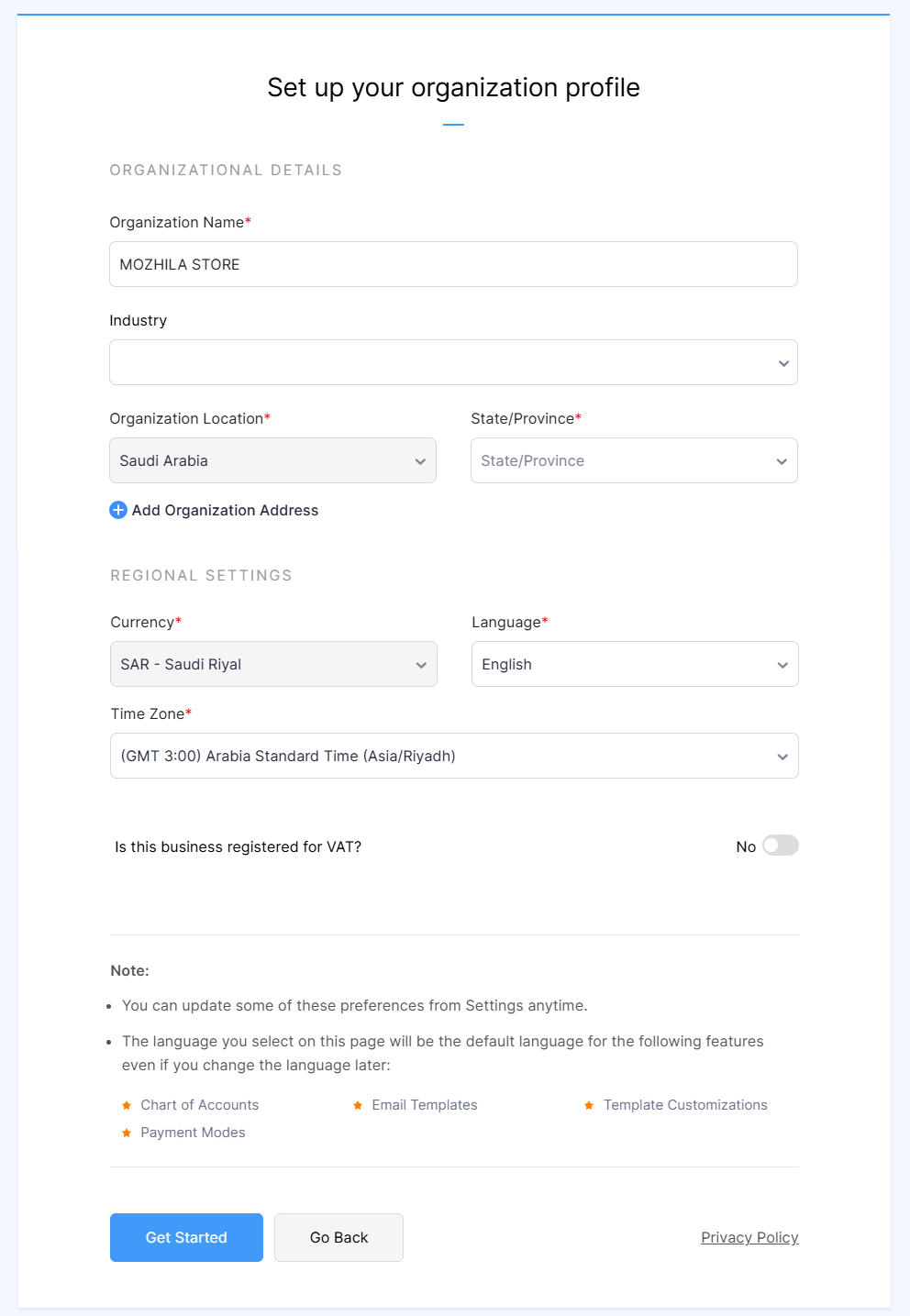
3. Fill in the details it asks for, then click (Get Started).
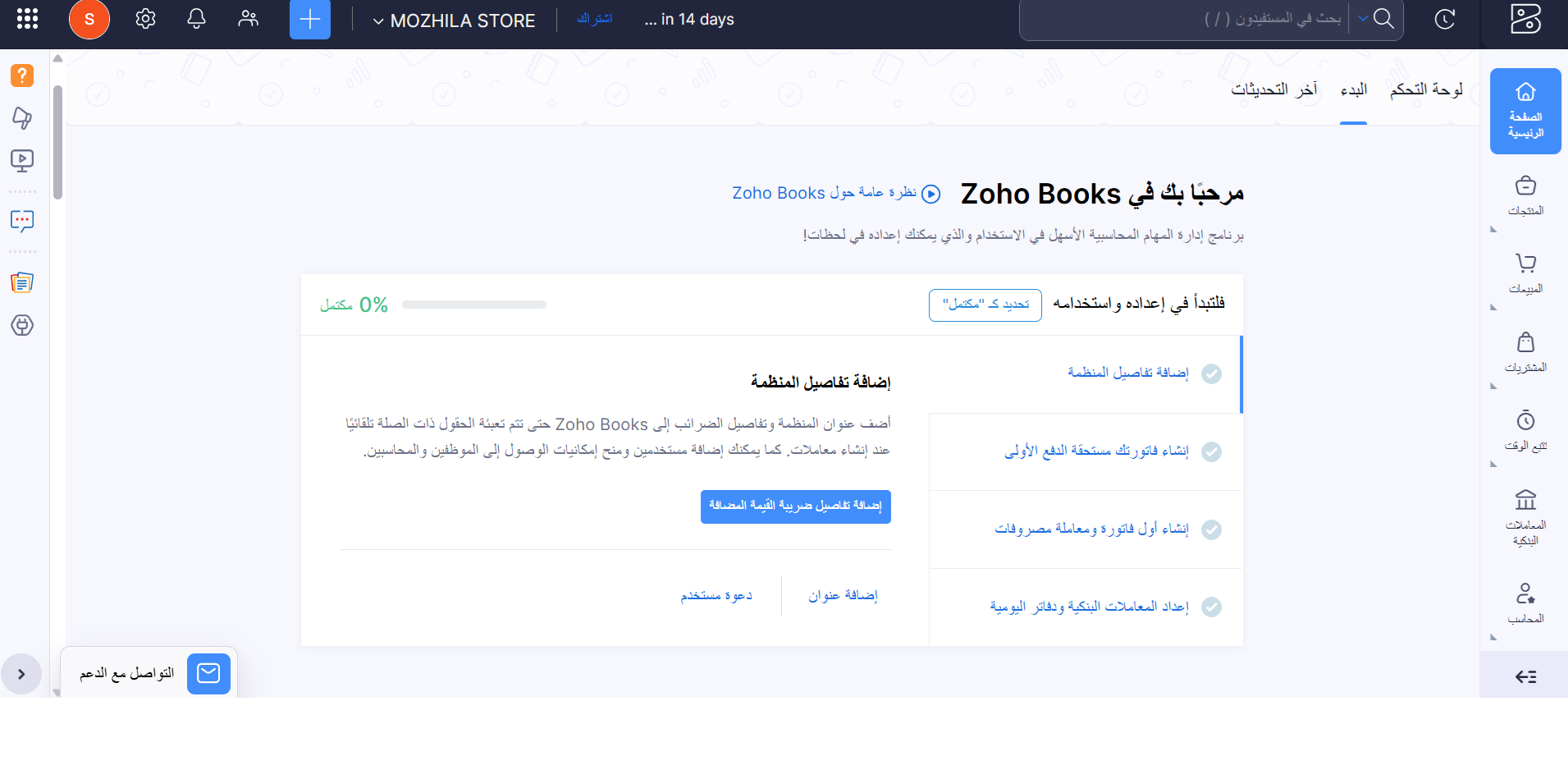
You're now ready to finish setting up your Zoho Books account and get going.
Connecting to Zoho Books isn't a nice-to-have, it's the base of financial management that stays accurate as you grow.
Install the app now. The cleaner your setup on day one, the more time you save and the sharper your decisions get.