How much of your week disappears into writing product descriptions one by one?
Every product page needs copy that explains what the item is, who it is for, and why it is worth buying — and most store owners either rush it or leave it blank. Store Tools - AI product descriptions is a Salla app that hands that job to AI. It pulls your products in, writes a polished description for each one in seconds, and helps those pages read better for shoppers and for search engines. In this guide, you'll learn how to install the app, sign in to its platform, generate your first AI product description, and remove the app if you no longer need it.
Store Tools - AI product descriptions is a Salla app that writes professional product descriptions for you. Install it from the App Store, pick a plan, then sign in to the app's platform with the credentials emailed to you, import your products, and generate a description for any product in seconds.
📌 Article overview
- How to install the Store Tools - AI product descriptions app
- How to sign in to the platform and write descriptions
- How to remove the app from your store
- Frequently asked questions
🚀 How to install the Store Tools - AI product descriptions app
1. From the main menu, click (All), then under helper tools, click (App Store).

2. Search for the app using the search field.

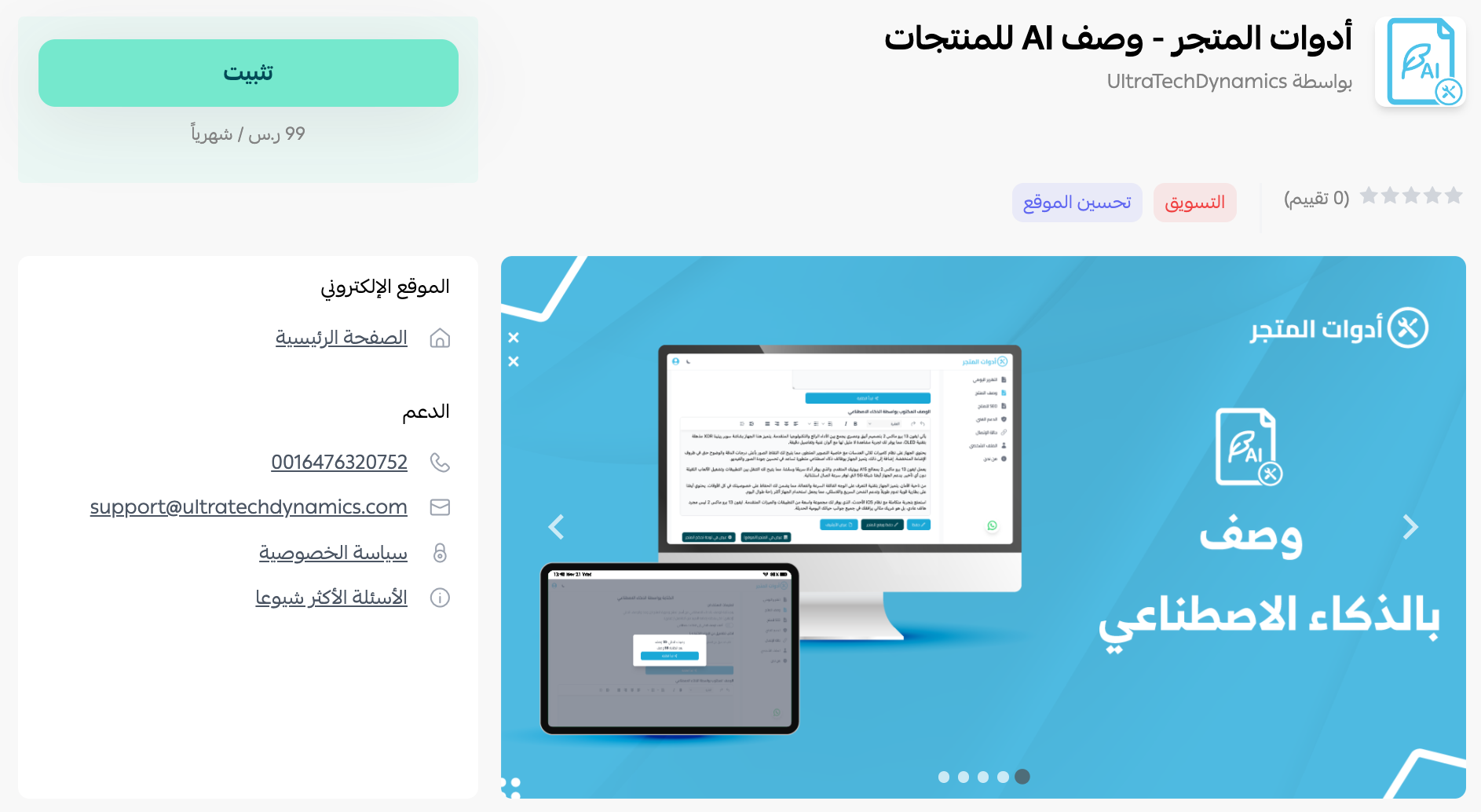
3. On the Store Tools - AI product descriptions app page, click (Install).
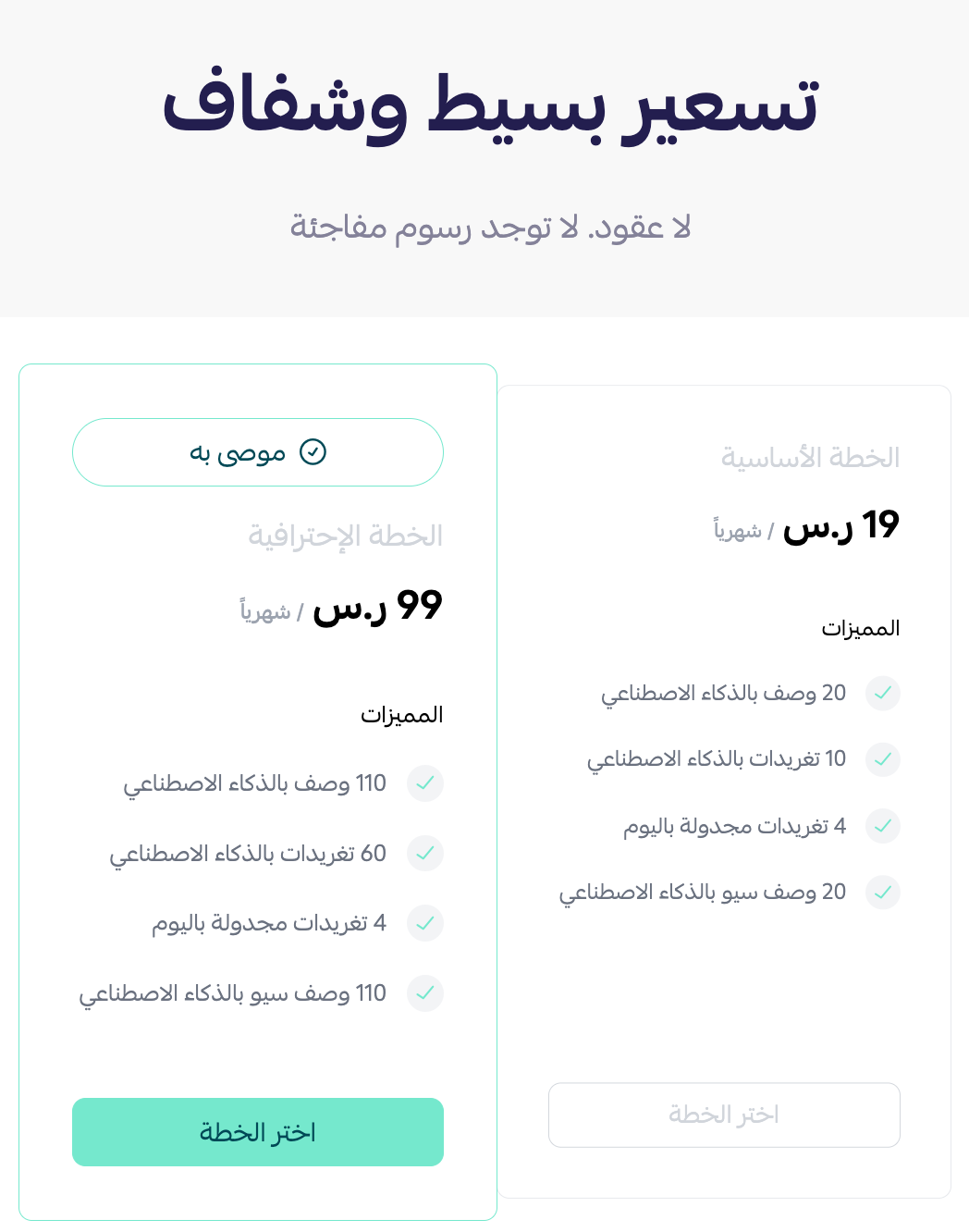
4. Choose the plan that fits your business to continue with the installation.
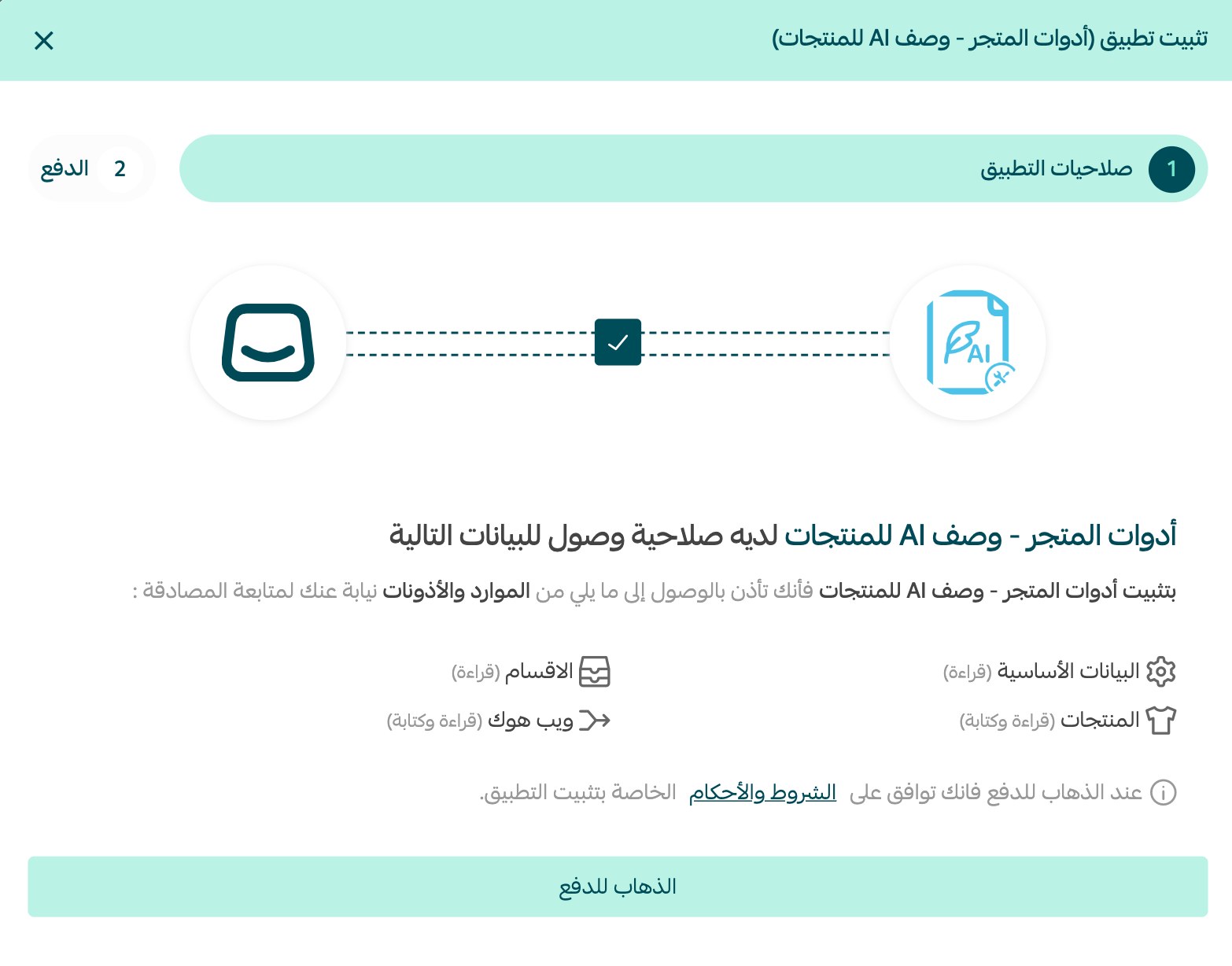
5. Review the permissions the app requests, then click (Go to payment).
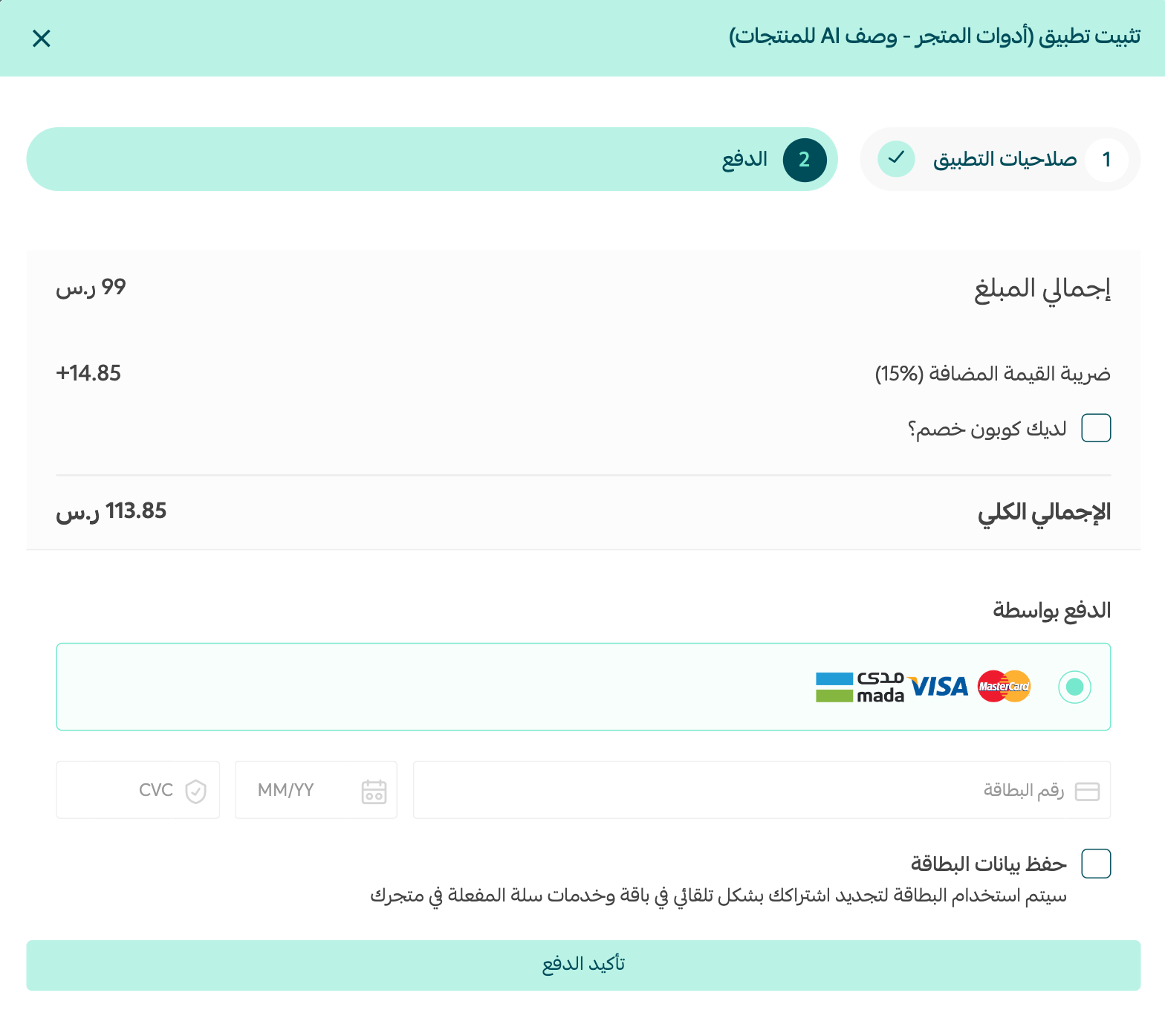
Complete the payment to unlock the app's features.
Done. The Store Tools - AI product descriptions app is now installed on your store.
For more detail, see managing your store apps.
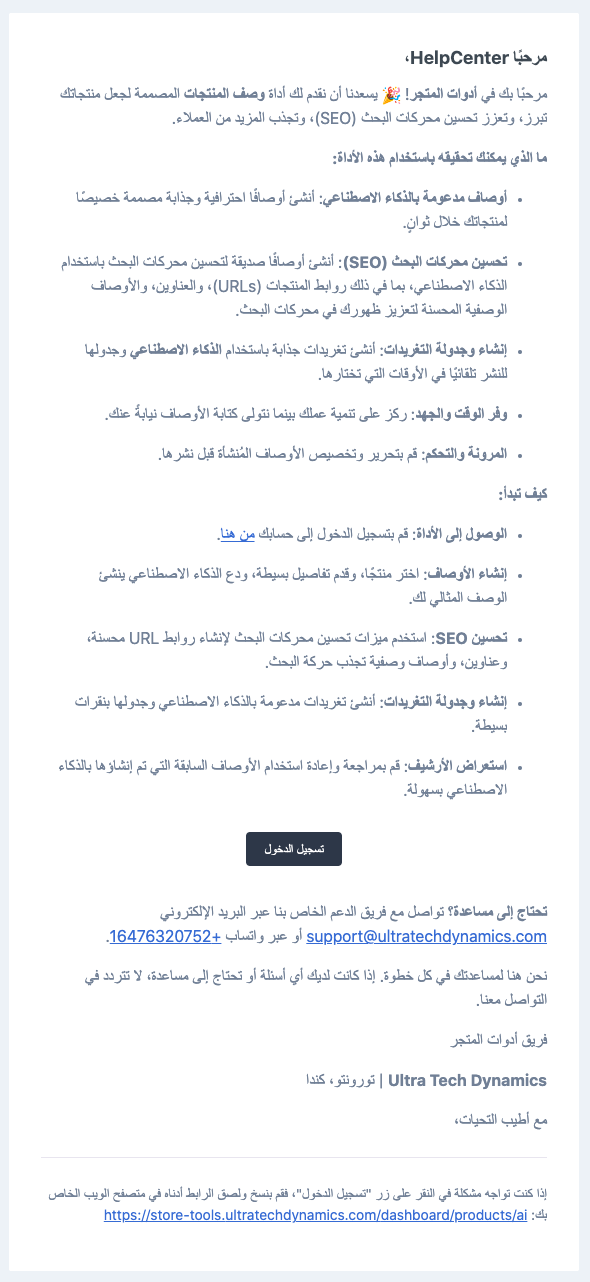
6. Check your inbox. The app sends you an email explaining how to sign in to your account.
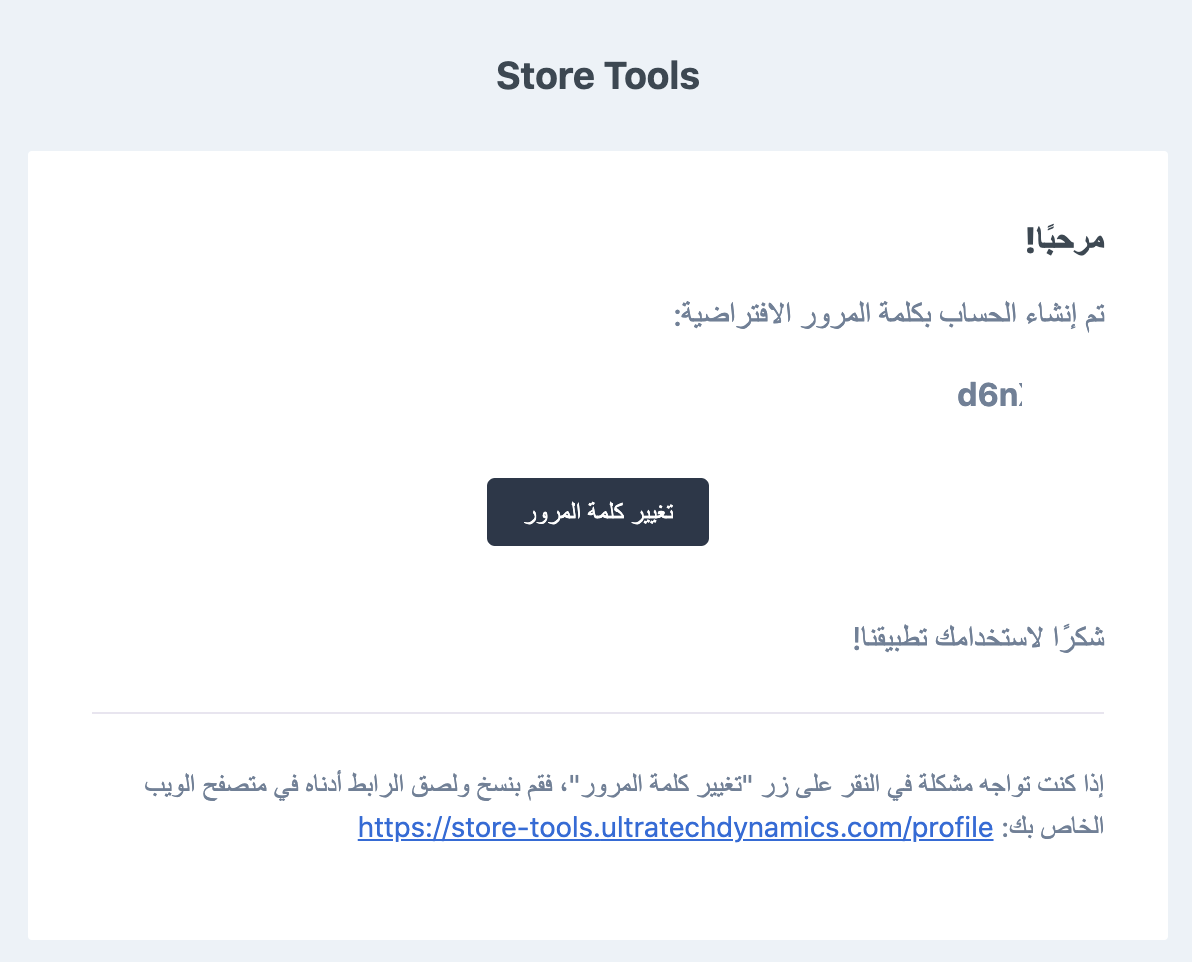
Your account password is delivered in that same email.
👣 How to sign in and write your first AI product description
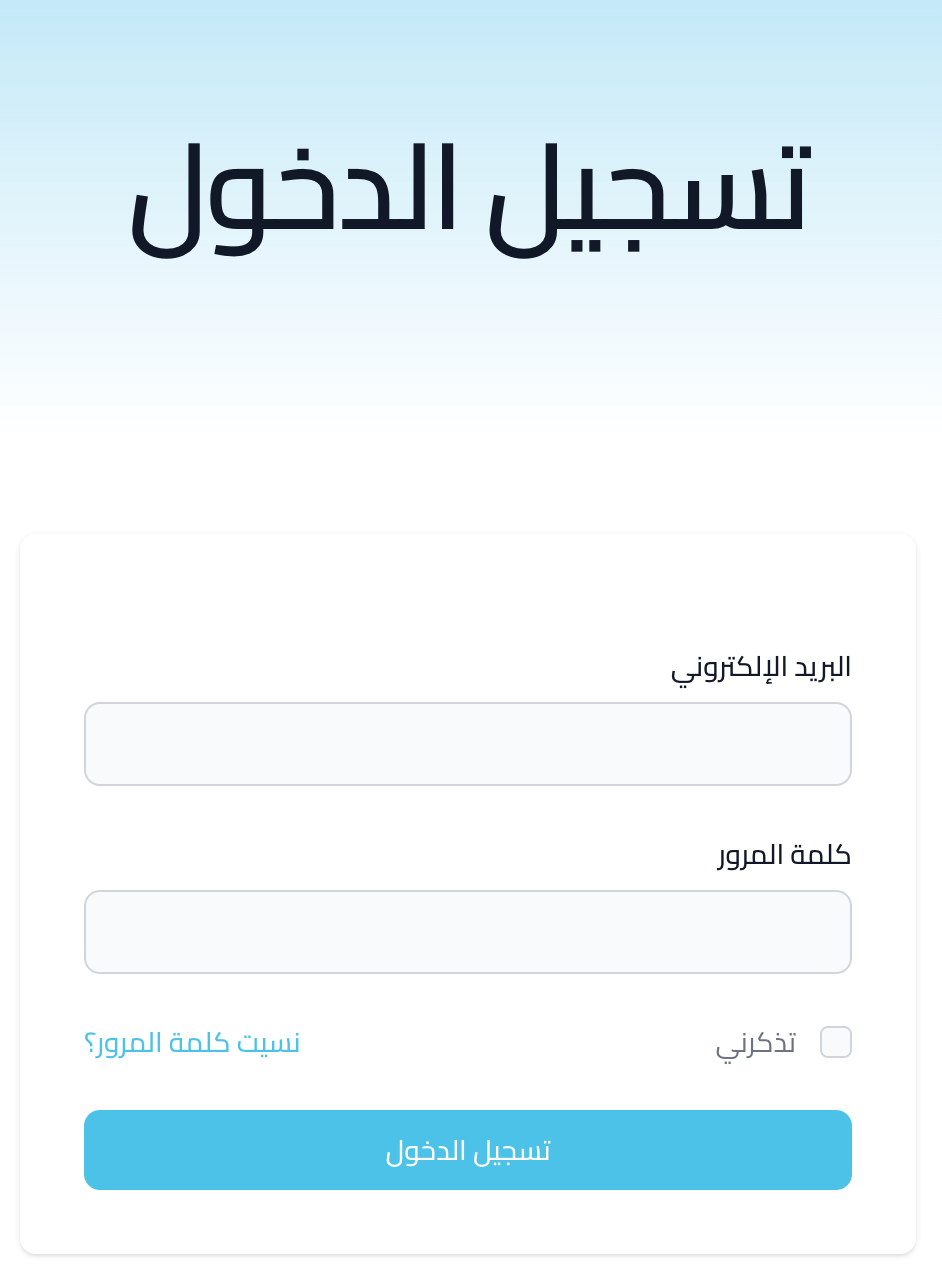
1. Sign in to the platform using the credentials you received by email.
2. Import your products from your store so the app has something to write about.
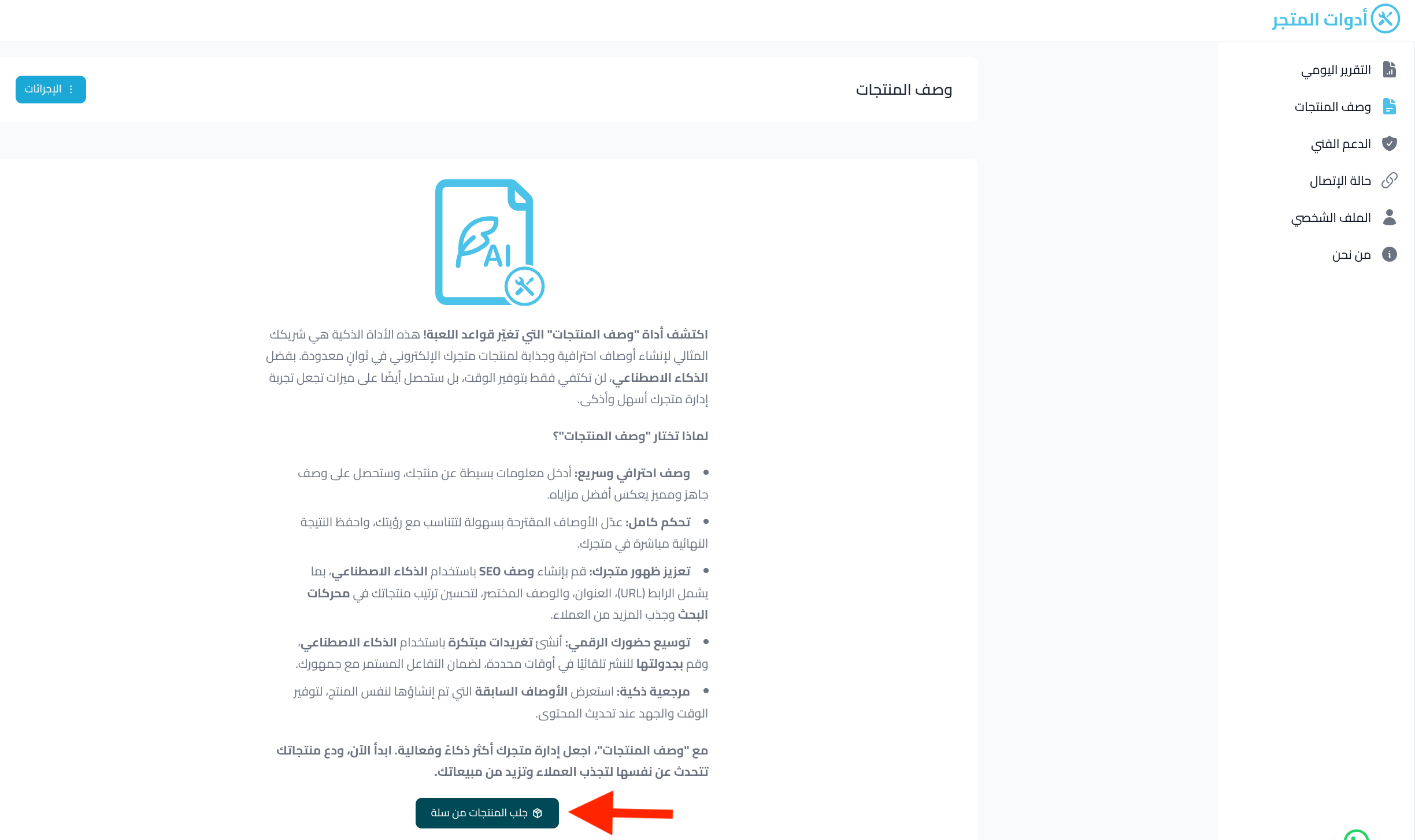
3. Select the product you want a description for, then click (Write a description with AI).
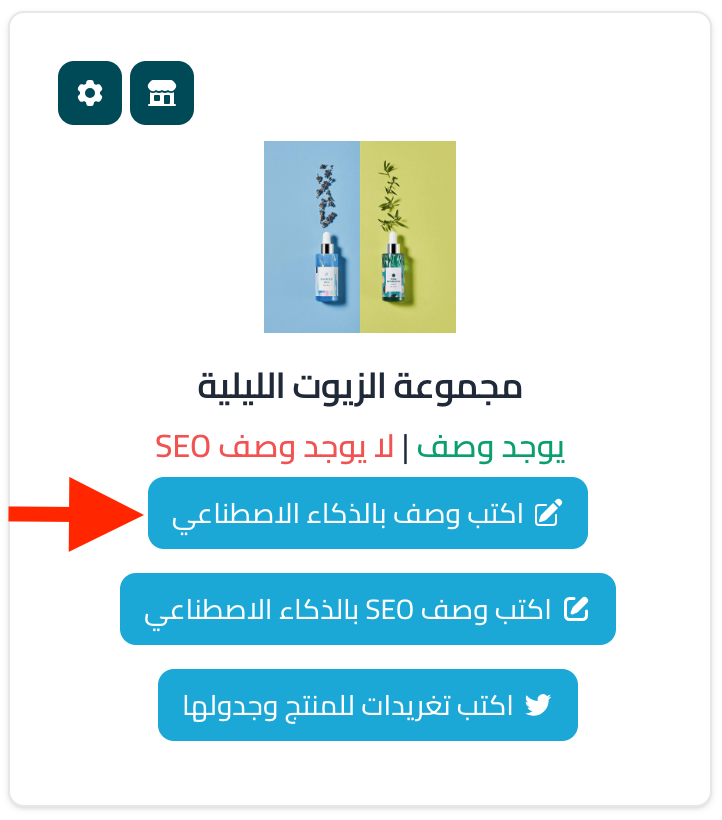
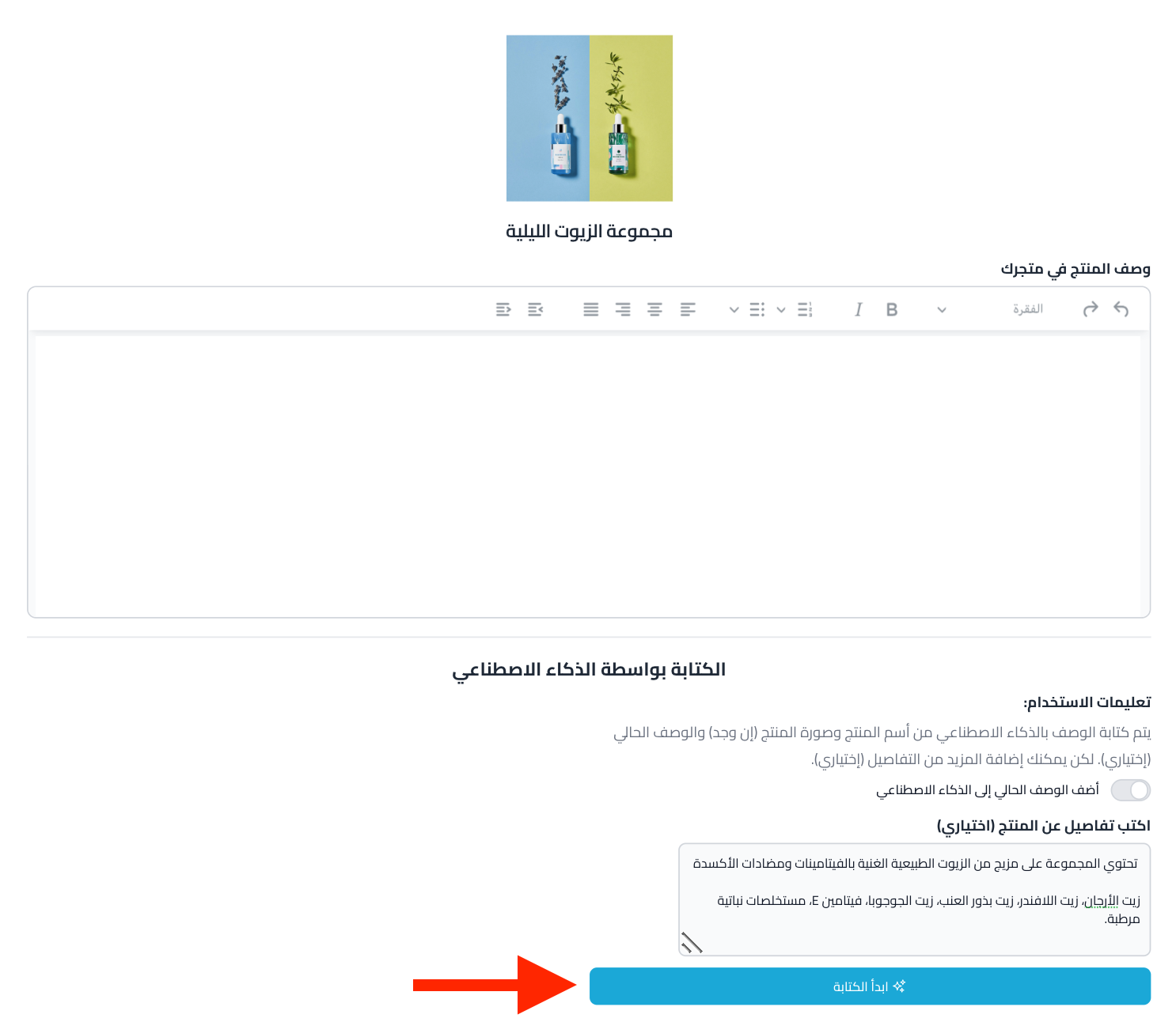
4. Add any details about the product that will help the AI be accurate, then click (Start writing).
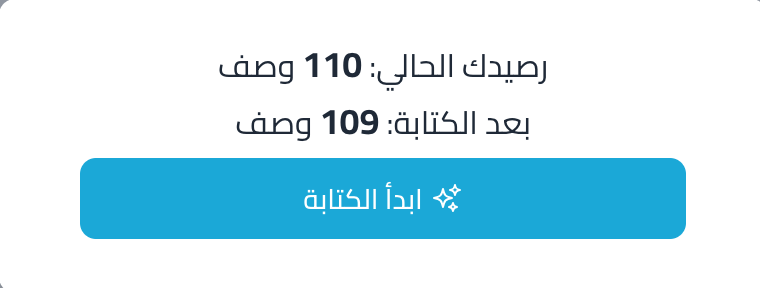
5. A notice appears showing how many points the request will use. Click (Start writing) to confirm.
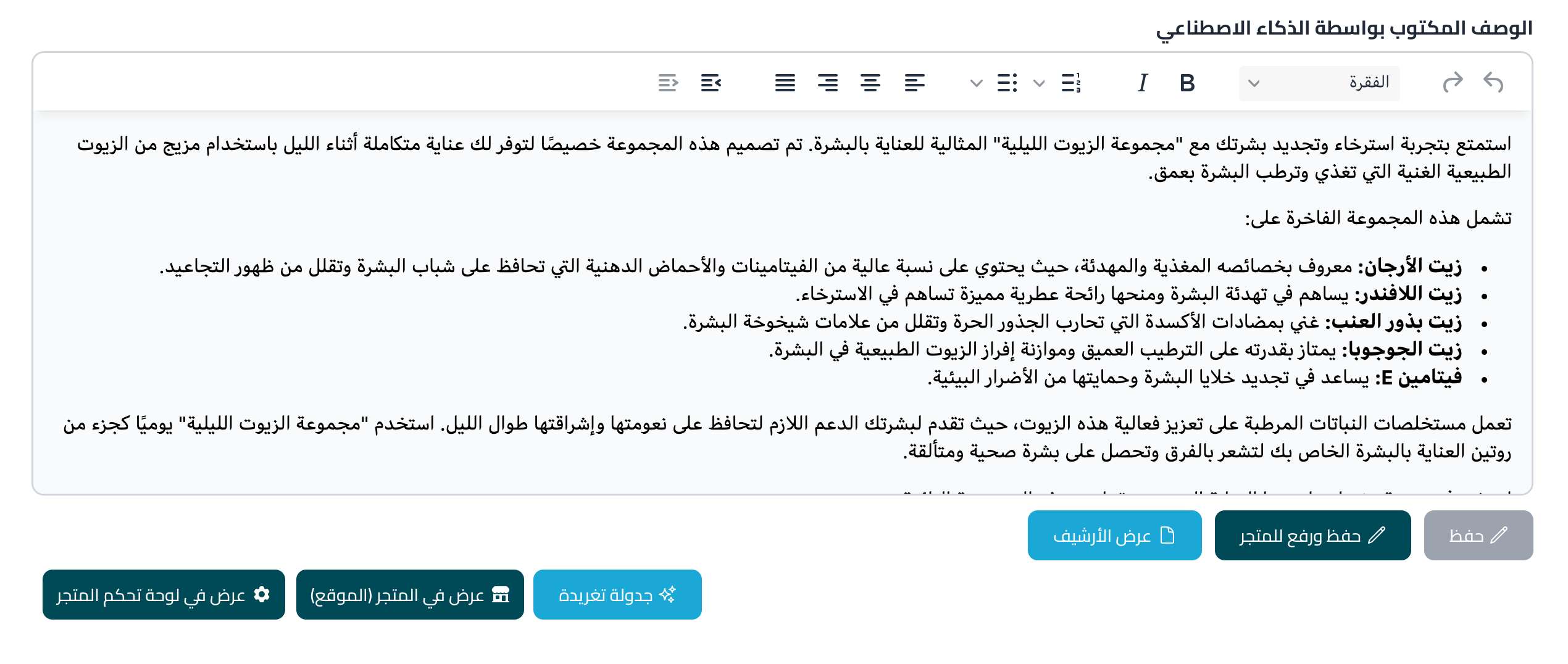
6. Read the generated description, then choose the action that suits you.
📝 Important notes
- Each description you generate consumes points from your plan, so the plan you choose in step 4 sets how much you can write.
- The more product detail you give the app before generating, the more accurate the description will be.
How to remove the app from your store
1. From the dashboard side menu, click (Installed apps).

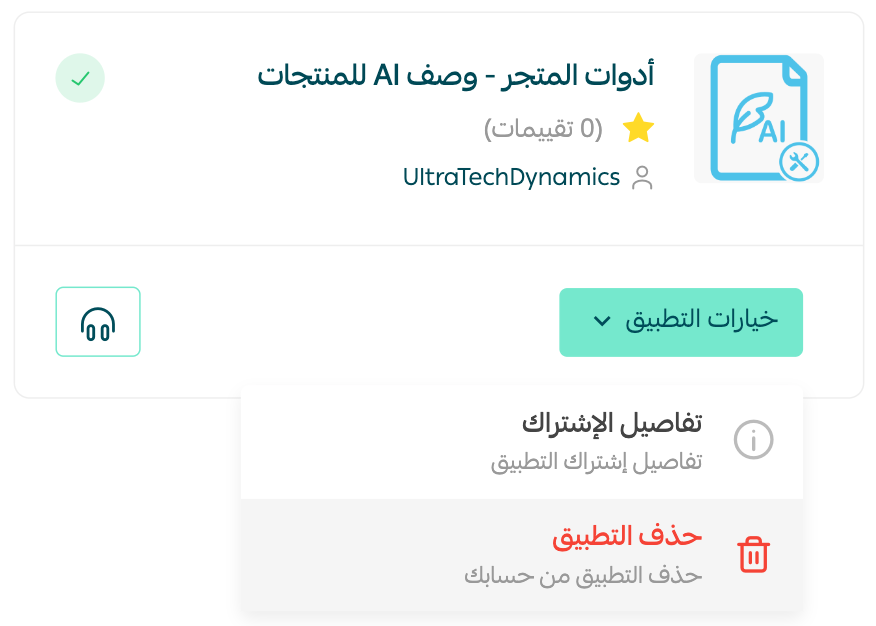
2. On the all apps page, find Store Tools - AI product descriptions, click (App options), then click (Delete app).
❓ Frequently asked questions
Do I write the descriptions inside my Salla dashboard?
No. You install the app from the Salla App Store, but the writing itself happens on the app provider's own platform, which you sign in to with the credentials sent to your email.
Why haven't I received the sign-in email?
The email is sent after the payment for your chosen plan goes through. If it has not arrived, check your spam folder and confirm the app shows as installed on your (Installed apps) page.
Does the app publish the description to my product page automatically?
Once a description is generated, you choose what to do with it from the actions shown next to the result — nothing is applied without you selecting an action.
What happens to my generated descriptions if I delete the app?
Deleting the app removes it from your store and ends its access. Any description you already applied to a product stays on that product. [Verify: whether the app provider retains generated content after deletion.]
Product copy is one of the few things on a product page you fully control. Letting AI draft it means you spend your time editing and positioning instead of staring at an empty description field.