In this article, we’ll continue the Salla Chat setup steps, focusing on configuring chat settings and customizing the available tools to improve communication and enhance customer management efficiency in your store.
📌 Article overview
- How to add macros
- How to create canned responses
Salla Chat settings options
Macros
A macro is a tool that helps customer support agents work more efficiently.
Instead of performing multiple manual steps every time (such as adding tags, sending emails, or updating customer data), agents can create a set of actions that are executed automatically when the macro is used.
You can add a macro from the Settings section by clicking Macros, then selecting Add new macro.
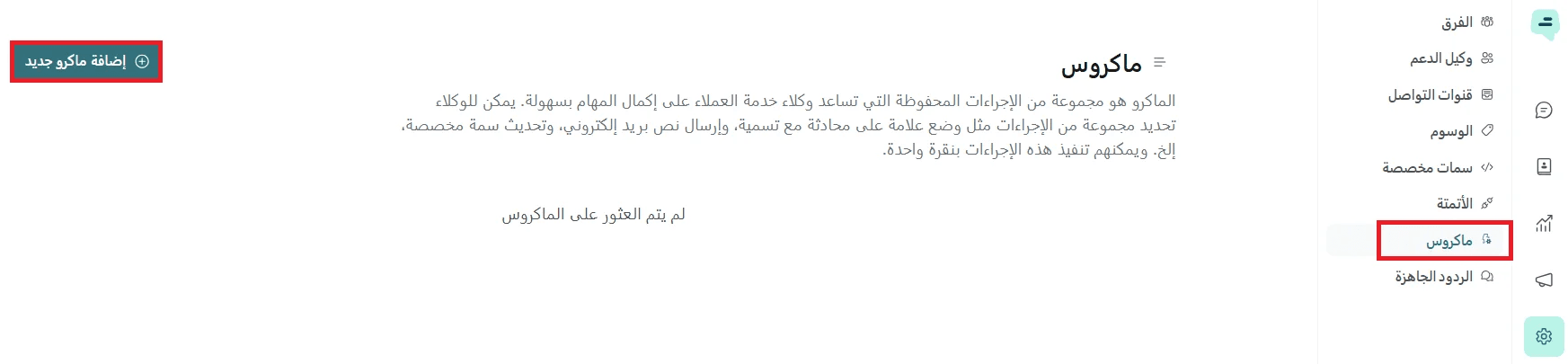
When you open the macro setup screen, you will be able to:
- Define actions: Select the actions you want to execute automatically when the macro is triggered.
- Name the macro: Give it a clear name so it’s easy to recognize when needed.
💡 Example:
You run an online store and want to speed up responses to customer complaints.
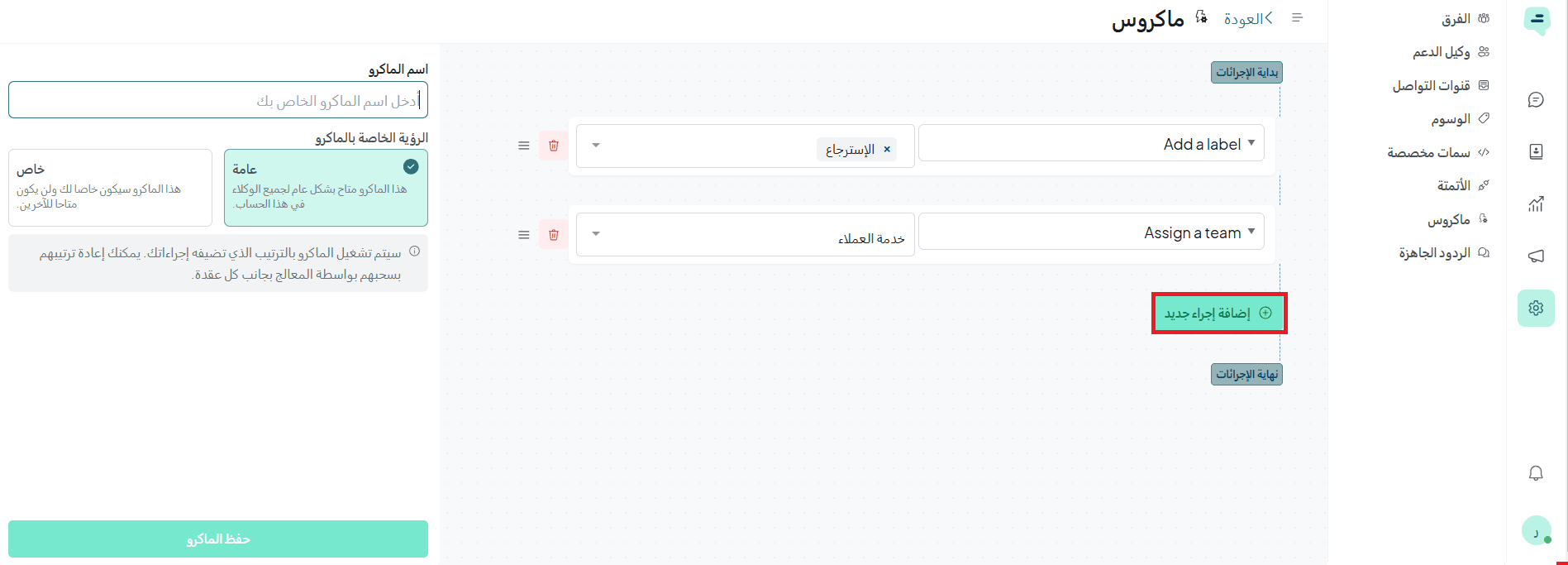
- Add a tag called Returns
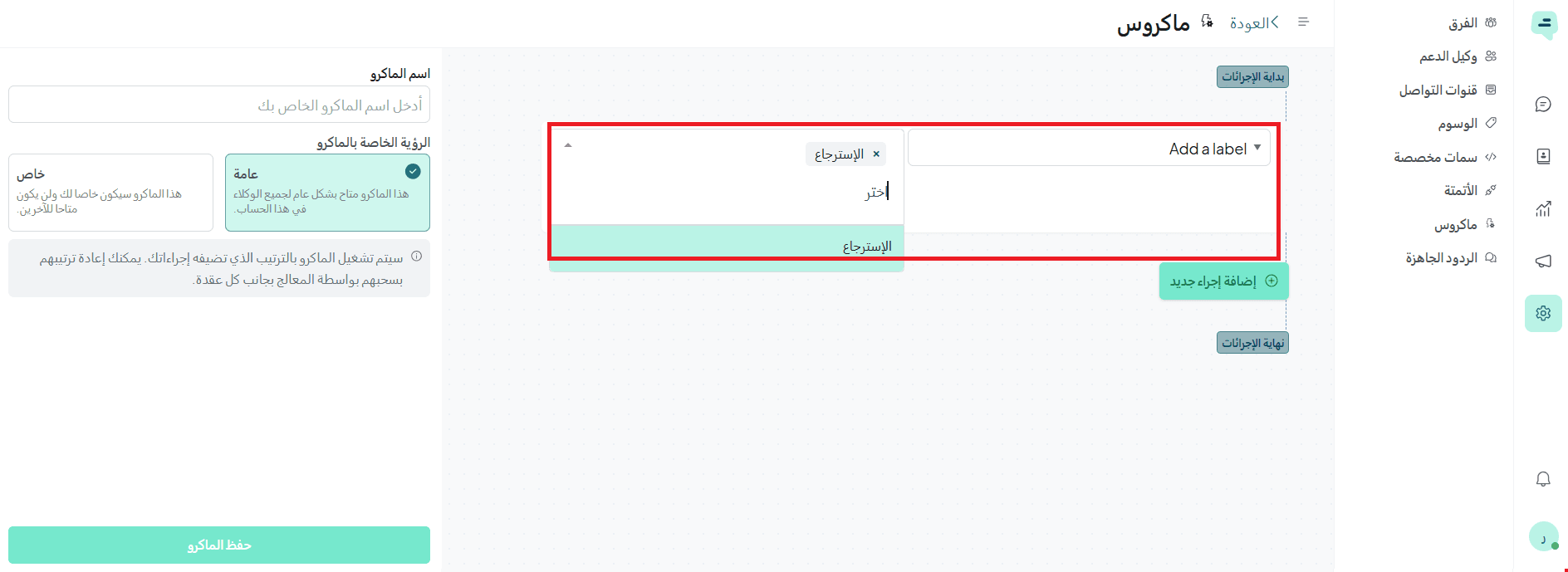
- Click Add new action
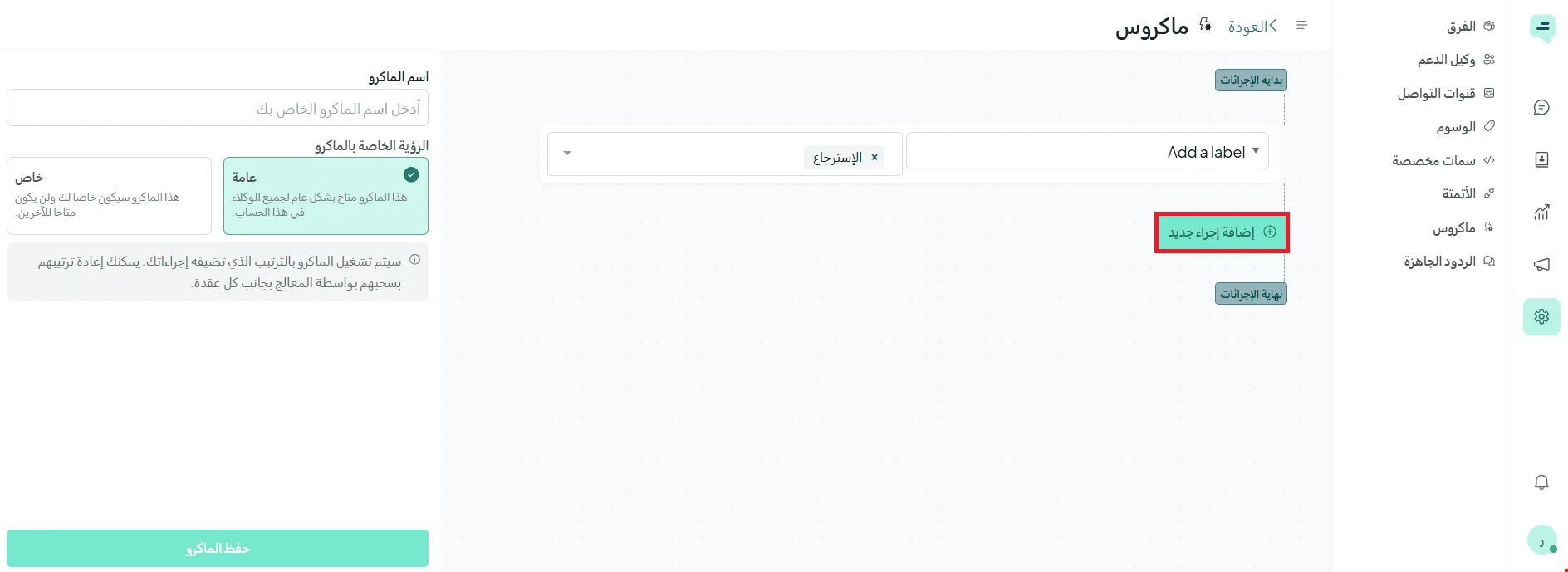
- Assign the conversation to the customer support team
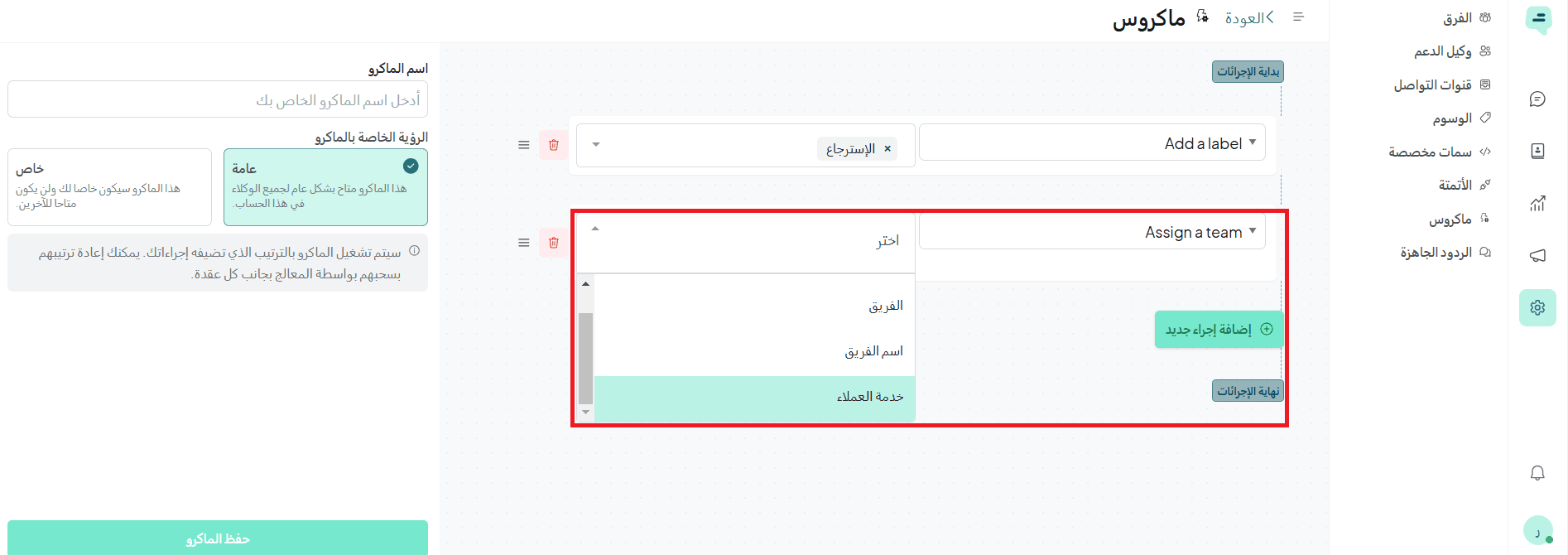
- Click Add new action
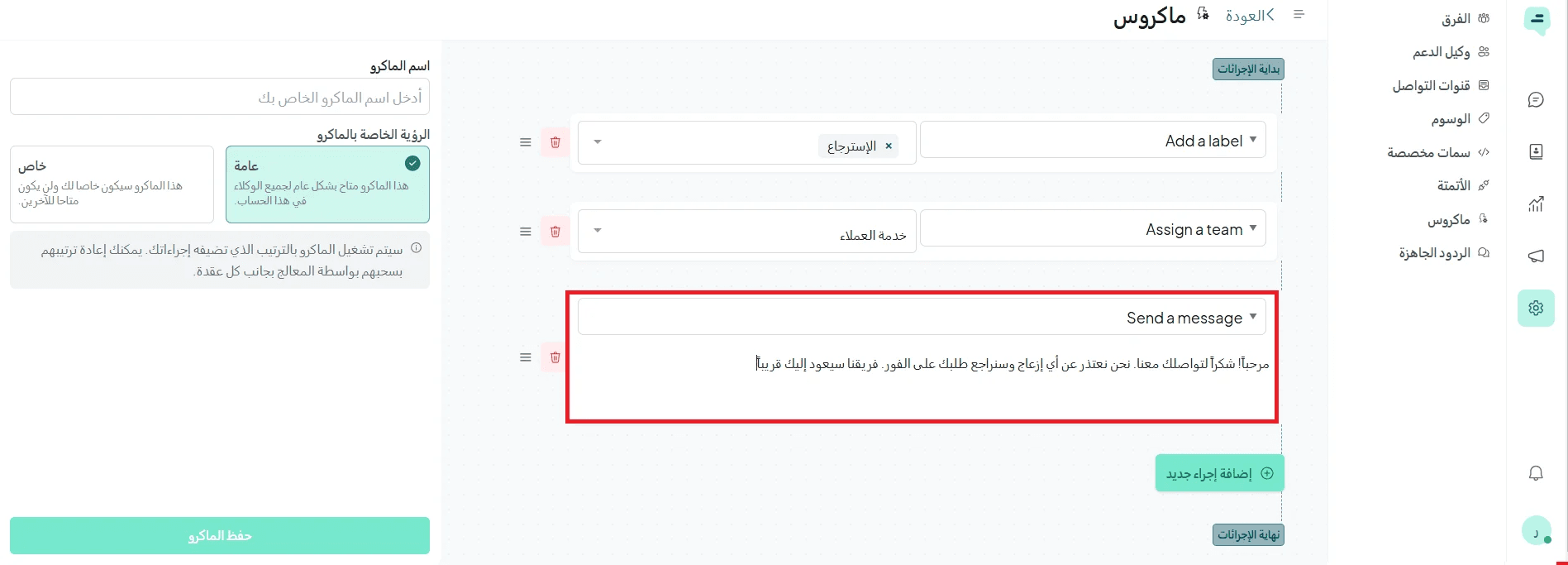
- Send an automatic message: “Hello! Thank you for contacting us. We apologize for any inconvenience and will review your request immediately. Our team will get back to you shortly.”
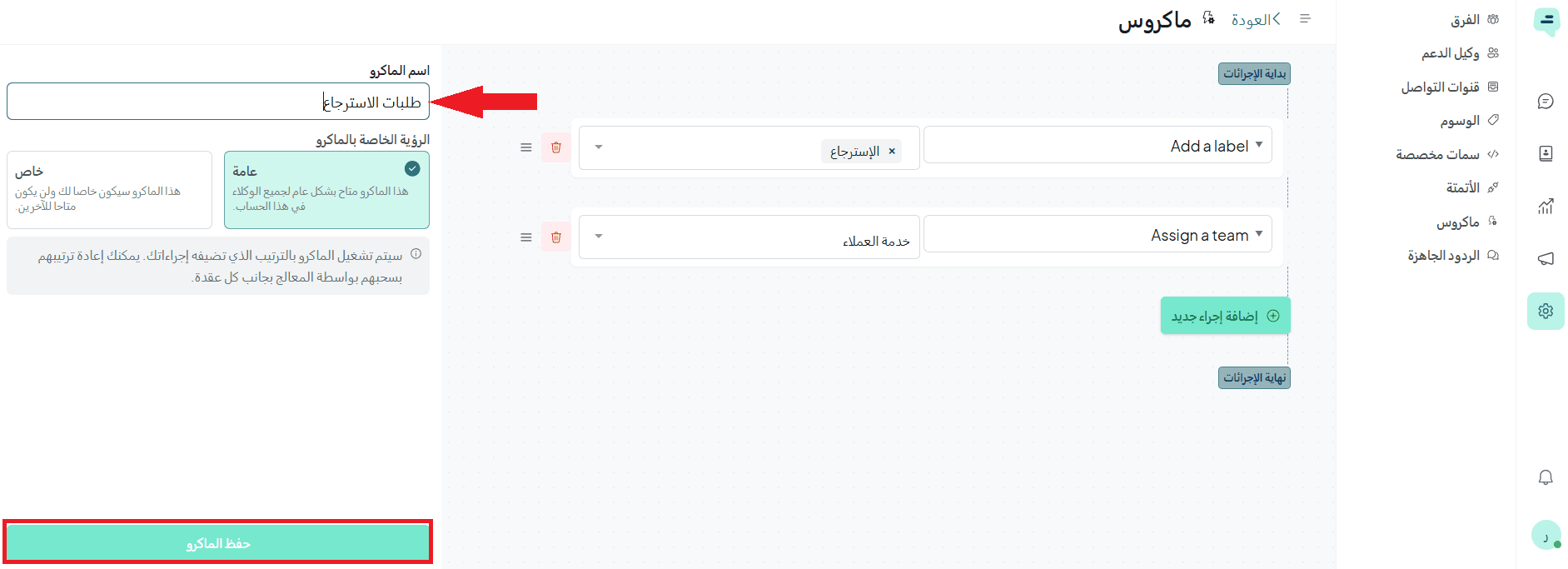
- Name the macro Return requests, then click Save macro
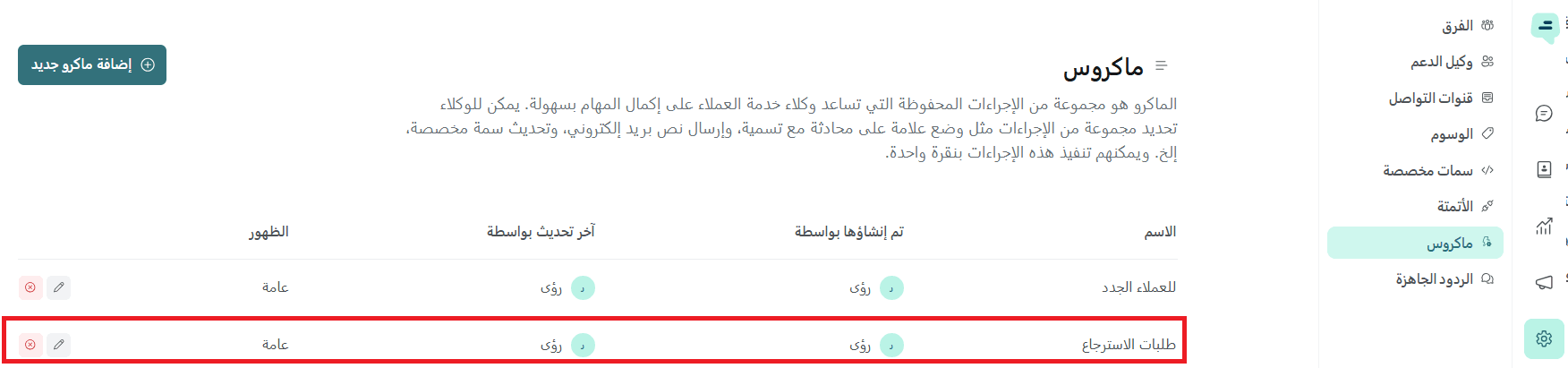
🎉 Done! The macro has been created successfully. The system will automatically:
- Add the Returns tag
- Assign the conversation to the support team
- Send the prepared message to the customer
Canned responses
Canned responses are pre-written templates used to reply quickly and easily to common questions.
Agents can use them during chats by typing (/), then selecting the shortcut for the desired response to insert it directly into the message box.
You can create a canned response from Settings → Canned responses → Add new response.
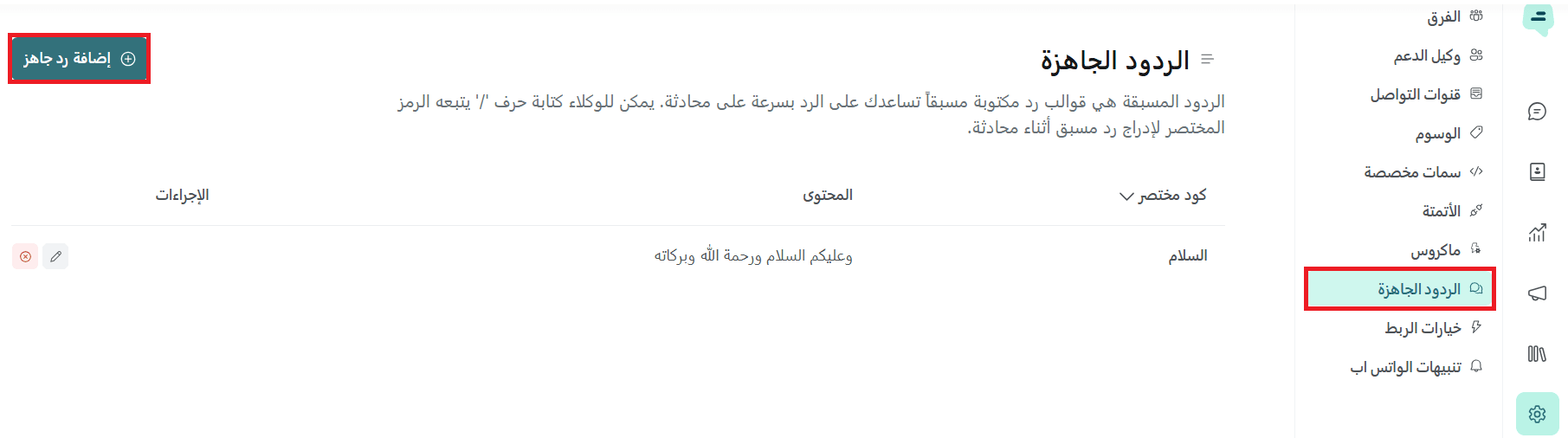
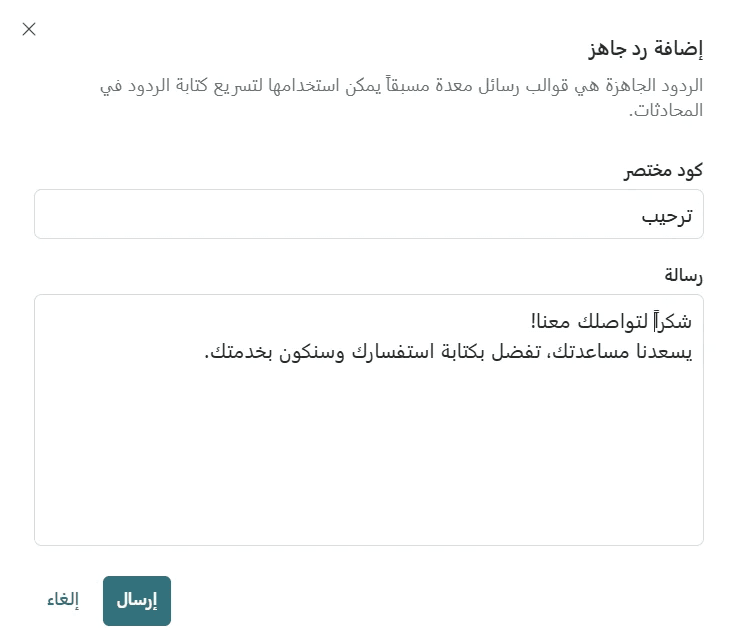
Enter:
- A shortcut name (e.g., Greeting)
- The content (e.g., “Thank you for contacting us! We’re happy to assist you. Please share your inquiry and we’ll be glad to help.”)
Then click Send.
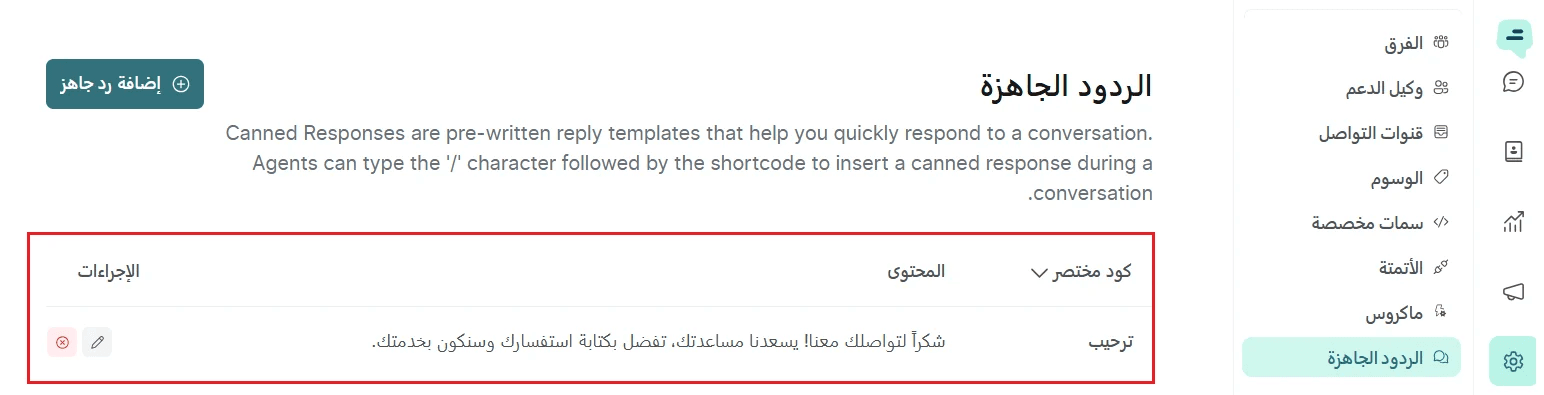
🎉 Congratulations! The canned response is now ready to use, helping you improve communication with your customers.
WhatsApp notifications
WhatsApp notifications provide a fast and effective way to communicate with your customers throughout their journey in your store.
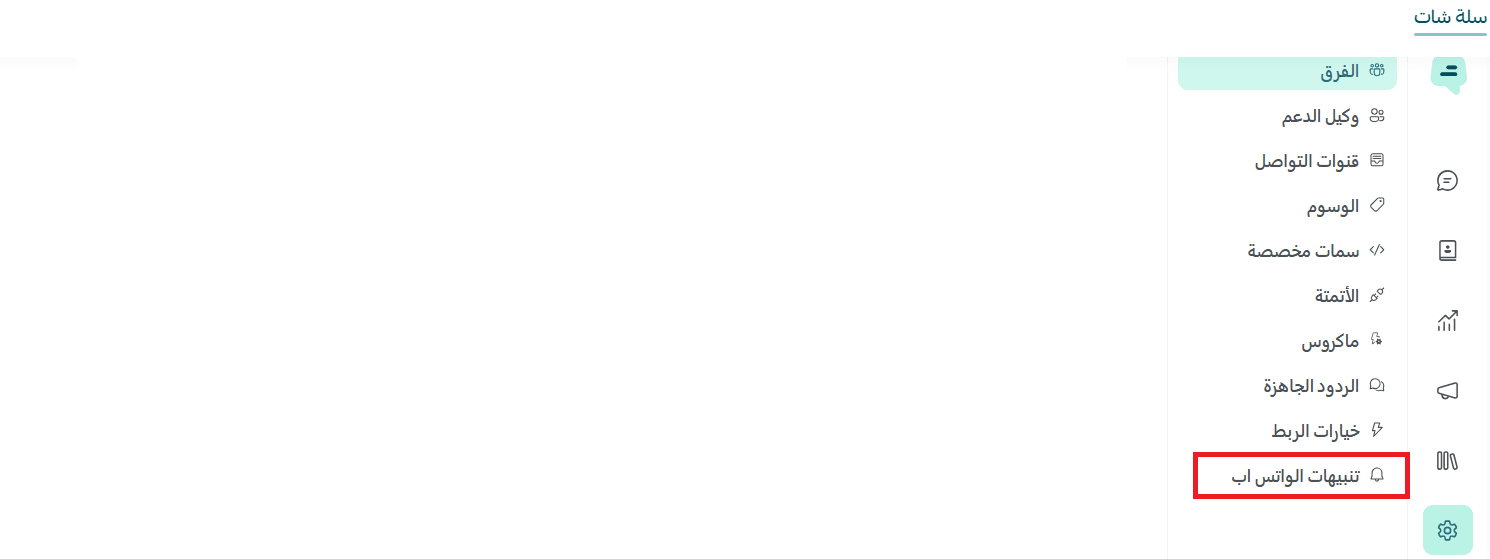
You can easily enable and manage these notifications by clicking WhatsApp notifications in the settings.
For more details, see WhatsApp notification settings.