In this article, we’ll explore the best ways to effectively manage your customer conversations using Salla Chat. We’ll walk through how to access conversations and control them easily to organize your workflow and improve the customer experience.
📌 Article overview
- Accessing conversations
- Managing conversations
How to access conversations
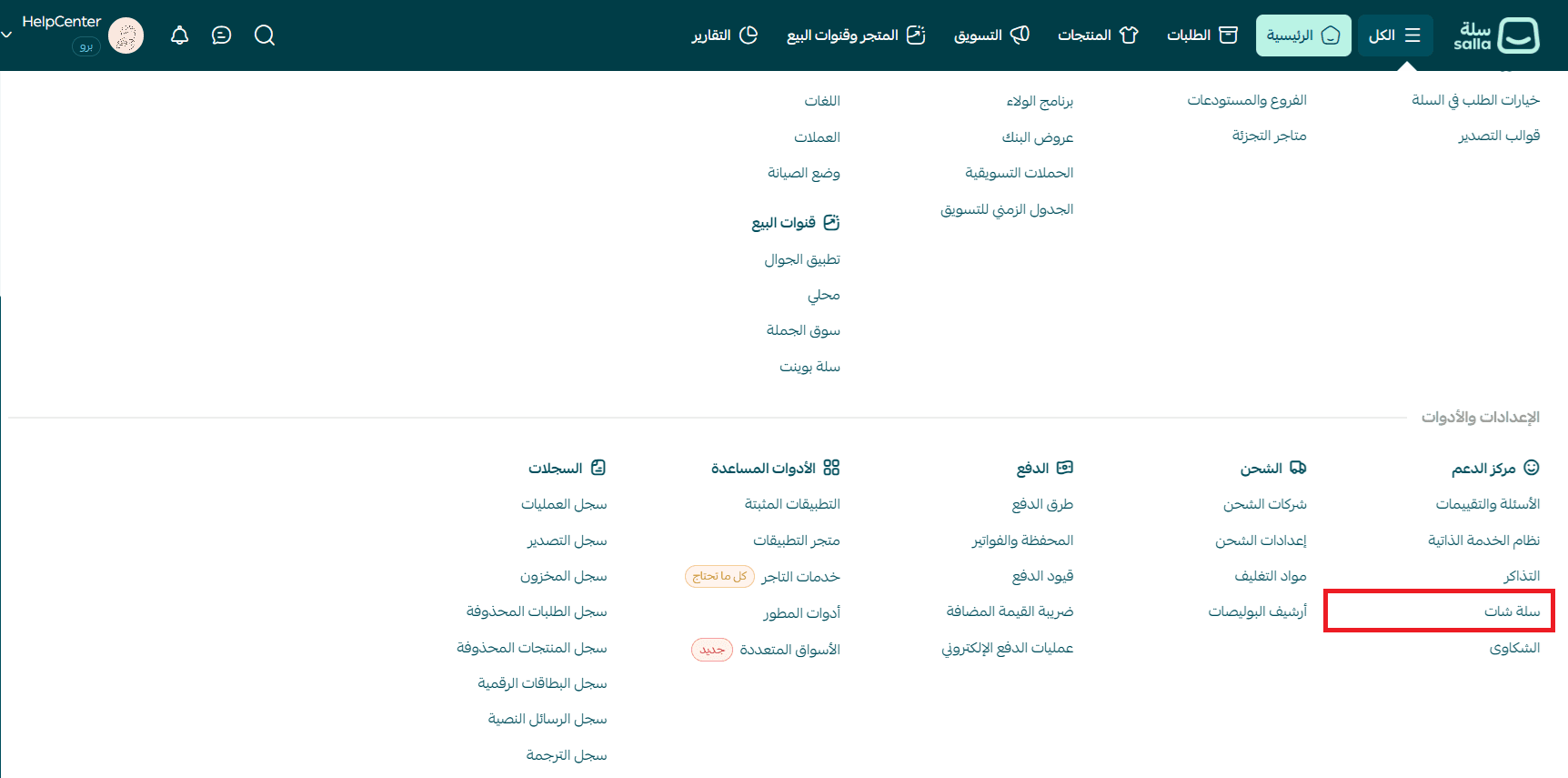
- From the main menu, click All, then from the Settings & tools section select Salla Chat.
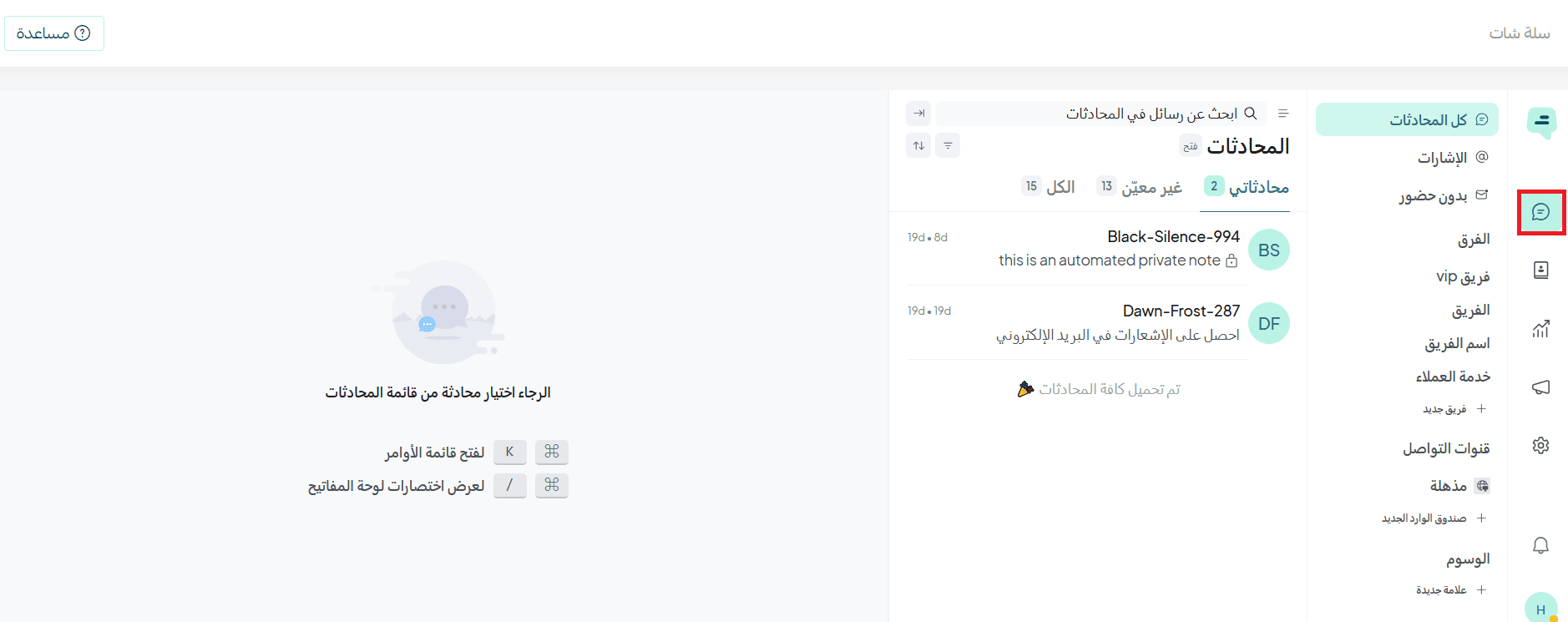
- From the Salla Chat menu, click the Conversations icon.
Filtering conversations
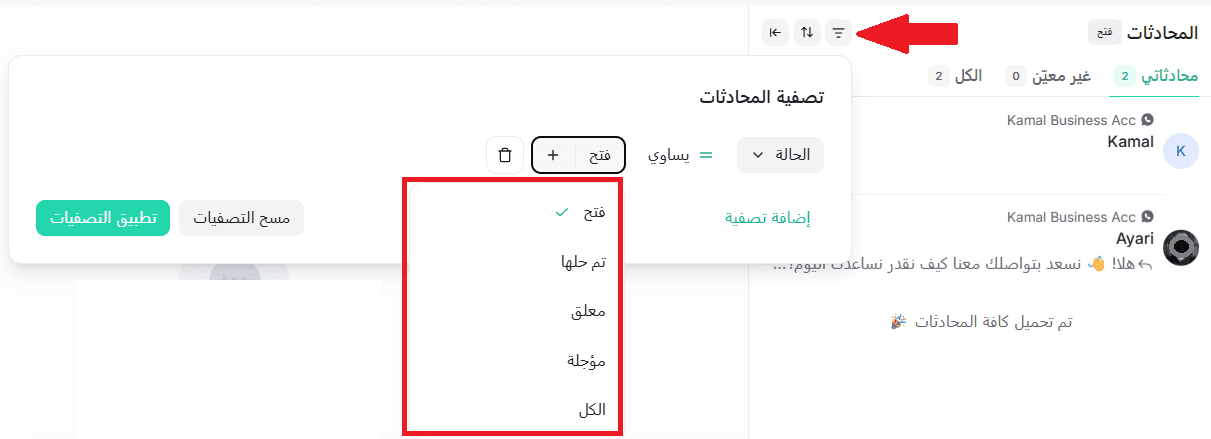
The filter icon allows you to display conversations based on specific conditions. When you click the filter icon, you can create a filter condition as follows:
- Select filter type
From the first dropdown, choose the category (e.g., Priority) to define what you want to filter by. - Set comparison method
From the middle option (e.g., equals or not equals) to define how the filter works. - Choose value
From the last dropdown (e.g., Open, Resolved, Pending, Snoozed, All), select the desired status.
After setting the options, click Apply filters to view results, or Clear filters to reset and show all conversations.
Note: You can click Add filter to apply multiple conditions for more precise results.
Managing conversations
1. All conversations
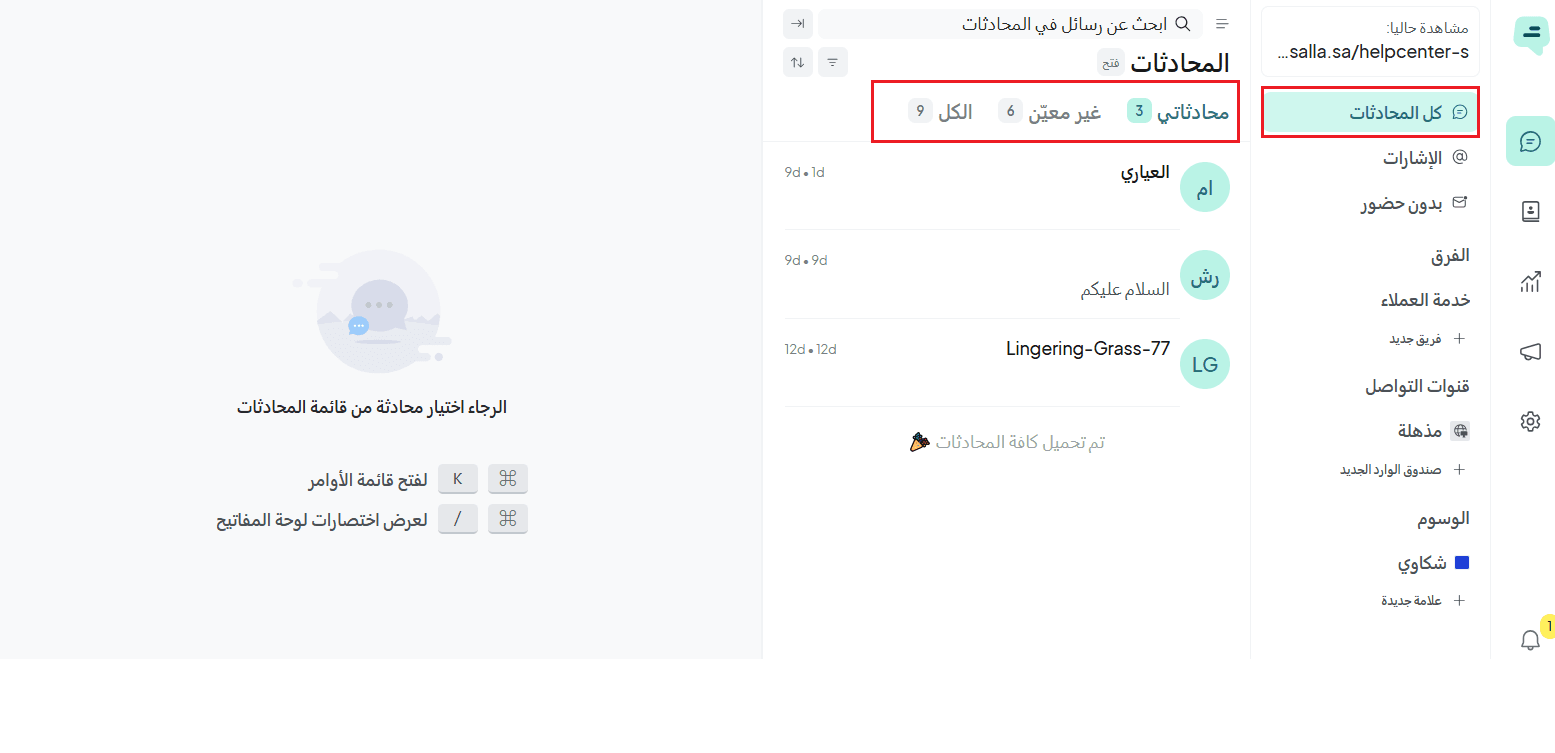
On the All conversations page, you can view all incoming conversations:
- My conversations: Shows conversations assigned to the employee
- Unassigned: Shows conversations not assigned to any employee
- All: Shows all conversations, whether assigned or not
When you open any conversation, you can respond in two ways:
- Reply: Sends a message visible to the customer
- Private note: Adds an internal note visible only to employees
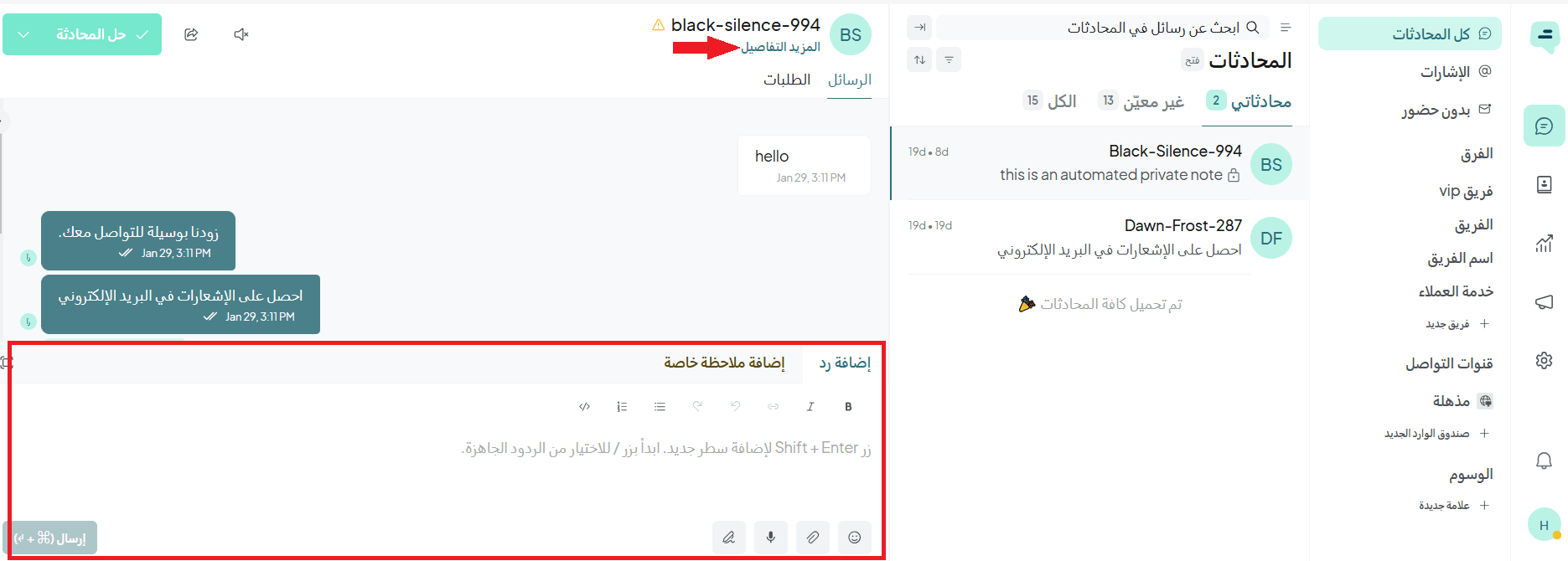
You can also click More details to view additional information about the conversation.
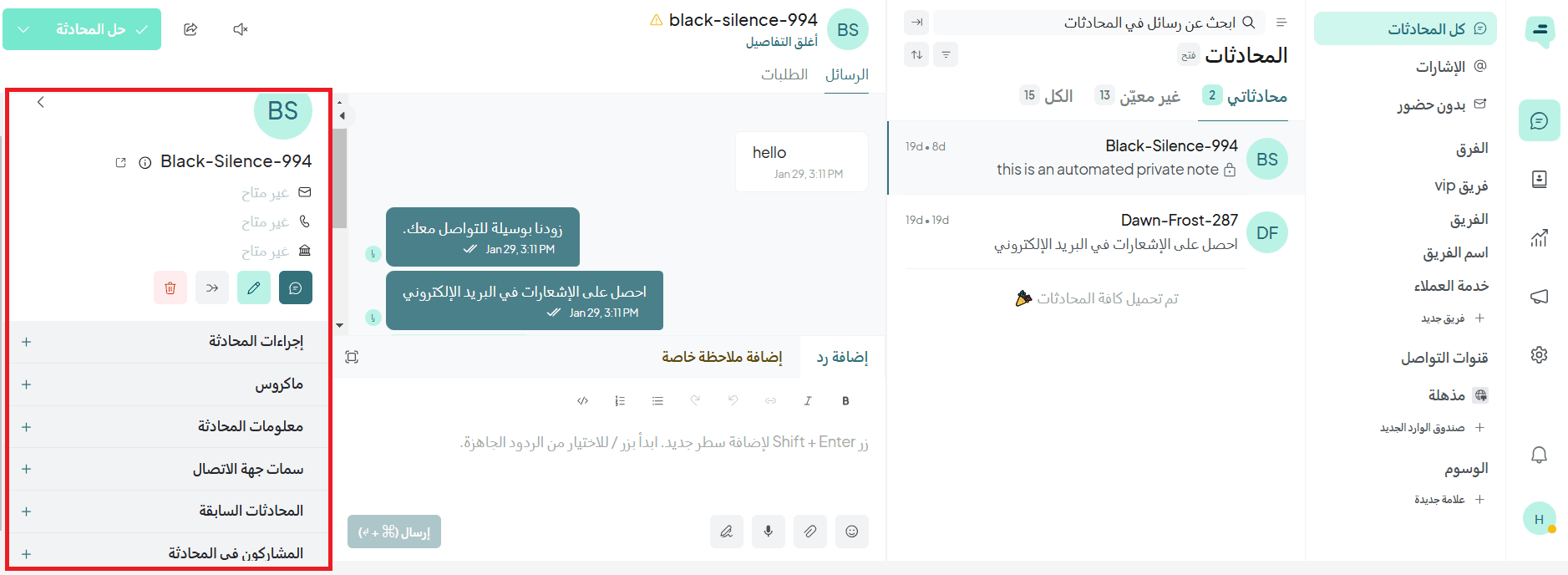
Conversation actions
You can perform several actions, including:
- Assigning the conversation to a specific agent
- Assigning it to a team
- Setting the priority
- Adding tags to the conversation
Additional sections
- Macros: Displays a list of macros created in chat settings
- Conversation Info: Shows details such as the start date and time
- Contact attributes: Displays information about the associated contact
- Previous conversations: Shows past conversations with the same customer
- Participants: Displays employees in the conversation
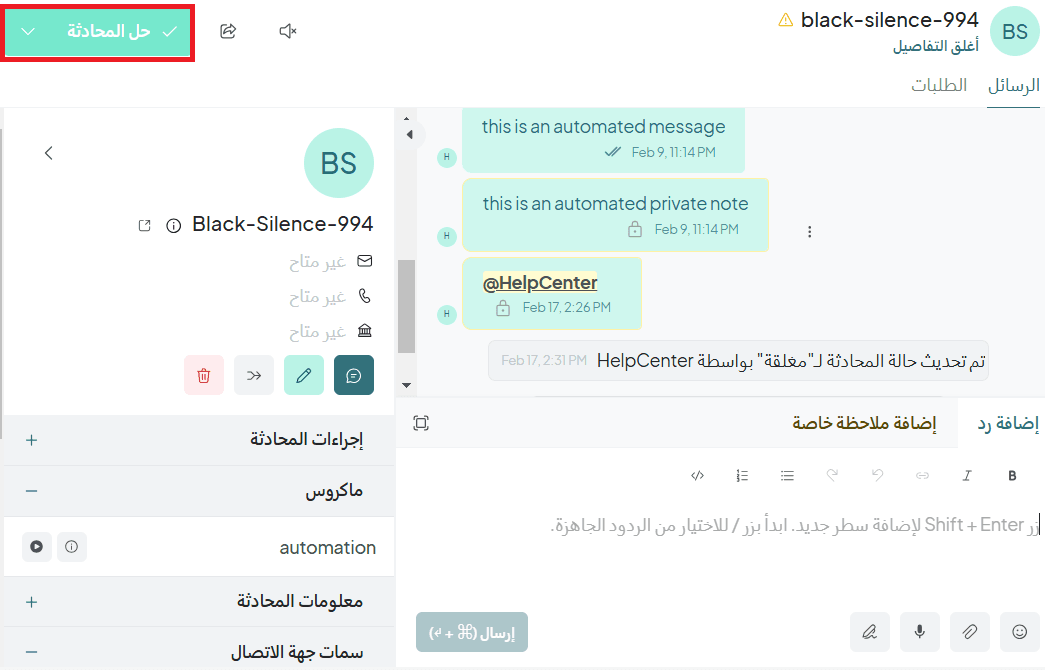
To close a conversation, click Resolve conversation.
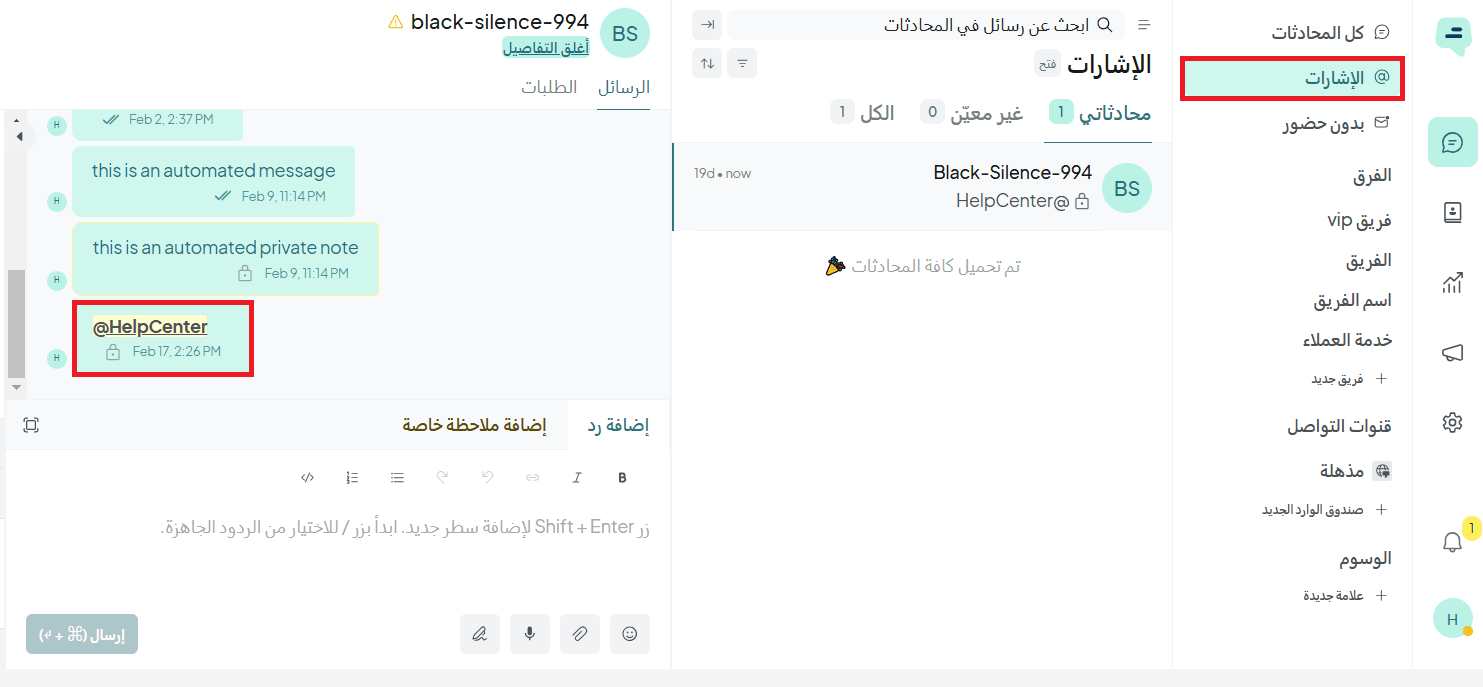
2. Mentions
When you click Mentions, you’ll see all conversations where you’ve been mentioned, making it easier to track and respond quickly.
3. Unattended
Unattended conversations are those that have not yet been assigned to any employee.
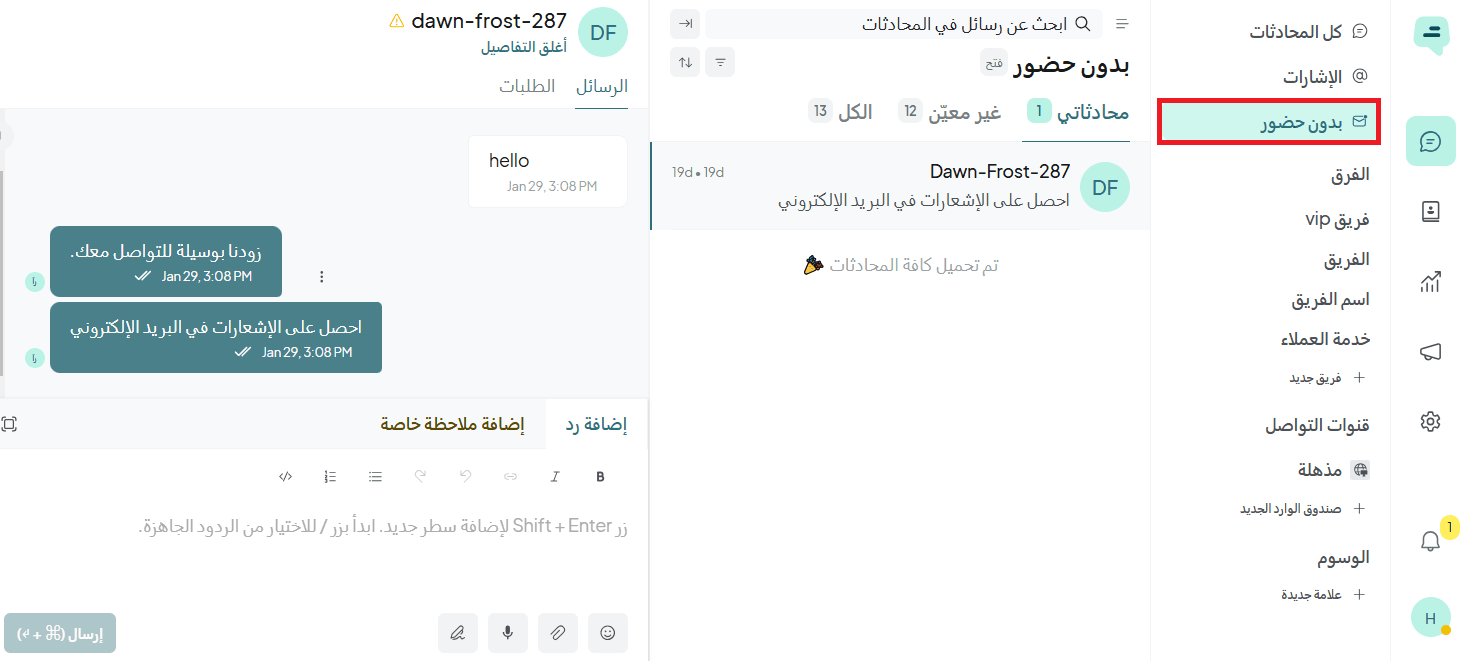
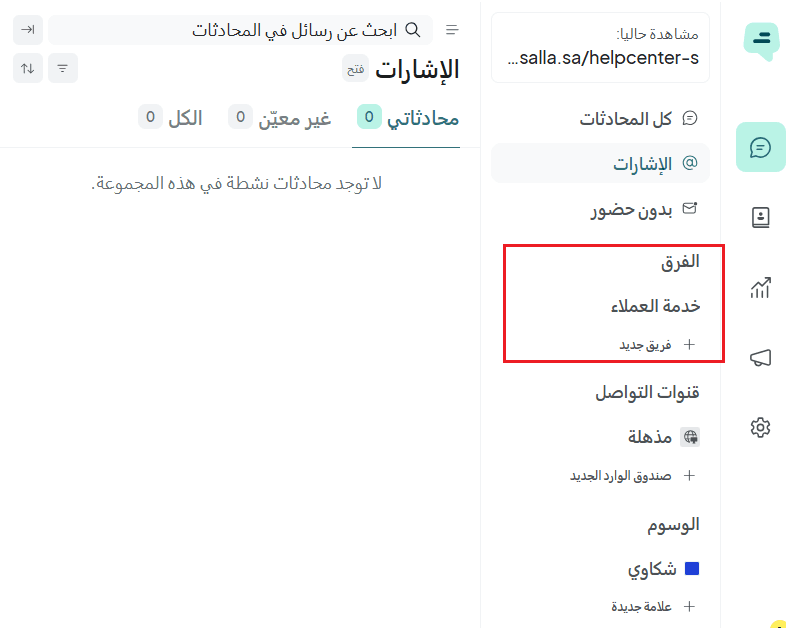
4. Teams
This section displays the teams the employee belongs to within the system.
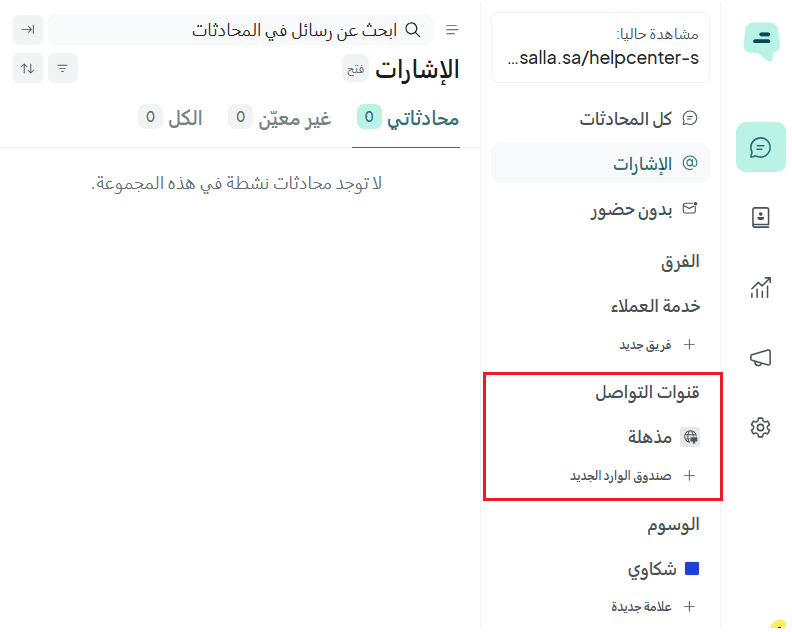
5. Communication channels
This section shows the different channels customers use to contact you (such as email), making it easier to manage conversations from multiple sources.
For more details, see the Salla Chat Settings – Basic settings article.
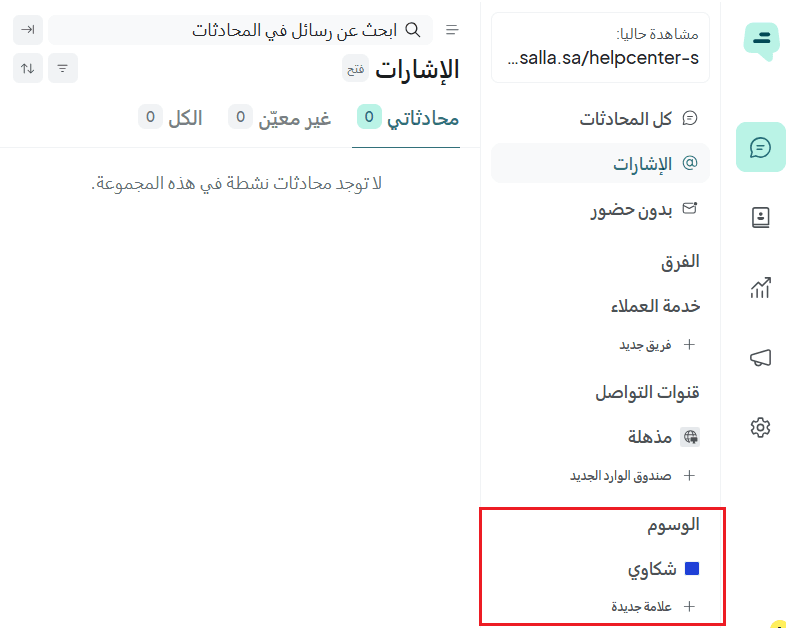
6. Tags
This section displays all tags that have been previously created in Salla Chat settings.
For more details, see the Salla Chat Settings – Basic Settings article.