In this article, we’ll walk through how to access Salla Chat reports and use them to improve your customer service. These reports help you monitor your support team’s performance, identify areas for improvement, and achieve customer satisfaction more efficiently.
📌 Article overview
- How to access reports
- Report details
How to access reports
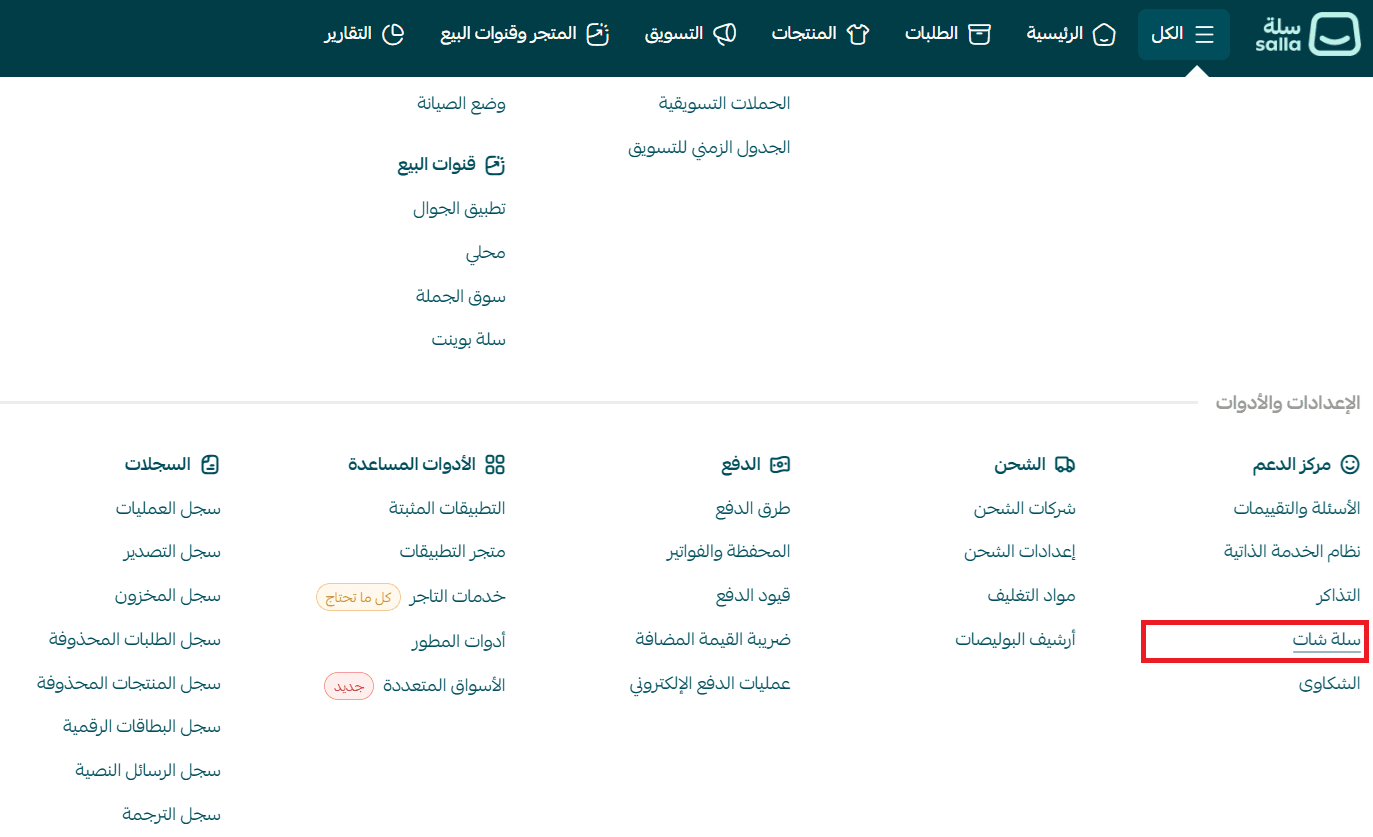
- From the main menu, click All, then select Salla Chat.
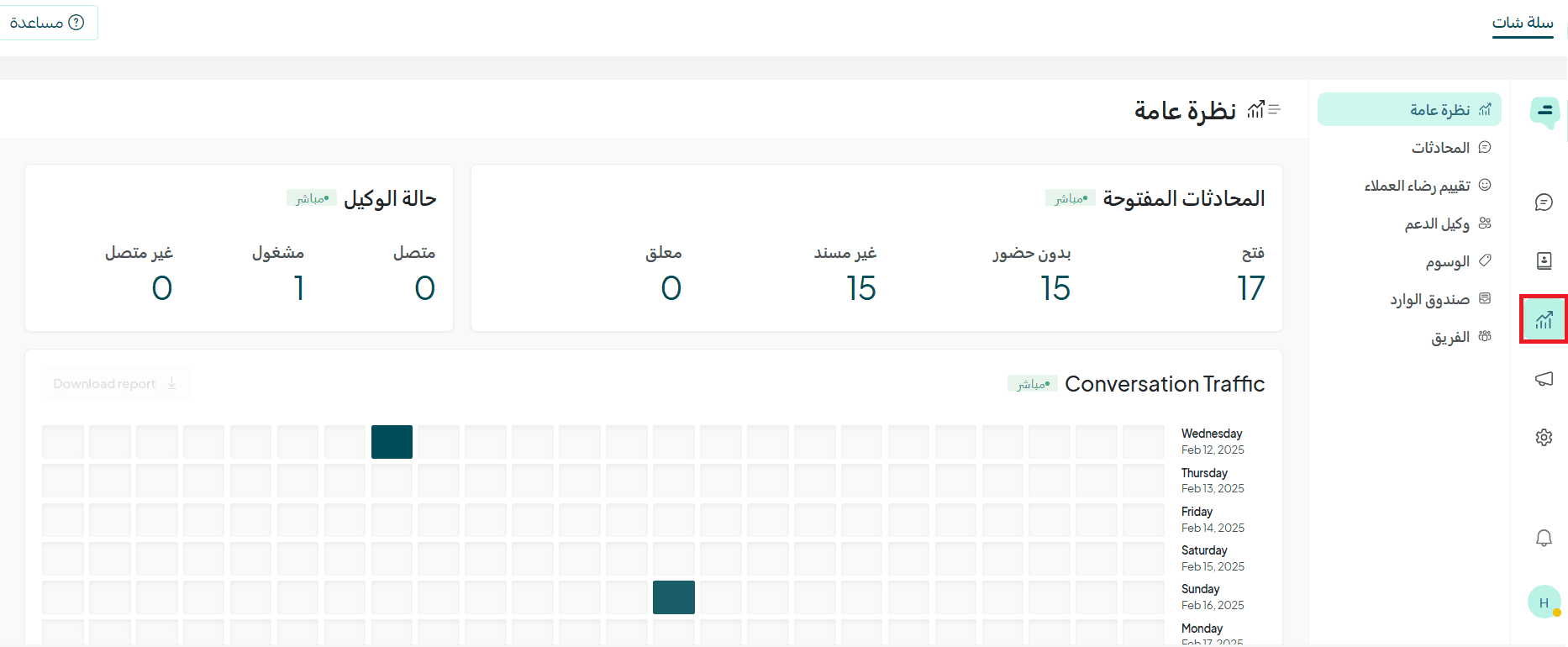
- From the Salla Chat menu, click the Reports icon.
Report details
1. Overview
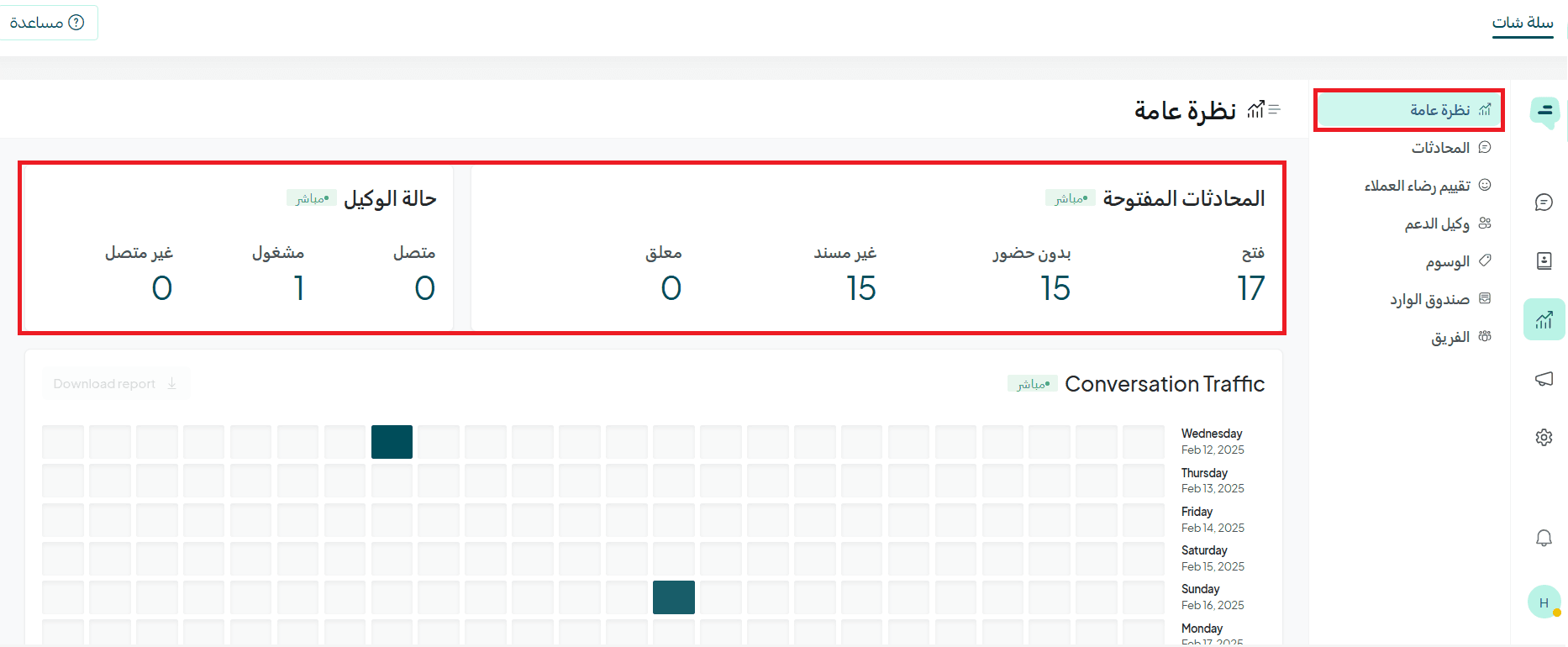
In this section, you can view the status of your support agents, such as:
- Online
- Busy
- Offline
The reports page also provides detailed statistics on:
- Open conversations
- Assigned conversations
- Unassigned conversations
- Pending conversations
This allows you to monitor workflow accurately and efficiently.
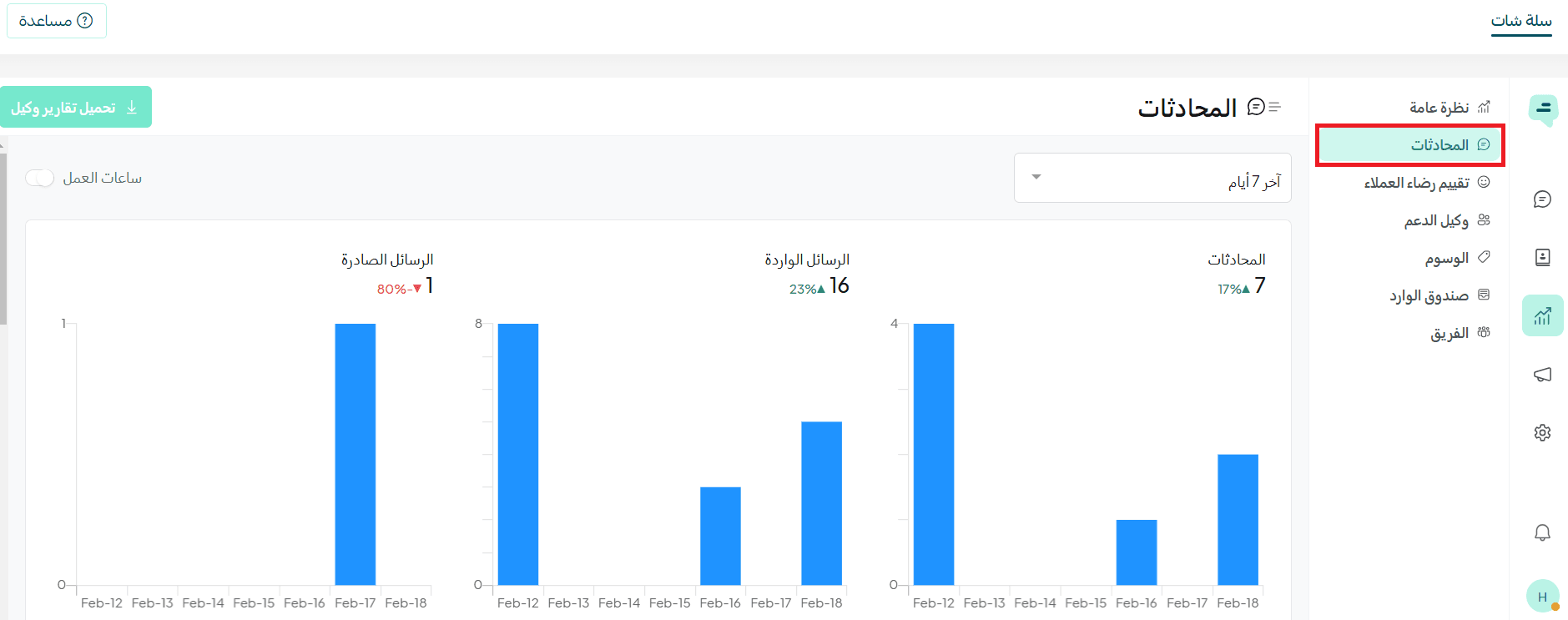
2. Conversations
In this section, you’ll find a comprehensive report that includes:
- Total incoming and outgoing messages
- Response times
- Time taken to reply
These insights help you evaluate customer service performance and improve response times.
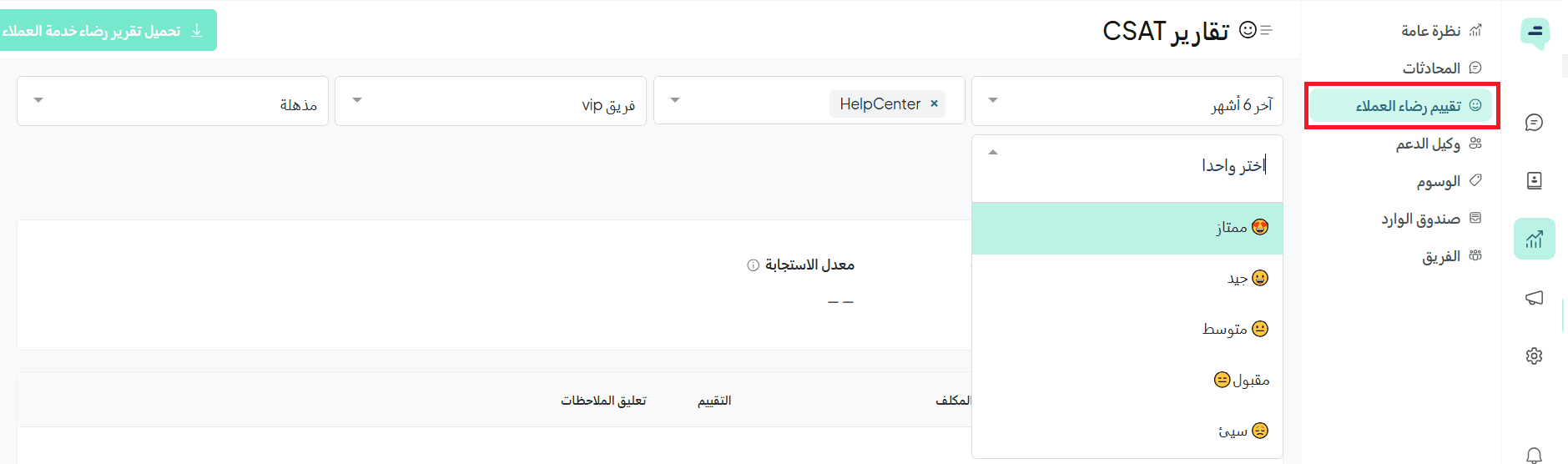
3. Customer satisfaction
This section provides a detailed report showing customer ratings of the support service.
You can review:
- Positive and negative feedback
- Individual employee ratings
This helps you assess your support team’s performance and improve service quality.
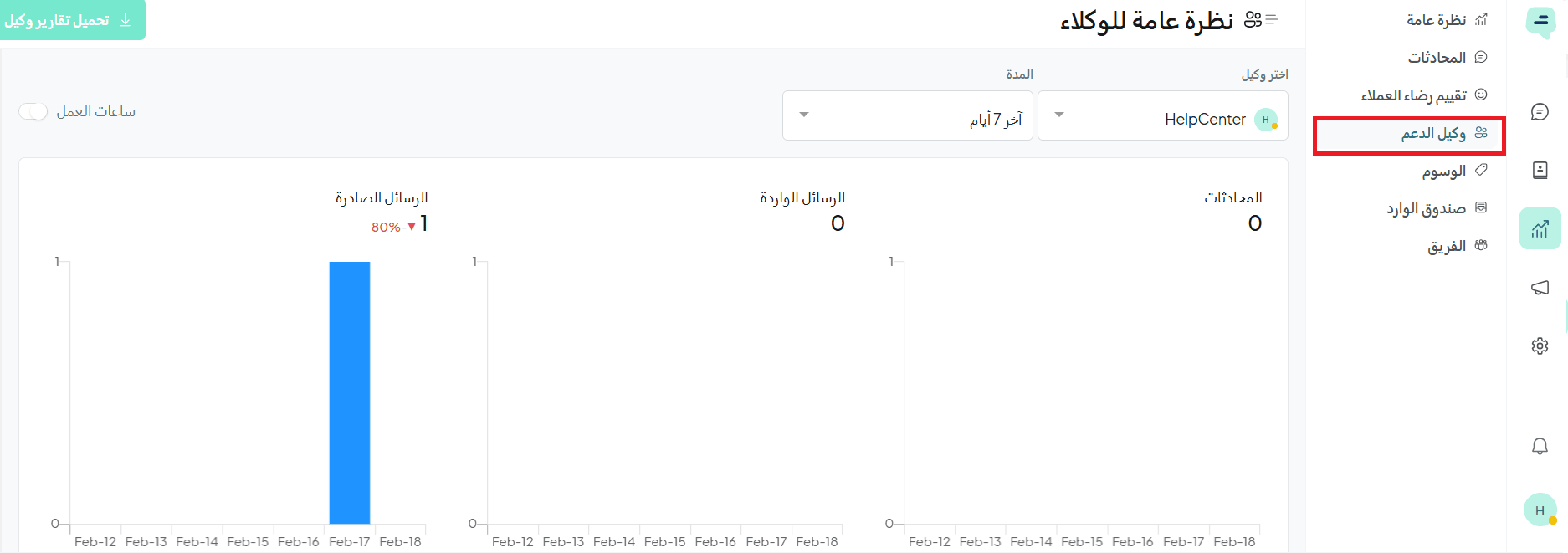
4. Support agents
In this section, you can view detailed reports for each agent individually, including:
- Task completion performance
- Response speed
- Interaction with customers
This helps you evaluate each employee’s performance more accurately.
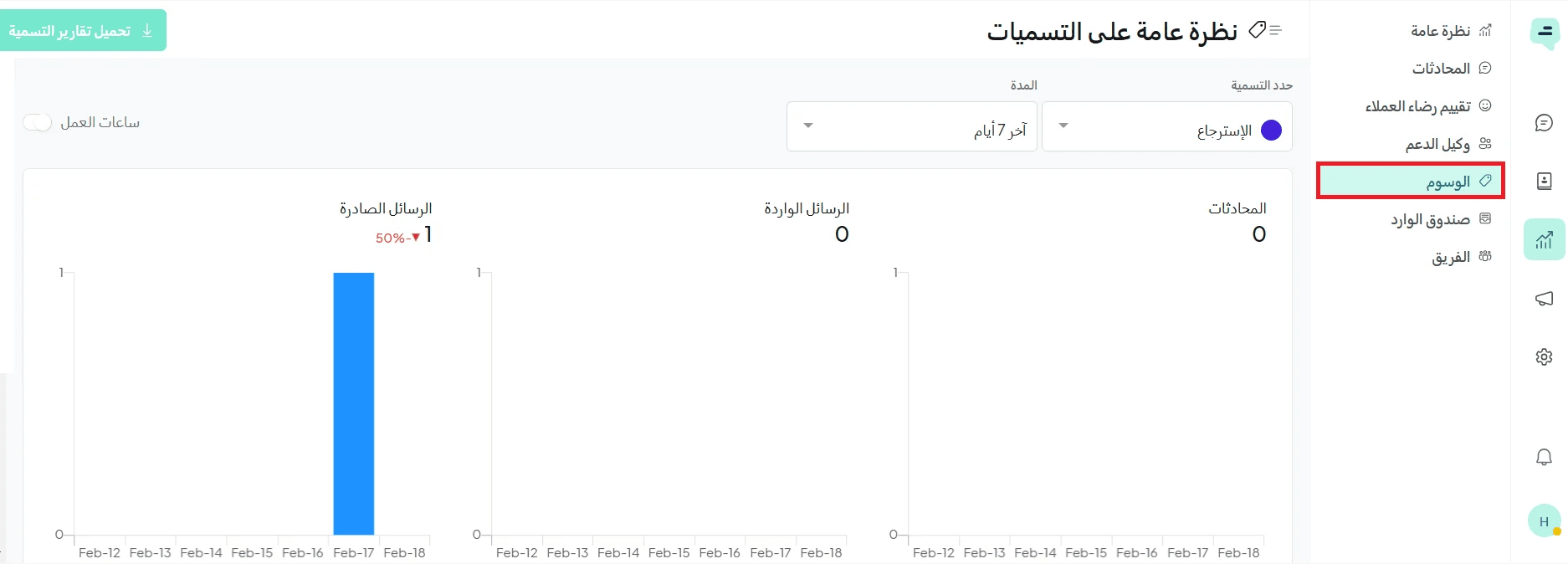
5. Tags
This section displays statistics related to tags used in conversations, including:
- Number of messages (incoming and outgoing)
- Number of conversations associated with specific tags
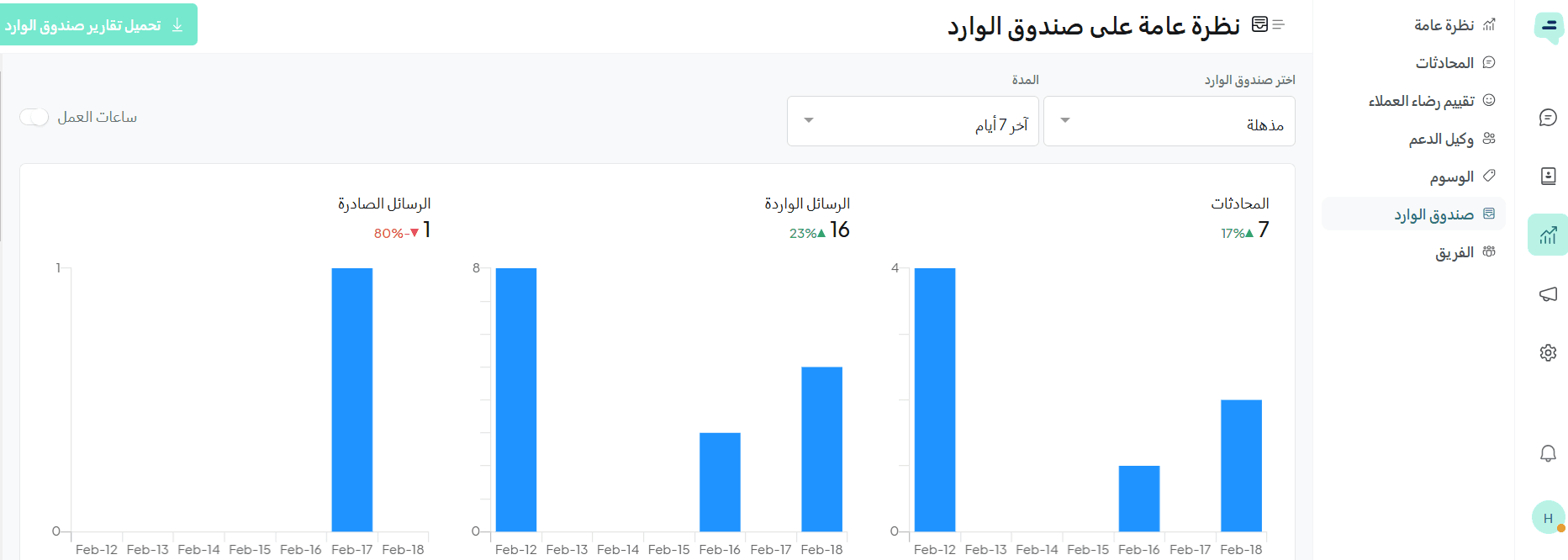
6. Inbox
This section provides a detailed report for each communication channel separately.
It includes:
- Number of received messages
- First response time
- Conversation closing time
- Customer wait time
Along with other metrics that help you analyze conversations per channel.
7. Teams
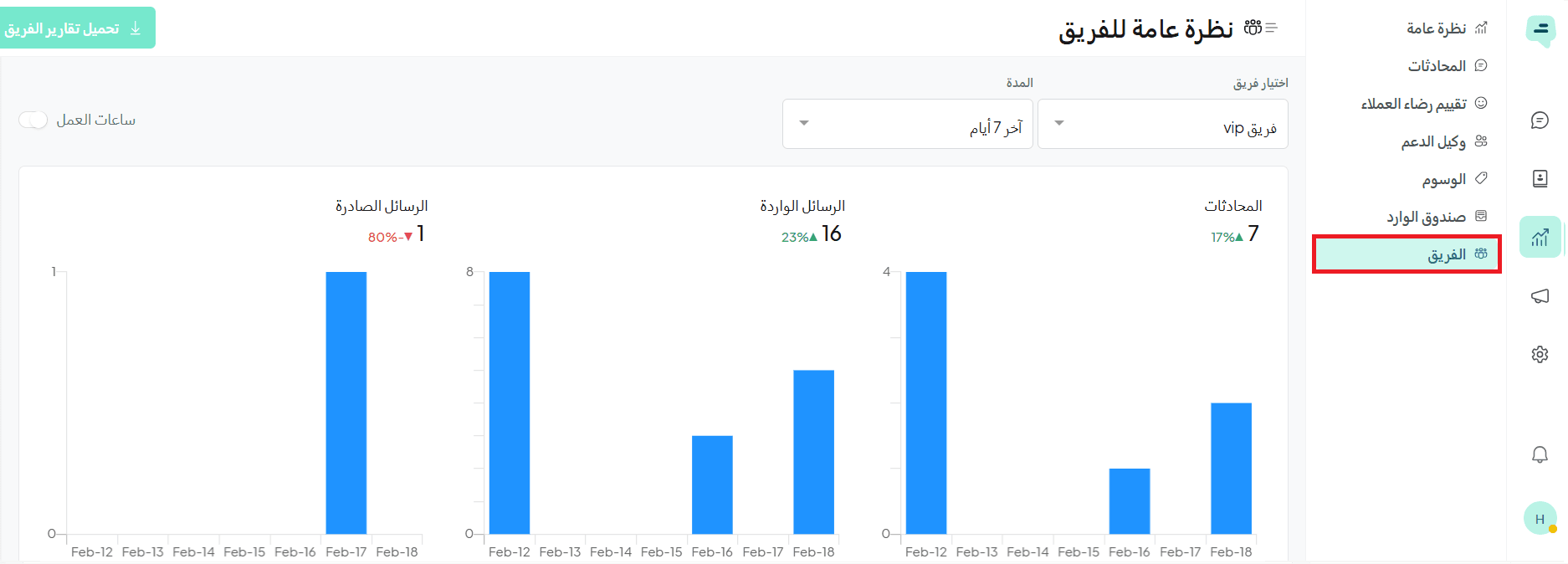
In this section, you can view detailed reports on team performance, broken down by team member.
The report includes:
- Number of handled messages
- Response time
- Conversation closing time
And other insights to help you analyze each team member’s performance in detail.