Effectively managing customer complaints is a key part of long-term success in e-commerce.
By responding quickly and thoughtfully, you can turn a negative experience into a positive one. When customers feel heard and supported, trust increases, loyalty grows, and the risk of losing customers is reduced.
This guide shows you how to manage customer complaints clearly and professionally from start to resolution.
📌 Article overview
- Steps to access customer complaints
- How customers submit a complaint
- Following up on or closing a complaint
- Frequently asked questions
Steps to Access Customer Complaints
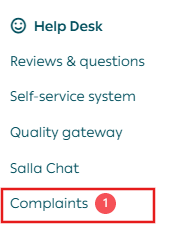
1. Open the complaints section
From the main menu, click Customer Complaints Management.

Then, under Settings and Tools, click Complaints.
2. Review the complaints log
The complaints log page displays:
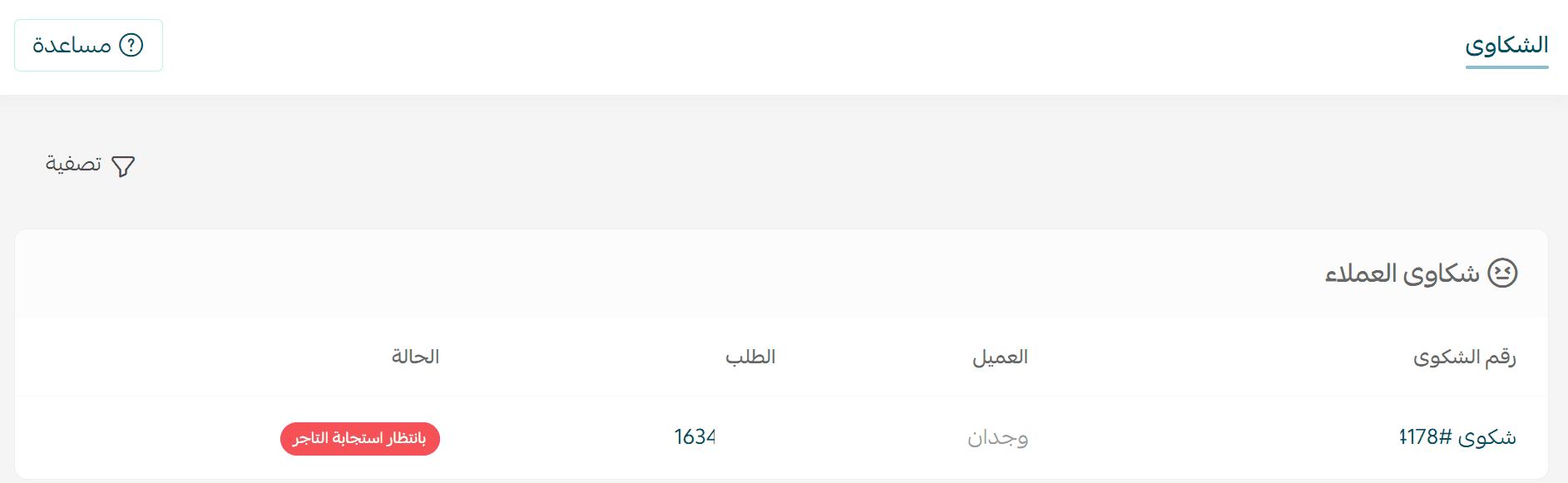
- Complaint number
- Customer name
- Order number
- Complaint status
- You can also filter complaints to find specific cases more easily.
3. View complaint details
To review a specific complaint, click the complaint number you want to follow up on.

The complaint details page will open immediately. Carefully review:
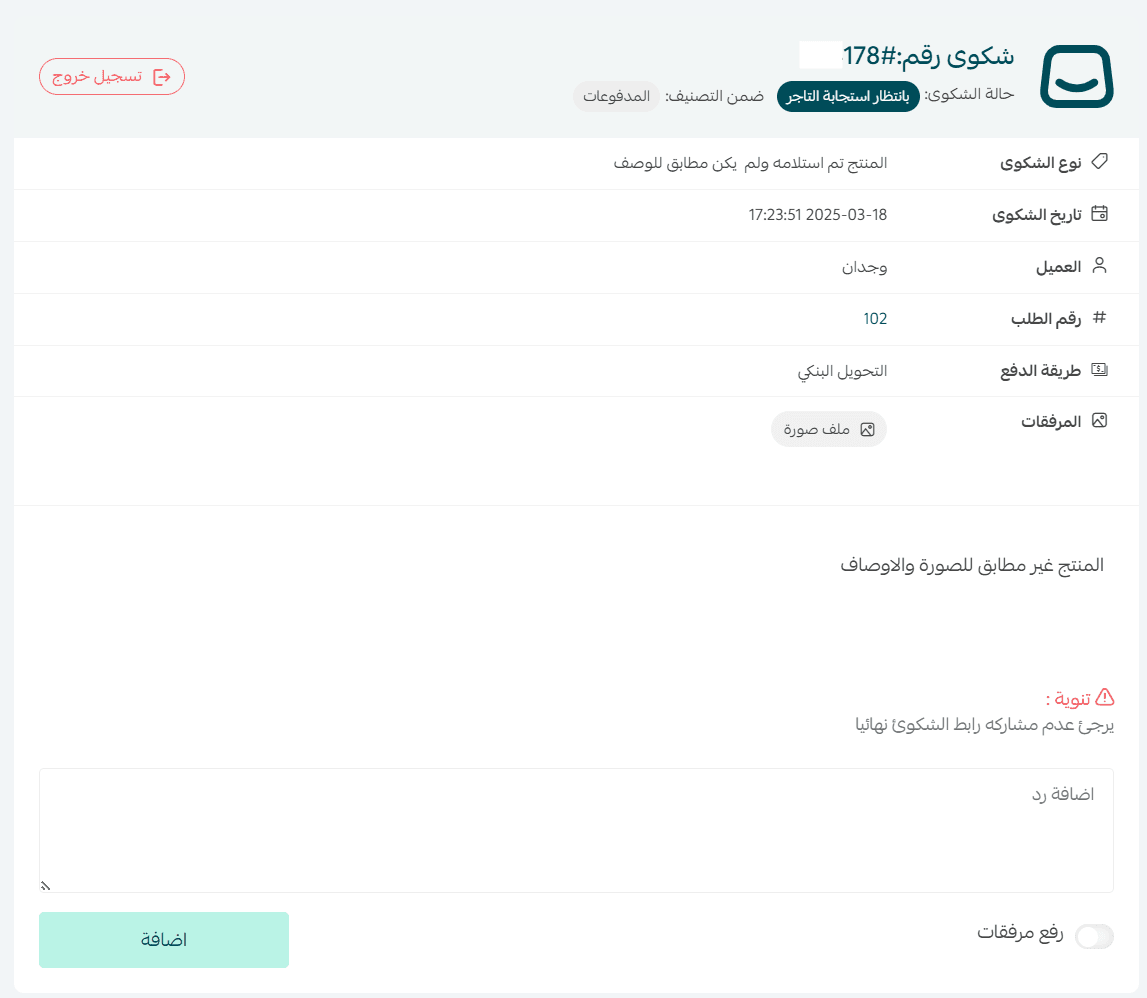
- Complaint type
- Customer description
- Related order or service details
- Make sure all required information is available so the issue can be identified accurately.
4. Respond to the complaint
After understanding the issue, you can reply to the complaint. You may attach images or documents if needed, then click Add.
Make sure your response includes a clear and fair solution. This may include compensation or a discount on a future order, with the goal of restoring customer satisfaction.
📝 Note: If the complaint is not valid, clearly explain why and attach supporting files if available.
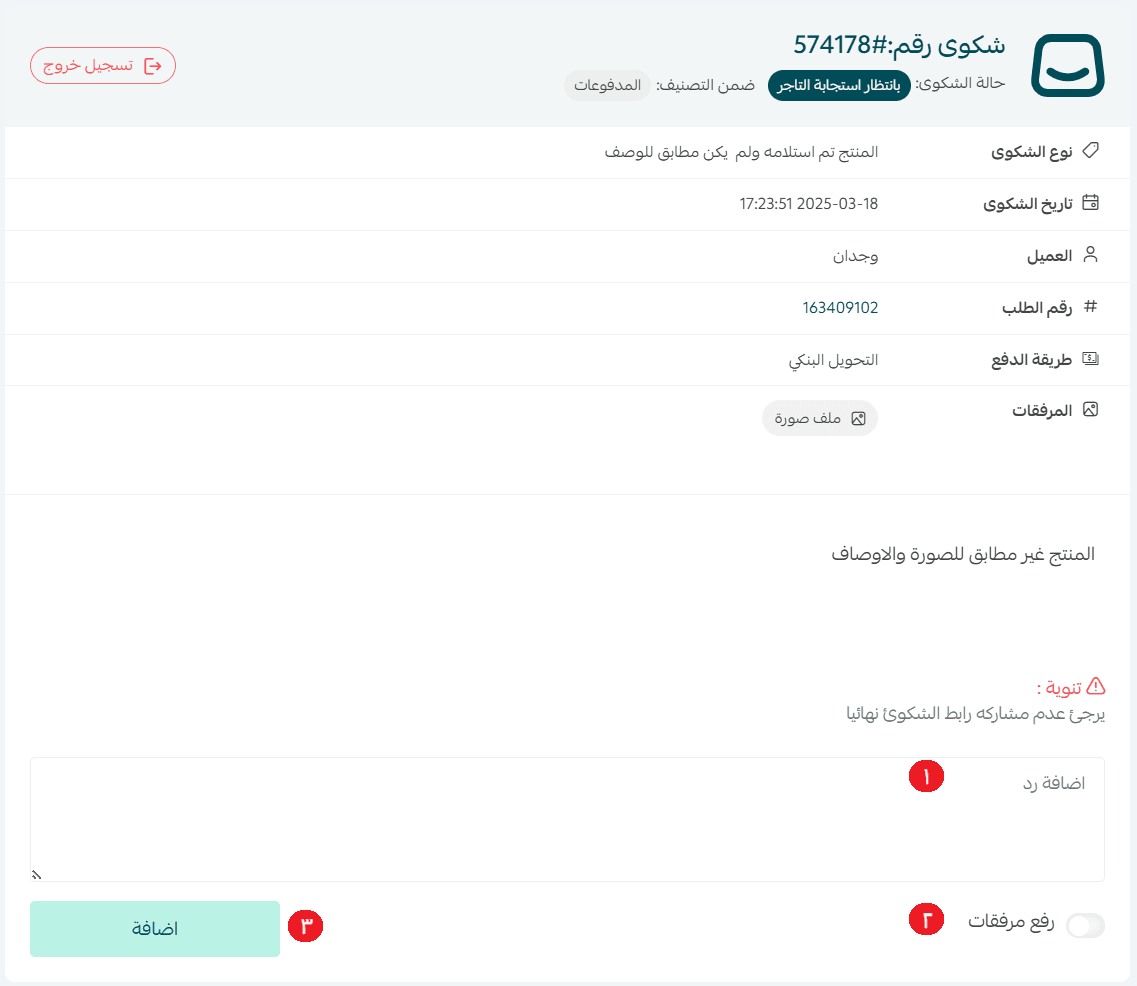
⏳ After responding, you must wait for the customer’s reply to continue the process or for the customer to approve the resolution and close the complaint.
🔔 Notice: The option to close a complaint is available to the customer only.
How Can a Customer Submit a Complaint?
1. Open a new complaint
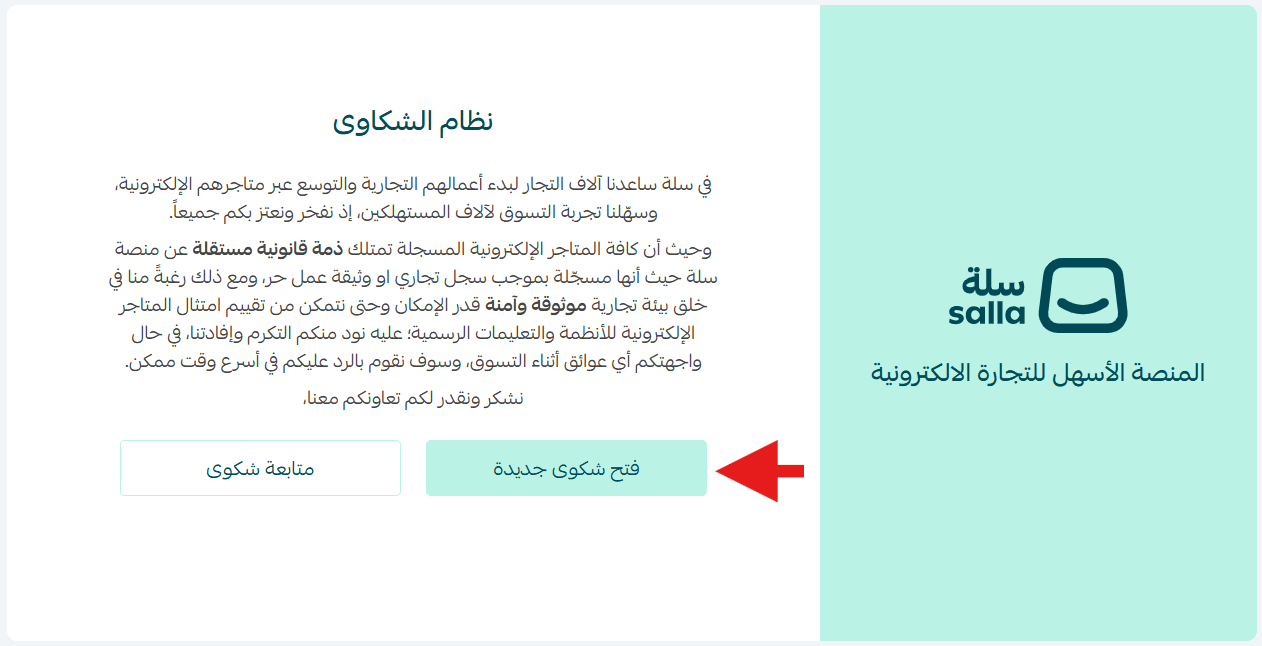
The customer goes to the complaints system page and clicks Open New Complaint.
2. Submit complaint details
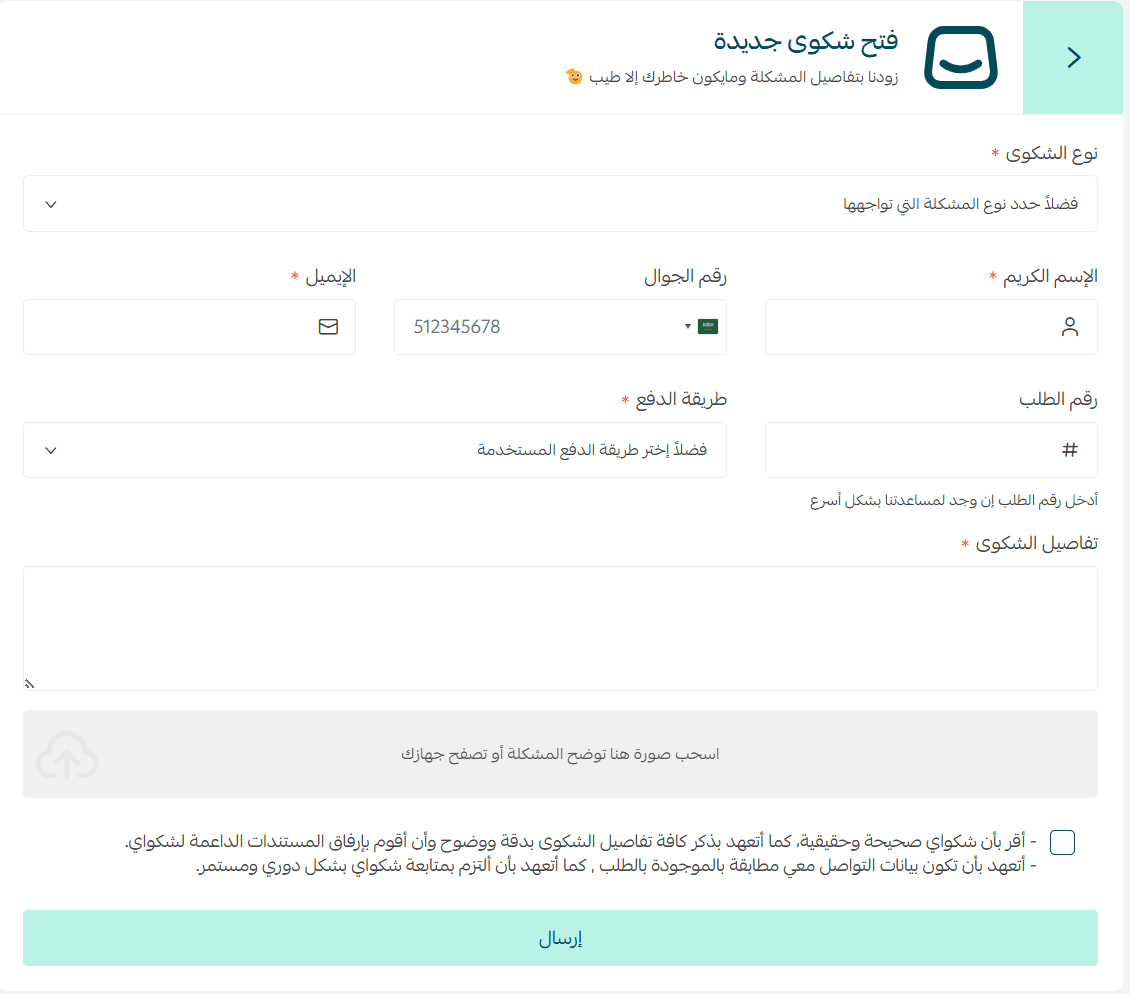
The customer enters the complaint details, attaches images if needed, and agrees to the declaration.
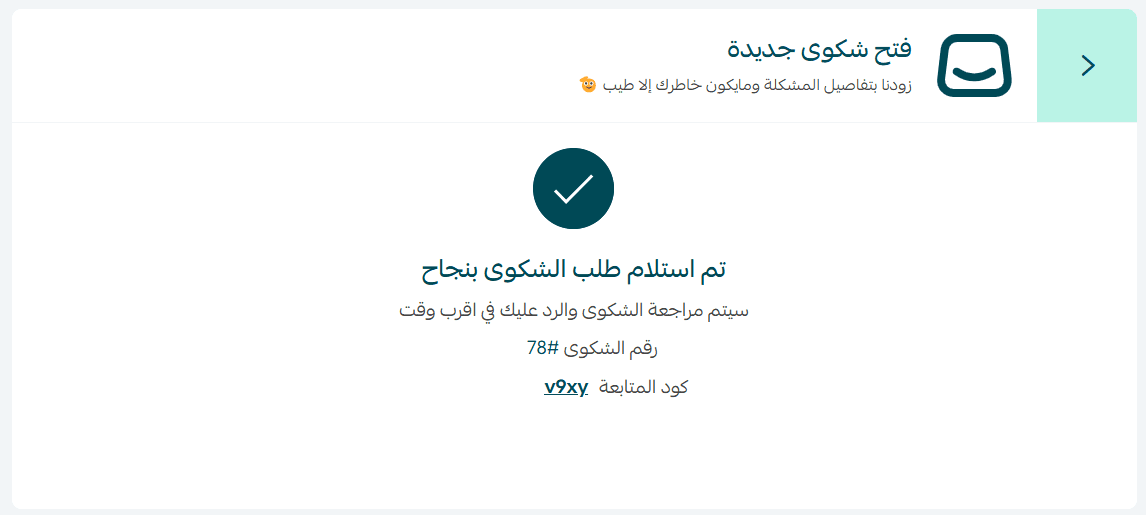
Once submitted, the complaint is sent successfully.
The customer should save the complaint number and tracking code to follow up on the complaint later.
Follow Up on or Close a Complaint
1. Track an existing complaint
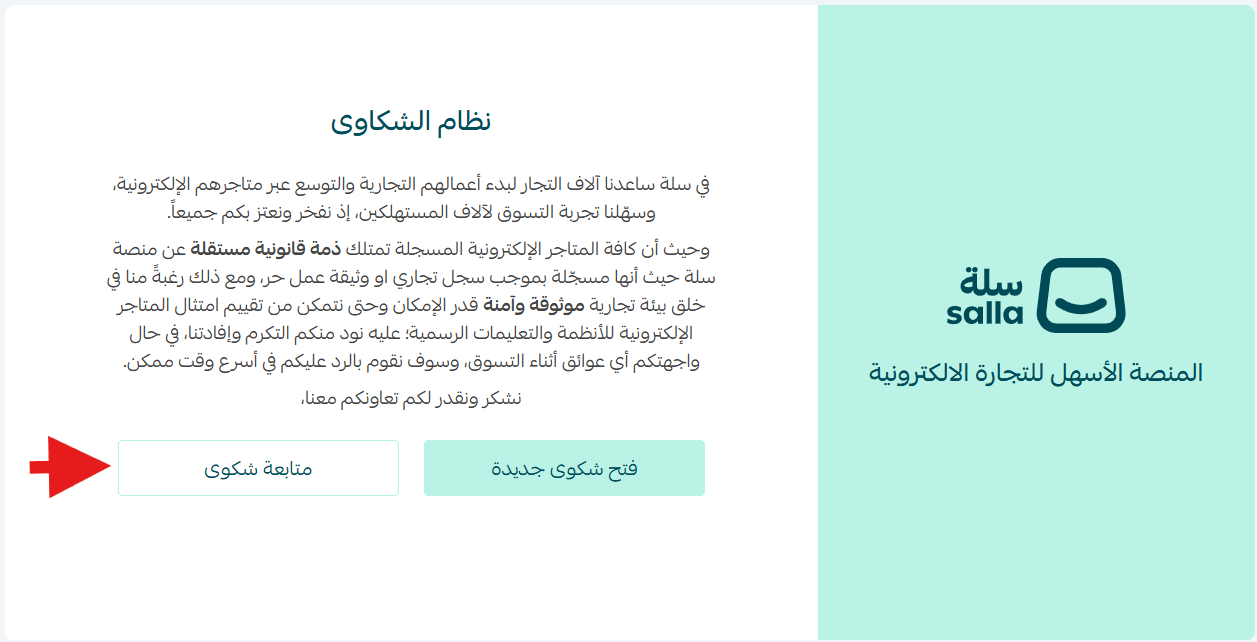
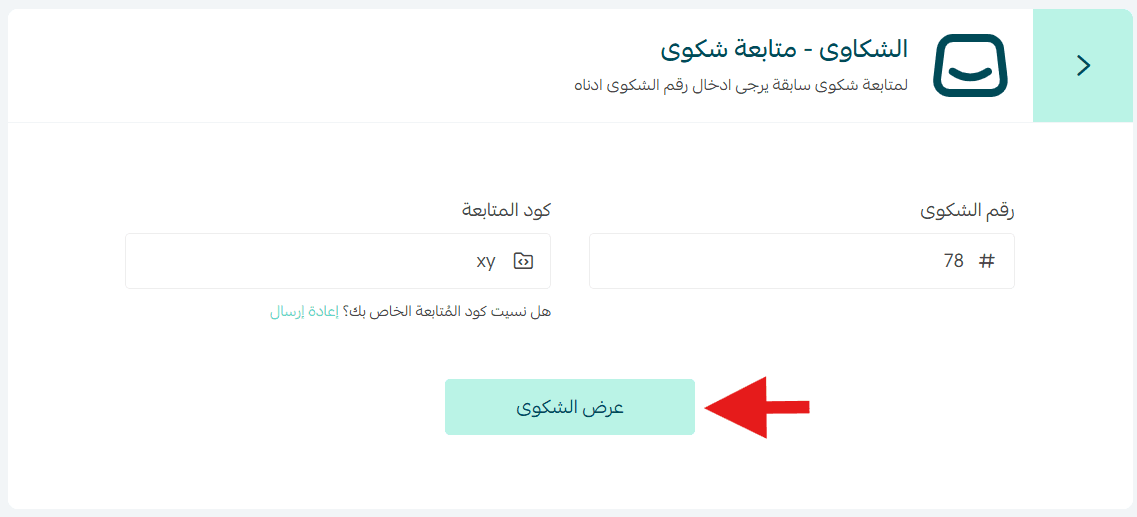
From the complaints system page, click Track Complaint.
2. Enter complaint details
After entering the complaint number and tracking code, click View Complaint.
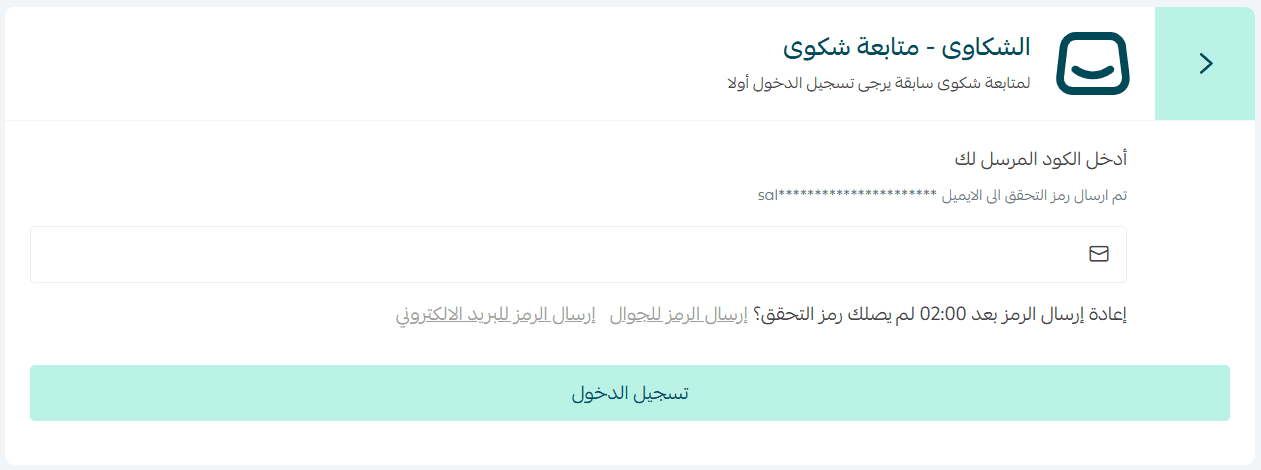
3. Verify identity
Enter the verification code to continue.
4. Review and respond
The customer is redirected to the complaint page where the latest merchant responses are displayed.
The customer can:
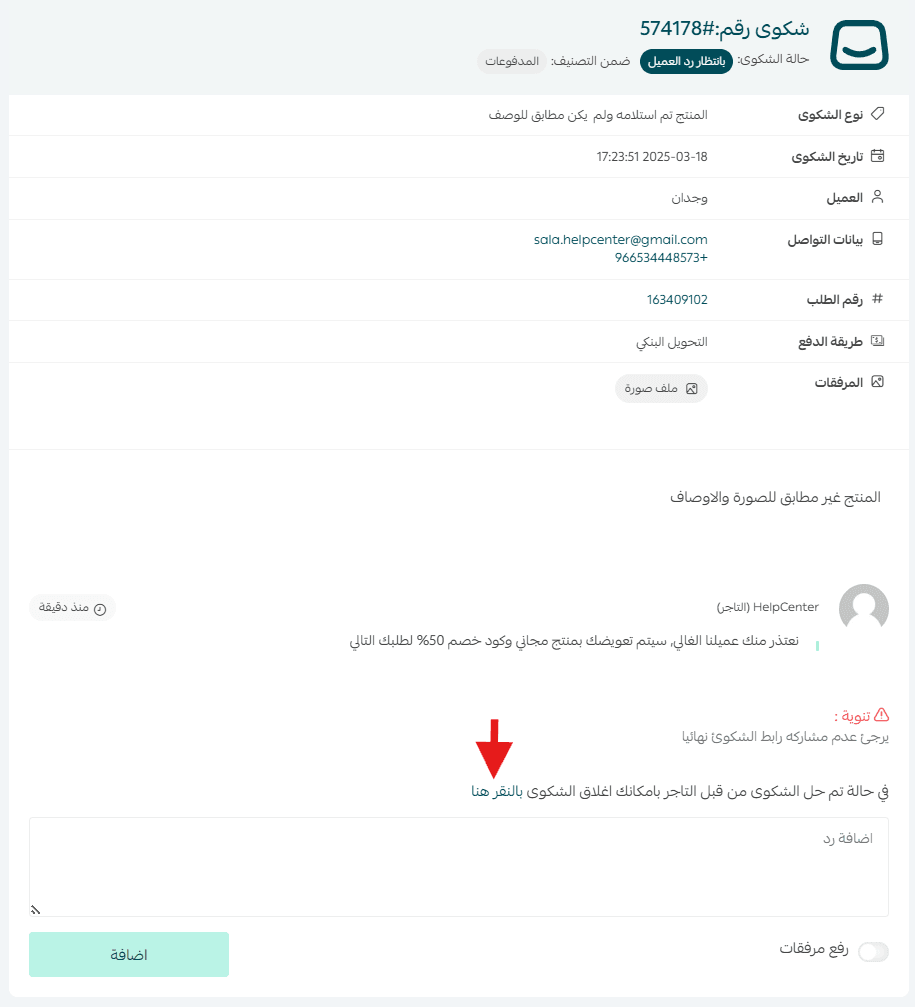
- Add a new reply
- Accept the resolution and close the complaint by clicking Click Here
Closing the complaint
When the customer chooses to close the complaint, a confirmation alert will appear.
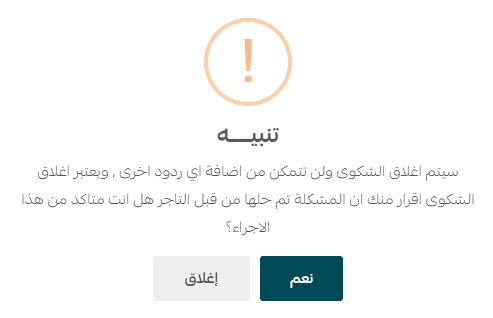
The customer clicks Yes to confirm, then enters the verification code sent to their email and clicks Close Complaint.
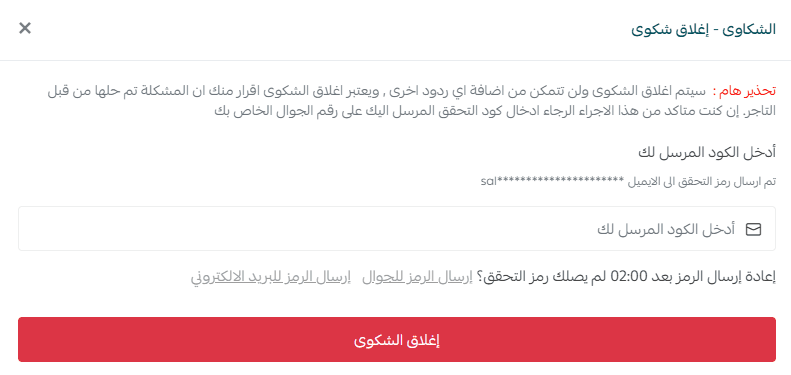
The complaint status will be updated immediately to Closed.

Frequently Asked Questions
What are the current complaint status notifications?
- Under Review by Salla: The initial status after a customer submits a complaint. The Salla team reviews the submitted information.
- Waiting for Merchant Response: The complaint is awaiting action or response from the merchant.
- Waiting for Customer Response: The complaint is awaiting further action or confirmation from the customer.
Final Takeaway
The Customer Complaints Management system helps you resolve issues with clarity, fairness, and professionalism.
By responding carefully and consistently, you protect your reputation, strengthen customer relationships, and turn challenges into opportunities for trust and growth.